¶ Overview
This guide provides instructions on how to access and manage your saved reports. Reports can be categorized into various types such as Alerts, Fuel Monitoring, Engine, Parking, and more. Each report type provides valuable insights into different operational aspects.
¶ Accessing Saved Reports
¶ 1. Navigate to Saved Reports
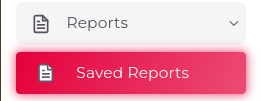
- From the left-side menu, go to Reports -> Saved Reports.
- You will be redirected to the Reports page.
¶ 2. Viewing Saved Reports
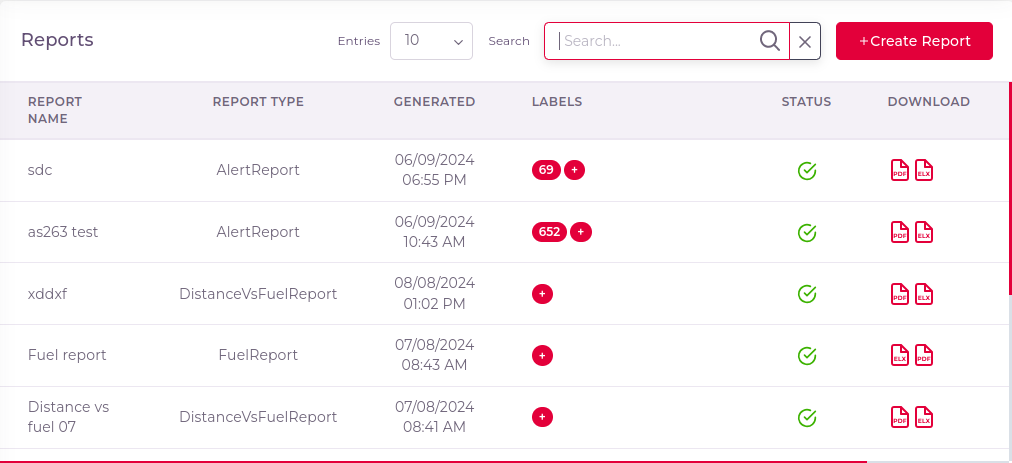
- On the Reports page, you will see a list of reports you have previously created.
- The list displays reports across different categories, allowing you to review and analyze your data.
¶ 3. Managing Report Entries
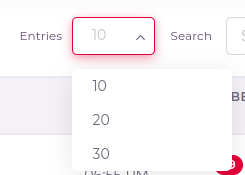
- You can change the number of entries displayed on the current page using the Entries dropdown menu.
¶ 4. Filtering and Searching Reports
- Use the Search Field to filter and search for specific reports based on keywords or other criteria.

¶ 5. Managing Report Labels
- In the table, under the Label column, you can view the labels associated with each report.
- You can also add new labels to reports as needed for better categorization and management.
¶ 6. Downloading Reports
- You can download reports in supported formats (PDF, Excel) using the available options in the interface.

¶ 7. Navigating Pages
- Below the table, you will find pagination controls, including number list and left/right arrows, to navigate through different pages of your saved reports.

¶ 8. View, Edit, and Delete Actions
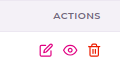
- Each report entry has options for:
- View: Click on the report name to view its details.
- Edit: Use the Edit button to modify report parameters or labels.
- Delete: Click on the Delete button to remove the report from your saved list. A confirmation dialog will appear to confirm the deletion.
¶ Troubleshooting
- Report Not Displaying: Ensure you have saved reports and are on the correct page. Use the search field to locate specific reports if necessary.
- Download Issues: Verify that the report format is supported and check for any download restrictions.