¶ Overview
Users can create, manage, and delete reusable alerts within their account. These alerts are versatile and can be applied to one or more units or unit groups to monitor various events such as Geofence In, Service Reminders, Fuel Theft Alerts, and more. Each alert must have a unique name within the account and can be used across multiple units or unit groups, allowing for efficient and organized monitoring of important events.
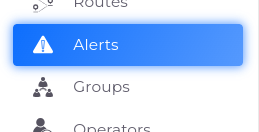
¶ Access the Menu:
- On the left side of your screen, find and open the main menu.
- Scroll down the menu until you see Notifications.
- Click on Notifications to open the notifications list.
¶ Alert List
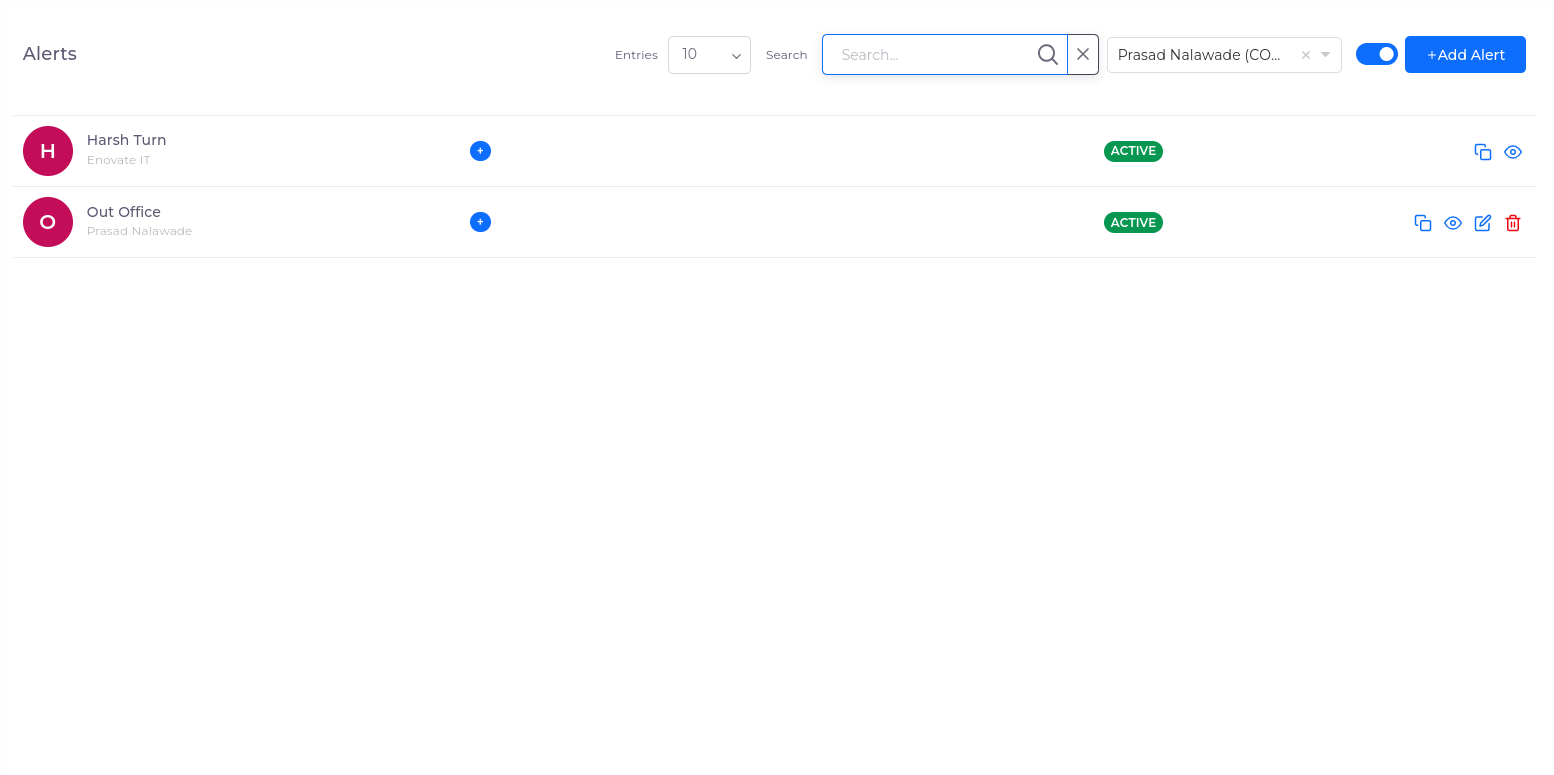
On the alert list screen, users can view all existing alerts with the following key columns:
- Alert Name: Displays the unique name for easy identification.
- Labels: Tags that categorize alerts. Permissions determine if users can add or edit these labels.
- Status: Indicates whether the alert is Active (enabled) or Inactive (disabled).
¶ Key Features:
- Search: Use the search bar to quickly locate alerts by name.
- Filter: Apply filters using the child account tree to narrow down alerts for specific accounts.
¶ Actions:
- Cloning: Duplicate the alert for similar use.
- Edit: Modify the alert details.
- Delete: Permanently remove the alert.
- View: View full alert details without making changes.
¶ Steps to Create an Alert
-
Navigate to Alerts
- Click on Reference Data.
- Click on Alert to open the alert list screen.
-
View Alert List
- On the alert list screen, all existing alerts are displayed.
-
Create a New Alert
- Click on the Add button to open the alert creation screen.
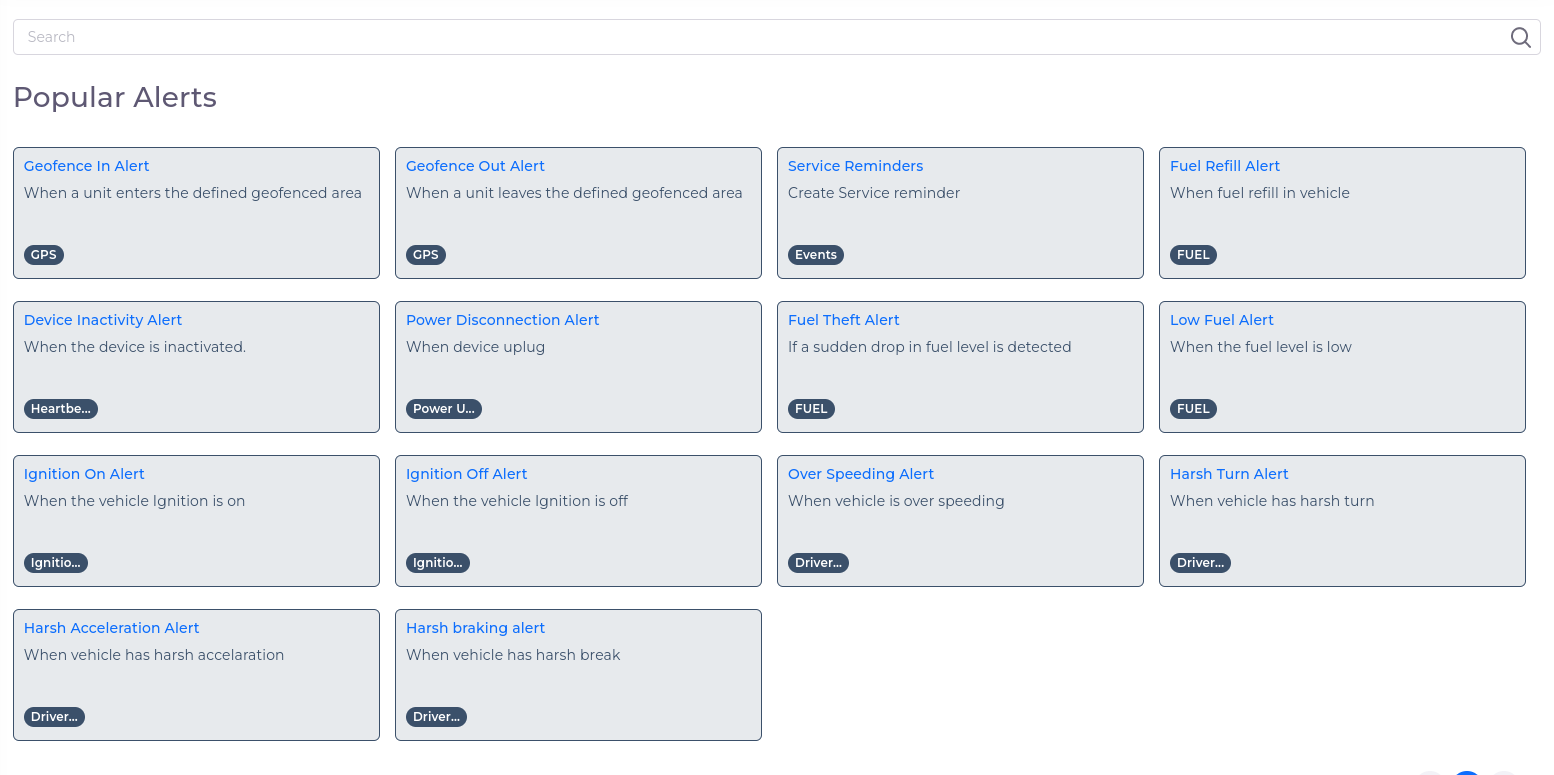
- Select the alert type from the list (e.g., Geofence In, Service Reminders, Fuel Theft).
You can refer following link for popular alerts click here
- Proceed to the next screen and fill in the required parameters for the selected alert.
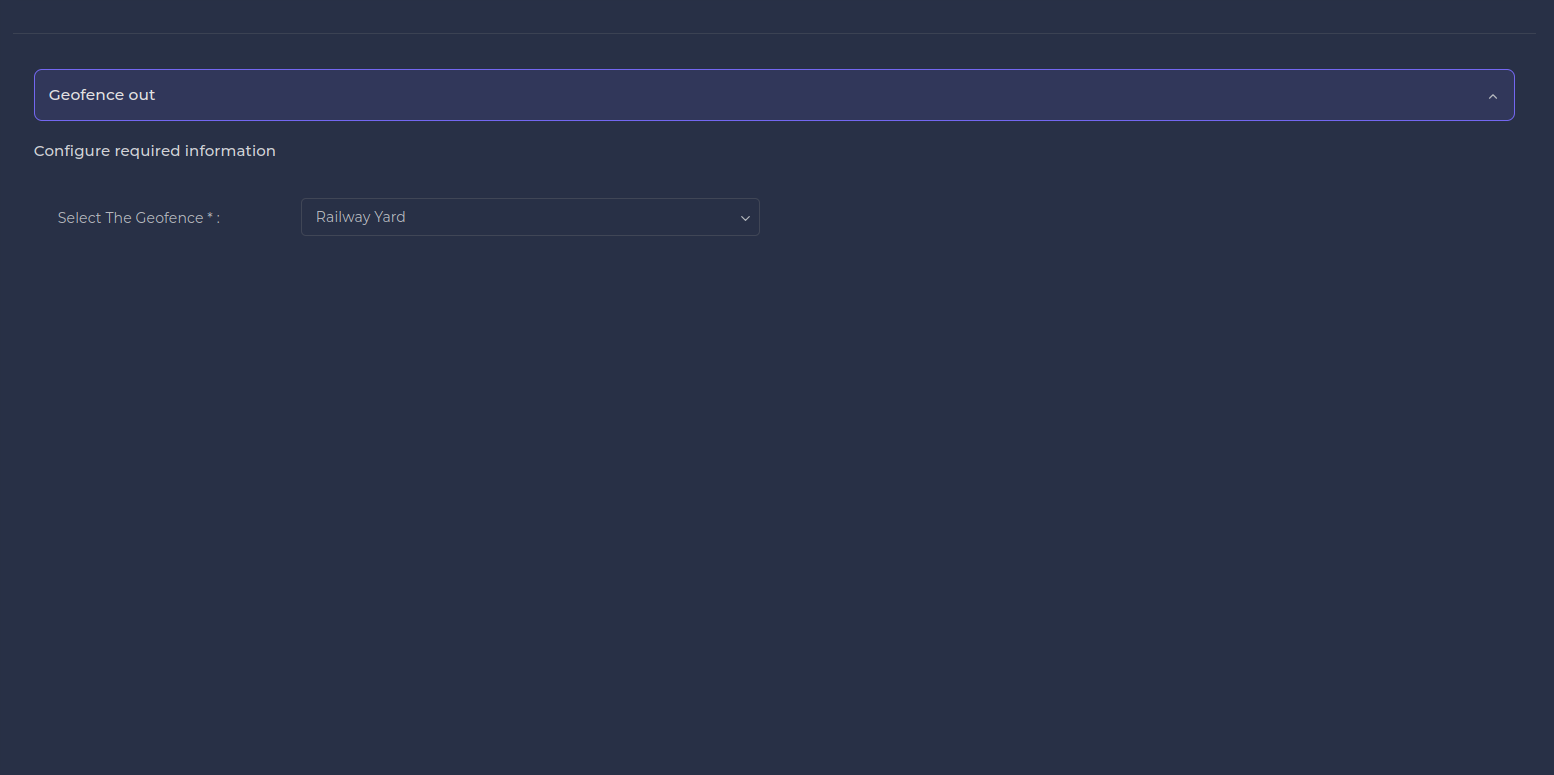
- Click on Next to go to the final alert creation screen.
- Complete Alert Details
- Enter the required fields:
- Name (minimum length: 3, maximum length: 50)
- Labels
- Description
- Allow Child to Use the Alert (flag)
- Click on the Save button.
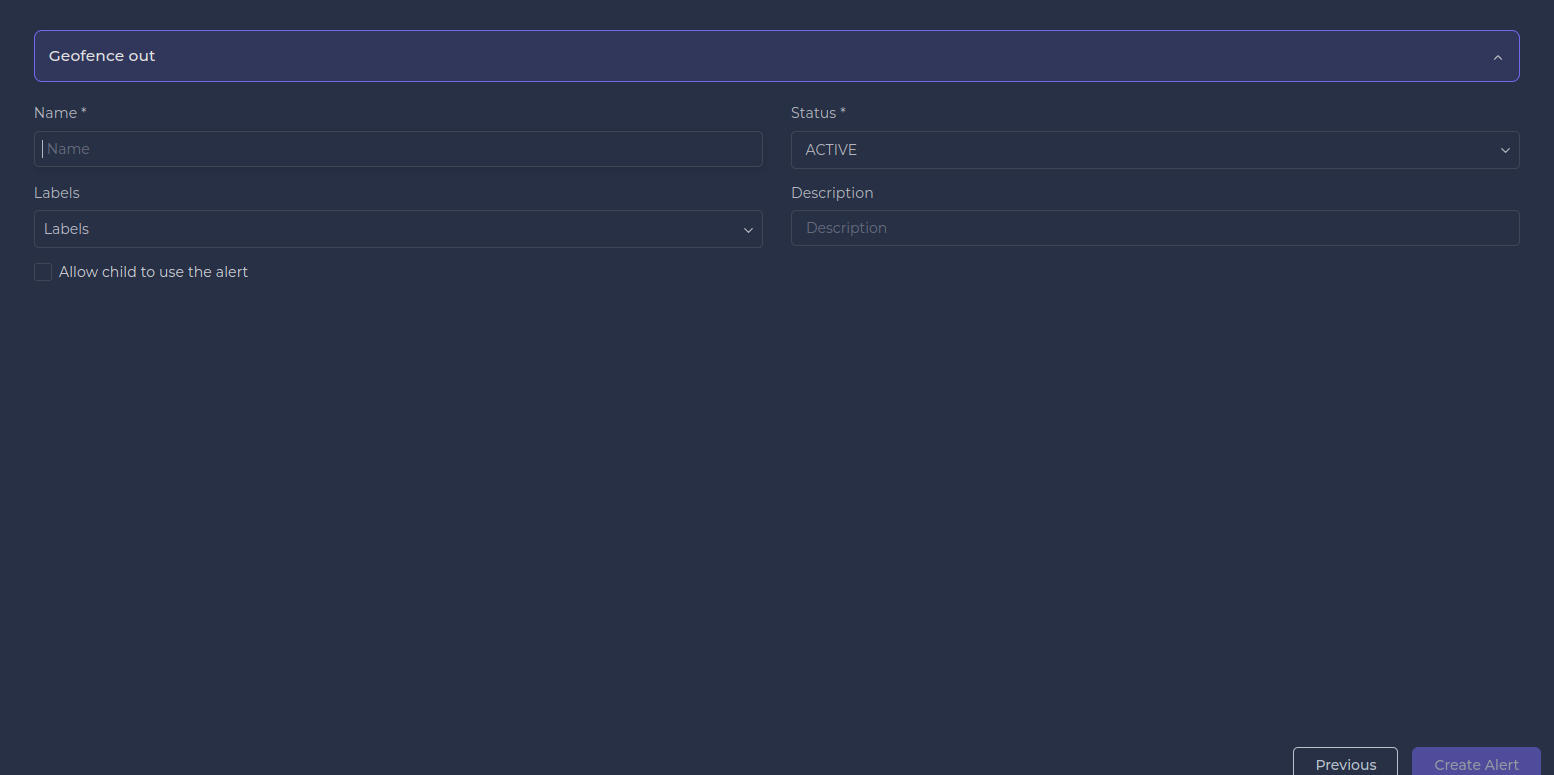
- Enter the required fields:
- Post-Creation Actions
- After creating the alert, you will be redirected to the notification creation screen with the created alert or back to the alert list screen.
¶ Deleting an Alert
-
Navigate to Alert List
- On the alert list screen, locate the alert you wish to delete.
-
Delete the Alert
- Click on the Delete (trash can) icon next to the alert you want to remove.
- A confirmation dialog will appear, asking you to confirm if you want to delete the alert.
- If confirmed, the alert will be permanently deleted from the system and will no longer trigger notifications or be associated with any units or groups.
-
Post-Deletion Actions
- The alert will be removed from the list, and any associated notifications will be disabled.
- You will be returned to the alert list screen, where the deleted alert will no longer appear.
¶ Updating an Alert
-
Navigate to Alert List
- On the alert list screen, locate the alert you wish to update.
-
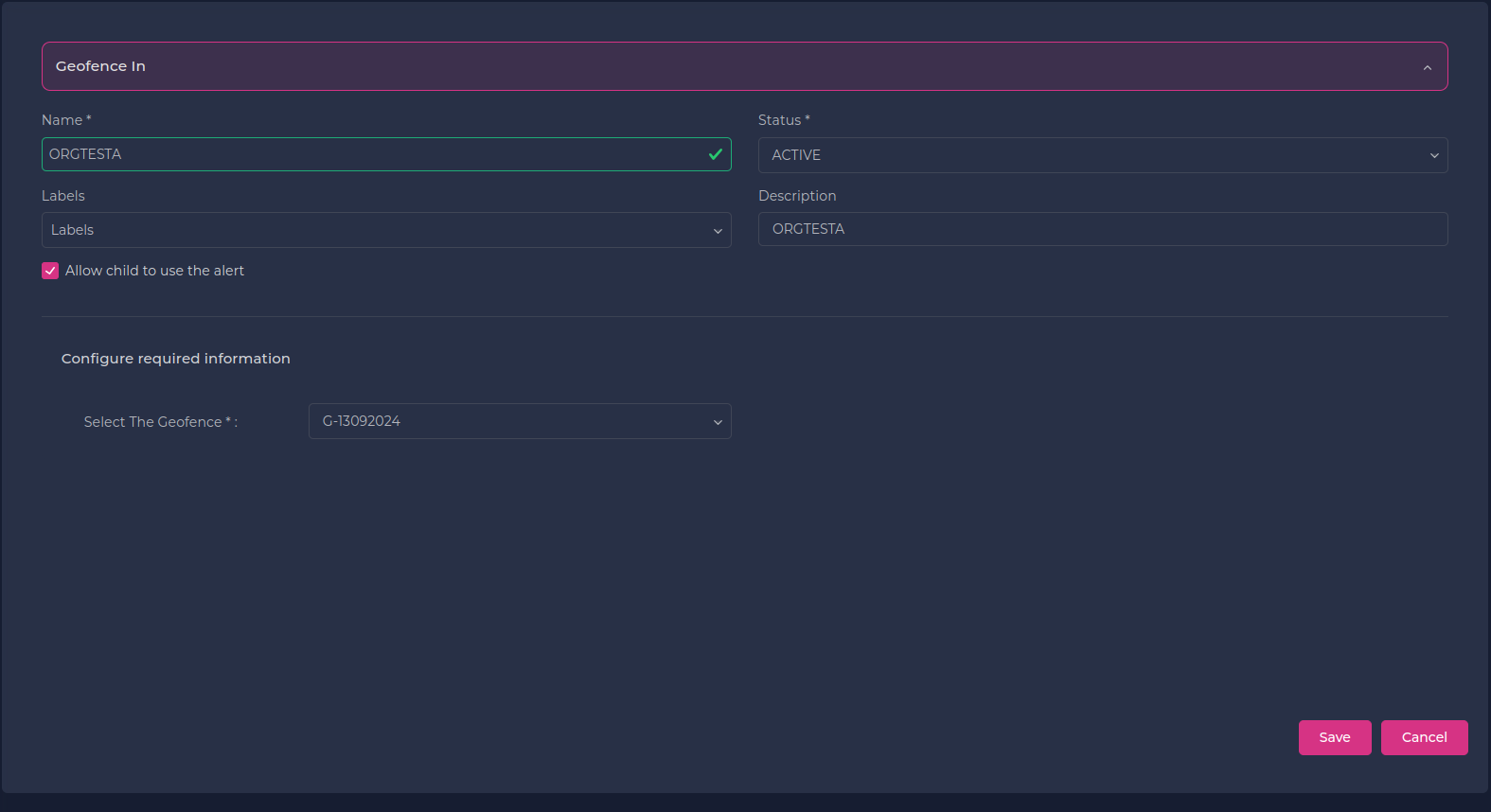
Edit the Alert
- Click on the Edit icon for the selected alert.
- Update the required fields and save changes.
¶ Troubleshooting
-
Alert Not Appearing in List:
- Ensure that the alert was saved correctly and has not been accidentally deleted.
- Check if the alert is filtered out by the current view settings.
-
Unable to Edit or Delete Alert:
- Verify that you have the necessary permissions to edit or delete the alert based on your user role.
- Confirm that the alert is not currently being used or referenced by other units or groups.
-
Error Saving or Deleting Alert:
- Make sure all required fields are filled out correctly, including the name, labels, and description.
- Check for any system issues or contact support if the problem persists.
-
Child Account Issues:
- Ensure that the child account has access to the alerts created by the parent account and that no restrictions are preventing access.