¶ Overview
Geofences allow you to track and monitor units within specific areas. Follow the instructions below to create and manage geofences effectively.
¶ Instructions
¶ Accessing Geofences
-
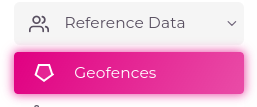
Navigate to Geofences:
- Go to the left side menu of your screen.
- Click on Reference Data -> Geofences.
-
Configure a New Geofence:
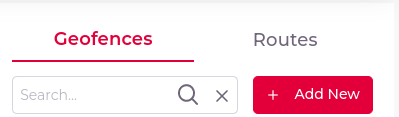
- In the "Geofences" page, locate the Geofences section.
- If you have the necessary permissions, click on the Add New button to create a new geofence.
¶ Geofence Configuration
-
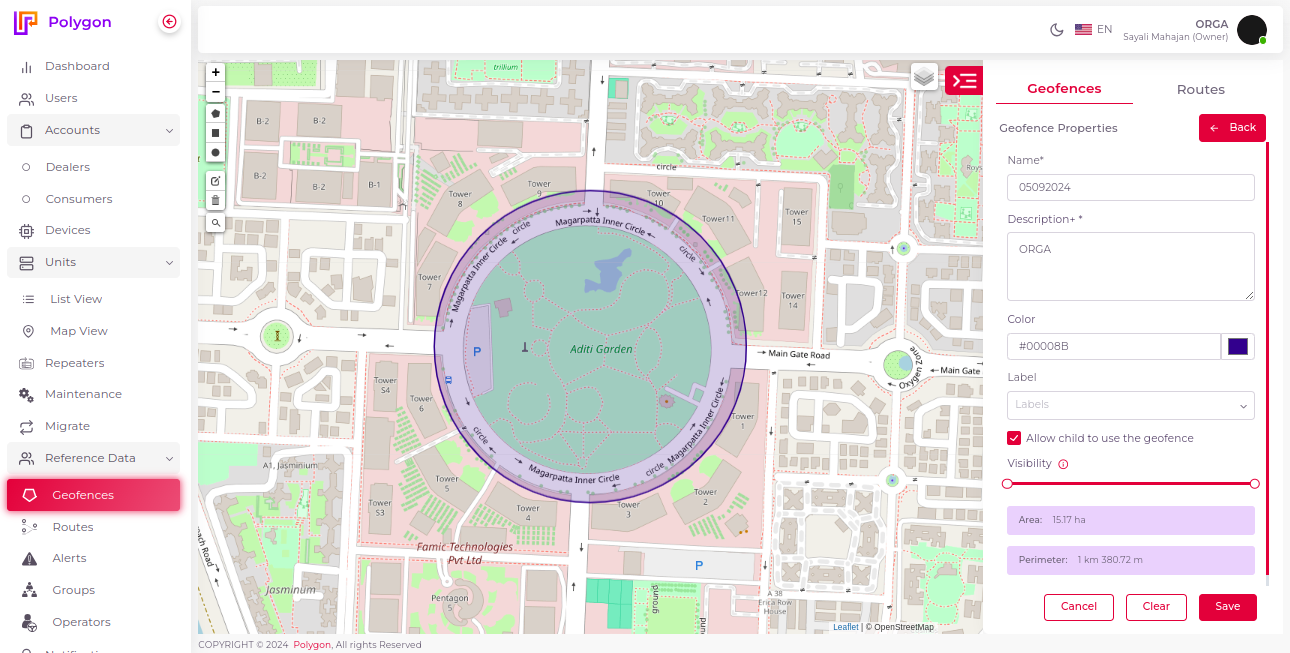
Enter Geofence Name:
- In the Name field, enter your geofence name. A minimum of 3 characters and a maximum of 30 characters are required.
-
Provide a Description:
- In the Description field, enter details about the geofence.
-
Set Geofence Color:
- In the Color field, configure the geofence color.
-
Draw Geofence on Map:
- Use the provided tools to draw the geofence on the map. You can choose from various shapes such as polygon, rectangle, and circle.
-
Label the Geofence:
- In the Label field, add or select a geofence label.
-
Allow Child Use:
- Check the Allow child to use the geofence box to enable child entities to use the geofence.
-
Set Visibility:
- The Visibility field controls the zoom factor on the map for the geofence.
-
View Area and Perimeter:
- The Area field displays the calculated area of the drawn geofence.
- The Perimeter field displays the total distance around the edge of the shape, calculated by summing the lengths of all sides.
-
Save or Cancel Changes:
- Click the Save button to apply your changes and create/update the geofence.
- Click the Clear button to reset the changes.
- Click the Cancel button to cancel the changes and return to the geofence creation section.
¶ 5. Managing Geofences
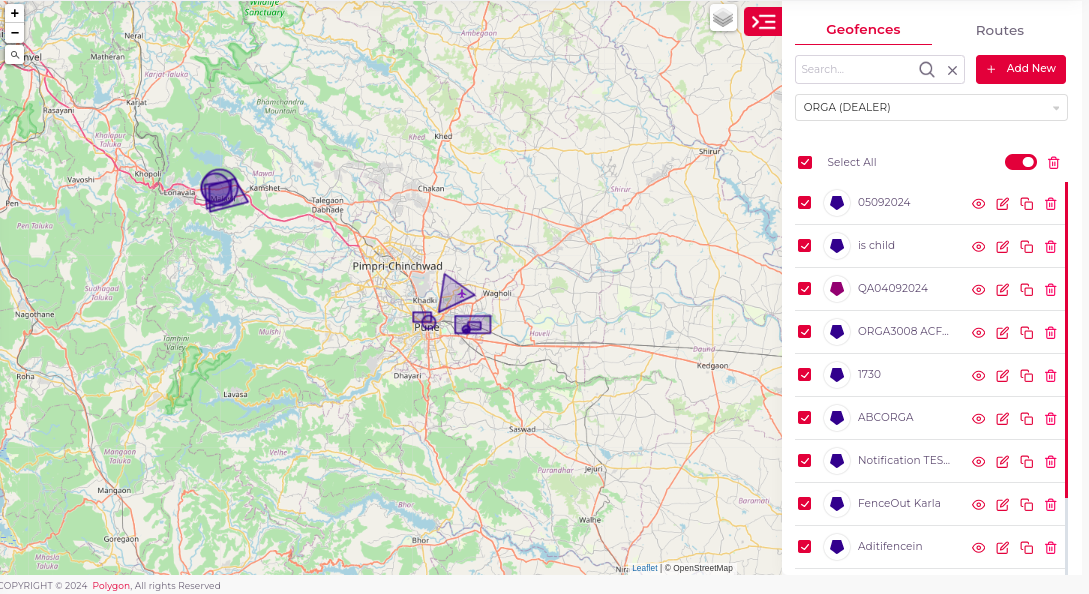
- Search: Use the search field to find specific geofences.
- Filter by Account: Filter geofences specific to an account using the Account Select dropdown.

- Select All: Enable the Select All checkbox to select all geofences in the list.
- Inherited Items: Toggle Inherited Items to show or hide parent geofences.
- Bulk Delete: Use the Delete icon button to bulk delete selected geofences. (Note: You must have delete permissions.)
- View Details: Click the Eye icon to view details of a specific geofence.
- Edit Geofence: Use the Edit icon button to modify an existing geofence. (Note: You must have edit permissions.)
- Copy Geofence: Click the Copy icon to duplicate an existing geofence.
- Delete Geofence: Use the Delete icon button to remove a specific geofence. (Note: You must have delete permissions.)
¶ Troubleshooting
- Ensure you have the necessary permissions to create, edit, or delete geofences.
- Verify that all required fields are filled out before saving.