¶ Key Features
-
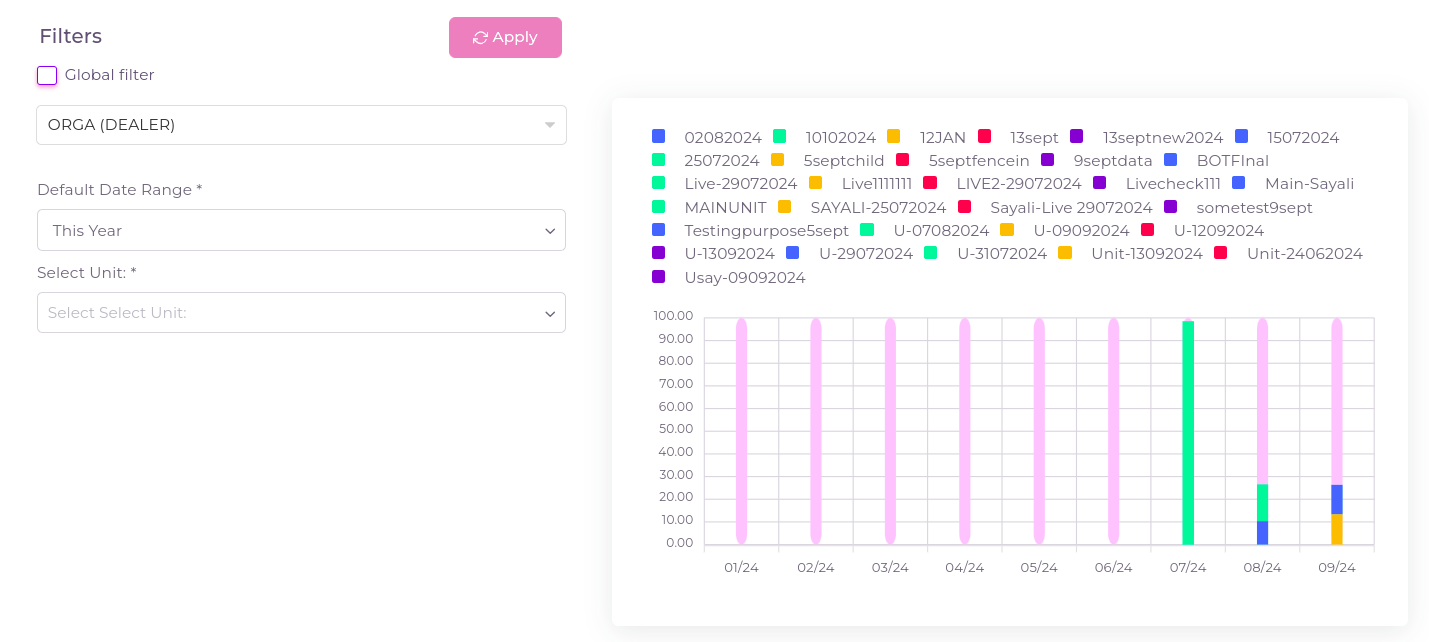
Mileage Chart:
- Displays unit-wise mileage in a visual format, allowing for easy analysis of travel patterns and vehicle usage.
-
Date Filters:
- Users can apply date filters to view mileage data for specific time periods, helping to track and compare mileage over time.
-
Unit Filters:
- Apply unit filters to analyze unit mileage over specific units.
- If you checked the global filter then whatever units and groups are selected in the Filters tab that will be applicable.
¶ How to Use the Mileage Page
-
Navigate to Mileage:
- Click on the Widgets and select Mileage.
-
Apply Date Filters:
- Use the date filter options to select a specific date range for which you want to view the mileage data.
-
Analyze Mileage Data:
- The page presents a chart showing unit-wise mileage, helping you analyze vehicle usage and optimize operations based on the data.
-
Understand the Chart:
- The chart uses Y-coordinate represents the fuel consumed (in liters or gallons), depending on the configuration set in the device and the X-coordinate to represent the date, allowing users to track daily running performance over time.