¶ Overview
The device management module in the "Polygon" project allows dealers to create, manage, and allocate devices with specific properties. This guide details the requirements and validation rules for each device property to ensure accurate and consistent device management.
¶ Device Creation
Dealers can create devices by entering the required properties and ensuring that they meet the specified validation rules.
¶ Accessing the Devices Menu
To manage devices:
- Navigate to the devices menu.
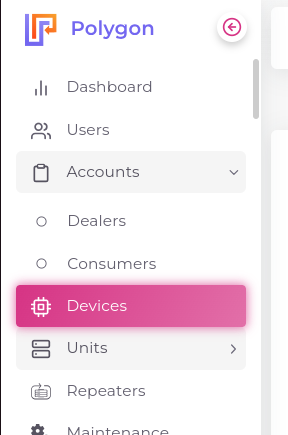
- Access the device list page via Devices.
¶ Device List Screen Overview
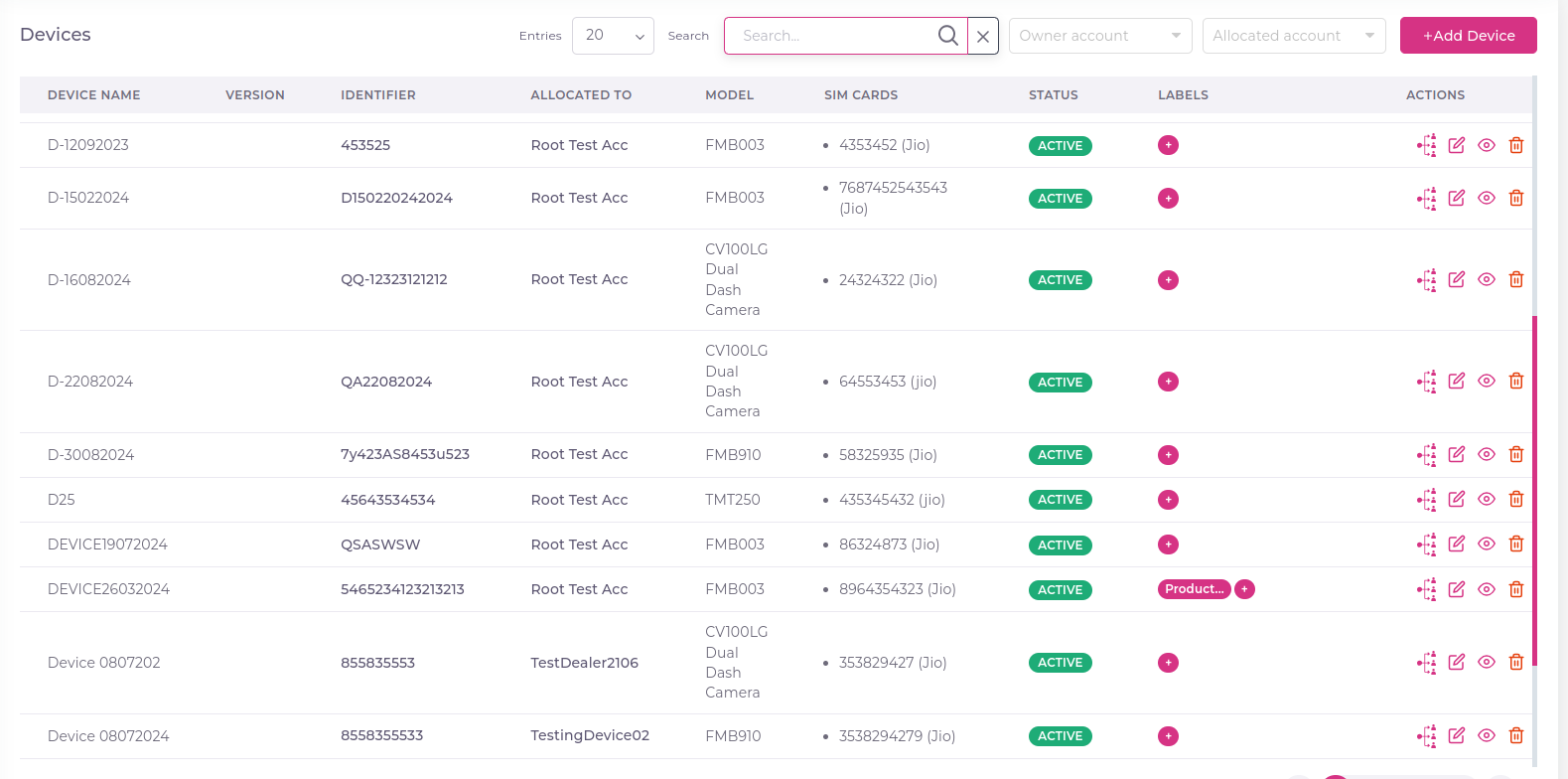
The device list screen displays the following columns:
- DEVICE NAME
- VERSION
- IDENTIFIER
- ALLOCATED TO
- MODEL
- SIM CARDS
- STATUS
- LABELS
¶ Device List Filters
-
Search: This filter allows users to efficiently locate specific devices within the polygon by entering keywords. It searches across device names, identifiers, and other pertinent details, making it easier to find a particular device quickly.
-
Owner Account: This filter enables users to view all devices associated with a specific owner account within the polygon management system. By selecting an owner, users can manage and monitor the devices belonging to that account, ensuring better oversight and accountability.
-
Allocated Accounts: This filter shows devices that are assigned to designated accounts within the Polygon. Users can filter by account to see which devices are allocated, aiding in effective resource allocation and tracking the distribution of devices across different accounts in the polygon.
¶ Actions on the Device List Screen
¶ 1. View Device Details
Steps:
- Locate the device you want to view on the device list screen.
- Click the "View" button next to the device.
What to Expect:
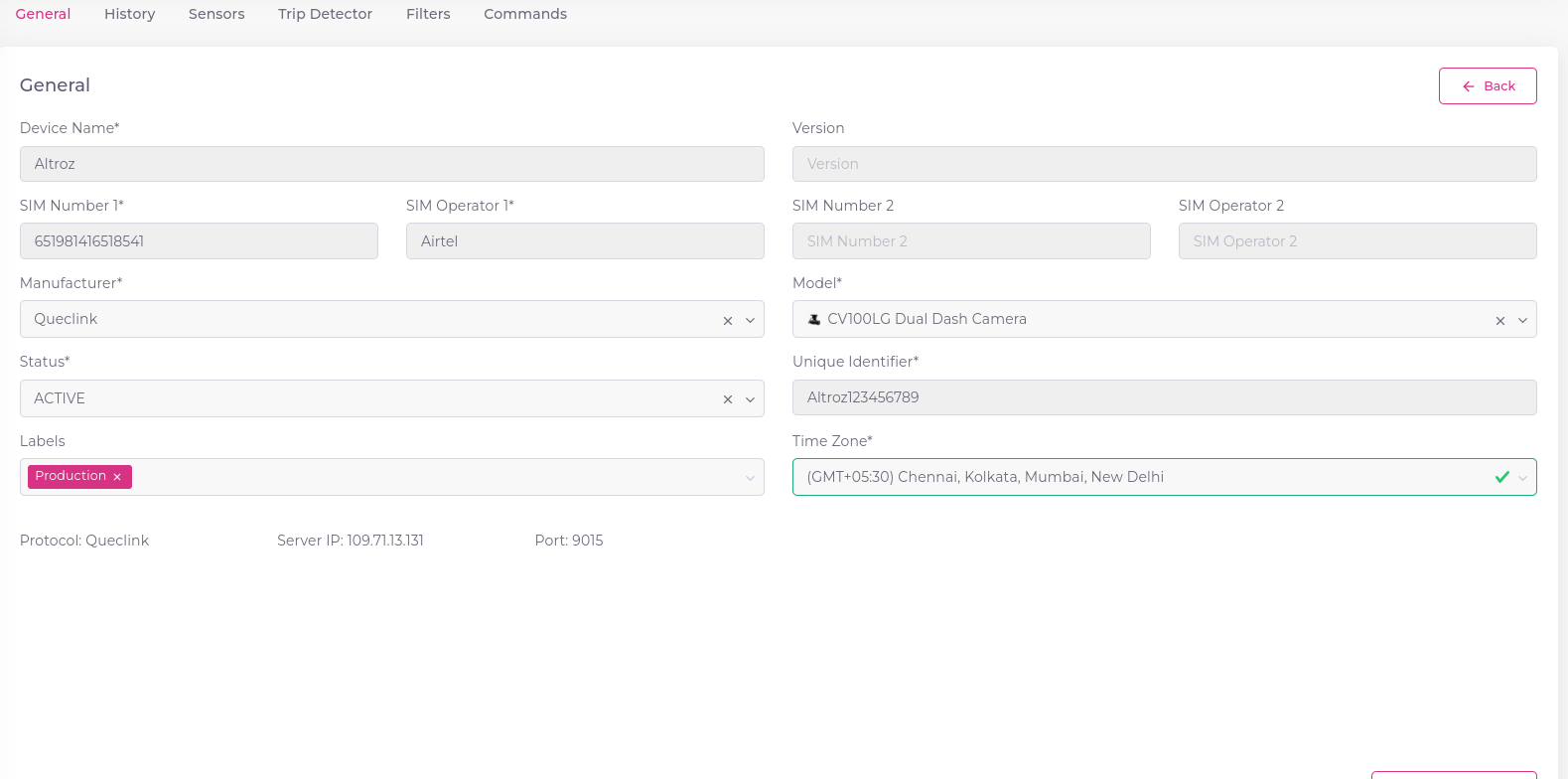
- The device details will open in a read-only format.
- You will see several tabs:
- General: Basic device information.
- Sensor: Information about sensors.
- Fuel Config: (If applicable) Fuel sensor details.
- Trip Detector: (If applicable) Trip detection settings.
- Filters: (If applicable) GPS filter settings.
- Command: (If applicable) Commands associated with the device.
- Ready Device Connection: Connectivity status.
¶ 2. Edit Device Details
Steps:
- Locate the device you want to edit on the device list screen.
- Click the "Edit" button next to the device.
What to Expect:
- You will be redirected to the edit screen.
- You can modify fields in the General Tab.
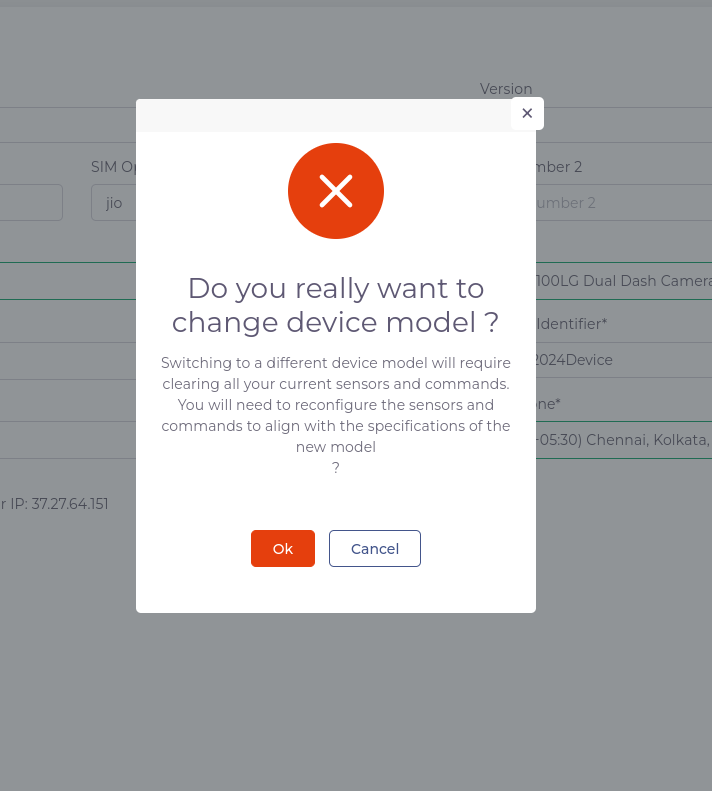
- If you change the device model, a confirmation message will appear:
- "Do you really want to change the device model? Switching to a different device model will require clearing all your current sensors and commands. You will need to reconfigure the sensors and commands to align with the specifications of the new model."
- Make the necessary changes and save.
¶ 3. Delete Device
Steps:
- Locate the device you want to delete on the device list screen.
- Click the "Delete" button next to the device.
What to Expect:
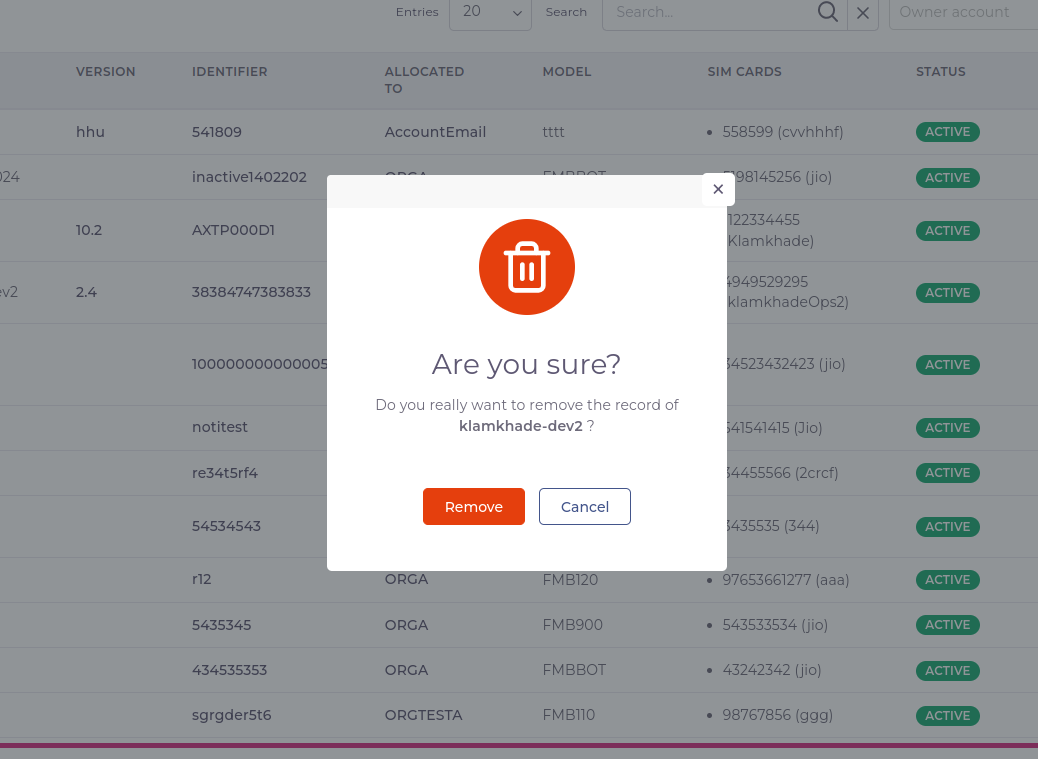
- A confirmation popup will appear asking if you want to delete the device.
- Options:
- Confirm: Click "Remove" to delete the device.
- Cancel: Click "Cancel" to abort the deletion process.
¶ 4. Allocate Device
Steps:
- Locate the device you want to allocate on the device list screen.
- Click the "Allocate" button next to the device.
What to Expect:
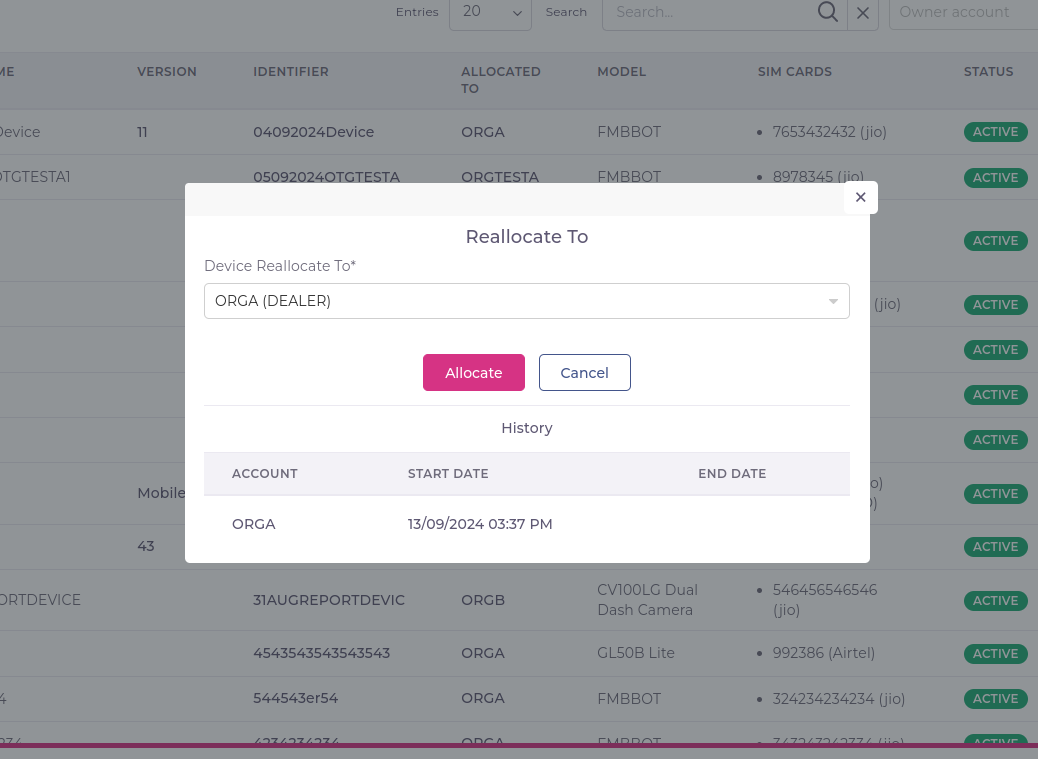
- A popup will appear for reallocating the device to another account.
- Popup Includes:
- A list of available accounts to which the device can be allocated.
- If the device is already allocated, a confirmation message will appear:
- "This unit is already allocated to {currentAllocatedAccountName}. Do you really want to reallocate this unit to {newAllocatedAccountName}?"
- Allocation history showing:
- Account Name
- Start Date
- End Date
¶ Troubleshooting
¶ Common Issues and Solutions
- Device Not Appearing in List: Check and adjust filter settings.
- Unable to Edit Device Details: Verify user permissions.
- Error When Changing Device Model: Ensure sensors and commands are reconfigured.
- Device Allocation Errors: Confirm the correct account for reallocation.