¶ Overview
To efficiently organize and manage your modules, including devices, units, notifications, alerts, geofences, routes, maintenance, and operators, follow these steps to access and manage your groups.
¶ Access the Menu
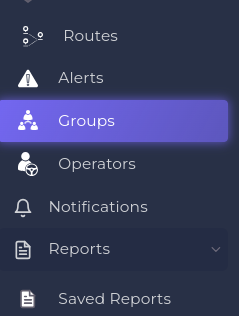
- Open the Main Menu: On the left side of your screen, find and open the main menu. This menu contains various options for navigating through different sections of the application.
¶ Navigate to Groups
-
Find Groups: Scroll down the menu until you see the "Groups" option. This section is where you can manage and view all your groups.
-
Open Groups : Click on "Groups" to open the Groups section.
¶ Groups List
In the Groups Management section, you will see the Groups List where you can view and manage all your existing groups. Here's how to effectively use this section:
-
Search for Groups: Use the search bar at the top of the page to find specific groups quickly by typing in their names. This is especially useful when dealing with a large number of groups.
-
Filter Groups: Apply filters to narrow down the list based on criteria such as child accounts. This helps in viewing groups that are associated with specific accounts or categories.
-
Group Actions: For each group listed, you will see a set of action icons:
- Edit: Click the pencil icon to modify the group’s details.
- View: Click the eye icon to view detailed information about the group.
- Delete: Click the trash can icon to remove the group (note: you must have the necessary permissions to delete a group).
-
Group Details: Each group entry will display the group’s name and associated modules. The list will also include a count of how many times the group is utilized across different modules, providing a quick overview of its application.
¶ Adding a New Group
If you have the necessary permissions to add a new group, you can do so through several methods:
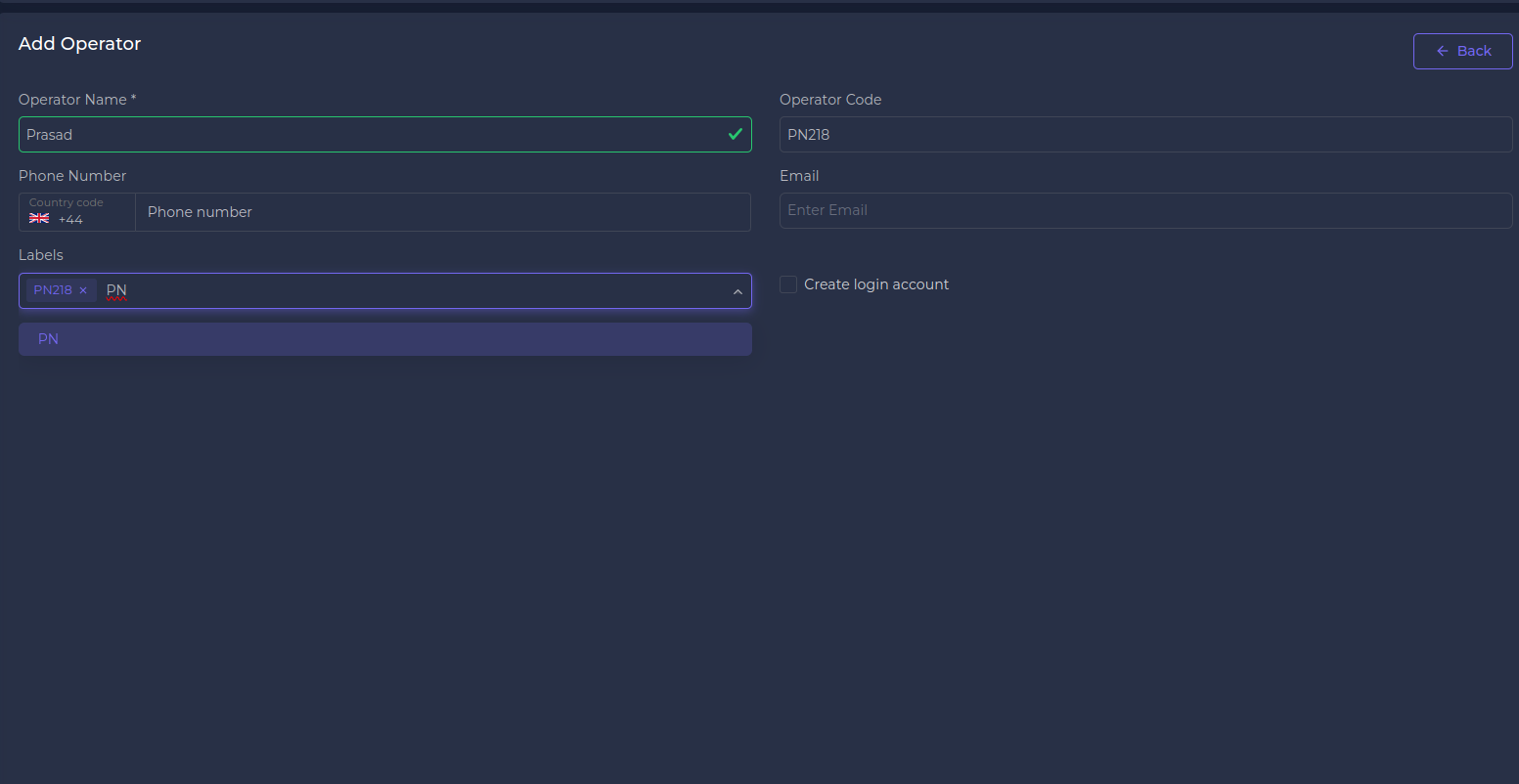
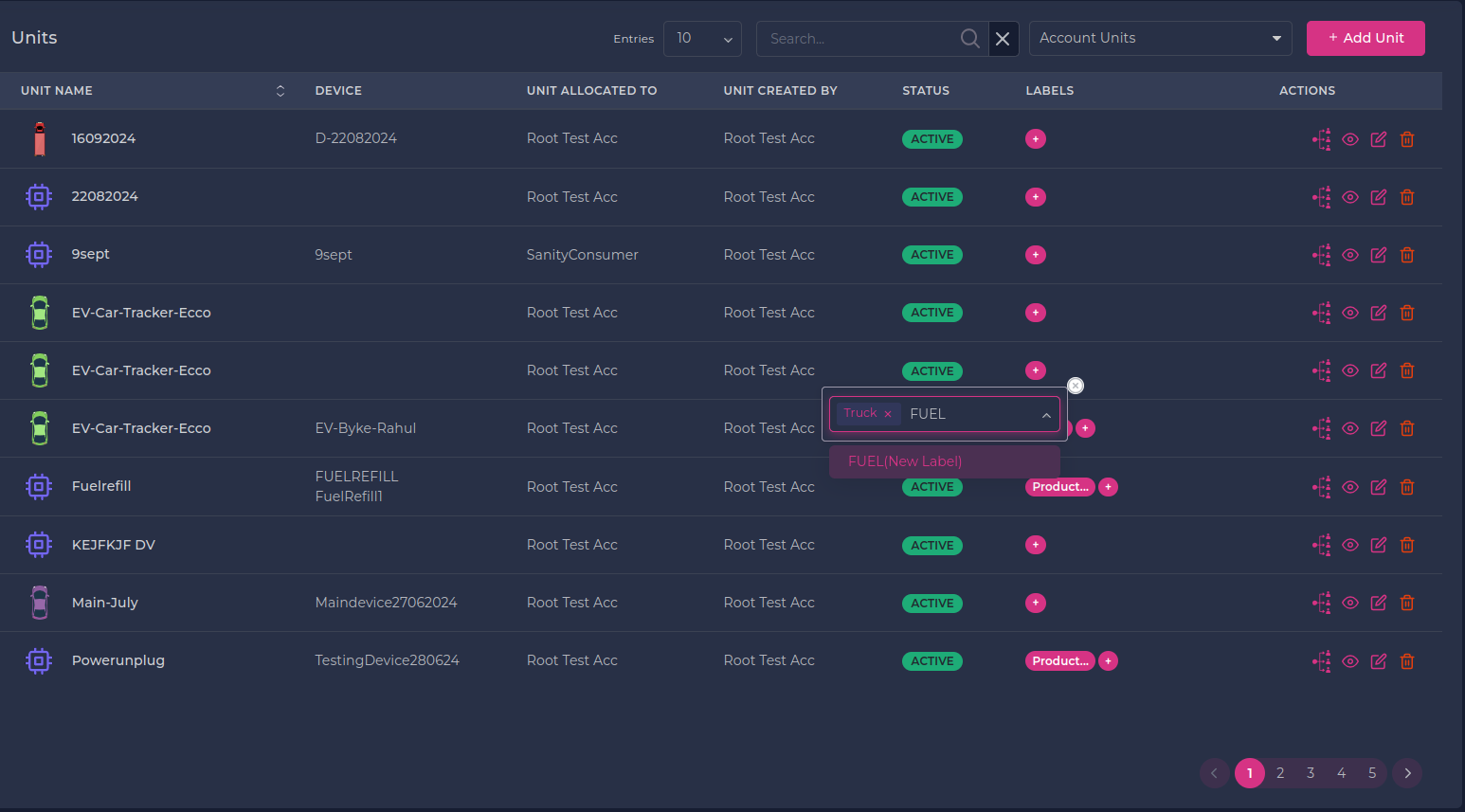
- Module Creation Process: During the creation of a new module, you can add a group as part of the setup.
- Module Editing Phase: While editing an existing module, you can add or modify groups as needed.
- Directly from the List: You can add a new group directly from the groups list page.
When adding a new group, you will be prompted to provide relevant details such as the group name and configuration settings. Ensure that all required fields are filled out to successfully create the group.
¶ Editing an Existing Group
To edit an existing group:
- Navigate to the groups management section.
- Find the group you wish to edit and click the Edit button next to it.
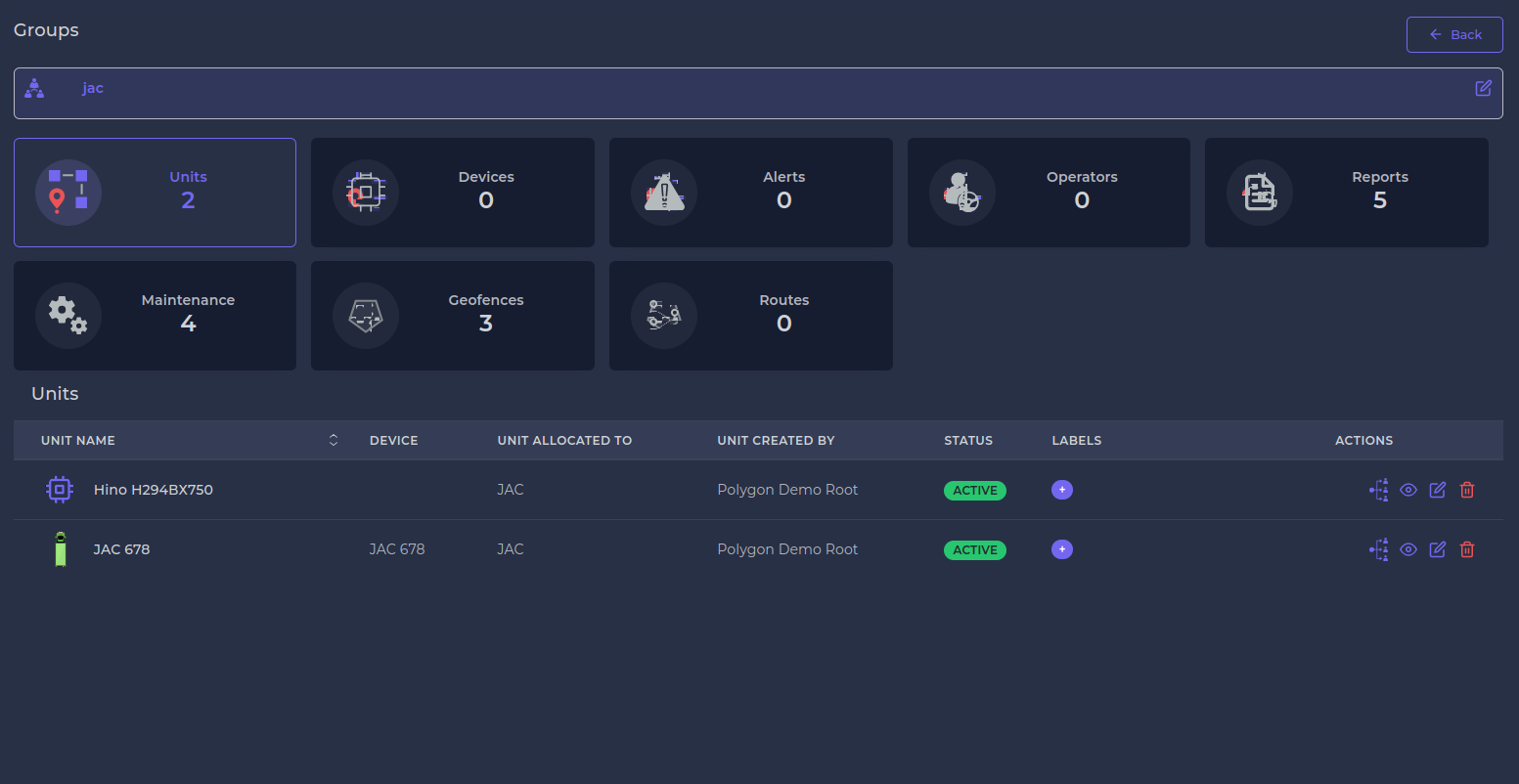
This will open the edit screen, where you will see a detailed overview of the group's association with various modules. The top section of the edit screen displays a list of relevant modules such as devices, units, notifications, alerts, geofences, routes, maintenance, and operators. For each module, you’ll see an icon, the module name, and a count indicating how many times the group is utilized within that module (e.g., "jac group used in 2 units").
The bottom section of the edit screen provides a detailed list of entities associated with each module, such as a list of units for the Units module. This allows you to manage and review group associations comprehensively.
¶ Troubleshooting
If you encounter issues while managing groups, consider the following troubleshooting tips:
¶ Group Not Appearing in List
- Check Permissions: Ensure you have the necessary permissions to view and manage groups.
- Refresh the Page: Sometimes, refreshing the page can resolve display issues.
- Verify Filters: Make sure any applied filters (e.g., child accounts) are set correctly and not excluding the group.
¶ Unable to Edit Group
- Permissions: Confirm you have the required permissions to edit the group.
- Field Validation: Ensure all required fields in the edit form are filled out correctly.
- Browser Issues: Try clearing your browser cache or using a different browser if the issue persists.
¶ Error Adding New Group
- Required Fields: Double-check that all mandatory fields are completed.
- Configuration Errors: Ensure the group configuration adheres to the required format and constraints.
- System Issues: Contact support if you encounter persistent system errors or bugs.
By following these steps and using the provided tips, you should be able to manage groups effectively and resolve common issues.