¶ Overview
The Reminders History Report provides detailed information on all reminders and notifications within a specified time range. This report is designed to offer insights into reminder activities, helping users keep track of past reminders and their status.
¶ Instructions
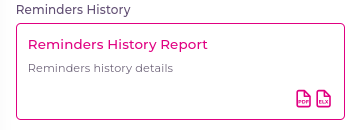
- Title: Reminders History Report
- Description: The Reminders History Report provides detailed information on all reminders and notifications within a specified time range. This report helps users track past reminders and monitor their status.
- Supported File Formats: PDF, Excel
- Sensors: No specific sensor is required for generating this report.
¶ Report Creation Steps
¶ 1. Accessing the Report Creation Page
- Click on Reminders History Report to navigate to the Create New Report page.
¶ 2. Generating the Report
- On the right side of the page, a dynamic form will appear for creating the report.
¶ 2.1 Report Type
- From the Report Type dropdown, select Reminders History Report.
¶ 2.2 Date Range
- In the Date Range field, choose the start and end dates for the report.
¶ 2.3 Account Field
- The Account field displays all accounts available for generating the report for specific units and groups.
¶ 2.4 Unit Search
- Use the Search Field to search for units.
- Select the unit(s) needed for the report from the displayed list.
¶ 3. Generating and Viewing the Report
- After selecting all required fields, click the Generate Report button.
- A progress loader will appear while the report is being generated.
- Once ready, a preview of the report will be displayed in PDF format.
¶ 4. Downloading or Saving the Report
- You have three options at the top of the preview:
- Download PDF: Save the report as a PDF file.
- Download Excel: Save the report as an Excel file.
- Save the Report: Save the report for future reference.
¶ 4.1 Saving the Report
- When you click Save, a pop-up will appear.
- Report Name: Enter a name for your report (3 to 20 characters).
- Labels: Add multiple labels to categorize the report.
- After clicking Save, the report will be saved, and you will be redirected to the list of reports where your generated report will be visible.
¶ Troubleshooting
- No Data Displayed: Verify that the correct date range and units are selected. Check account permissions if you cannot access specific units.