¶ Overview
The Trips Report provides detailed information about trip histories, including duration, routes, and other relevant metrics for vehicles or assets. This report helps in analyzing travel patterns and managing fleet operations efficiently.
¶ Instructions
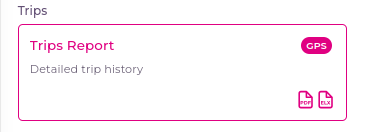
- Title: Trips Report
- Description: The Trips Report provides detailed information on vehicle or equipment trip histories, including routes, duration, and key travel metrics.
- Supported Files: PDF, Excel
- Sensors: GPS sensor is required for generating the report.
¶ Report Creation Steps
¶ 1. Accessing the Report Creation Page
- Click on Trips Report to navigate to the Create New Report page.
¶ 2. Generating the Report
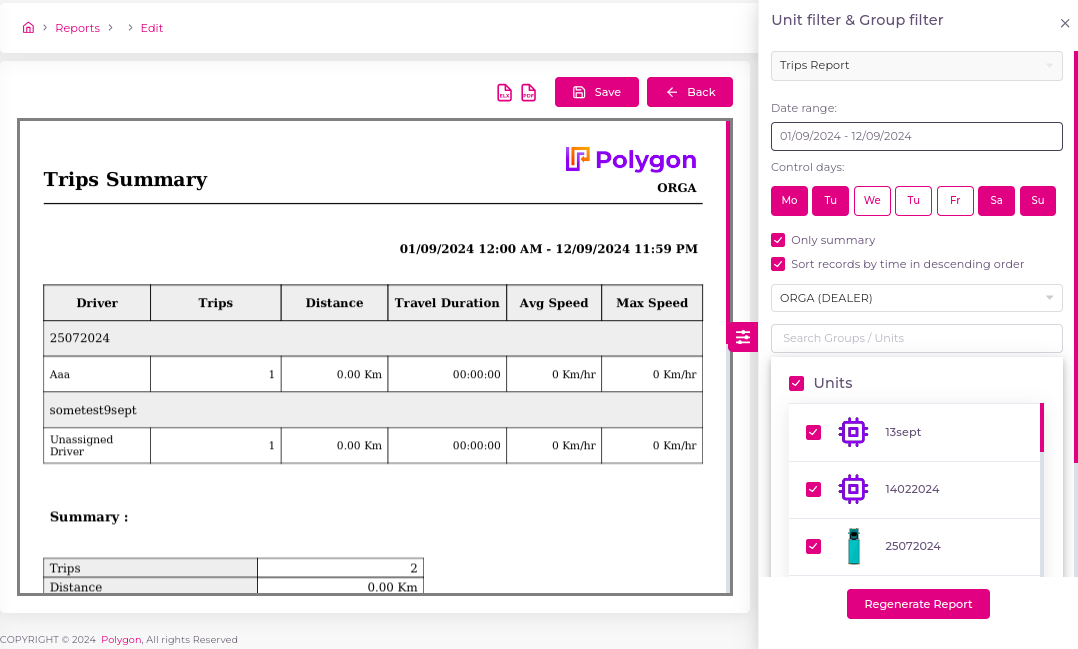
- On the right side of the page, a dynamic form will appear for creating the report.
¶ 2.1 Report Type
- From the Report Type dropdown, select Trips Report.
¶ 2.2 Date Range
- In the Date Range field, choose the start and end dates for the report.
¶ 2.3 Group By
- Use the Group By field to group the report by:
- Hourly
- Daily
- Weekly
- Monthly
¶ 2.4 Control Days
- Select the days to be included in the report. Multiple days can be chosen.
¶ 2.5 Summary Options
- Choose one of the following:
- Only Summary: Displays only the summary of the report.
- Sort Records by Time (Descending Order): Generates the report with records sorted in descending order by time.
¶ 2.6 Account Field
- The Account field displays all accounts available for generating the report for specific units and groups.
¶ 2.7 Unit Search
- Use the Search Field to search for units.
- Select the unit(s) needed for the report from the displayed list.
¶ 3. Generating and Viewing the Report
- After selecting all required fields, click the Generate Report button.
- A progress loader will appear while the report is being generated.
- Once ready, a preview of the report will be displayed in PDF format.
¶ 4. Downloading or Saving the Report
- You have three options at the top of the preview:
- Download PDF: Save the report as a PDF file.
- Download Excel: Save the report as an Excel file.
- Save the Report: Save the report for future reference.
¶ 4.1 Saving the Report
- When you click Save, a pop-up will appear.
- Report Name: Enter a name for your report (3 to 20 characters).
- Labels: Add multiple labels to categorize the report.
- After clicking Save, the report will be saved, and you will be redirected to the list of reports where your generated report will be visible.
¶ Troubleshooting
- No Data Displayed: Verify that you have selected the correct date range and units. Check your account permissions if you cannot access specific units.