¶ Detailed Overview of Unit History
The Unit Daily History is designed to give you a comprehensive view of a unit’s daily activities, including:
- Trips: Start and end times, distances traveled, and average speed.
- Parking Intervals: When and where the unit was parked, and for how long.
- Fuel Usage: Fuel consumption details, including refills and efficiency.
- Events and Alerts: Alerts triggered by specific conditions (if enabled in settings).
- Other Metrics: Additional data such as engine hours, idling time, and environmental conditions.
The history can be filtered by date, and the map view provides a visual representation of the unit's activities.
¶ How to Access Unit History - Step by Step Guide
¶ Step 1:
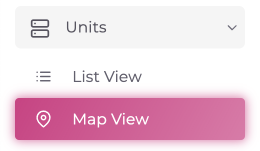
Open the menu on the left side of the screen. Scroll down until you find the "Units" tab and click on it.
- Two options will appear: "Unit List View" and "Map View."
- The history can be viewed in both views, with the map view providing a more detailed display.
¶ Step 2:
Click on the "Map View" option. A map screen will appear, along with a menu on the right side.
¶ Step 3:
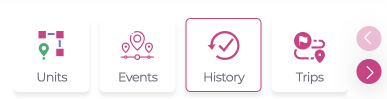
In this menu, locate the "All Menu" tab. Scroll right until you find the "History" tab.
¶ Step 4:
Click on the "History" tab, then click on the "Unit History" option. Enter the following information:
- Choose the Account
- Choose the Unit
- Choose the Date
¶ Map Screen Functionality
-
Data Display:
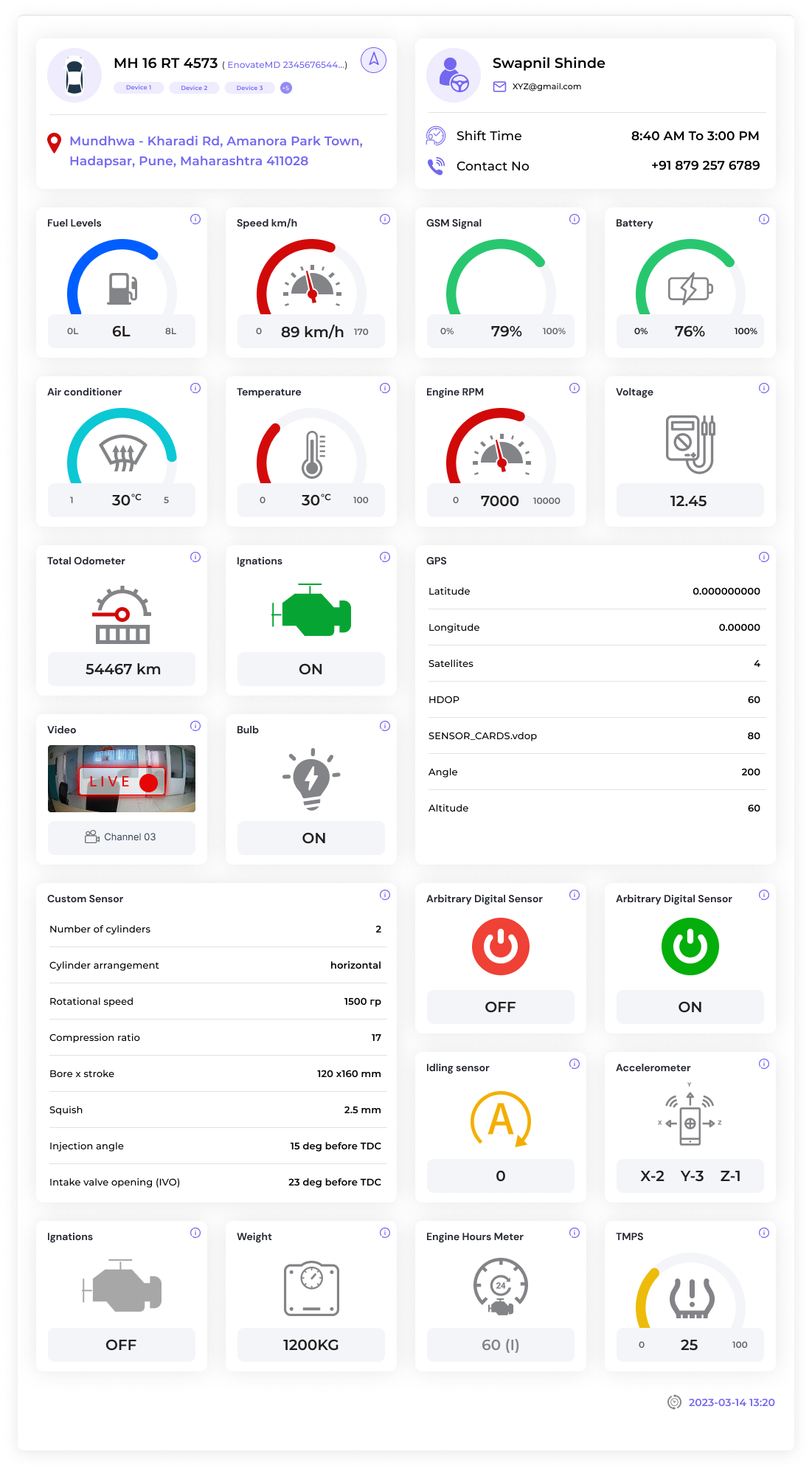
The map screen displays data for the selected unit based on the chosen date and It will display the sensor card only if the unit contains the specific sensor and its 'Visible' checkbox is checked. -
Live Data (if the unit is active and unit has specific sensor):
- Fuel Remaining
- Current Speed
- Signal Strength
- Battery Level
- Temperature
- Air Conditioner Status
- Odometer Reading
- Live Video Feed
¶ Data Access
-
Live/Offline Data:
Users can view live data or offline data at all times. -
Historical Data Access:
- Users can click on an arrow on the map to view the unit's data for a specific time.
- This functionality provides insights into the unit's performance at various timestamps.
¶ Playback Feature
-
Play Bar:
A dedicated play bar allows users to control the playback of the unit's historical data. -
Playback Speeds:
Users can select from predefined playback speeds:- 1x (normal speed)
- 2x (twice the speed)
- 3x (three times the speed)
-
Data Display During Playback:
As playback occurs, users can view specific metrics, including:- Unit Speed
- Distance Traveled (km)
-
If the unit is live and User click the play button, the unit will go offline, and the history will be recorded up to the point where the unit went offline. If I click the live button again, the unit will become live once more..

¶ Conclusion
This mapping application will provide users with comprehensive data visualization for selected units, allowing for real-time monitoring and detailed playback of historical performance metrics. The implementation of live and historical data access, along with user-friendly playback options, will enhance the user experience and facilitate effective unit management.
¶ Impact Analysis
¶ Benefits:
- Enhanced Monitoring: Comprehensive overview of unit activities.
- Improved Decision-Making: Informed decisions on unit management.
- Increased Accountability: Reviewing events tied to specific actions.
- Cost Savings: Identifying and addressing inefficiencies.
¶ Troubleshooting Common Issues
-
No Data Displayed:
- Solution: Ensure correct account, unit, and date are selected.
-
Inaccurate Data:
- Solution: Check unit’s network connection and sensor functionality.
-
Unable to Access History Tab:
- Solution: Verify permissions and try refreshing the page.
-
Events Not Showing in History:
- Solution: Ensure "Include events in unit history" is enabled.