¶ Detailed Explanation of Events
¶ Fuel Refill
- Description: Records when fuel is added to a vehicle, helping you keep track of how much fuel is being used over time. The system notes the date, time, and location where the fuel was added, giving you a clear picture of your fuel usage.
- Usage Scenarios: This is especially useful for monitoring fuel expenses, spotting any waste, and ensuring your vehicles are refueled as needed. You can use this information to plan your fuel budget and avoid unnecessary stops.
¶ Fuel Theft Detected
- Description: Unlike alerts, which notify immediately, an event records specific instances when fuel is potentially being stolen. Our system is unique in that it can detect fuel theft even when the engine is running. This detection works by analyzing sudden drops in fuel levels that are inconsistent with regular usage, ensuring theft is flagged even during idling or operational periods.
- Usage Scenarios: Critical for monitoring vehicles in regions prone to fuel theft. It helps minimize fuel loss and ensures fuel is used for operational purposes only.
¶ Trip
- Description: Our system logs Trip events by recording the date, time, and location (address) of the start and end points of the trip. Unlike the Polygon feature, this event focuses on these basic details without additional trip data.
- Usage Scenarios: Useful for tracking the movement of vehicles and verifying trip details such as start and stop points. This can aid in route optimization, logistical planning, and understanding driver behavior.
¶ Parked
- Description: Records when a vehicle has been stationary for a certain period, indicating that it is parked. It notes the location and duration of the parking event.
- Usage Scenarios: Great for reducing idle time, ensuring vehicles are parked in safe places, and saving fuel by cutting down on unnecessary idling.
¶ Ignition On/Off
- Description: Logs when the vehicle's engine is started or stopped, noting the exact time and place. This is key for keeping track of when and how often your vehicles are used.
- Usage Scenarios: Important for planning vehicle maintenance, preventing unauthorized use, and ensuring vehicles are only operated by authorized personnel.
¶ Harsh Braking/Acceleration/Turn
- Description: Detects when the driver brakes suddenly, speeds up too fast, or takes sharp turns. The system measures the intensity of these actions and logs the time and place.
- Usage Scenarios: Crucial for improving driver safety, reducing accident risk, and minimizing wear and tear on vehicles. This data can also be used to train drivers to be safer on the road.
¶ Over Speeding
- Description: Sends an alert when the vehicle exceeds the set speed limit. The system records the speed, location, and time.
- Usage Scenarios: Important for enforcing speed limits, reducing the risk of accidents, and improving overall fleet safety. Fleet managers can use this data to enforce speed rules and save on fuel.
¶ Power Disconnection
- Description: Alerts you when the vehicle’s power is cut off, which could indicate tampering, a low battery, or a power issue. The system logs the time and location of the disconnection.
- Usage Scenarios: Critical for ensuring your vehicle tracking system remains active, protecting against tampering, and diagnosing power issues that may affect vehicle performance.
¶ How to Access Unit Events - Step by Step Guide
¶ Step 1:
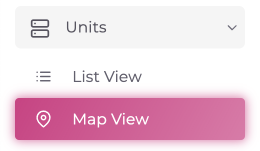
- Access the Menu: Open the menu on the left side of the screen. Scroll down until you find the "Units" tab and click on it.
- Options Available: Two options will appear: "Unit List View" and "Map View."
- View Events: The events can be viewed in both views, with the map view providing a more detailed display.
¶ Step 2:
- Select Map View: Click on the "Map View" option. A map screen will appear, along with a menu on the right side.
¶ Step 3:
-
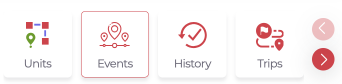
Find the Events Tab: In the right-side menu, locate the "All Menu" tab. Scroll right until you find the "Events" tab.
-
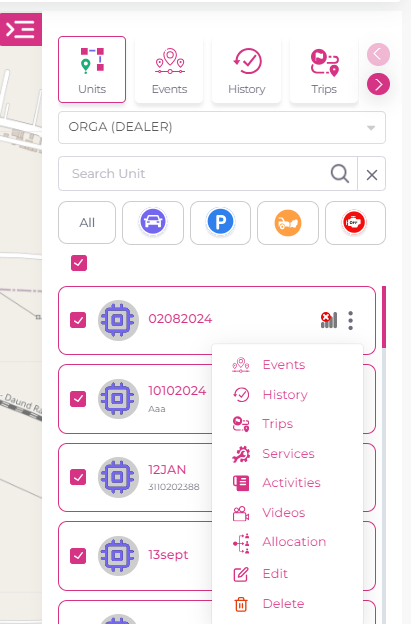
There is another way to go the unit Events
Navigate to to Units and select Map View and on unit
there are 3 dots click on that then click on Events
¶ Step 4:
- Access Unit Events: Click on the "Events" tab, then select the "Unit Events" option. You will need to enter the following information:
- Choose the Account
- Choose the Unit
- Choose the Date Range
- Select Events: Choose the multiple events you wish to view. The screen will display data for the selected events.
¶ Step 5:
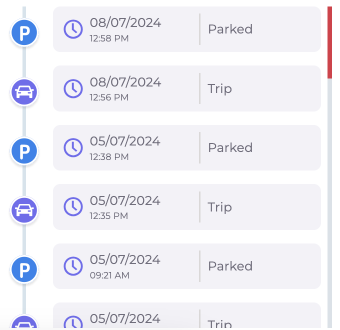
- View Events on Map: After entering the information, the map screen will show the data for the selected unit and events during the chosen date range. Clicking on the events icon will display detailed information about each event on the map.

¶ Troubleshooting
¶ Common Issues and Solutions
-
Event Logging Failures:
- Problem: Some events might not be recorded due to problems with the sensors or connections.
- Solution:
- Check Sensors: Ensure all sensors are properly attached and functioning. Regularly check for any damage or loose wires.
- Check Connections: Make sure the vehicle’s tracking system is properly connected, and that the GPS signal is strong. Keep the system updated with the latest software.
-
False Alerts:
- Problem: The system might occasionally send false alarms for events like harsh braking or fuel theft.
- Solution:
- Adjust Sensitivity: Fine-tune the sensor settings to reduce the likelihood of false alarms.
- Double-Check Alerts: Cross-check alerts with manual logs or other data to verify accuracy.
-
Data Inconsistencies:
- Problem: Sometimes the data might be inconsistent, leading to incorrect reports.
- Solution:
- Update the System: Regularly update your system to the latest version to ensure data accuracy and take advantage of new features.
- Manual Check: If inconsistencies arise, compare the data with other records like fuel receipts or trip logs to identify discrepancies.
¶ Benefits of Event Tracking
-
Enhanced Safety:
- Monitoring for over-speeding and harsh driving behaviors improves the overall safety of your vehicles. Fleet managers can identify risky driving habits and take corrective action, such as providing additional training or issuing warnings.
-
Operational Efficiency:
- Tracking events like fuel refills, trips, and parked times helps fleet managers plan more efficient routes, reduce fuel costs, and ensure vehicles are being used effectively. By analyzing these events, managers can streamline operations, cut down on waste, and optimize resource use.
-
Asset Protection:
- Events like fuel theft detection and power disconnection provide immediate alerts to help protect your valuable vehicles from theft or tampering. This proactive monitoring helps prevent significant losses and keeps your fleet secure.
-
Improved Maintenance Planning:
- By tracking vehicle usage (like ignition on/off events), fleet managers can plan timely maintenance, reducing the likelihood of breakdowns and extending the lifespan of vehicles. This proactive maintenance helps avoid costly repairs and keeps vehicles operational.
¶ Usage Scenarios
-
Fleet Management:
- Tracking all events gives fleet managers the information needed to make informed decisions, ensure smooth vehicle operations, and maintain compliance with safety regulations.
-
Driver Behavior Monitoring:
- By monitoring for events like harsh braking, rapid acceleration, and over-speeding, fleet managers can help drivers improve their habits. This data can be used to set up training programs, encourage safer driving, and reduce accidents.
-
Maintenance Planning:
- Events like tracking trips, monitoring ignition on/off, and tracking parked times are essential for planning vehicle maintenance. By analyzing these events, managers can schedule regular maintenance, reduce unexpected repairs, and keep vehicles in optimal condition.
-
Cost Management:
- Monitoring fuel refills, detecting fuel theft, and tracking trip efficiency help fleet managers control costs by optimizing fuel use and reducing waste. This careful management leads to better budgeting and can help increase profitability.
Each event plays a vital role in maintaining a smooth and secure fleet operation. By utilizing the UNIT system to track these events, you can improve safety, optimize efficiency, and protect your assets, ensuring the success of your fleet operations.