¶ Overview
Assigning a unit to an operator involves linking a specific vehicle or asset to a designated user. This ensures that the operator is responsible for the assigned unit and can manage and operate it effectively.
¶ Instructions
-
Access Operator Screen
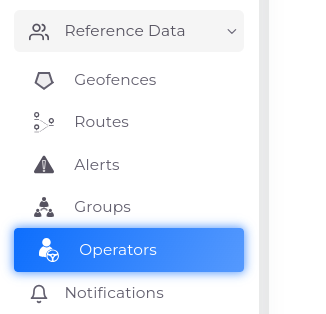
- Click on Reference Data in the sidebar.
- Open the Operator screen.
-
Add a New Operator

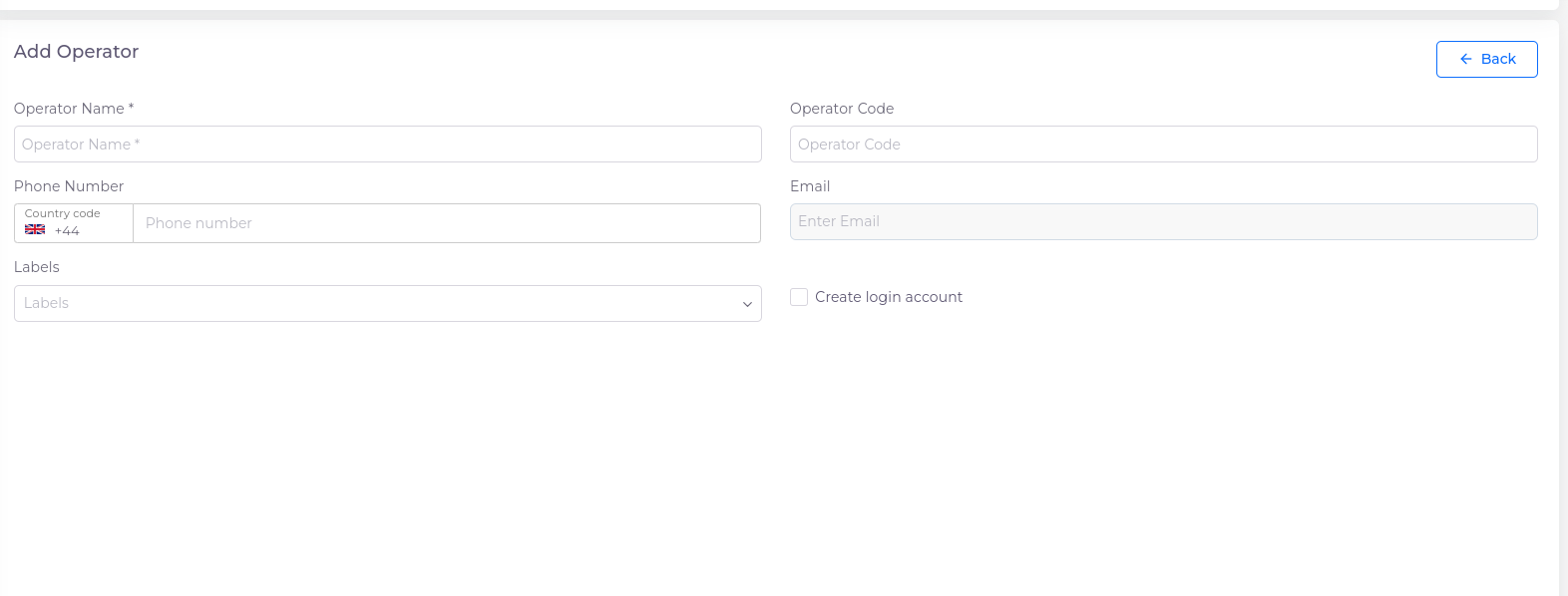
- On the Operator screen, click the Add button to open the Operator creation form.
- Fill in the required fields:
- Name: The operator's name (Min 2 ,Max 50 characters).
- Code: A unique code for the operator (Min 2 ,Max 20 characters).
- Mobile: The operator's mobile number (Max 15 characters).
- Email (Optional): The operator's email address (Max 320 characters).
- Labels (Optional): Any additional labels for categorization.
- Create login account: If checkbox checkd , the Email field becomes mandatory.
- After filling in the necessary information, click Create Operator.
-
Complete Creation
- After filling out all information, click Create Operator.
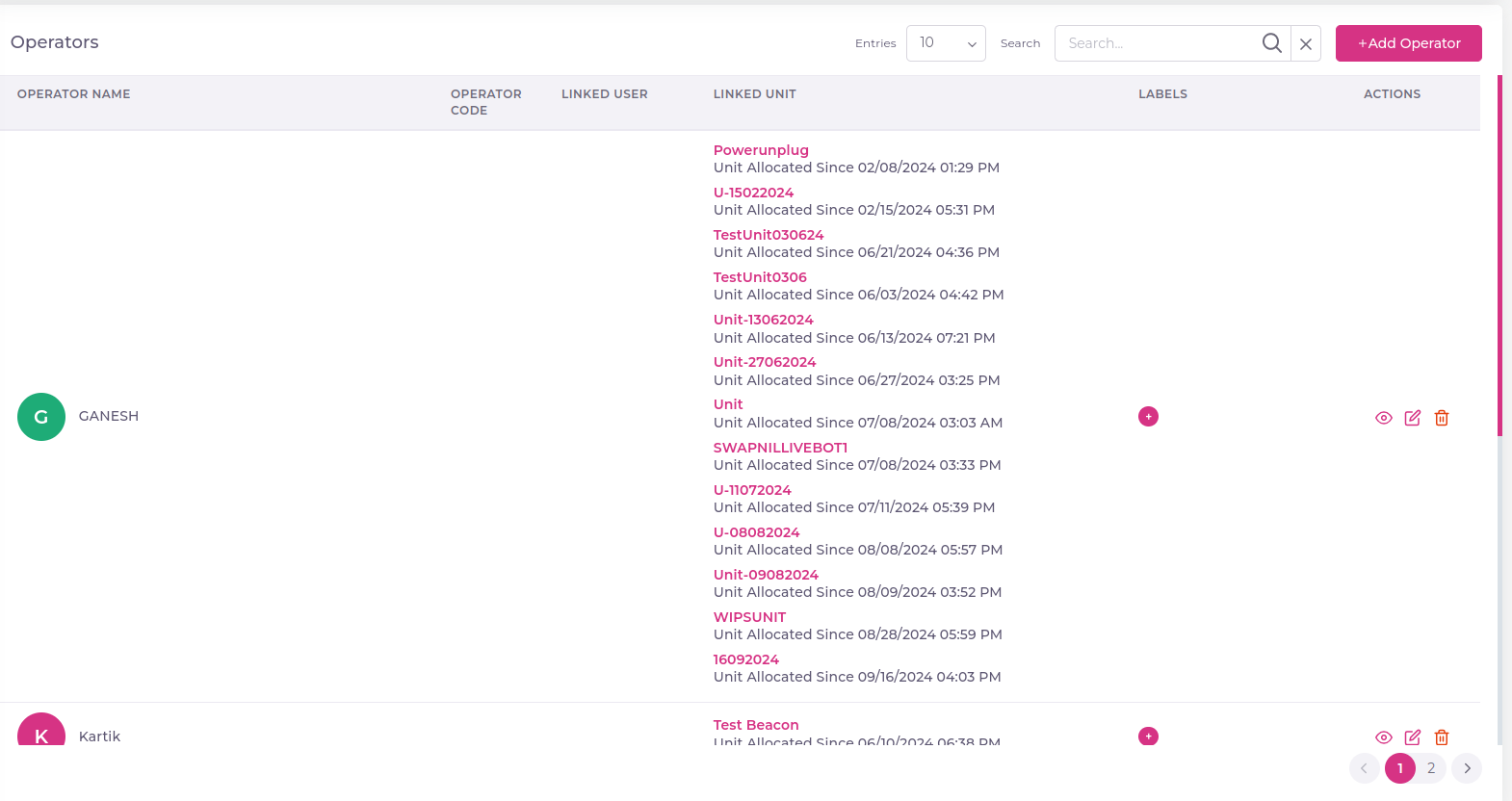
- You will be redirected to the Operator List screen Operators displaying all operators.
With following columns
-
Operator Name: Displays the full name of the operator responsible for the associated tasks or operations.
-
Operator Code: A unique identifier for the operator, typically an alphanumeric code distinguishing operators.
-
Linked User (username): Shows the username of the user linked to the operator, indicating the associated account.
-
Linked Unit: Indicates the specific unit or department the operator is associated with, providing context.
-
Actions (Edit, Delete, View): Provides action buttons or links that allow users to edit, delete, or view more information about the operator.
-
Edit an Operator
- Click the Edit icon next to the operator.
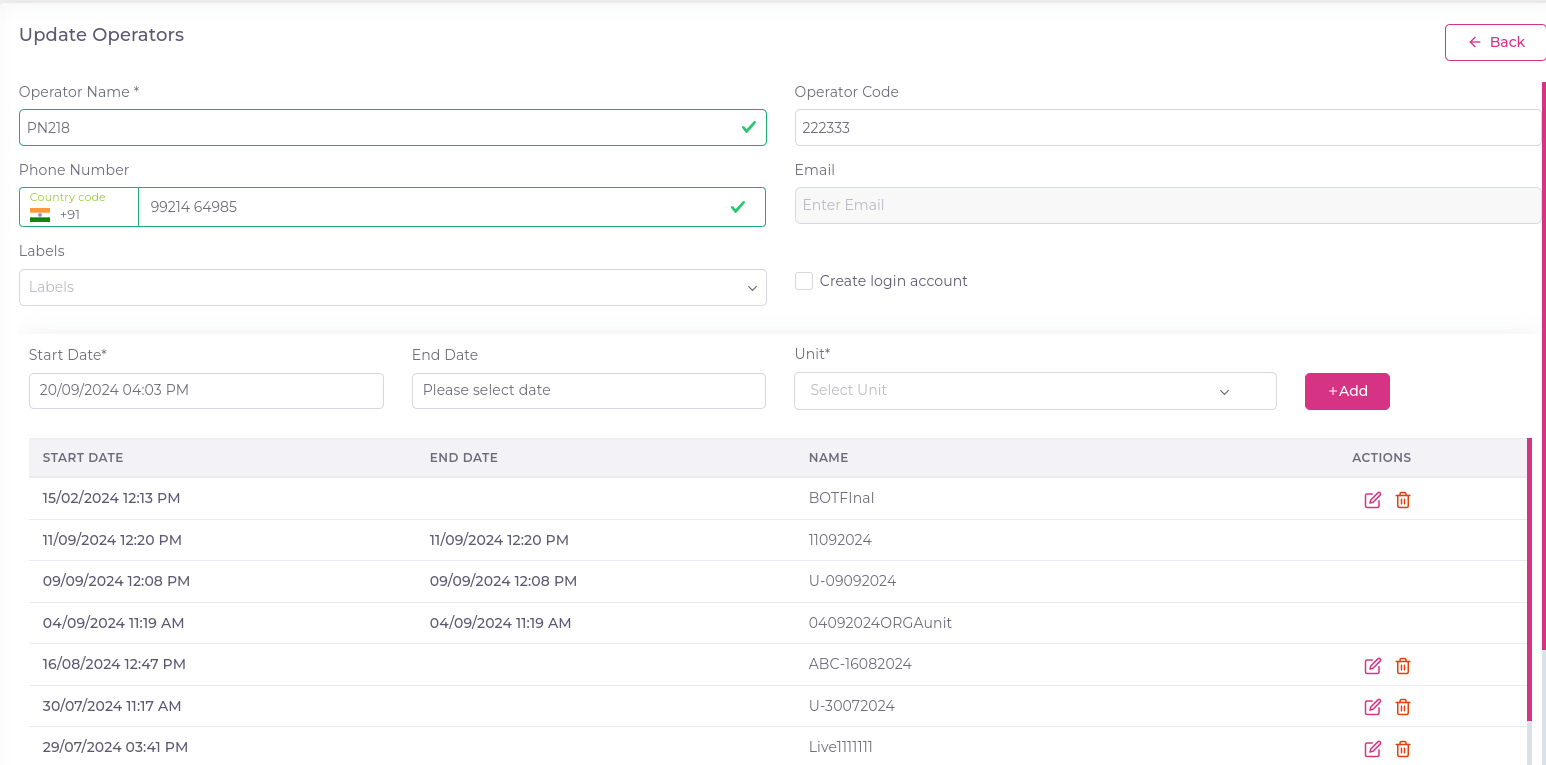
- Update operator details as needed on the Edit Operator screen.
- If create login account flag on and user are not exits then you can resend invitation to user click on Resend Invitation button
- Select unit and assign units to operator using click on Add button.
- View the operator’s unit usage history, including start time, end time, and unit name coluns.
- Search history using start date, end date, and unit name.
-
Assigning Operators to Units: You can assign an operator to a specific unit during the unit creation process. This ensures that the operator is linked to the appropriate unit from the start, facilitating better management and oversight of tasks. By assigning operators at this stage, you streamline the operational workflow and ensure that responsibilities are clearly defined within the unit. For detailed instructions on how to assign operators during unit creation, Read more.
-
On Unit list Screen also assign an operator to a specific unit.
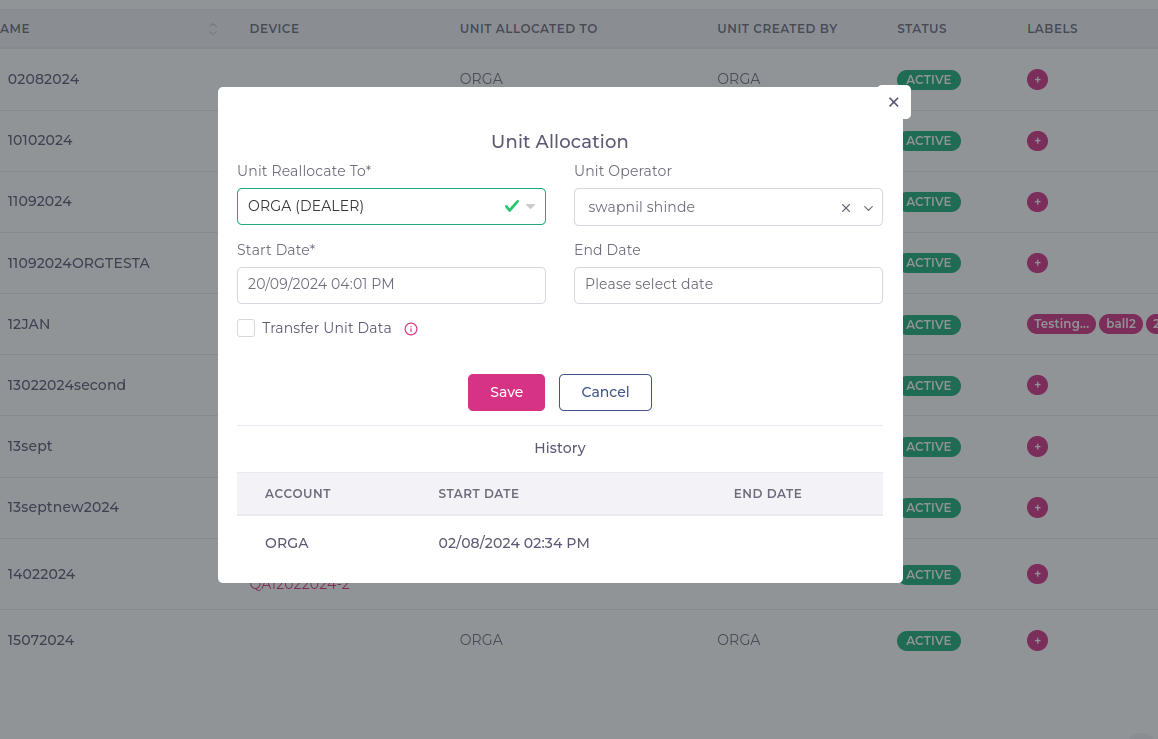
-
Delete an Operator
- On the Operator List screen, click the Delete icon.
- Confirm deletion in the dialog box by clicking Remove.
- The operator will be removed from your account, and the list will refresh.
¶ Troubleshooting
- Operator Not Showing in List: Ensure that the operator was created successfully and that you have the necessary permissions to view them.
- Edit/Update Not Saving: Verify that all mandatory fields are correctly filled and that you have permission to edit operator details.