Lay out a dashboard so the figures you read first sit at the top. On a computer you drag and resize. On a touch screen you move a widget one place at a time.
¶ Before you start
- You need the Edit action of Dashboard Widgets to move and resize. To remove a widget you need the Del action.
- On an account dashboard, only a user with the Owner role can arrange or remove widgets.
- Edit layout shows only when the dashboard has widgets. Dragging and resizing work only on a screen with a pointer, such as a mouse or trackpad.
¶ Edit the layout
-
In the side menu, select Dashboard.
-
Open the dashboard you want to arrange.
-
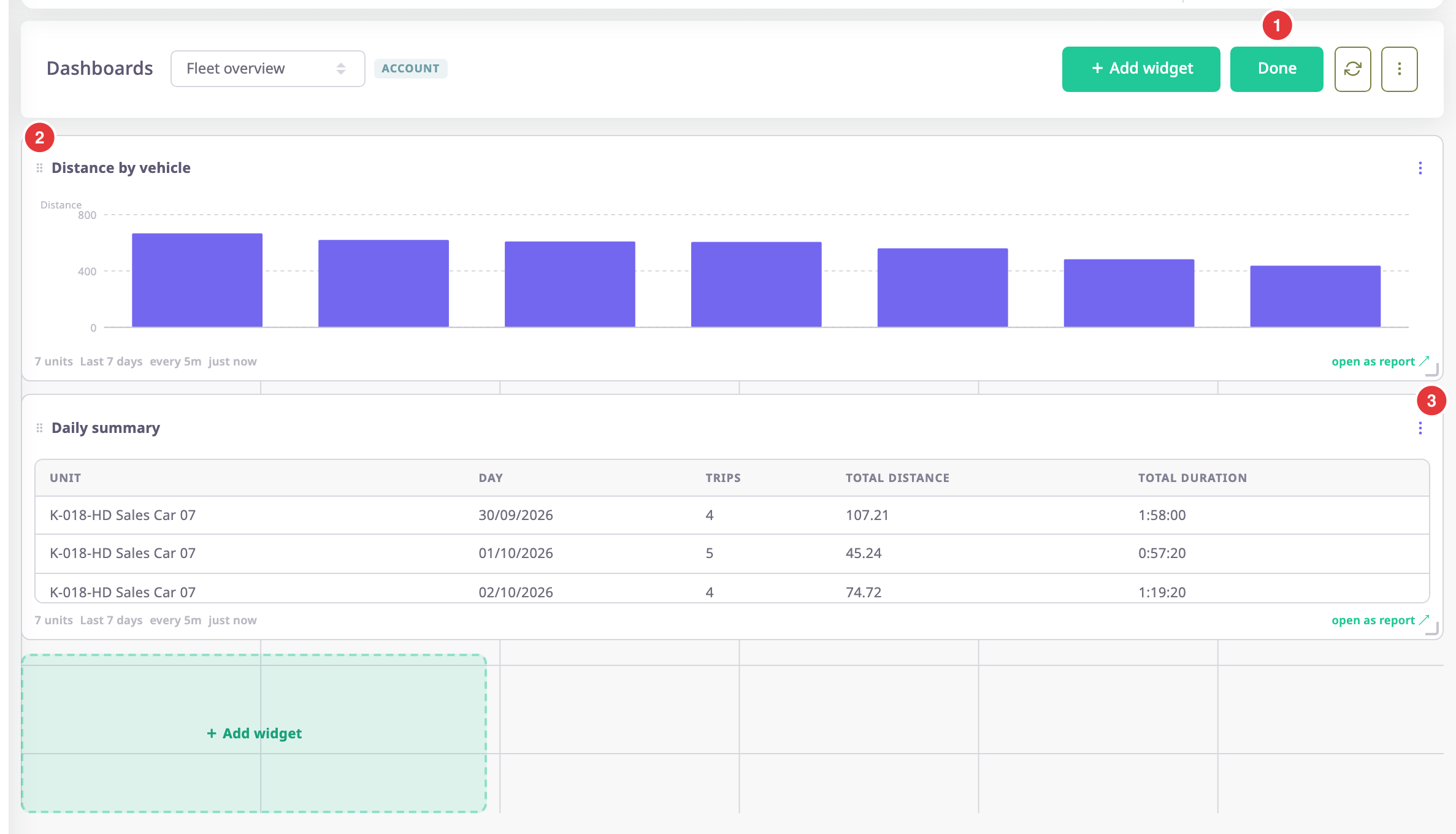
Select Edit layout, marked 1.

The grid shows behind the widgets. Each widget gets a drag handle and a resize corner.
-
When you finish, select Done, marked 1.
The app saves the order and the layout. Edit layout shows again.
If you leave the screen without selecting Done, the app does not save your changes.
¶ Move a widget
- In layout editing, drag the handle at the left of the widget's heading, marked 2.
The widget follows the pointer, and the others make room. - Drop the widget on the cell you want.
- Select Done.
You can also move with the keyboard. Focus the drag handle, then press an arrow key to move the widget one cell.
¶ Resize a widget
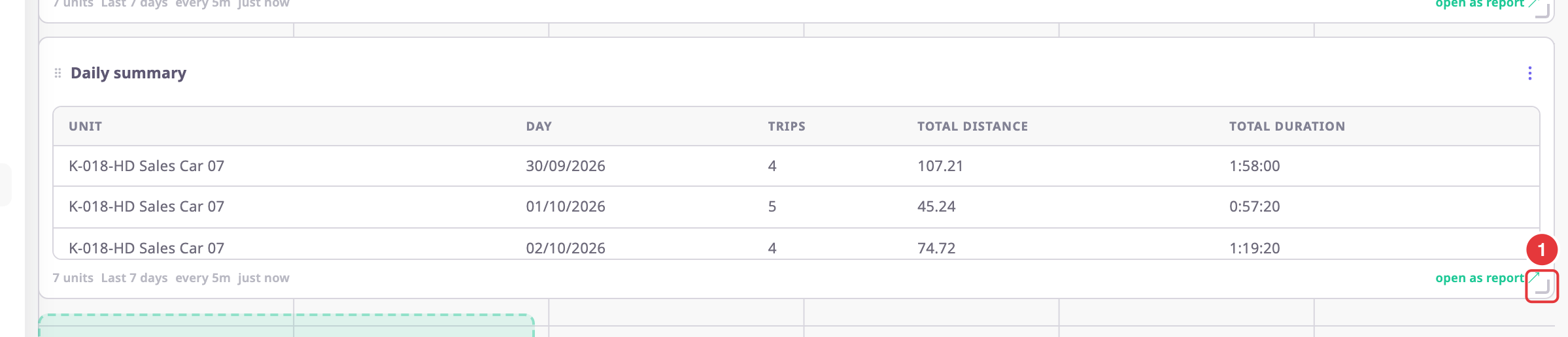
- In layout editing, drag the corner at the bottom right of the widget, marked 1.
The widget snaps to whole grid cells while you drag. - Release the pointer.
- Select Done.
A widget is at least two columns wide and two rows tall. The grid has six columns, and a widget can be up to eight rows tall.
Without dragging, choose Resize in the Widget actions menu. Each choice moves the widget to the next preset size and saves at once.
¶ Reorder on a touch screen
On a phone or tablet you cannot drag widgets, even after you select Edit layout. Each widget's menu has the same moves.
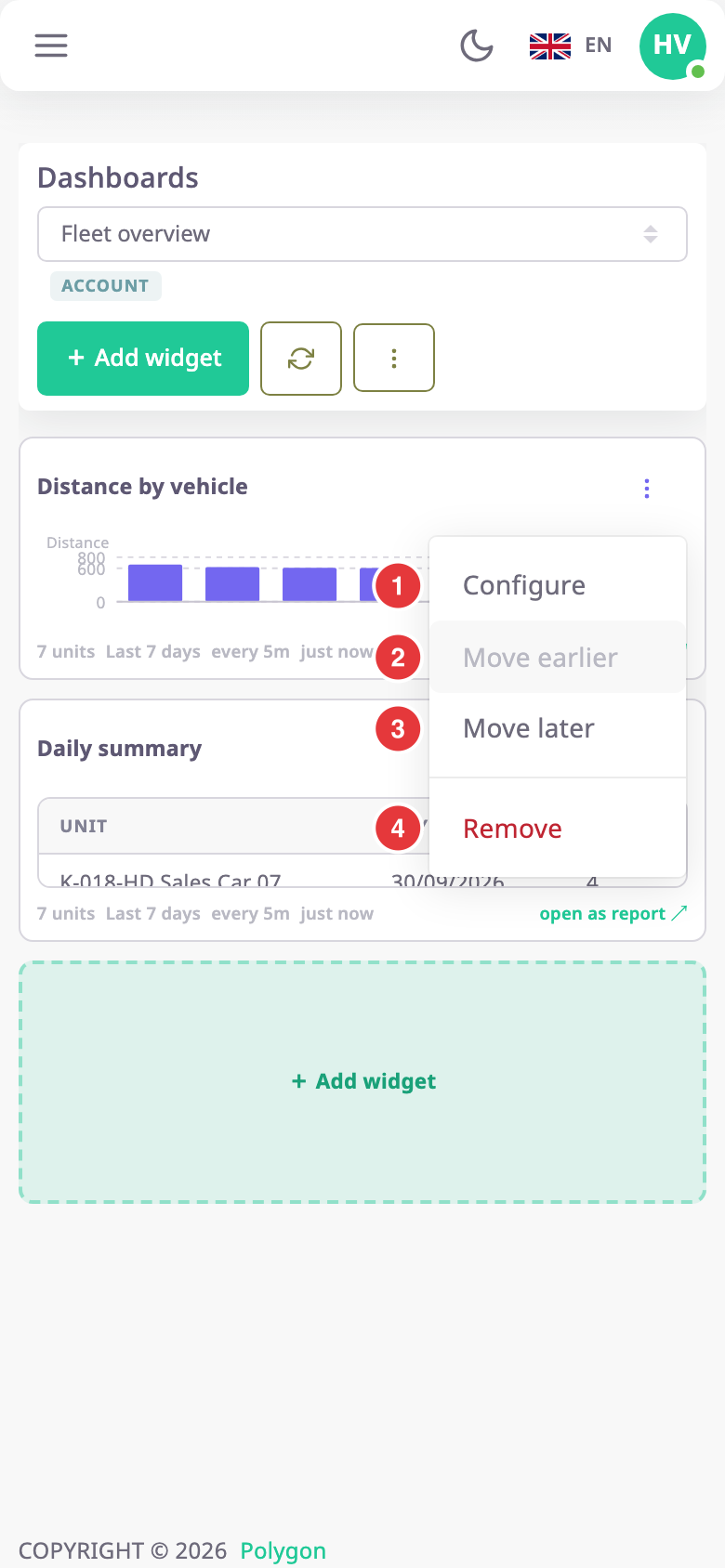
- Select the Widget actions menu of the widget, the three dots.
- Choose Move earlier or Move later.
The widget swaps places and the app saves at once. The saved order also applies on a computer.
Move earlier is grey for the first widget. Move later is grey for the last one. Resize is missing on a phone or tablet, so sizes set on a computer stay as they are.
¶ Remove a widget
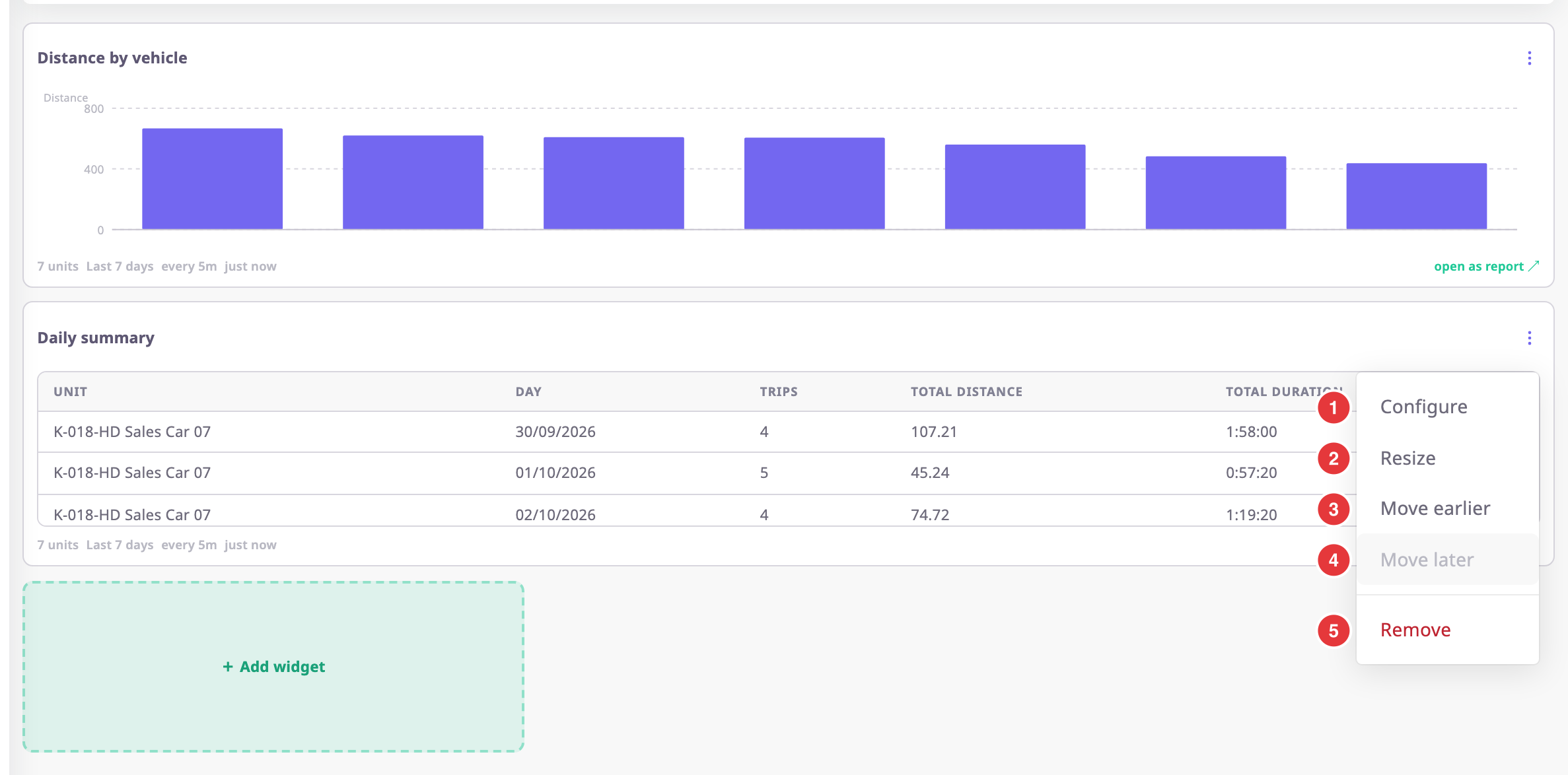
- Select the Widget actions menu of the widget.
- Choose Remove, marked 5.
The widget disappears at once. The app does not ask for confirmation and you cannot undo it.
To bring it back, add the widget again. See Add a widget to a dashboard.