A widget is a small standing report on a dashboard. The widget dialog sets which report template it runs, how it shows the result and how often it refreshes. The dialog title is Add widget for a new widget and Configure for an existing one.
To open it, go to Dashboard, then select Add widget, or open the Widget actions menu of a widget and choose Configure.
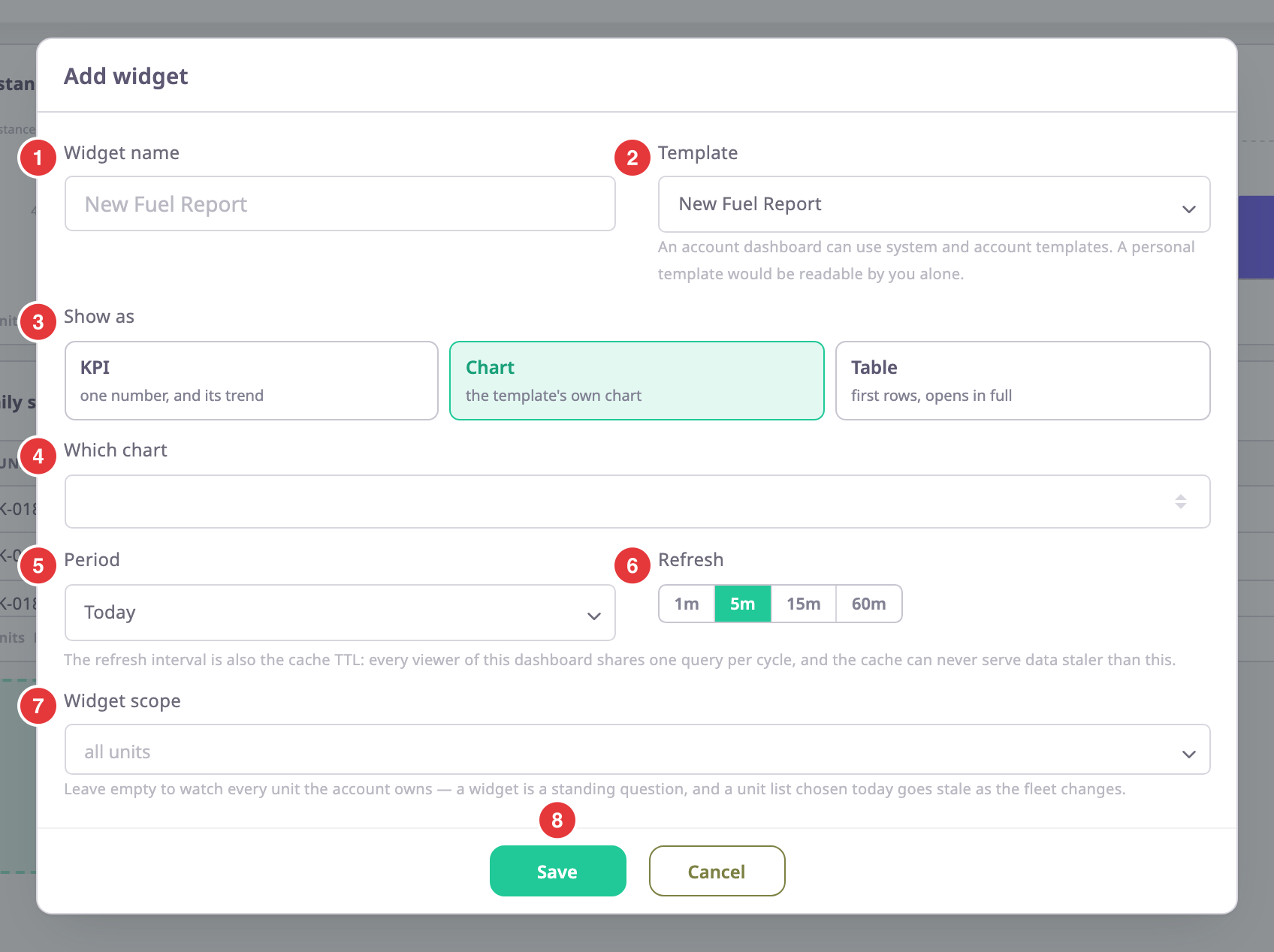
The dialog has Widget name (1), Template (2), Show as (3), Which chart (4), Period (5), Refresh (6) and Widget scope (7). Number 8 marks Save. Which chart and Widget scope show only for some templates.
¶ Fields
| Field | Required | What it does | Allowed values / example | Notes |
|---|---|---|---|---|
| Widget name | No | Sets the heading of the widget on the dashboard. | Up to 120 characters. Example: Distance this week | The placeholder shows the template name. If you leave the field empty, the widget takes the template name. |
| Template | Yes | Chooses the report template the widget runs. Everything the widget shows comes from it. | System templates, plus your own templates on a personal dashboard or the account's templates on an account dashboard. Example: Distance per day | Save stays unavailable until you choose a template. See Which templates a dashboard can use. |
| Show as | Yes | Chooses what the widget draws: one number with its trend, the template's chart, or the first rows of its table. | KPI, Chart or Table | A new widget starts as Table. |
| Which chart | Conditional | Picks which of the template's charts the widget draws. | One of the template's own charts. Example: Fuel Level Chart | Shown only when Show as is Chart and the template has more than one chart. If you leave it empty, the widget draws the first chart. |
| Period | Yes | Sets the time window the widget reports on. The app works it out again at every refresh. | Today, Yesterday, This week, Last week, This month, Last month, Last 7 days, Last 30 days | Starts as Today. Weeks start on Monday. See Period. |
| Refresh | Yes | Sets how often the widget loads its data again. | "1m", "5m", "15m" or "60m" | Starts at "5m". The same interval is how long the server keeps the result for everyone who opens the dashboard. |
| Widget scope | Conditional | Narrows the widget to the units you choose. | Any units in the list. Example: Reefer Truck 01, Reefer Truck 02 | Shown when the template reads units. Empty means every unit the account owns. The list offers up to 200 units. |
For a template that reads SIM cards, Widget scope lists SIM cards instead of units. Empty means every SIM card the account owns. A template that reads neither shows this note instead of the field:
"This template has no unit or SIM to narrow by — it always covers the whole account."
The dialog has no group picker. You can limit a widget to units or SIM cards, not to a group.
¶ Which templates a dashboard can use
The Template list shows only the templates the dashboard can carry.
| Dashboard | Templates in the list |
|---|---|
| Personal | System templates and My templates |
| Account | System templates and Account templates |
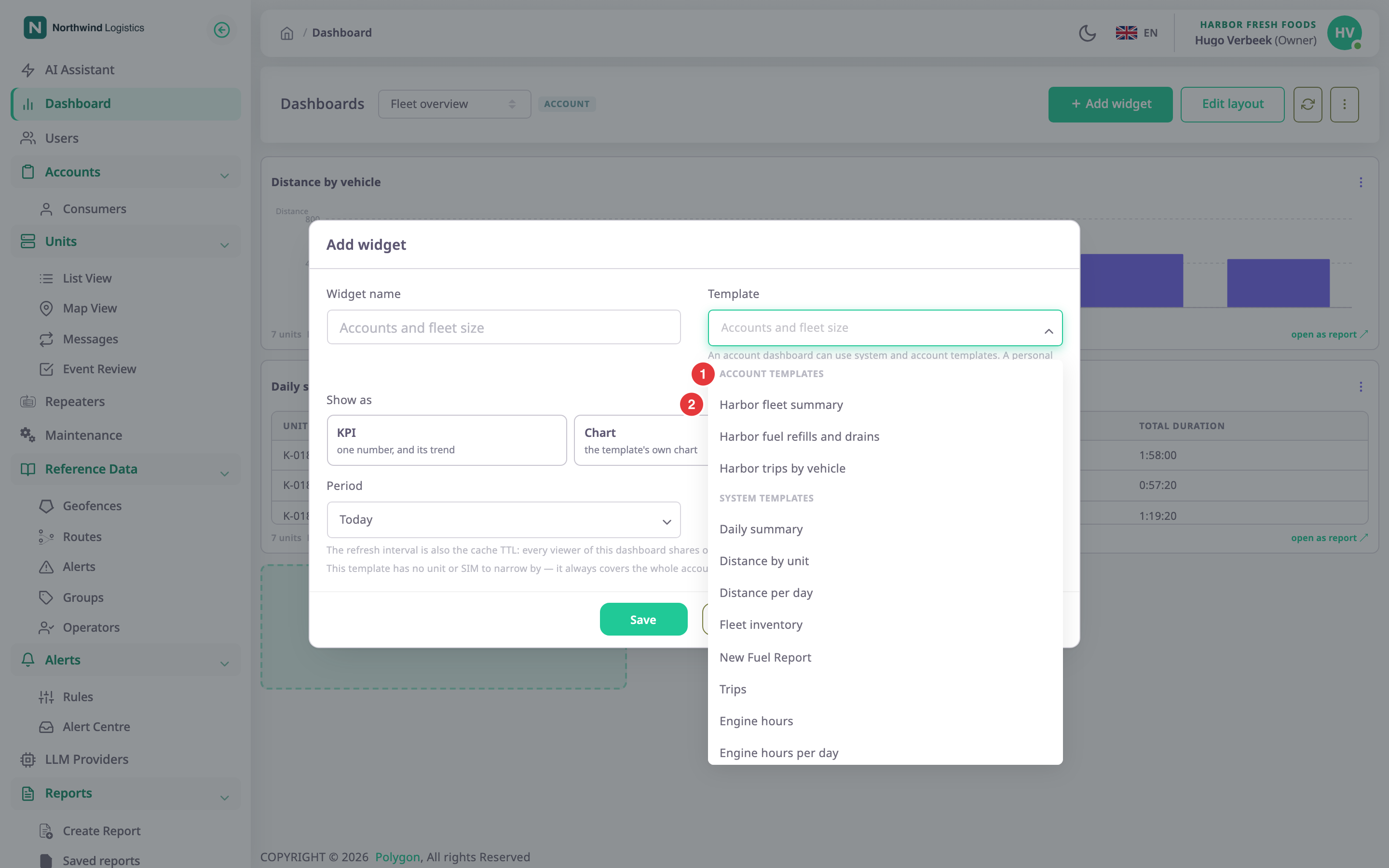
The headings marked 1 group the list. Within a group, the templates you ran most recently come first. To filter the list, type in the box.
The two kinds of dashboard differ in who can read the template. Only you can read a personal template, so the rest of the account would see nothing on an account dashboard. An account template belongs to one account, and a personal dashboard would stop working if you switched account. System templates fit both. If the app refuses a template anyway, it shows "Template does not match this dashboard".
¶ Templates that do not fit the way you show them
Show as decides which templates you can choose. A template that cannot produce the chosen kind of widget stays in the list, in grey, with the reason after it.
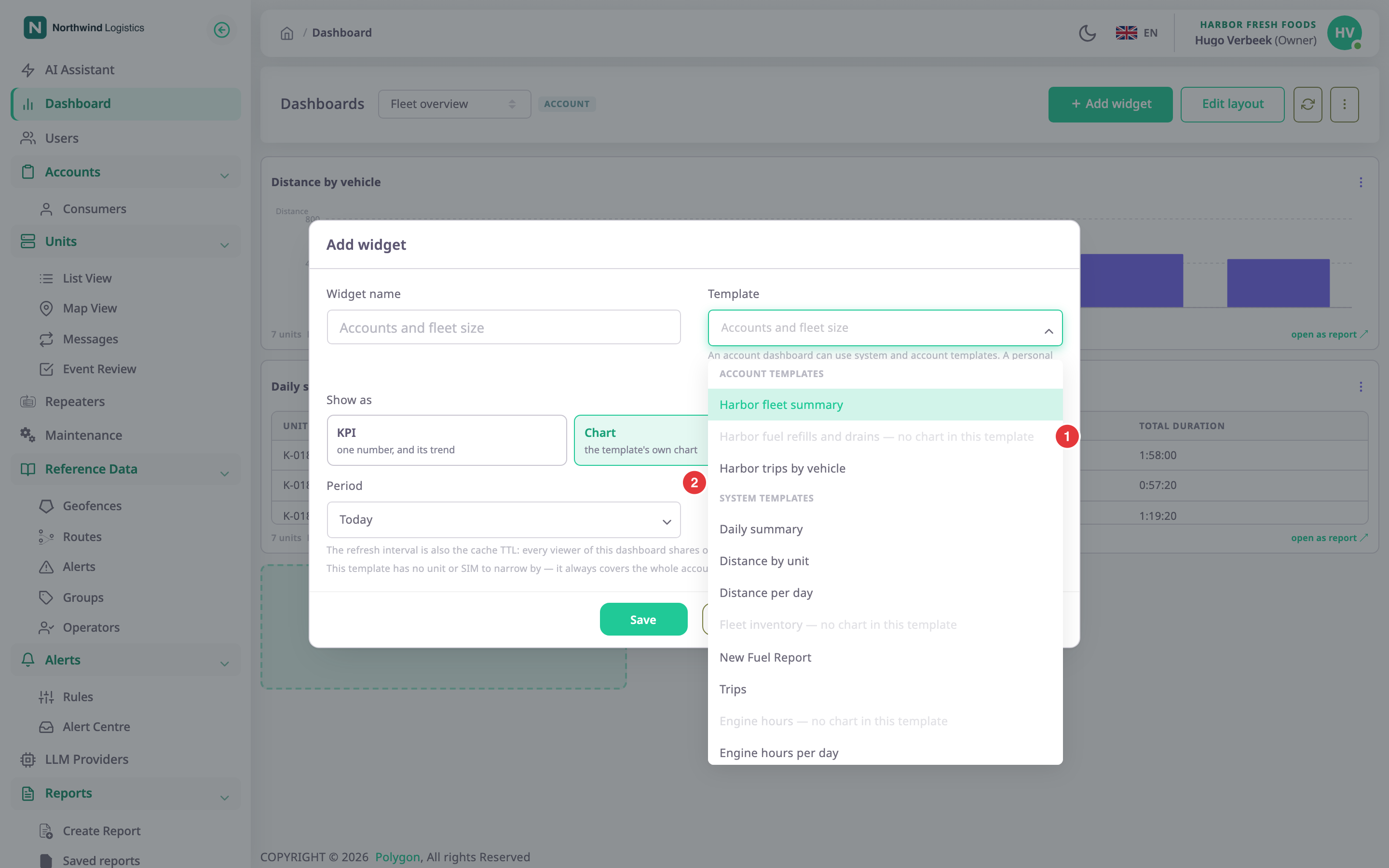
| Show as | A template shows grey when | Reason shown |
|---|---|---|
| KPI | It has no headline figure and no table with a total or a grouping. | "no headline figure in this template" |
| Chart | It has no chart. | "no chart in this template" |
| Table | It has no table. | "no table in this template" |
If you change Show as after you chose a template, the app keeps your choice and shows the reason in red under Template. The dialog still lets you select Save in that case, so check the widget afterwards.
If the dialog shows the note below, the widget predates the scope rule. Choose another template and save. The note reads "This widget's template cannot be used on this dashboard. Choose another one to make the widget work again."
¶ Period
Today, This week, This month, Last 7 days and Last 30 days end now. Yesterday, Last week and Last month are complete periods. A finished period never changes, so it suits comparing figures.
A KPI widget also loads the period before the current one to work out its trend. For This week that is the previous calendar week. For Last 7 days it is the seven days before that.
¶ Widget scope
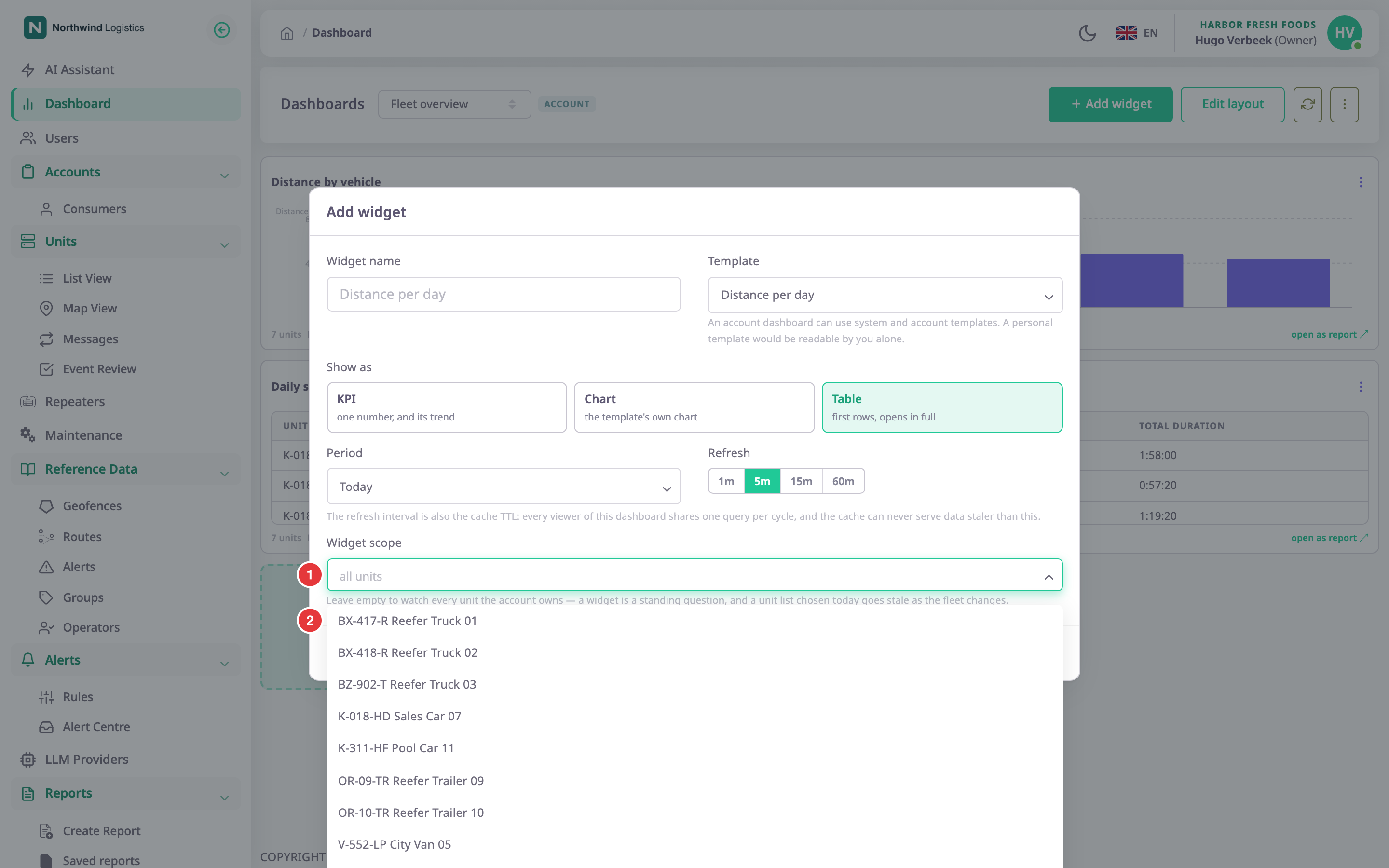
Choose units in the field marked 1. The list marked 2 offers the account's units, up to 200. A widget with an empty scope watches every unit the account owns, including units added later. A list of chosen units does not grow with the fleet, so leave the field empty for a standing question.
¶ Buttons and actions
| Action | What happens |
|---|---|
| Save | Saves the widget. For a new widget, it appears on the dashboard in the first free place and loads its data. Unavailable until you choose a template. |
| Cancel | Closes the dialog without saving. |
¶ Permissions
- To add a widget you need the Add action of Dashboard Widgets. To change one you need Edit.
- On an account dashboard, only a user with the Owner role can add or change widgets. Other users do not see the Add widget button or the Widget actions menu.
- See Permissions reference for where these actions sit in the role wizard.