Notification emails, such as alerts and scheduled reports, carry an unsubscribe link at the bottom. Use it, or the switch in your profile, to stop them. Emails about your user's security keep arriving either way.
¶ Before you start
- The unsubscribe link works without signing in. Anyone who has the email can use it.
- Unsubscribing applies to the email address, in every account that sends to it.
- To keep some notifications but not others, change your alert settings instead.
Alert settings are explained in Alert preferences.
¶ Unsubscribe from an email
-
At the bottom of a notification email, select the unsubscribe link.
The Unsubscribe from emails screen opens and shows your email address.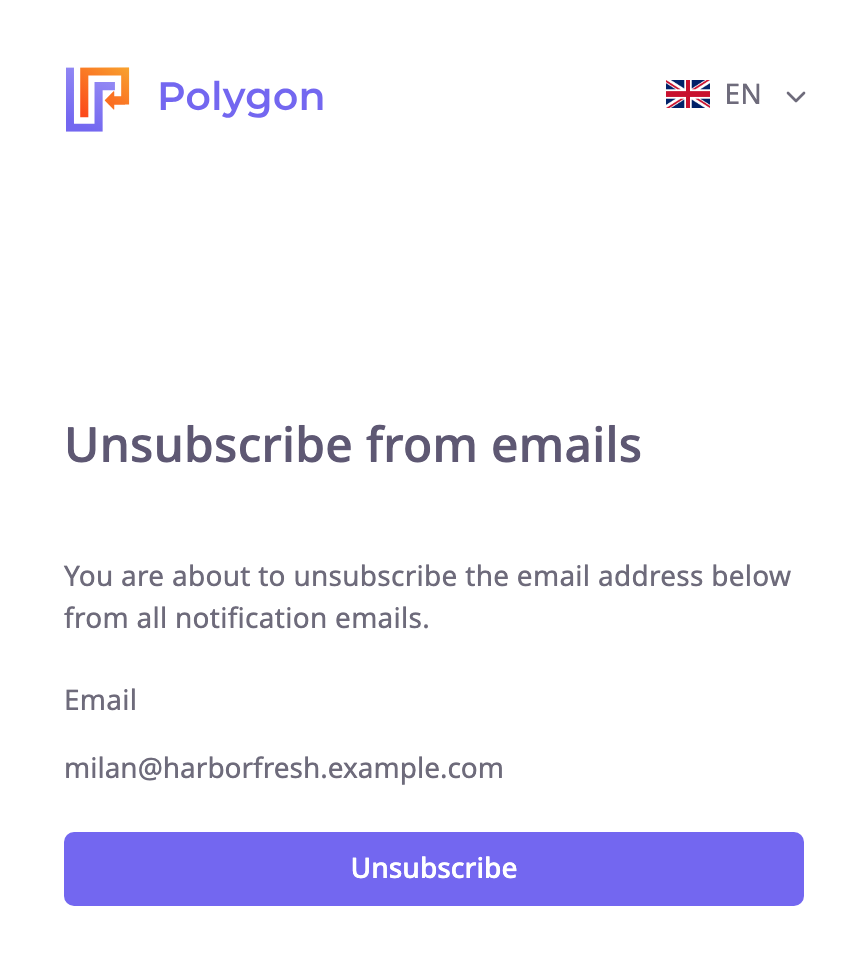
-
Select Unsubscribe.
The screen says "You're unsubscribed".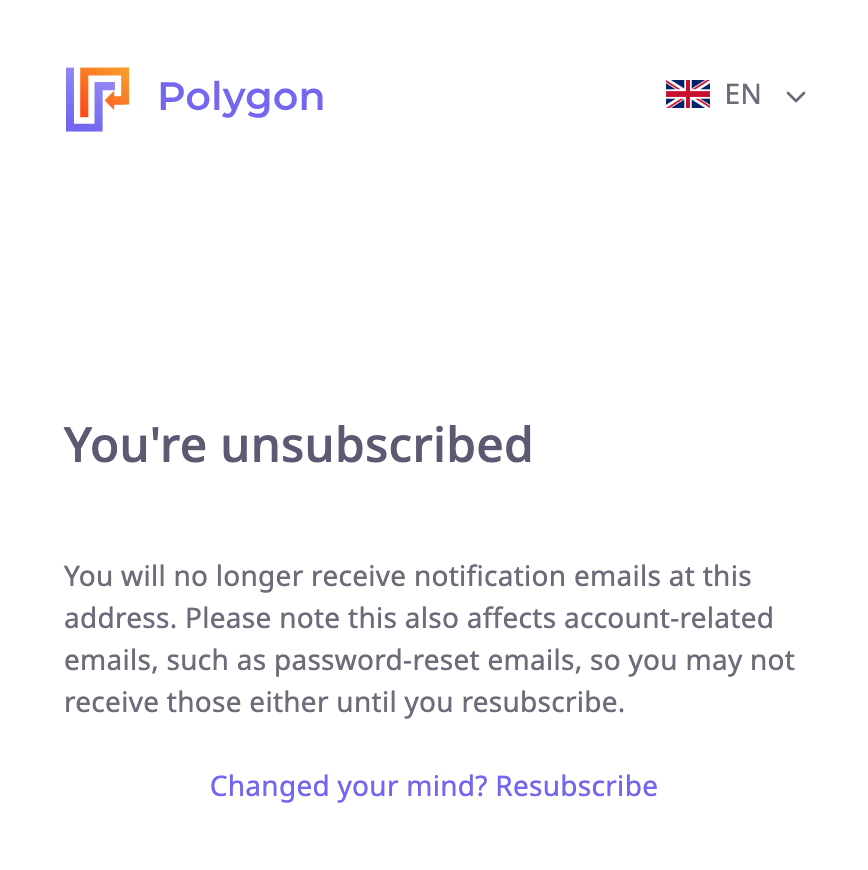
If the screen says "This link is invalid or has expired.", use the switch in your profile instead.
¶ Resubscribe
-
On the confirmation screen, select Changed your mind? Resubscribe.
The Resubscribe to emails screen opens. -
Select Resubscribe.
The screen says "You're resubscribed".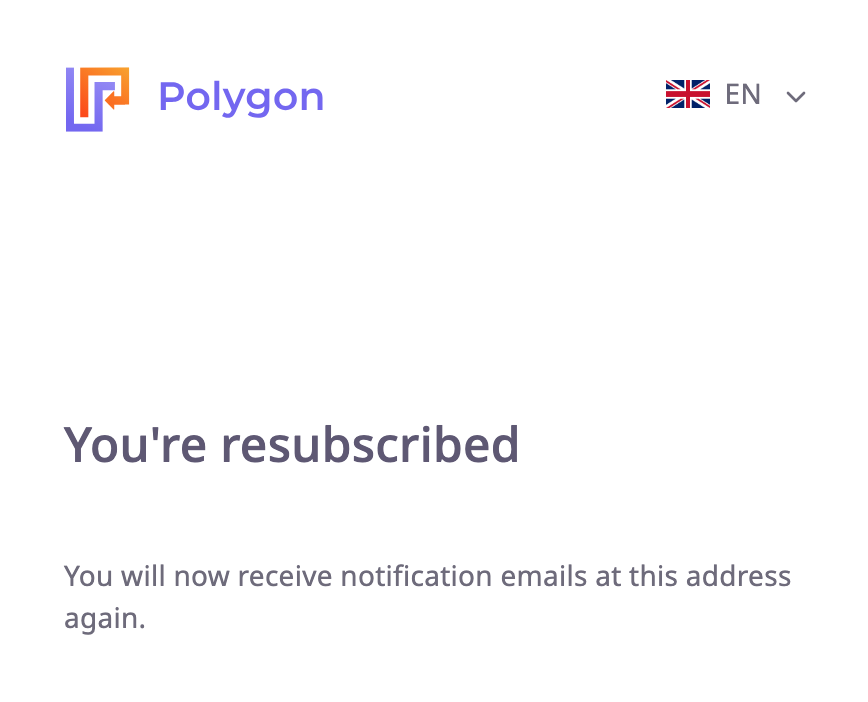
¶ Turn emails off or on in your profile
- Select your name at the top right.
- Select Profile.
- Select Edit profile.
- Under Preferences, turn the Email Subscription switch off or on.
The message "Email subscription preference updated successfully" confirms it. You do not need to select Save Changes.
The status chip on your profile shows "Active" or "Inactive". The switch and the unsubscribe link change the same setting.
¶ What still reaches you
Unsubscribing stops notification emails only. These emails always arrive, whatever the setting:
- Email address verification.
- Password reset.
- Invitations to join an account, and answers to invitations you sent.
- Sign-in notices and changes to your user's details.
The unsubscribe confirmation says password-reset emails may stop as well. They do not: the app always sends them.