Your profile holds your name, photo, sign-in details and contact preferences. They belong to your user, so they are the same in every account you work in. To open it, select your name at the top right, then select Profile.
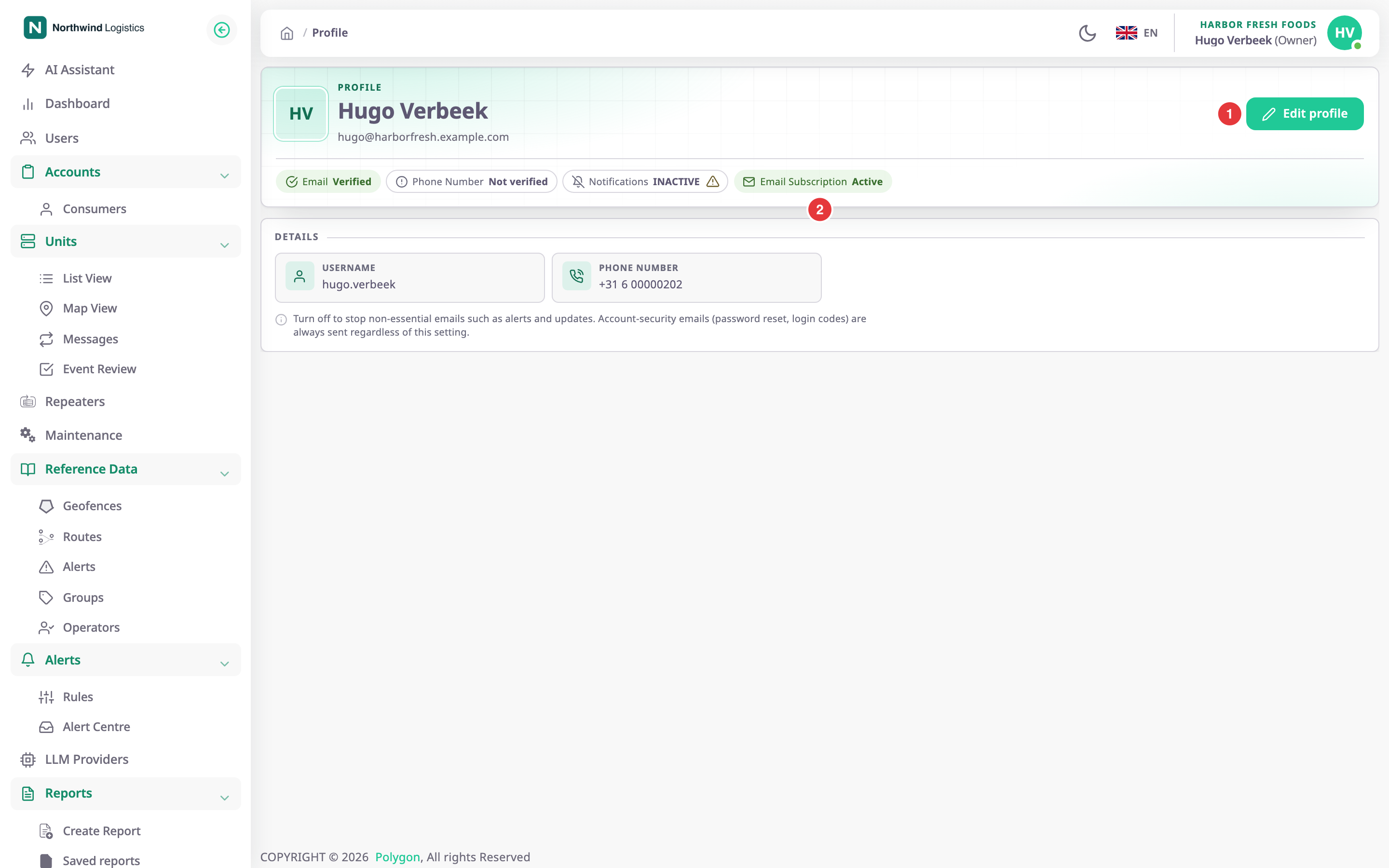
¶ Profile page
The top of the page shows your photo or initials, your name and your email address. Edit profile, marked 1, opens the Update profile screen.
The status chips, marked 2, tell you at a glance:
| Chip | What it shows |
|---|---|
| "Verified", or "Not verified" while a new email address waits for you to confirm it. | |
| Phone Number | "Verified" or "Not verified". |
| Notifications | Whether browser push notifications are on. A warning icon means this browser blocks or does not support them. |
| Email Subscription | "Active" if you receive non-essential emails, "Inactive" if you turned them off. |
Under Details you see your Username and Phone Number.
If your new email address is not verified yet, a Resend Link button appears next to it. It sends the verification email again.
¶ Update profile fields
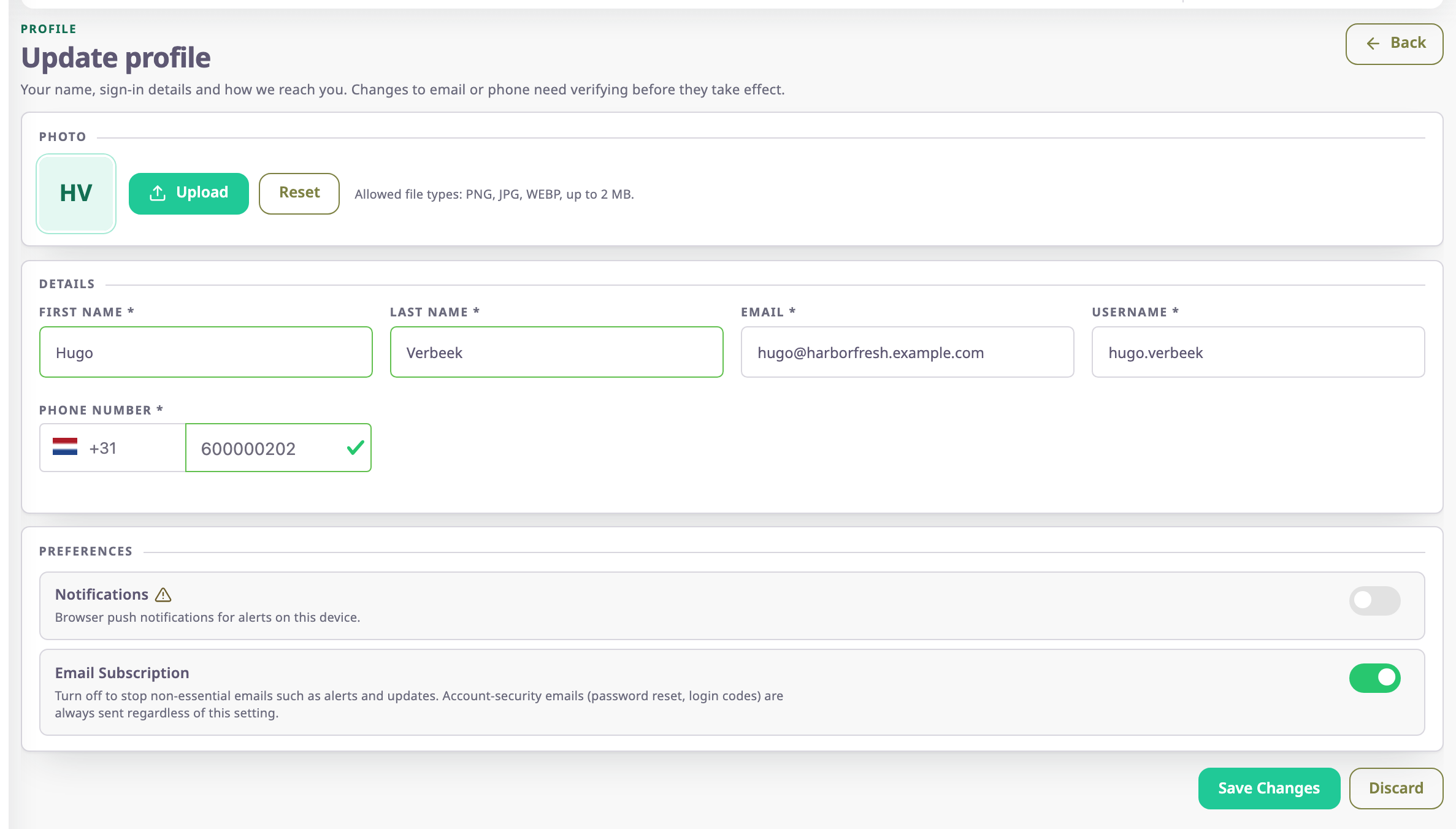
| Field | Required | What it does | Allowed values / example | Notes |
|---|---|---|---|---|
| First Name | Yes | Shows in the top bar, user lists and emails that address you. | 3 to 50 characters. Example: Hugo | The form accepts 2 characters, but saving needs at least 3. The app removes spaces before and after the name. |
| Last Name | Yes | Shows with your first name. | 3 to 50 characters. Example: Verbeek | As First Name. |
| Yes | Receives verification, password reset and notification emails. You can also sign in with it. | A valid email address that no other user has. Example: hugo@harborfresh.example.com | The app saves it in lower case. A new address needs verifying; see below. | |
| Username | Yes | The name you can sign in with instead of your email address. | 3 to 320 characters that no other user has. Example: hugo.verbeek | The app saves it in lower case. |
| Phone Number | Yes | Your mobile number. | A valid number for the country you choose in the list beside it, that no other user has. Example: +31 6 00000202 | Save Changes stays unavailable until the number is valid. A new number needs verifying; see below. |
| Notifications | No | Turns browser push notifications for alerts on or off. | On or off. | Saved with Save Changes. If the browser blocks notifications, the switch turns itself off and a message asks you to allow them in the browser settings. |
| Email Subscription | No | Turns non-essential emails, such as alerts and updates, on or off. | On or off. | Saved at once, without Save Changes. Security emails, such as password resets, always arrive. |
| Action | What happens |
|---|---|
| Back | Returns to the Profile screen without saving. |
| Upload | Opens your computer's file picker for a new photo. |
| Reset | Puts back the photo you had before you uploaded a new one. |
| Save Changes | Saves the photo and the Details and Notifications values. The message "Profile updated successfully" confirms it. |
| Discard | Drops your changes and returns to the previous screen. |
¶ Photo
-
On the Update profile screen, select Upload.
-
Choose a PNG or JPG file smaller than 2 MB.
A dialog opens with a square crop box over the picture.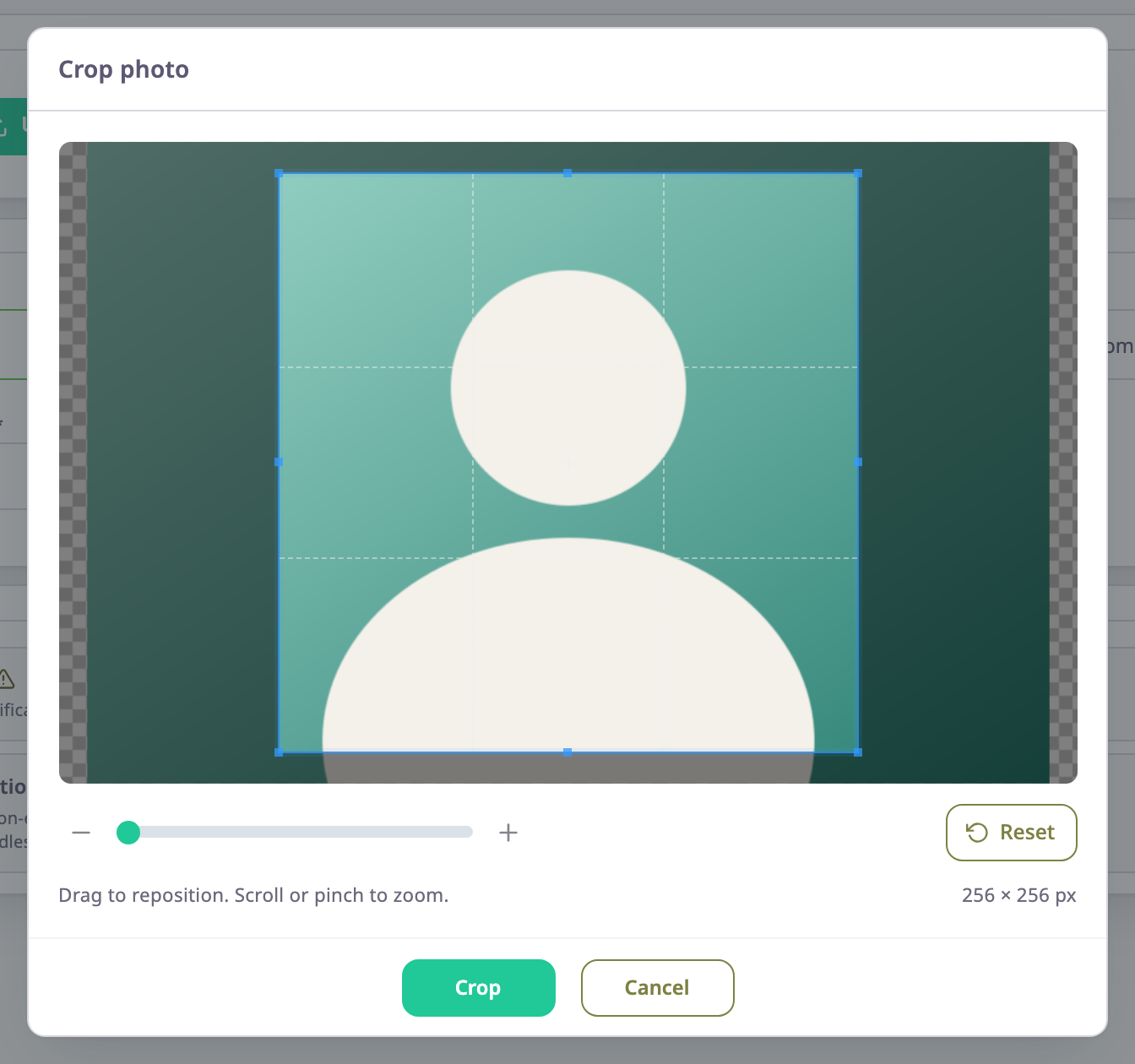
-
Drag the square until it covers the part of the picture you want.
-
Select Crop.
The new photo shows next to Upload. -
Select Save Changes.
The photo replaces your initials in the top bar.
If the file is too large or not a PNG or JPG, a message tells you so and the app keeps your old photo.
¶ Preferences
Notifications sends push notifications to this browser. The browser must allow notifications for the app. If you blocked them, allow them in your browser's site settings, then turn the switch on again. If the switch cannot turn on, a message says why. For example: "Notifications are blocked for this site in the browser settings." or "Browser notifications are not enabled on this server.". To choose which kinds of push you get, see Notifications and background tasks.
Email Subscription controls emails that are not about your security, such as alert and report emails. You can also turn them off from the unsubscribe link at the bottom of those emails.
See Stop or restart notification emails.
¶ What needs verifying
A change to your email address or phone number does not take effect at once:
- Email: the app sends a verification email to the new address. Until you open its link, you keep signing in with your old address, and the profile shows the new address as "Not verified". The link stays valid for 14 days.
- Phone Number: the app keeps the new number as "Not verified". The web app has no screen for entering a phone verification code. If your current number is already verified, saving a different one fails with "Mobile number is already verified".
Each email address, username and phone number belongs to one user only. If another user has the value you entered, saving fails with "Email Id already exists", "Username already exists" or "Mobile number already exists".
See Verify your email address and phone number.
¶ Permissions
- Every signed-in user can open and change their own profile. No permission controls it.
- Nobody else can change your profile from this screen. Account owners manage other users from Users.