The How I get alerted screen decides how alerts reach you, whatever the rules say. A rule chooses its channels; your preferences then filter them for you alone. They do not change what other people get.
To open it, select your name at the top right, then select Alert preferences. You can also select Preferences in the Alert Centre.
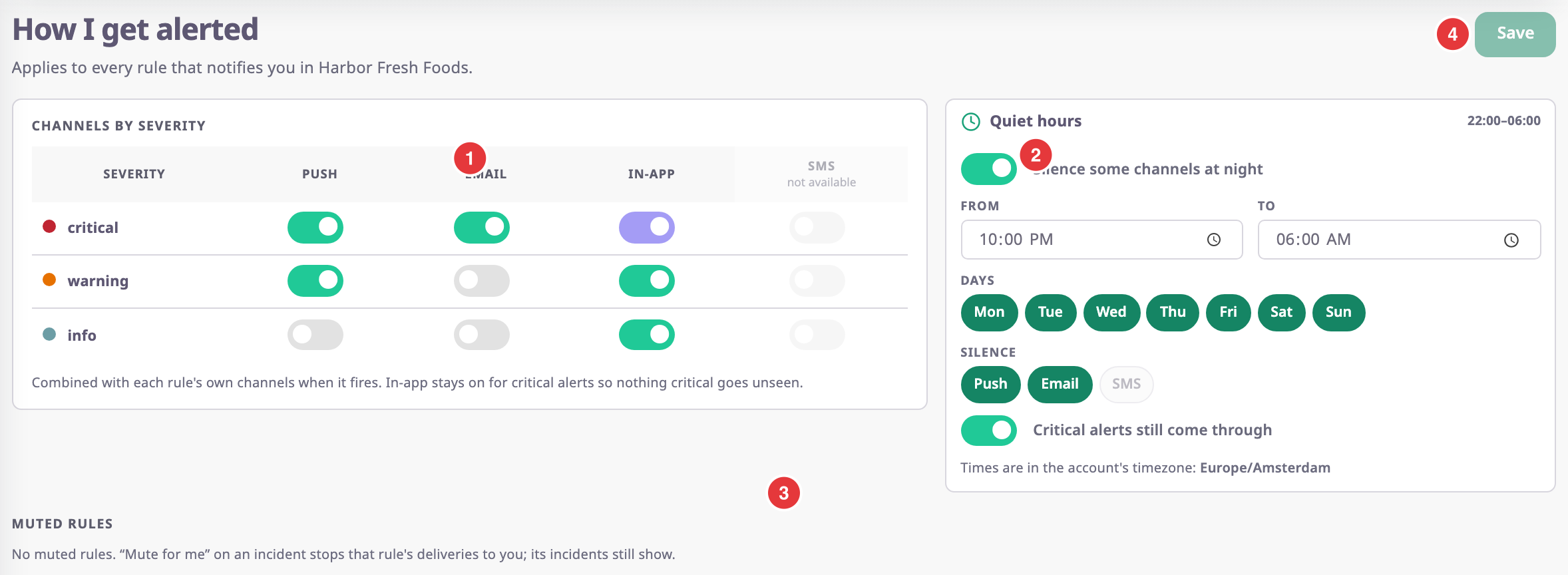
The line under the title names the account. Preferences belong to you in that account; switch accounts to set them for another one.
Changes take effect when you select Save, marked 4. "Unsaved changes" shows until you do, and the app asks before you leave with unsaved changes. The message "Preferences saved. They apply to the next alert." confirms the save.
¶ Channels by severity
The table, marked 1, has one row per severity and one switch per channel. A switch that is off stops that channel for incidents of that severity.
| Field | Required | What it does | Allowed values / example | Notes |
|---|---|---|---|---|
| Push, Email, In-app per severity | No | Lets the channel reach you for rules of that severity. | On or off. | Defaults: critical all three; warning Push and In-app; info In-app. |
| SMS | — | — | — | Shows "not available". |
You cannot turn off In-app for critical alerts, so nothing critical goes unseen.
A channel reaches you only if both the rule and your preferences have it. For example, a warning rule that sends Email emails you only after you turn on Email for warning.
¶ Quiet hours
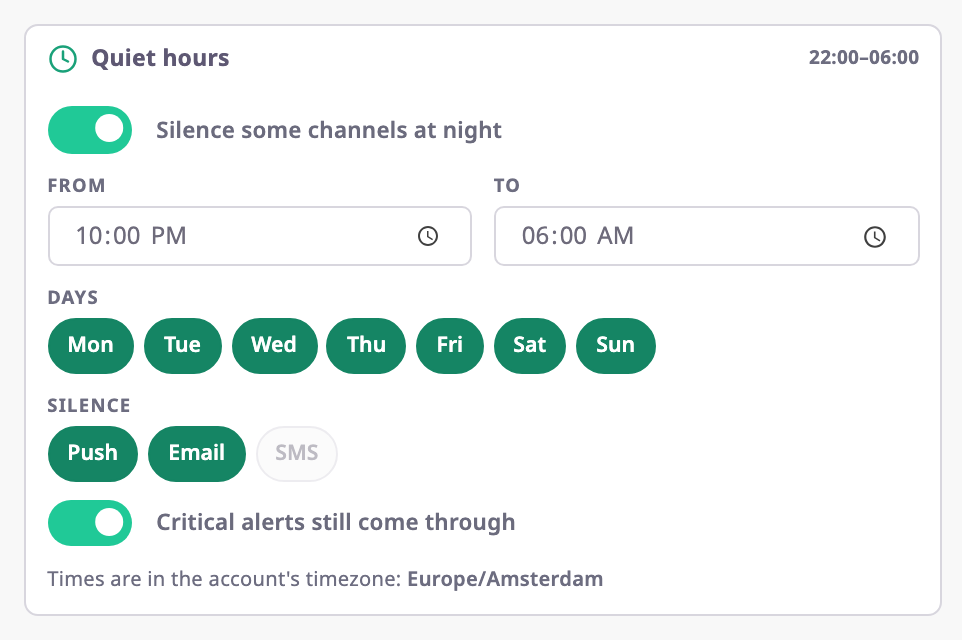
The card, marked 2, silences some channels during set hours. Its title shows the hours, or "off".
| Field | Required | What it does | Allowed values / example | Notes |
|---|---|---|---|---|
| Silence some channels at night | No | Turns quiet hours on or off. | On or off. Default off. | When first turned on: 22:00 to 07:00, every day, Push. |
| From | Conditional | When quiet hours start. | A time. Example: 10:00 PM | Required while quiet hours are on. |
| To | Conditional | When quiet hours end. | A time. Example: 06:00 AM | Cannot equal From. A To earlier than From runs past midnight. |
| Days | Conditional | The days quiet hours apply. | Mon to Sun. | At least one day. |
| Silence | Conditional | The channels to silence. | Push, Email. | At least one. In-app is never silenced. SMS shows "not available". |
| Critical alerts still come through | No | Lets critical incidents through during quiet hours. | On or off. Default on. | Available while quiet hours are on. |
Quiet hours use the account's time zone, shown under the card.
An alert silenced by quiet hours still shows in the Alert Centre, and the incident's timeline shows the delivery as suppressed (quiet hours).
¶ Muted rules

The list, marked 3 in the first screenshot, shows the rules you muted with Mute for me or Mute rule for me, and when. A muted rule sends you nothing on any channel. Its incidents still show in the Alert Centre.
Unmute removes the rule from the list. Select Save to apply it.
With no muted rules, the list says: "No muted rules. “Mute for me” on an incident stops that rule's deliveries to you; its incidents still show."
¶ How preferences combine with a rule's channels
For each person and each Push, Email or In-app notification, the app checks in this order:
- The rule must have the channel turned on.
- If you muted the rule, the app sends you nothing.
- Your Channels by severity must allow the channel for the rule's severity.
- During your quiet hours, a silenced channel sends nothing, unless the incident is critical and Critical alerts still come through is on.
Webhook, Command and Group actions do not depend on anyone's preferences.
¶ Permissions
- The screen appears for roles with Alert Incidents with Read.
- Saving needs Alert Preferences with Edit. The Owner role has it.
- Each user sees and changes only their own preferences.