Rename a group when its purpose changes, or delete it when you no longer need it. Deleting a group never deletes the units or other items in it.
¶ Before you start
- To rename a group, your role needs Add and Edit on Labels. Without both, the list does not show the pencil icon.
- To delete a group, your role needs Delete on Labels. The Owner role has all three. A dispatcher-style role often has no Delete.
- You can rename only the groups of the account you are working in. A group you open from another account through the account filter does not change when you save, although the app reports success.
¶ Rename a group or change its description
-
In the side menu, select Reference Data > Groups.
-
In the group's row, select the pencil icon (Edit).
The group's page opens with its name and description read-only. -
Select the pencil icon (Edit) next to the name, marked 1.

The name and description become editable, and a Save icon appears.
-
In the name field, enter the new name, up to 30 characters.
-
Optional: in the description field below it, change the description.
-
Select the Save icon.
The message "Action successful" appears with "Group updated successfully.", and the fields become read-only again.
The Save icon stays unavailable while the name is empty. The app does not stop you from giving two groups the same name here, so check the list first.
The new name shows at once wherever the group appears, including the Labels of every item in it.
¶ Delete a group
-
In the side menu, select Reference Data > Groups.
-
In the group's row, select the bin icon (Delete).
A dialog asks "Are you sure?" and names the group.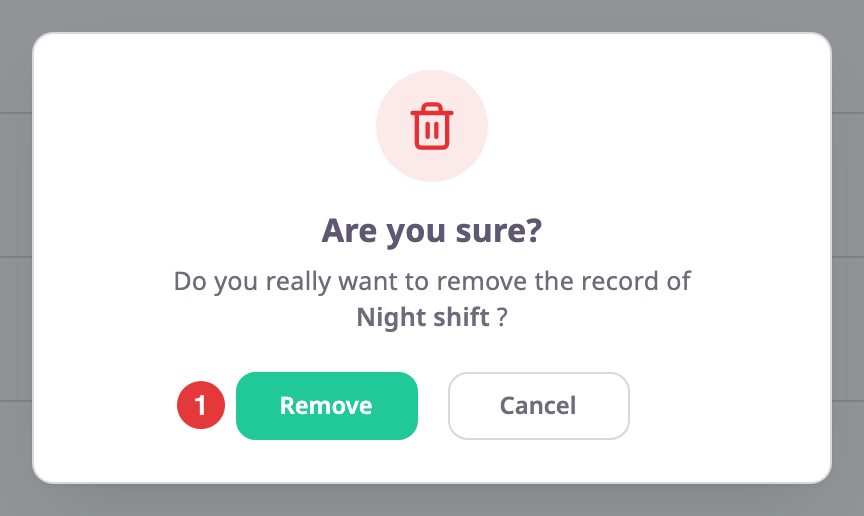
-
Select Remove.
The message "Group Removed" appears, and the group leaves the list.
To keep the group, select Cancel instead.
To delete several groups at once, tick them in the list and select Delete in the bar above it. See Groups list.
¶ What happens next
- Every unit, device, operator, maintenance reminder, geofence, route and SIM that carried the group loses that label. The items themselves stay as they were.
- The group disappears from Labels fields and from pickers that select by group.
- You cannot undo a deletion from the app. To rebuild the group, create it again and add the items back.