A group's page shows what the group holds. It has one tile per item type, with a count, and lists the items of the type you choose. To open it, in the side menu, select Reference Data > Groups. In the group's row, select the eye icon (View).
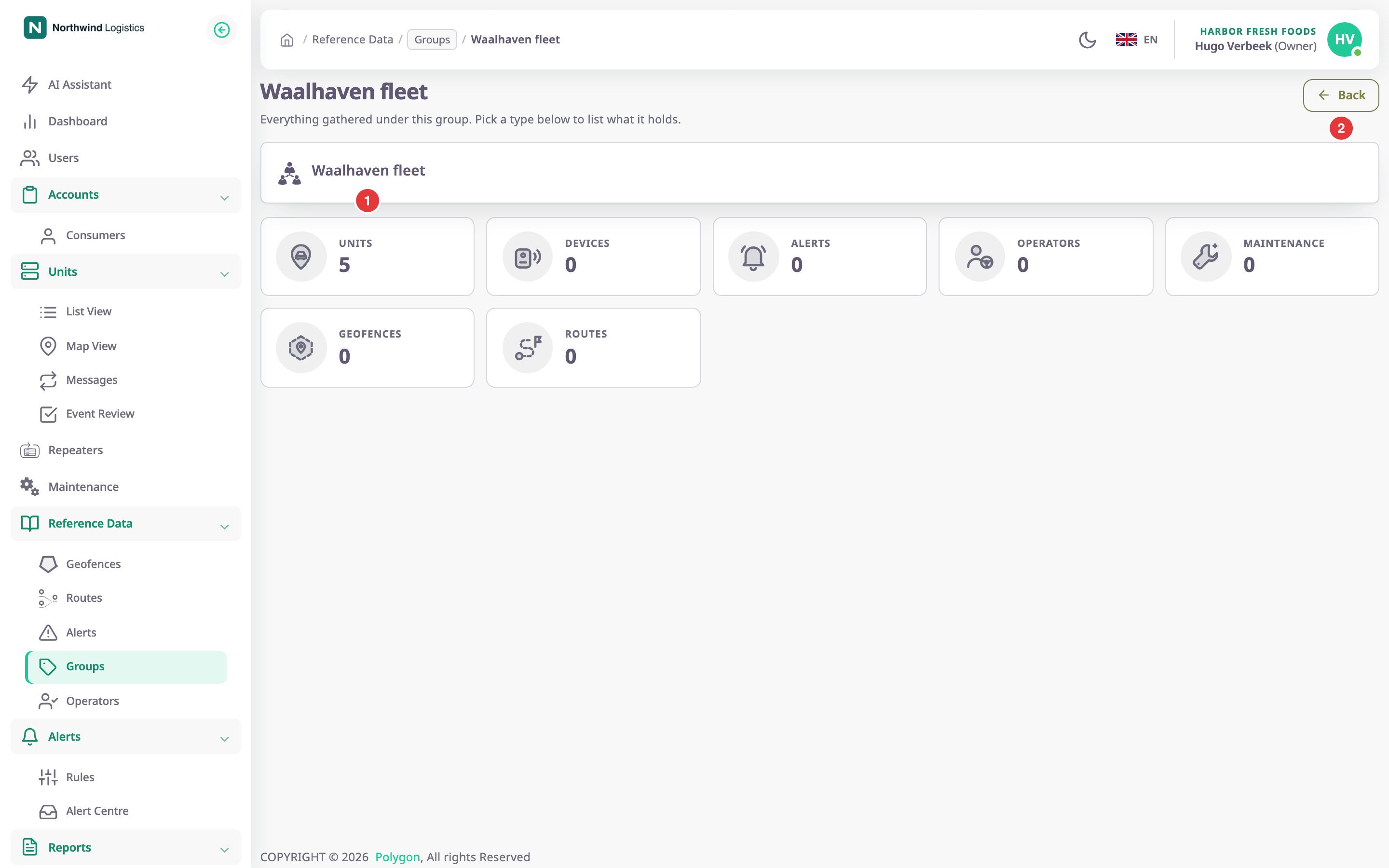
¶ Name and description
The card at the top shows the group's name and, under it, its description. You cannot change them on the view page. To change them, open the group from the pencil icon in the list instead. See Rename or delete a group.
¶ Item type tiles
Each tile, marked 1, names an item type and shows how many items of that type carry the group. You see a tile only for the item types your role can read.
| Tile | Counts |
|---|---|
| Units | Units with this group in Labels. |
| Devices | Devices with this group. |
| Operators | Operators with this group. |
| Maintenance | Maintenance reminders with this group. |
| Geofences | Geofences with this group. |
| Routes | Routes with this group. |
| SIMS | SIM cards with this group. |
¶ Listing a type
Select a tile to list the items of that type in the group. The app highlights the tile and opens the list under the tiles. No list shows until you select a tile.
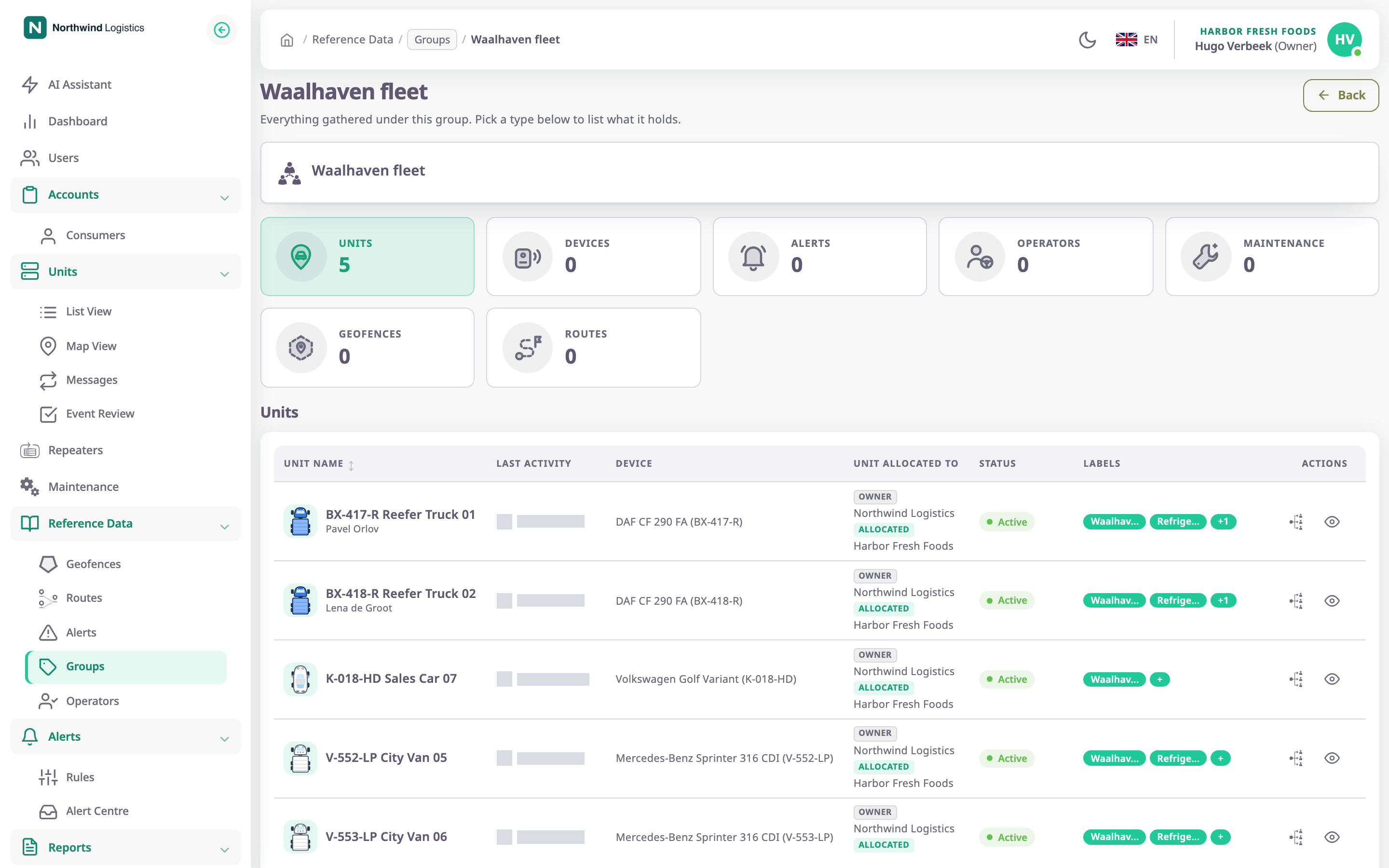
The list is the one you reach from the side menu for that type, filtered to the group, with the same columns and row actions.
Units are listed on the Units list.
¶ View and edit
The group's page opens in one of two modes:
| Opened from | Mode | What you can do |
|---|---|---|
| The eye icon (View) | View | Read the name, description and tiles. |
| The pencil icon (Edit) | Edit | Also select the pencil icon (Edit) next to the name to make the name and description editable. |

In edit mode, the Save icon, marked 1, saves the new name and description. It stays unavailable while the name is empty.
| Field | Required | What it does | Allowed values / example | Notes |
|---|---|---|---|---|
| Name (no label) | Yes | Renames the group everywhere it shows. | 1 to 30 characters. Example: Waalhaven fleet | The app does not check for a duplicate name here. |
| Description (no label) | No | Replaces the group's description. | Any text. | — |
| Action | What happens |
|---|---|
| Back, marked 2 | Returns to the screen you came from. |
| The pencil icon (Edit) | Turns editing of the name and description on or off. Edit mode only. |
| The Save icon | Saves the name and description. The message "Group updated successfully." confirms it. |
¶ Permissions
- To open the page, your role needs Read on Labels.
- The view and the edit page need only that permission. The list shows the pencil icon only to roles with Add and Edit on Labels.
- Saving needs Add on Labels. Without it the app refuses the change.
- Each tile also needs Read on that item type, such as Units or Geofences.