When someone's job changes, give them a role that fits. When someone leaves, remove them from the account so they can no longer work in it.
¶ Before you start
- To change a role you need Users > Update; to remove a user, Users > Delete. The built-in Owner role has both.
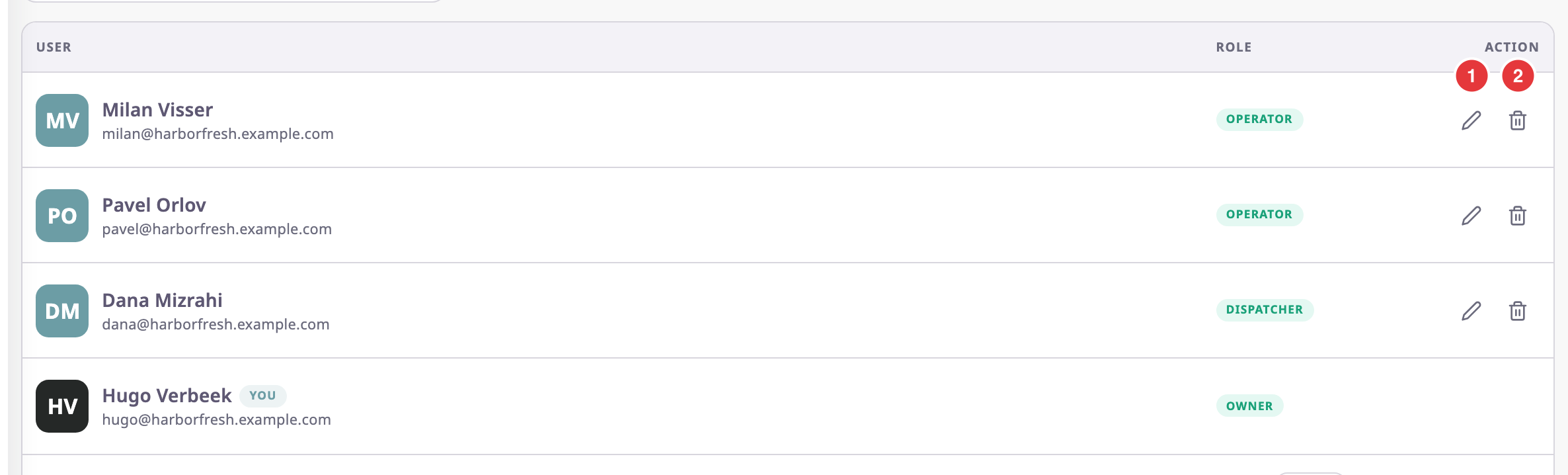
- You can only change users whose role is below yours. Their rows show Edit and Delete, marked 1 and 2.
- Nobody can change their own role or remove themselves. The app also refuses to change or remove the account's last Owner.
¶ Change a user's role
-
In the side menu, select Users.
-
On the user's row, select Edit.
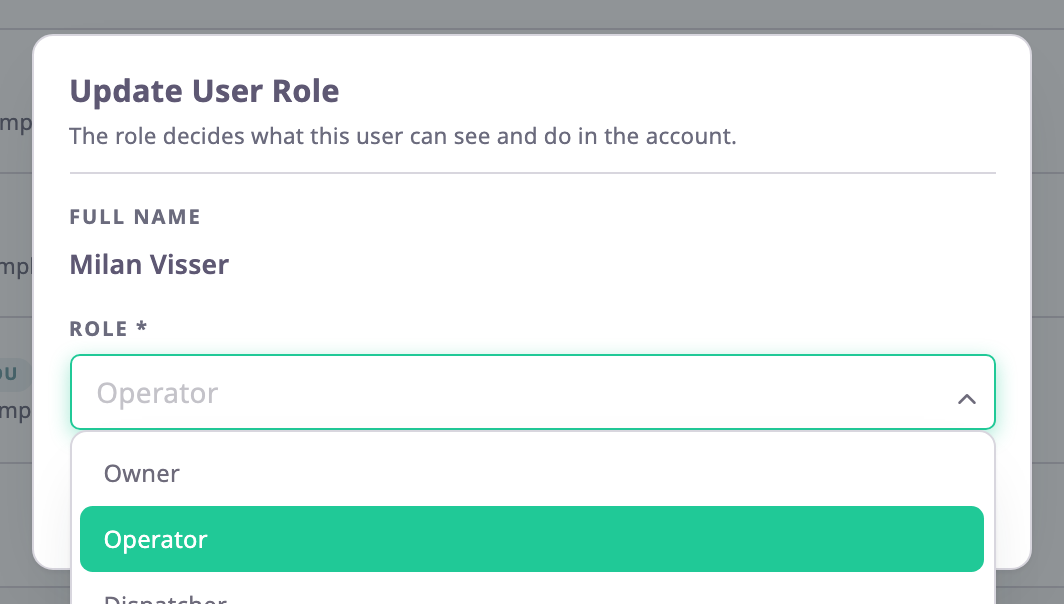
The Update User Role dialog opens with the user's current role. -
In Role, choose the new role.
-
Select Update.
The app shows "User role updated successfully". The Role column shows the new role.
¶ Remove a user from the account
-
In the side menu, select Users.
-
On the user's row, select Delete.
A dialog asks "Are you sure?" and names the user.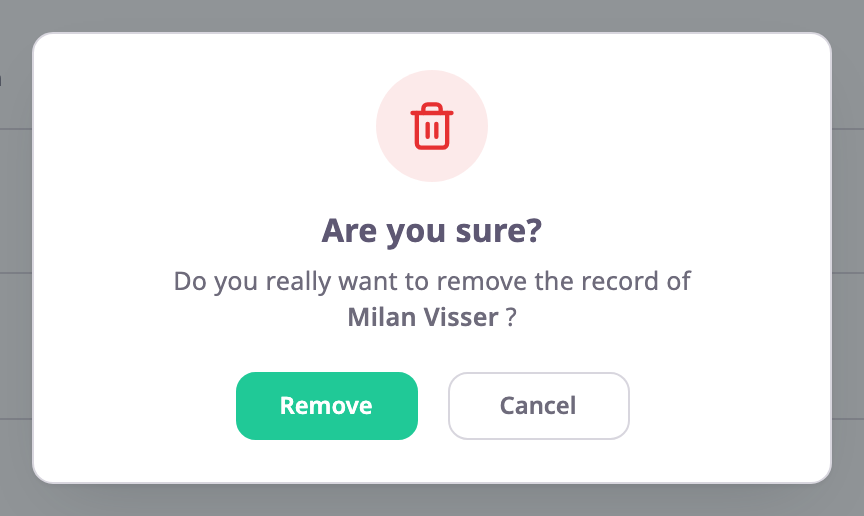
-
Select Remove.
The app shows "User removed successfully". The user leaves the list.
¶ What the user sees next
| After | The user |
|---|---|
| A role change | Works with the screens and actions of the new role. |
| Removal | No longer finds this account in their account picker. The app does not sign them out of a session that is open. Their user, password and other accounts stay as they were. |
Removal also closes the user's open invitations to this account. To bring the person back, invite them again; they keep the user they have.
¶ If it fails
| Message | Cause |
|---|---|
| "You cannot remove yourself" | You selected your own row. Ask another Owner. |
| "You cannot remove owner user." | The user is the account's last Owner. Give another user the Owner role first. |
| "You don't have access for removing this user" | The user's role is not below yours. |