The Users screen holds everyone who can sign in to the account you work in. It also holds the invitations still waiting for an answer, the account's roles and its API keys. To open it, in the side menu, select Users.
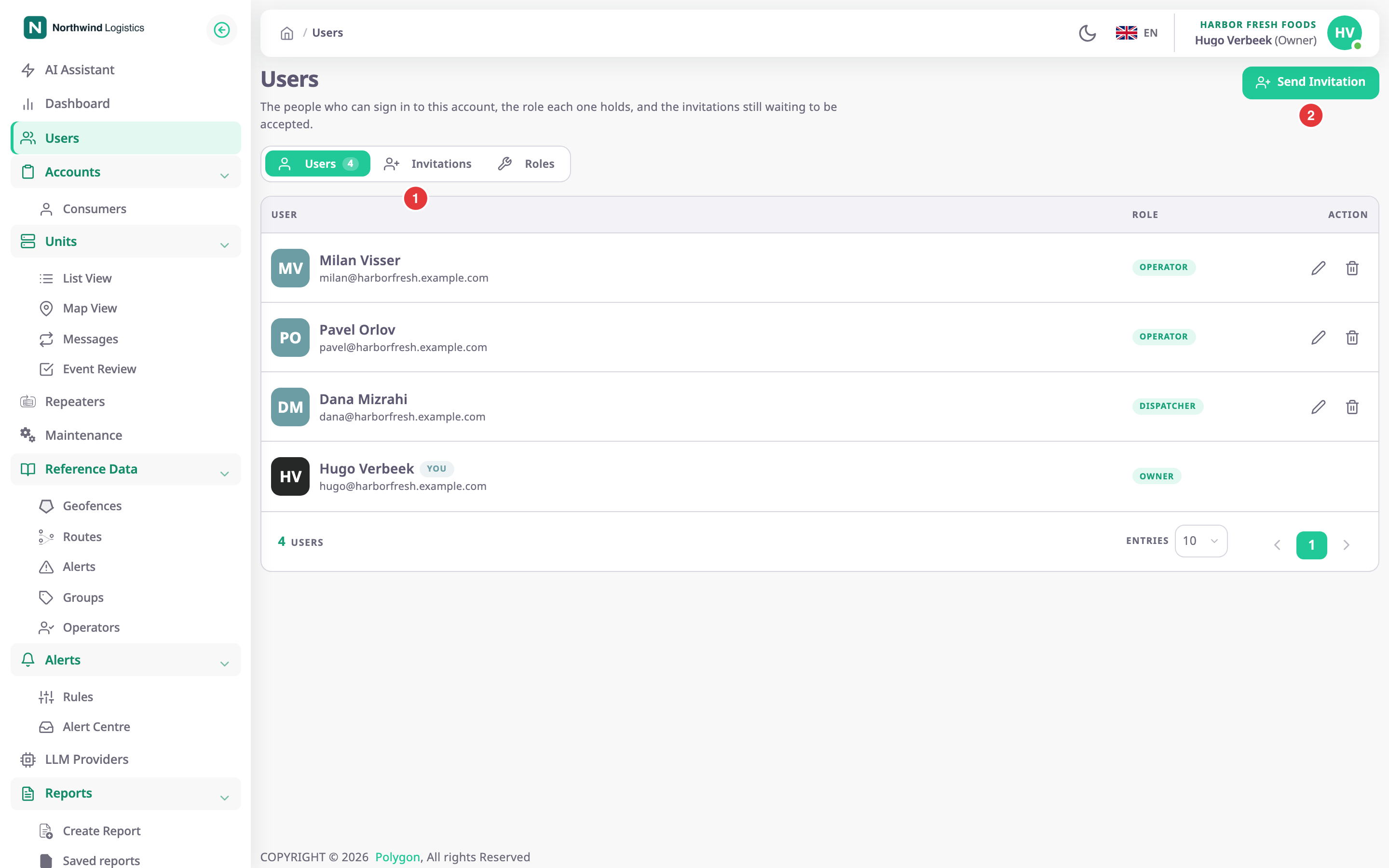
The tabs, marked 1, are Users, Invitations, Roles and API keys. Send Invitation, marked 2, shows on every tab. On the API keys tab, Create API key shows beside it. See Send Invitation dialog.
¶ Users tab
| Column | What it shows |
|---|---|
| user | Name and email address. Your own row has a You tag. |
| Role | The role the user holds in this account. |
| action | Edit and Delete, for users you may manage. |
A row has no actions when it is your own or the account's last Owner. It also has none when the user's role is not below yours. By mistake, all of those rows show the You tag.
- Edit opens the Update User Role dialog.
- Delete asks "Are you sure?", then removes the user from this account. The user keeps their other accounts.
See Change a user's role or remove a user.
¶ Batch actions
The Users, Invitations and Roles tabs have a checkbox at the start of each row you may act on. Tick several rows to act on them together:
| Tab | Batch action | Rows you can tick |
|---|---|---|
| Users | Delete | Users you could delete one by one. |
| Invitations | Resend | Pending, declined and expired invitations. |
| Roles | Delete | Roles you could delete one by one; not the built-in roles or your own. |
- Select the checkbox of each row. The checkbox in the header row ticks every row on the page.
A bar above the list shows how many rows you selected. - Optional: to include rows on other pages, select Select all {n} matching in the bar.
- In the bar, select the action.
The app asks you to confirm, for example "Delete 4 selected items? This cannot be undone." - Select Delete, or Yes for Resend.
A Result dialog shows how many succeeded and lists each failure with its reason.
Select failed in the Result dialog ticks only the rows that failed. Clear selection in the bar unticks everything. The bar does not show on the users and invitations of a customer account you manage from Dealers or Consumers.
¶ Invitations tab and statuses
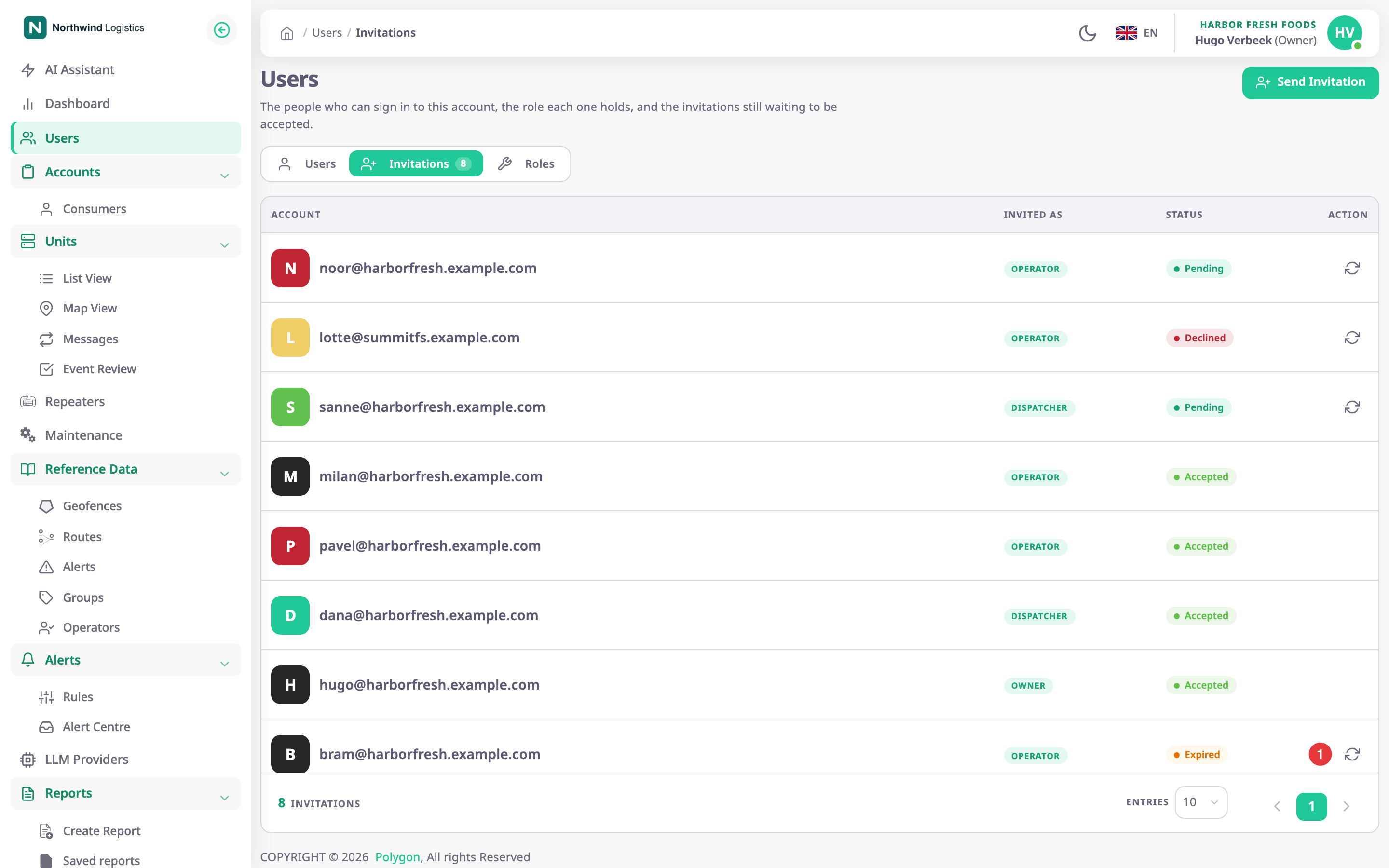
| Column | What it shows |
|---|---|
| account | The invited email address. |
| Invited as | The role the person gets when they accept. |
| status | Pending, Accepted, Declined or Expired. |
| action | Resend, marked 1, for pending, declined and expired invitations. |
| Status | Means |
|---|---|
| Pending | Sent and not answered yet. The link works for 30 days. |
| Accepted | The person joined the account. |
| Declined | The person turned the invitation down. |
| Expired | Nobody answered within 30 days. |
Resend sends the same invitation again and gives an expired one another 30 days. The app shows "Invitation resent successfully". You cannot withdraw an invitation from this tab.
¶ Roles tab
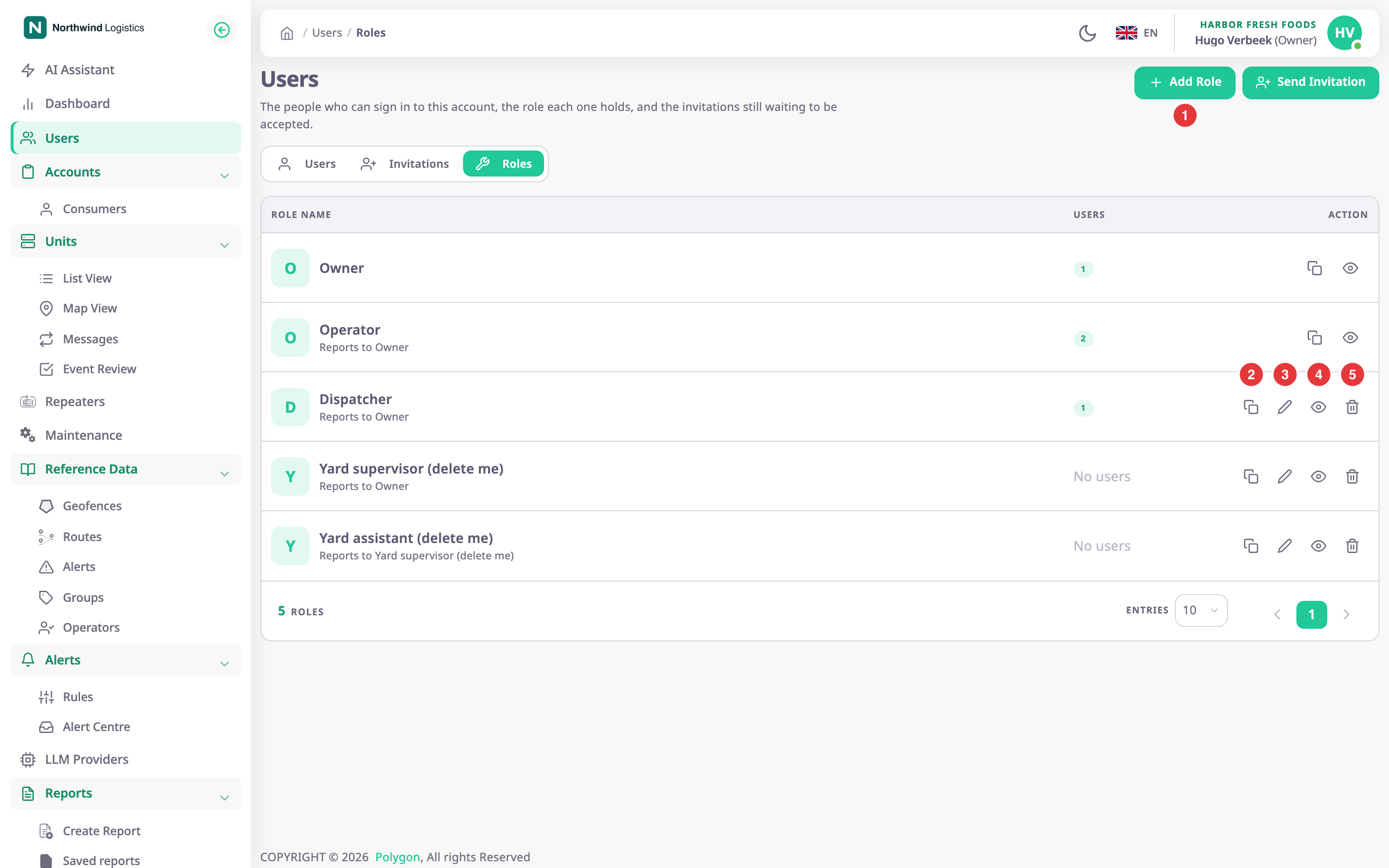
| Column | What it shows |
|---|---|
| role name | The role and the role it reports to ("Reports to"). |
| Users | How many users hold the role, or "No users". |
| action | The actions below. |
| Action | What happens |
|---|---|
| Add Role (marked 1) | Opens the role wizard. See Create a role. |
| Clone (marked 2) | Opens the role wizard filled in with this role's permissions. |
| Edit (marked 3) | Opens the role page in edit mode. |
| View (marked 4) | Opens the role page read-only. |
| Delete (marked 5) | Deletes the role after you confirm. The app refuses while users or child roles still hold on to the role. |
The built-in roles and your own role show only Clone and View. See Role wizard and role page.
¶ API keys tab
The API keys tab lists the keys your own systems use to call the API, with their role, status, expiry and last use. See Create and revoke API keys.
¶ Changing a user's role
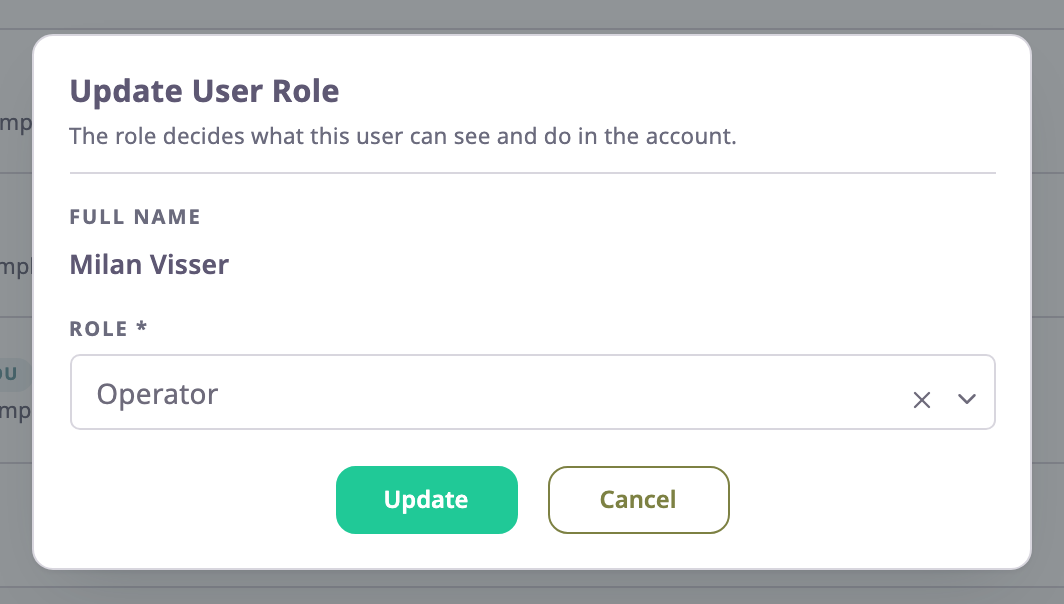
| Field | Required | What it does | Allowed values / example | Notes |
|---|---|---|---|---|
| Full Name | — | Shows whose role you change. | Read-only. Example: Milan Visser | — |
| Role | Yes | The role the user holds in this account from now on. | A role below yours, or a built-in role. Example: Dispatcher | Starts with the user's current role. |
| Action | What happens |
|---|---|
| Update | Saves the role. The app shows "User role updated successfully" and refreshes the list. |
| Cancel | Closes the dialog without saving. |
¶ Permissions per tab
| Tab or action | You need |
|---|---|
| Users in the side menu | Users > Show Menu |
| Users tab | Users > Read |
| Edit, Delete on users | Users > Update, Users > Delete |
| Invitations tab | User Invite > Read |
| Send Invitation | User Invite > Send |
| Resend | User Invite > Resend shows the button; the app also checks User Invite > Send when you select it |
| Roles tab | Roles > Read |
| Add Role, Clone / Edit / Delete | Roles > Add, Update and Delete |
| API keys tab, Create API key, Revoke | Read, add and delete API keys |
| Batch Delete and Resend | The same permission as the single-row action |
A tab you have no permission for does not show. The built-in Owner role has every permission here.