When a customer reports a problem, you can see exactly what one of their users sees. Login as User opens their account as that user, in Support Mode, without their password. You confirm with your own password.
¶ Before you start
- You need the Log in as user permission (module Login as User). The built-in Owner role has it.
- You can only do this for accounts below yours, and only for an ACTIVE account and an active user.
- Everything you do in Support Mode happens in the customer's account, under that user's role.
¶ Start a support session
-
Open the Account Tree View, or Accounts > Consumers or Accounts > Dealers.
-
On the account's row, select Login as User, marked 1.
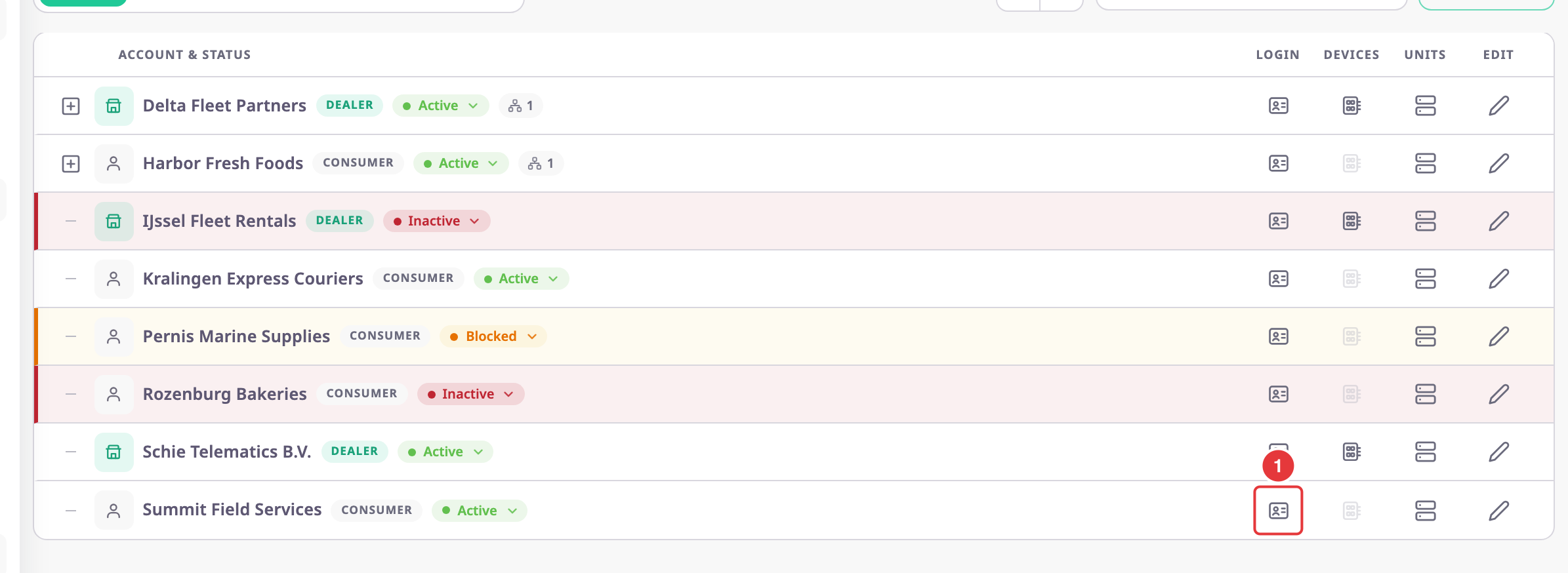
The Confirm Identity dialog opens.
¶ Confirm your identity
-
In Profile, choose the user you want to act as.
The list shows each user's name, role and a partly hidden email address.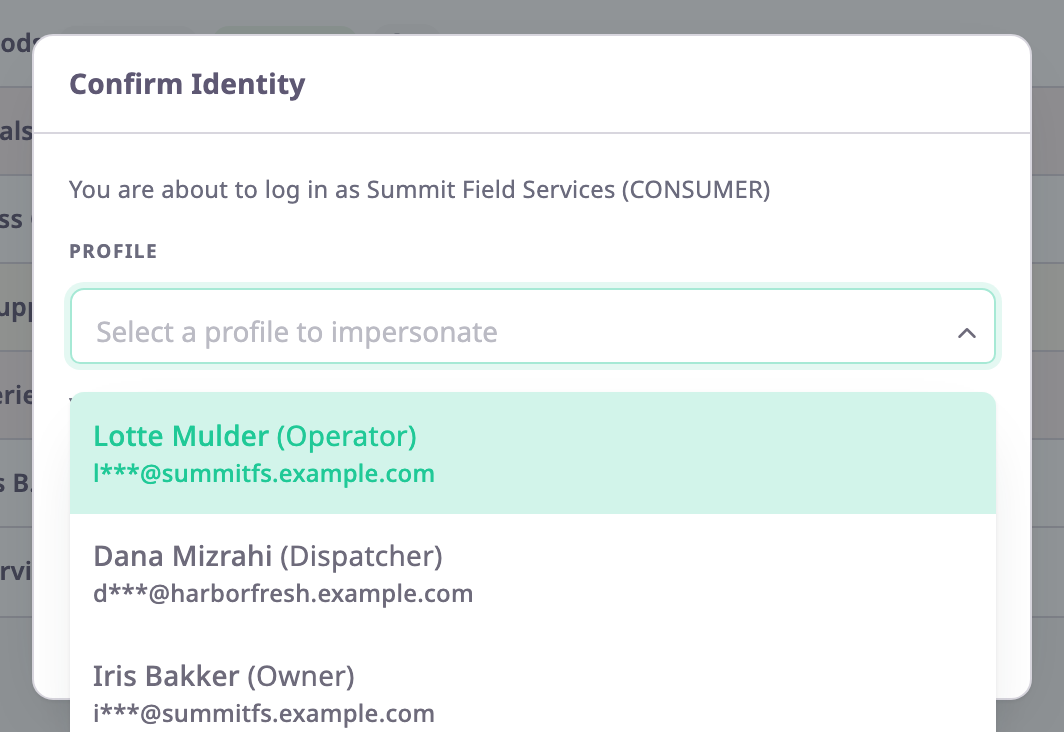
-
In Your password, enter your own password, the one you sign in with.
-
Select Confirm.
The app shows "Impersonation started" and opens the customer's account as that user.
¶ Work in the customer's account
A green bar across the screen shows whose account you are in. It names the user and the account, followed by "Support Mode".

You see the side menu, data and buttons that user's role allows. Changes you make are real changes in the customer's account.
¶ End the session
- In the Support Mode bar, select End Session.
The app shows "Returned to your account" and takes you back to your own account.
A Support Mode session also ends by itself 20 minutes after it started. The app then shows "Support session expired" and takes you back to your own account.
¶ If it fails
| Message | Cause and fix |
|---|---|
| "Incorrect password. Please re-enter your password to continue." | You entered the wrong password. Enter the one you use to sign in. |
| "Target not available" | The account or the user is not active, or the user is no longer in the account. |
| "Action not permitted" | The account is not below yours, or it is your own account. |
| The Profile list is empty | The account has no users yet, for example while its owner has not accepted the invitation. |