The Account Tree View shows every dealer and consumer account below yours in one tree. Each row shows the account's status and the actions you can take on it. To open it, go to Accounts > Dealers or Accounts > Consumers, then select Accounts in the breadcrumb at the top of the screen.
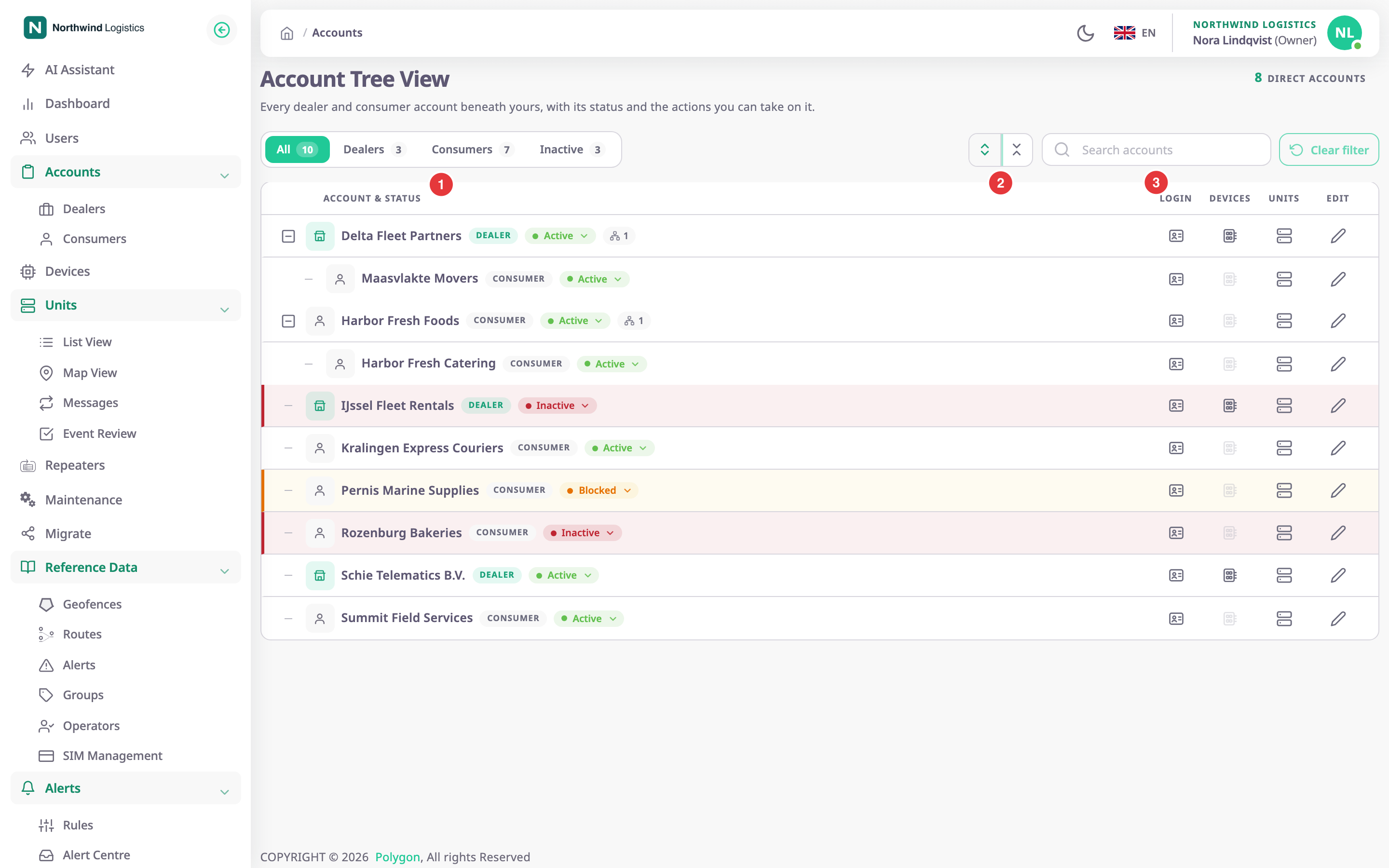
¶ Filters and search
| Control | What it does |
|---|---|
| All, Dealers, Consumers, Inactive (marked 1) | Shows all accounts, or only one kind. Each filter shows how many accounts it holds. Inactive also counts blocked accounts. |
| Expand all, Collapse all (marked 2) | Opens or closes every branch of the tree at once. |
| Search accounts (marked 3) | Shows only accounts whose name contains what you enter. |
The number at the top right is how many accounts sit directly below yours.
¶ Expand and collapse
A row with a plus sign has accounts below it. Select the sign to show or hide them. The small count next to the status is the number of sub-accounts.
¶ Columns and status
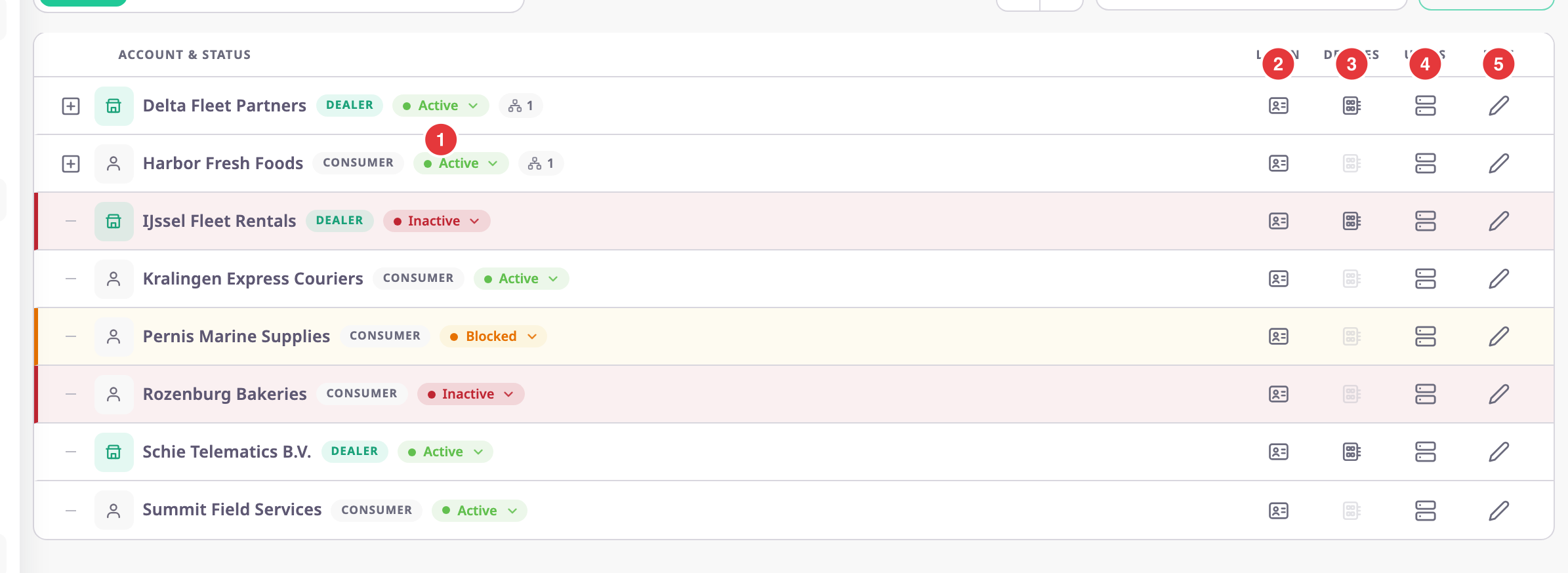
| Column | What it shows |
|---|---|
| Account & status | The account name, its type (Dealer or Consumer) and its status. Inactive rows have a red edge, blocked rows an orange one. |
| Login | Signs you in as a user of that account. |
| Devices | Opens the device list for that account. Consumer accounts have no devices, so the app greys out the icon. |
| Units | Opens the units of that account on the map. |
| Edit | Opens the account's edit form. |
¶ Row actions
| Action | What happens |
|---|---|
| Status menu (marked 1) | Choose ACTIVE, INACTIVE or BLOCKED. The app saves the new status at once, without asking, and shows "Account status updated successfully". |
| Login as User (marked 2) | Opens the Confirm Identity dialog. See Sign in as a user of another account. |
| Device List (marked 3) | Opens Devices filtered to that account. |
| Units (marked 4) | Opens the map with that account's units. |
| Edit (marked 5) | Opens the dealer account form or the consumer account form. |
¶ Empty state
If no account sits below yours, the screen says so and, if you may add accounts, offers a link to create one.
¶ Permissions
- Any signed-in user can open the Account Tree View. What it shows depends on the accounts below theirs.
- The status menu and Edit need Update Dealer Accounts for dealers and Update Consumer Accounts for consumers. One level further down, they need the matching Sub Accounts permission.
- Login as User needs the Log in as user permission. Device List needs Devices > Read and Units needs Units > Read.
- The built-in Owner role has all of them.