Help a customer with their team without signing in as them. From your own account you can see a child account's users and invitations, invite people, and change or remove users.
¶ Before you start
- The account must be ACTIVE. Manage Users does not show for an inactive or blocked account.
- For a consumer you need Consumer Account User > Read to see users and Consumer Account User Invite > Send to invite. For a sub-dealer the matching Dealer Account User permissions apply. The built-in Owner role has them.
¶ Open the users of an account
-
In the side menu, select Accounts > Consumers, or Accounts > Dealers for a sub-dealer.
-
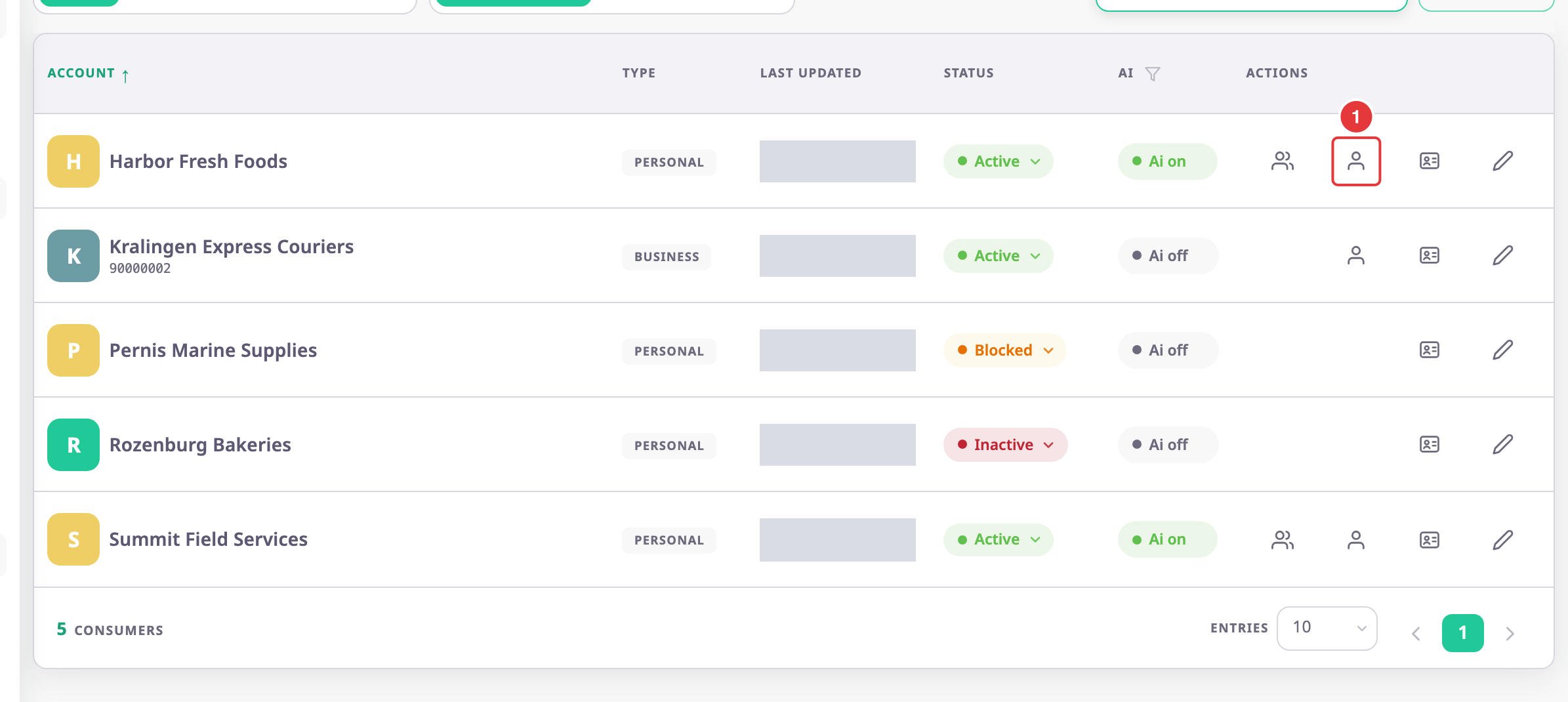
On the account's row, select Manage Users, marked 1.
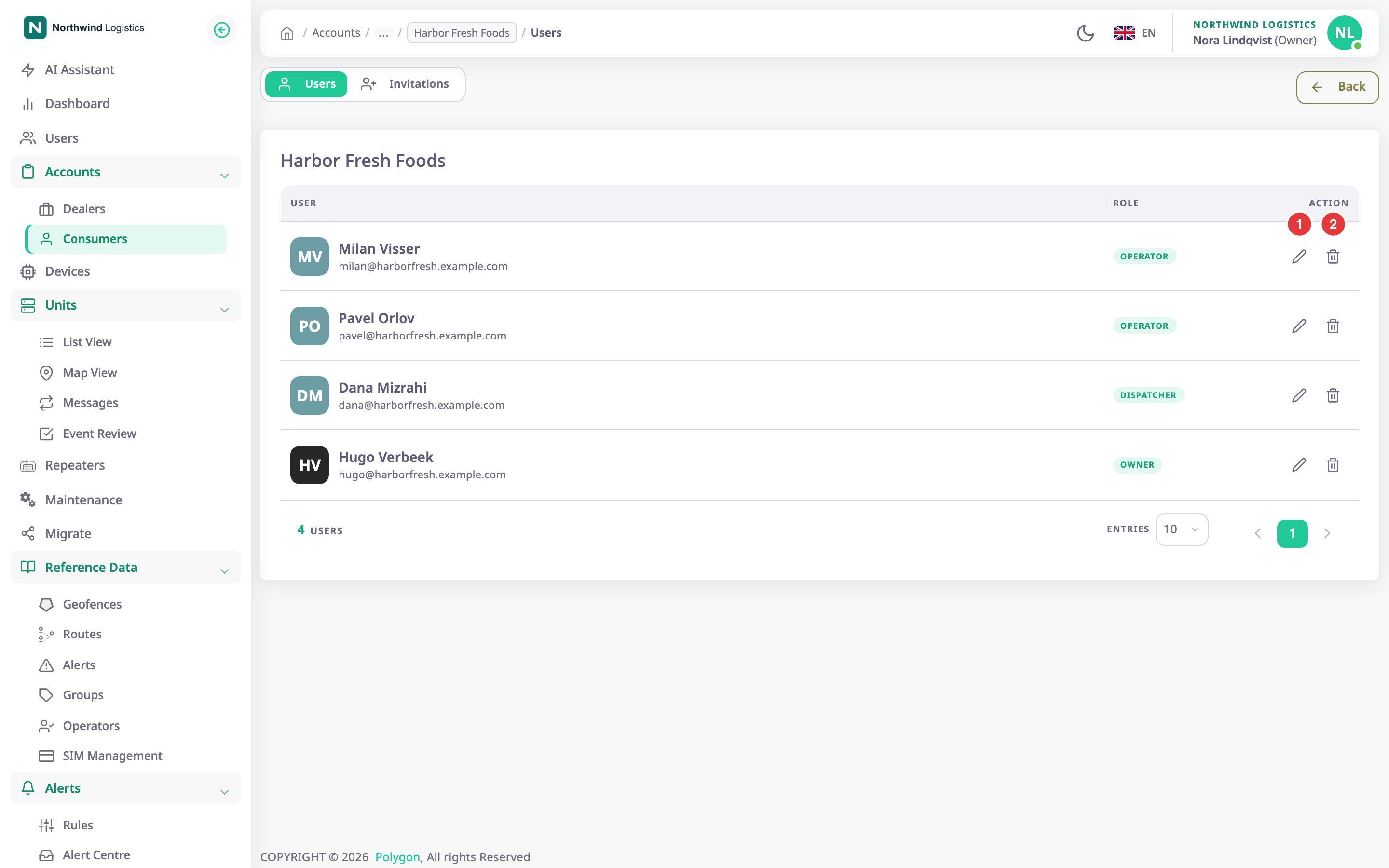
The account's Users tab opens, with every user and their role.
¶ Invite a user to the account
-
Select the Invitations tab.
-
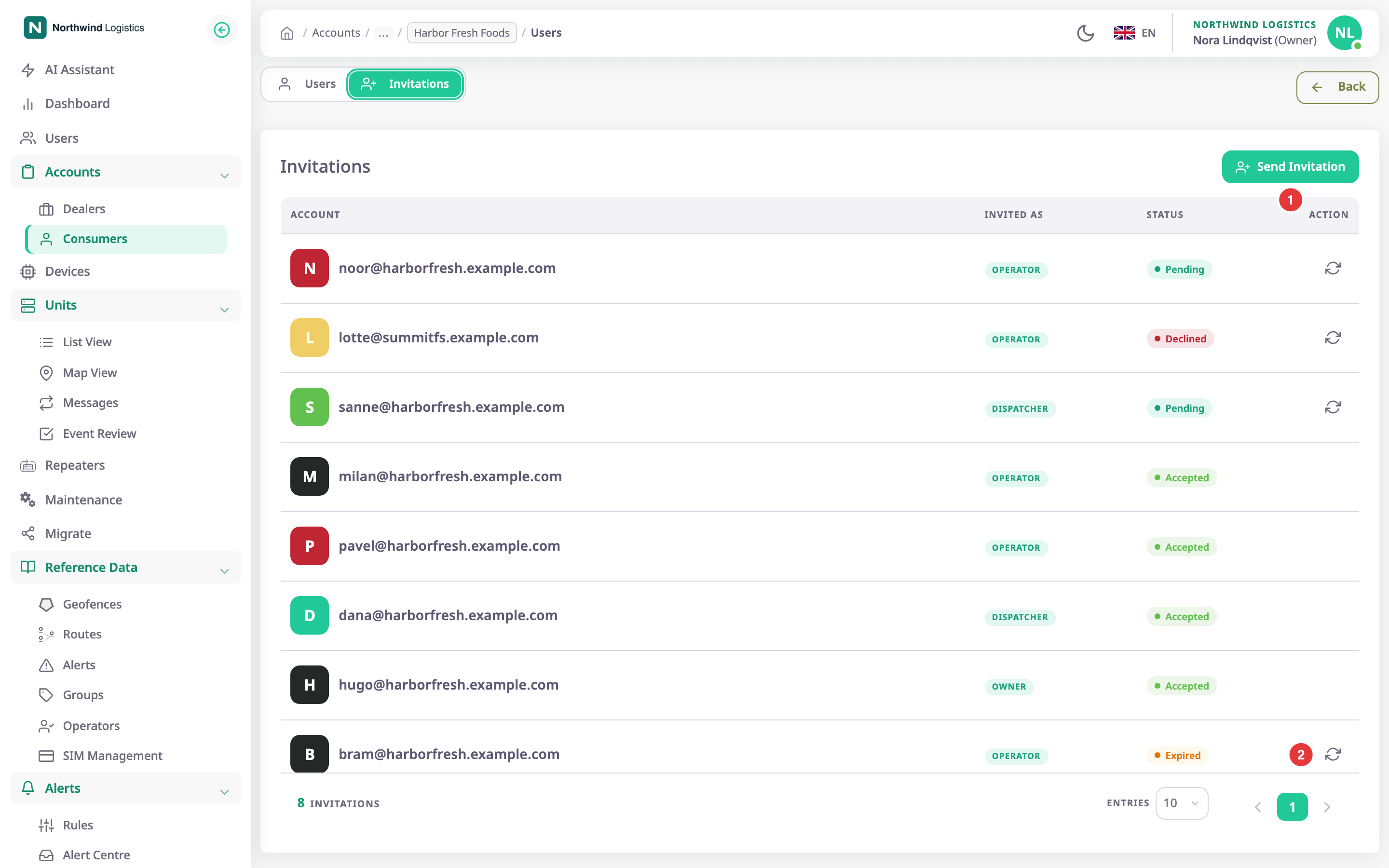
Select Send Invitation, marked 1.
The Send an invite dialog opens.
-
In Emails (Add up to 20 emails)*, enter the address and press Enter.
-
In Role, choose the role the person gets in that account.
-
Select Invite.
The app shows "Invitation sent successfully" and lists the invitation link for each address. -
Select Close.
The invitation shows as Pending on the Invitations tab.
The Send Invitation dialog reference describes the dialog.
¶ Resend an invitation
Use this when the owner of a new account never received or lost their invitation.
- On the Invitations tab, find the invitation. Its status is Pending, Declined or Expired.
- Select Resend, marked 2.
The app shows "Invitation resent successfully". An expired invitation is valid for another 30 days.
¶ Change or remove a user
On the Users tab:
- To give a user another role in that account, select Edit, marked 1, choose the role in Role and select Update.
- To take a user out of that account, select Delete, marked 2, and confirm with Remove.
The steps are the same as for your own account. See Change a user's role or remove a user.