Set your account's date and time format, time zone and units once. Every user of the account then sees the same formats in lists, maps and reports.
¶ Before you start
- In a dealer account you need Update Dealer Accounts; in a consumer account, Update Consumer Accounts. The built-in Owner role has it.
- These settings belong to the account, not to you. They change what every user of the account sees.
- A parent account can set the same formats for a child account on its edit form.
¶ Open the account settings
- Select your name at the top right.
- Select Account Settings.
The Account Settings screen opens. - Select the Formats and display tab.
¶ Choose the date and time format and time zone
-
Select the Date and Time Format field.
The Date/Time Format dialog opens.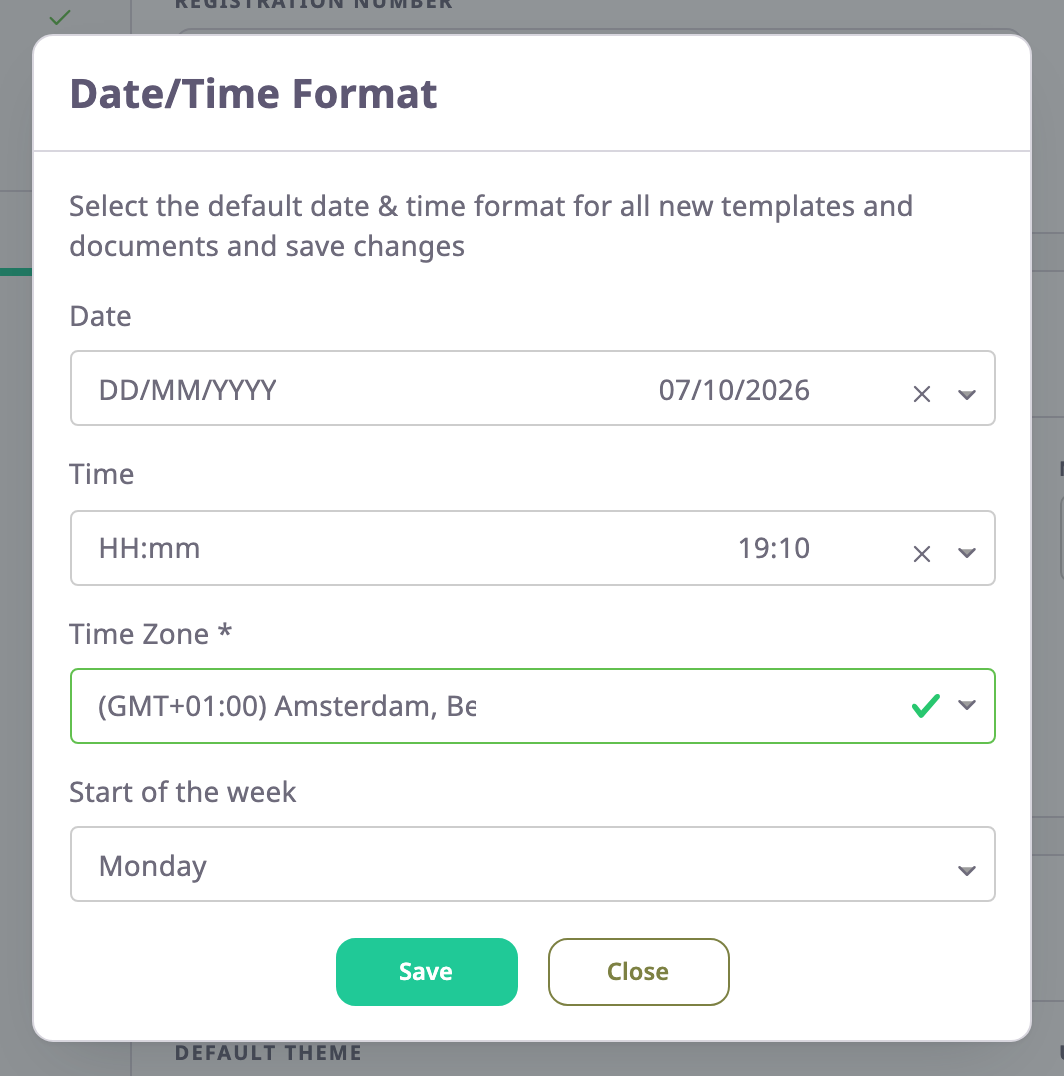
-
In Date, choose a format. Each option shows today's date in that format.
-
In Time, choose a format.
-
In Time Zone, choose the account's time zone.
-
Select Save.
The dialog closes and the field shows the new format with the current time.
To use a format that is not in the list, choose Custom in Date or Time. Then enter a date pattern, for example DD.MM.YYYY. The app refuses a pattern it cannot read.
¶ Choose the measurement system
-
Select the Measurement System field.
The Measurement System Configuration dialog opens.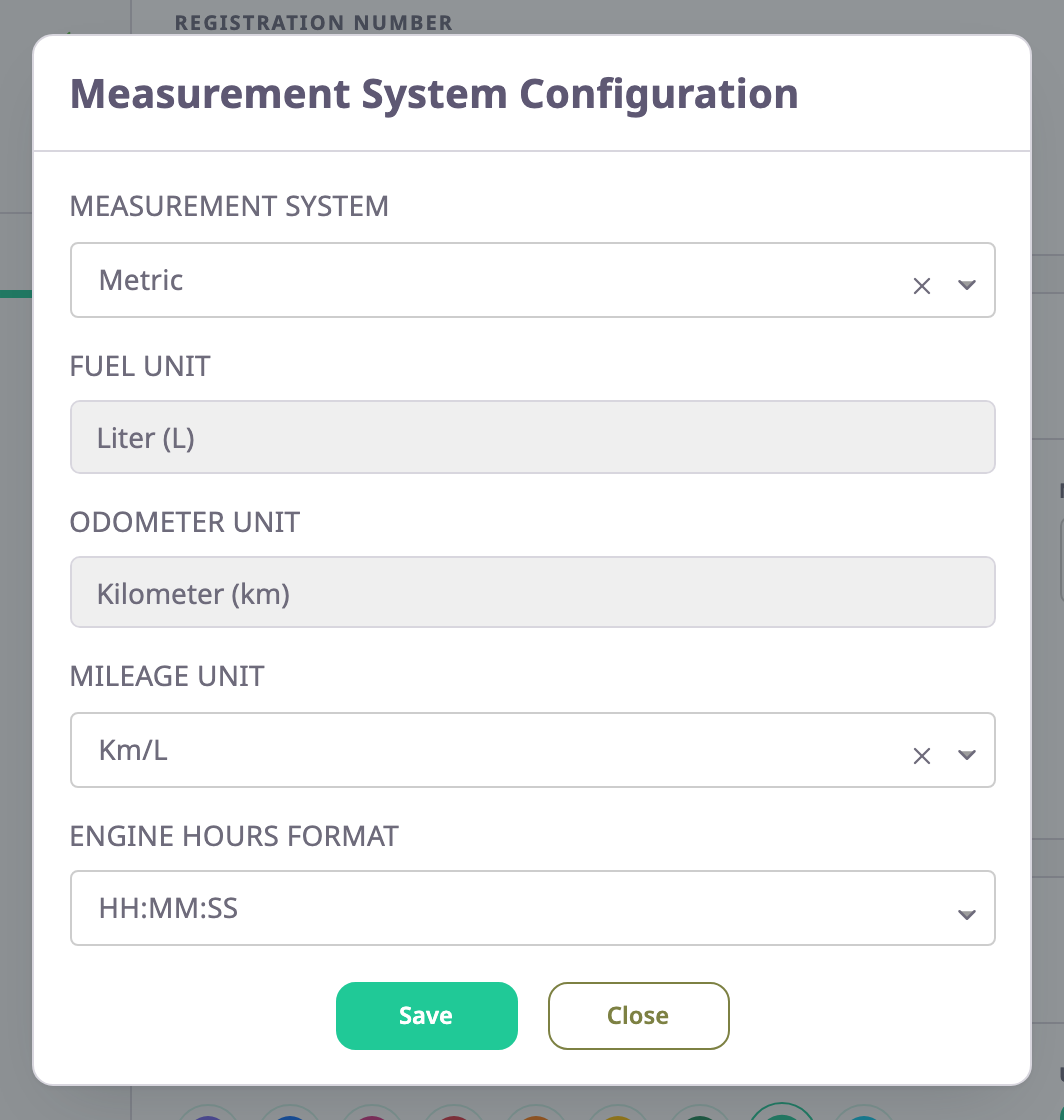
-
In Measurement System, choose Metric, Imperial or US Customary.
Fuel Unit and Odometer Unit change to match. You cannot change them separately. -
In Mileage Unit, choose how fuel economy shows: Km/L or L/100km for Metric, MPG or gal/100M otherwise.
-
In Engine Hours Format, choose HH:MM:SS or Decimal.
-
Select Save.
The dialog closes and the field shows the new choice, for example Metric - Km/L - HH:MM:SS.
¶ Save the account
- Select Update at the bottom of the screen.
The app shows "Account Update Successfully".
The dialogs alone do not save anything. If you leave the screen before Update, the formats stay as they were.
¶ Where the formats apply
The app formats dates, times, distances, fuel and engine hours with these settings for every user of the account, on screen and in reports. The time zone decides where each day starts and ends in the account's data.