Choose the language the app speaks and whether it looks light or dark. Both controls sit in the top bar, next to your name.
¶ Before you start
- Anyone with a user can change both. You do not need a permission.
- The languages in the list are the ones your installation offers.
¶ Change the language
-
In the top bar, select the flag with the two-letter language code, marked 1.
The language list opens.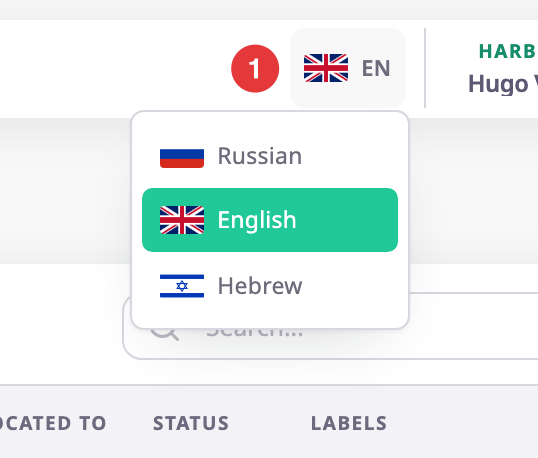
-
Choose a language.
The app reloads in that language.
You can also choose the language on the sign-in screen, before you sign in. The app keeps your choice for the next time.
¶ Right-to-left languages
In a right-to-left language, such as Hebrew, the app mirrors the whole layout. The side menu moves to the right, and tables read from right to left.
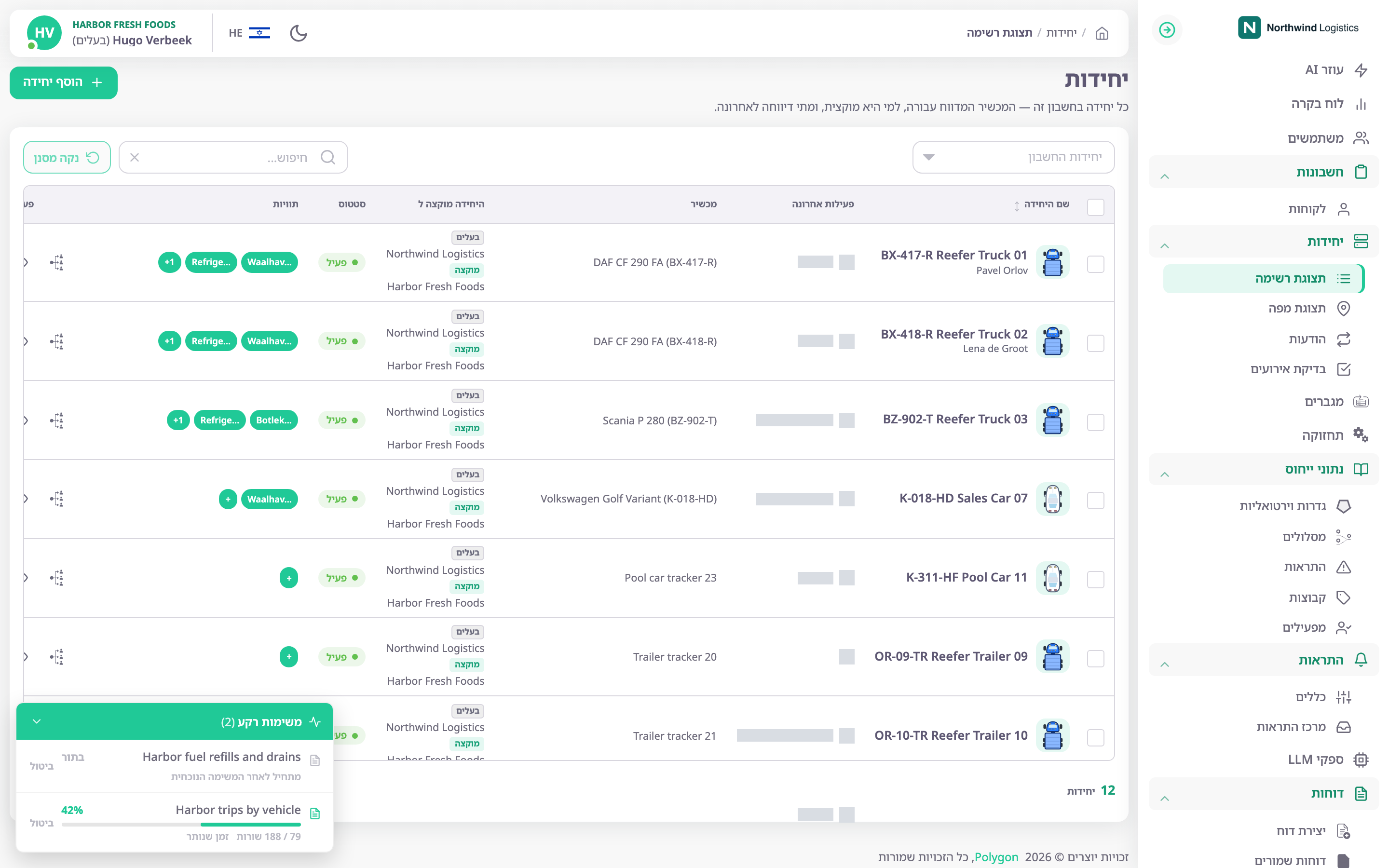
Names you entered yourself, such as unit names, keep the language you typed them in.
¶ Switch between light and dark mode
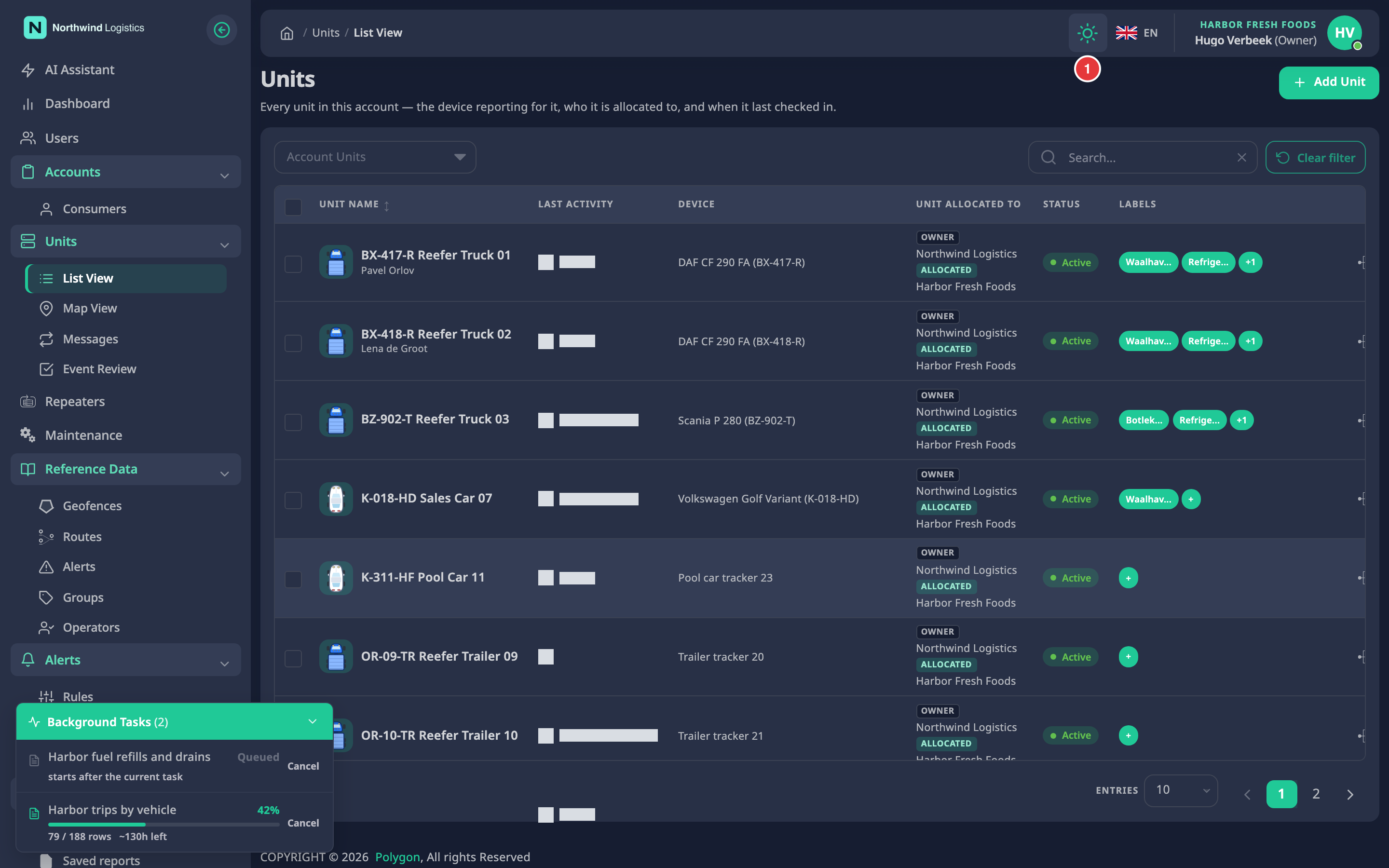
The mode icon sits to the left of the language list.
- In the top bar, select the mode icon.
The app moves to the next mode at once. - Repeat until the app shows the mode you want.
The icon cycles through three modes in this order:
| Icon | Mode now | What the app does |
|---|---|---|
| Moon | Light | Always light. |
| Gear | Follow your system | Light or dark, to match your computer or phone setting. |
| Sun | Dark | Always dark. |
¶ What the browser remembers
The app stores your language and mode in this browser, not in your user.
- They stay when you sign out and sign in again on the same browser.
- On another browser, computer or phone, you choose them again.
- A browser where you have never chosen a mode opens in dark mode.
- If you sign out all sessions from Active Sessions, this browser forgets both, and you choose them again.
See Sign out and manage active sessions.
¶ Account defaults set by your administrator
Some settings belong to the account, not to you:
- The account's default language applies when this browser has no language chosen yet. Your own choice wins after that.
- The account's colour theme sets the accent colour of buttons and menus. You cannot change it.
- Date, time zone and measurement formats are account settings. Ask the Owner of your account to change them.
Owners change these settings in Set date and unit formats.