Account Settings holds the details of the account you work in. These are its name and address, its formats, the extra fields on its units, its map providers and, when allowed, its branding. What you change here applies to every user of the account. To open it, select your name at the top right, then select Account Settings.
The screen shows one section at a time. Select a tab in the strip at the top to switch section. The tabs you see depend on your account and role:
| Tab | Shown |
|---|---|
| Account identity | Always. |
| Formats and display | Always. |
| Unit Custom Fields | Always. |
| Map | Always. |
| Driver chat | In a dealer account whose licence includes messaging, if your role can update chat messages. |
| Branding | When the account above yours allowed white labelling for your account. |
Update saves every tab except Driver chat, which has its own save button.
¶ Account identity
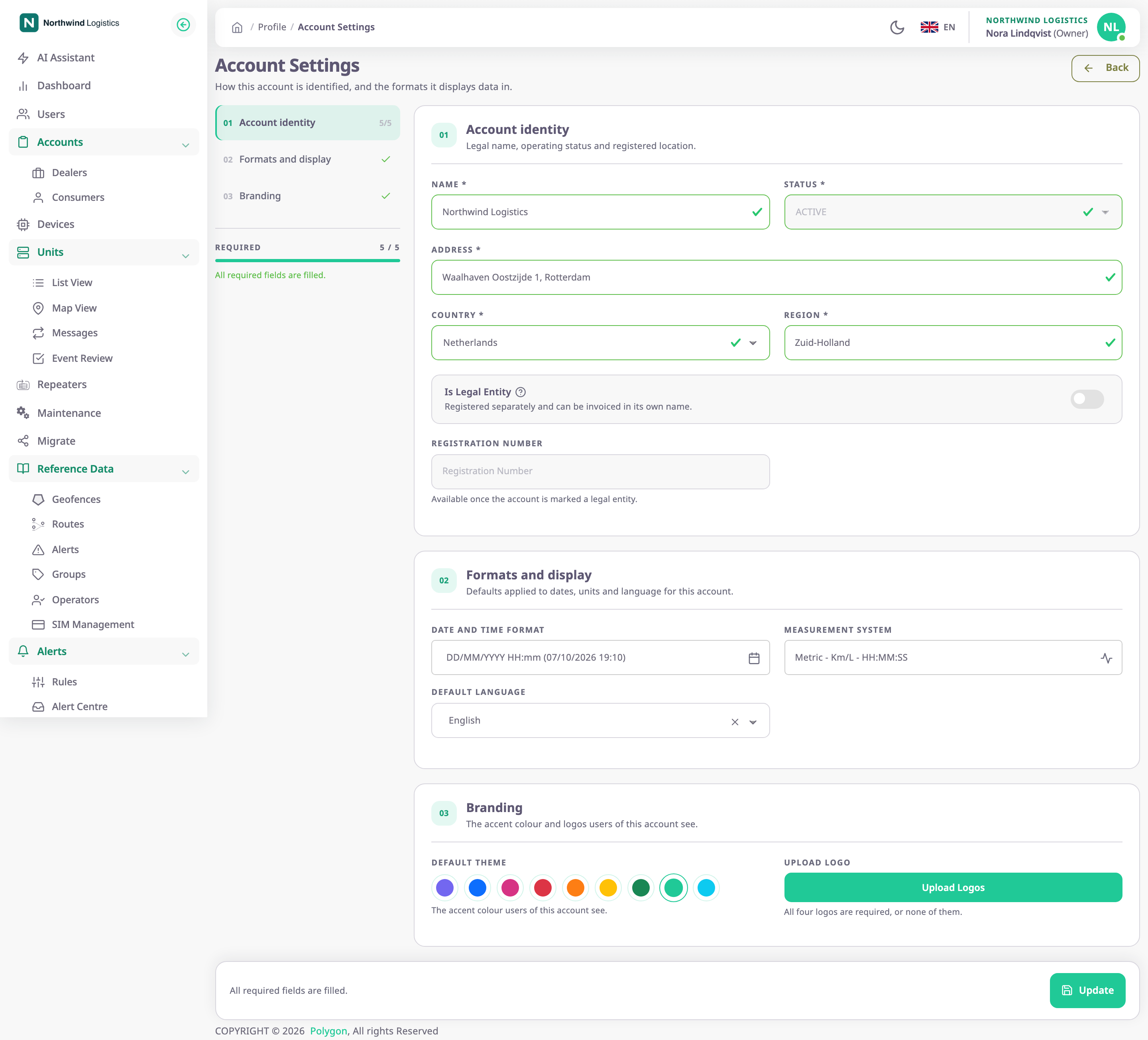
| Field | Required | What it does | Allowed values / example | Notes |
|---|---|---|---|---|
| Name | Yes | The account's name in the top bar, lists and the account picker. | Up to 50 characters. Example: Northwind Logistics | — |
| Status | — | Shows the account's status. | ACTIVE | Read-only. Only the account above yours can change it. |
| Address | Yes | The account's postal address. | Up to 80 characters | — |
| Country | Yes | The country of the account's registered address. | A country from the list | — |
| Region | Yes | The state, province or region. | Up to 30 characters | — |
| Is Legal Entity | No | Marks the account as a registered business. | On or off | While it is on, Registration Number is required. |
| Registration Number | Conditional | The company registration number. | Up to 30 characters, no spaces | Required and editable only while Is Legal Entity is on. |
Restrict Sub Accounts and Allow White Labelling are not on this screen; only the account above yours can change them.
¶ Formats and display
| Field | What it does | Notes |
|---|---|---|
| Date and Time Format | How dates and times show to every user of the account, and the account's time zone. | Opens the Date/Time Format dialog. |
| Measurement System | The units for distance, fuel, fuel economy and engine hours. | Opens the Measurement System Configuration dialog. |
| Push for chat messages | Sends a push notification to the account's users when a unit writes in chat. | On by default. Each user can still mute chat pushes for themselves. |
| Default Language | The language for users who have not chosen one. | Only when your account may white-label. |
See Set the date, time and unit formats for your account and Notifications and background tasks.
¶ Unit custom fields
Custom fields add your own fields, such as a cost centre, to the form of every unit in the account. You define each field once here.
- Select Add field.
The Add field dialog opens. - In Label description, enter the field's name, for example Cost centre.
- In Component, choose the kind of input, such as a text box, a list or a date picker.
- For a list or a group of checkboxes, enter the options in Component values (JSON).
- Optional: turn on Required, Multiselect or Share with child accounts.
- Select Save.
The field joins the list. - Select Update to save the account.
| Setting | What it does | Allowed values / notes |
|---|---|---|
| Label description | The field's name on the unit form. | Up to 60 characters. No two fields in the account can have the same label. |
| Component | The kind of input on the unit form. | A text box, text area, list, checkbox, group of checkboxes, colour, date, time or date and time picker. |
| Component values (JSON) | The options a list or a group of checkboxes offers. | A list of options, each with a unique value and an optional label. |
| Required | Users cannot save a unit without a value. | On or off. |
| Multiselect | Lets users pick more than one option. | Lists and groups of checkboxes only. |
| Share with child accounts | The accounts below yours get this field on their unit forms too. | On or off, per field. |
The list shows each field's label, component and a sharing switch. Tick several fields, then use the buttons above the list to share, unshare or delete them together. Deleting a field removes it from the unit form; values already saved on units are kept. An account can have up to 50 fields.
¶ Map
The Map tab chooses the base maps the account's users can switch between in Tracking, Messages, Geofences and Routes. It also holds the account's own map provider keys.
Base maps lists every map, grouped by provider, with a checkbox each. OpenStreetMap is always available. A map marked "needs a key" shows only once you enter that provider's key below. If you have not ticked anything, the account uses the base maps of the account above it. The tab then says which account it inherits from.
Under Providers, select a provider to enter its key. There is one key field per provider:
| Provider | Key | What the key does |
|---|---|---|
| Google Maps | API key (optional) | The Google maps work without a key. Your own Google Maps Platform key switches them to Google's official Map Tiles API, which needs billing on that key. |
| Yandex Maps | API key | Unlocks Yandex Map, Yandex Satellite and Yandex Hybrid, plus the Yandex Traffic overlay. Users see them after their next sign-in. |
- Validate key asks the provider whether it accepts the key, before you save.
- The app stores keys encrypted and never shows them again. A saved key shows only its hint; leave the field blank to keep it.
- Share with sub-accounts lets the accounts below yours use your key. Their map use counts against your key's quota or bill.
- For Yandex, turn on Commercial (enterprise) licence if the key comes with a paid Yandex Maps API licence.
- A Yandex key must allow this site's domain in your Yandex developer cabinet, or the map stays blank.
If you tick a base map whose provider has no key, the tab names the provider that needs one. You cannot save until you enter the key or untick the map.
¶ Driver chat
The Driver chat tab decides how chat messages reach the account's drivers. See Set up driver chat for an account.
¶ Branding, when your account may white-label
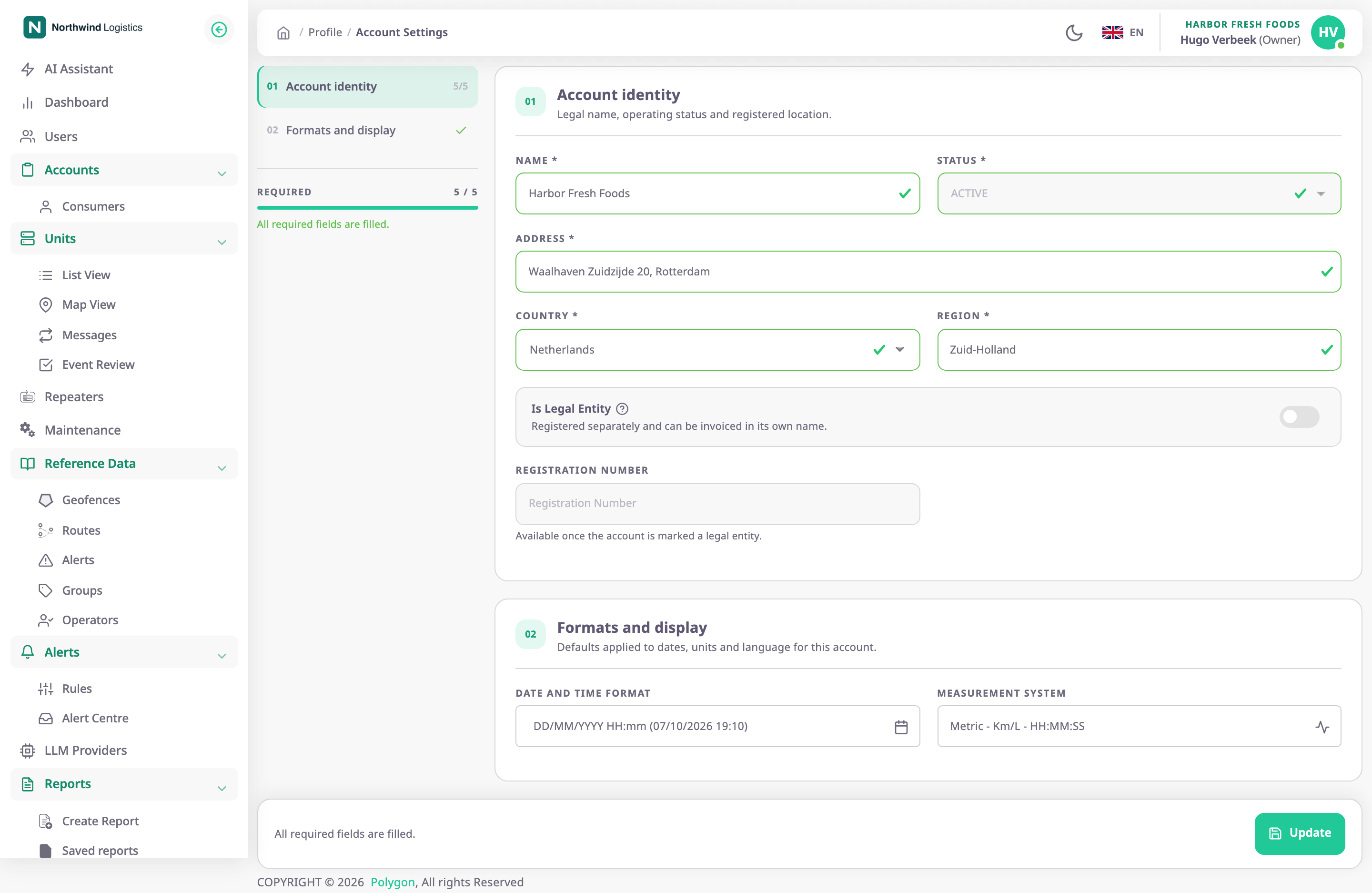
If the account above yours allowed white labelling for your account, the Branding tab shows Default Theme and Upload Logo. Upload Logo shows four slots: expanded and collapsed, each in light and dark mode, with a count such as "2 of 4 uploaded". Select a slot or Upload Logos to open the upload dialog. Remove all clears the four logos. You must upload all four, or none.
See Set up white labelling for an account.
¶ Buttons and actions
| Action | What happens |
|---|---|
| Update | Saves the settings and shows "Account Update Successfully". In a dealer account the screen reloads; in a consumer account the app returns to the screen you came from. |
| Back | Leaves without saving. |
¶ Who can open it
- In a dealer account you need Update Dealer Accounts.
- In a consumer account you need Update Consumer Accounts.
- Without it, Account Settings does not show in your user menu. The built-in Owner role has it.