The Actions and Escalation sections of the rule form decide what happens when an incident opens. They set who hears about it, how, and what else the app does.
The rest of the form is on Alert rule form.
¶ Channels

Select a channel to turn it on; select it again to turn it off. A rule needs at least one. When you choose a template, the app turns on its usual channels, often Push and In-app.
| Channel | What it does |
|---|---|
| Push | A browser push notification to each recipient who allowed notifications. |
| An email to each recipient, or to the outside addresses you enter. | |
| In-app | An entry under the bell at the top of the screen. |
| Webhook | Calls a web address of yours with the incident. |
| Command | Sends a command to a device. |
| Group | Adds the unit to a group, or removes it. |
| MAX | Posts a message to a chat in the MAX messenger. |
SMS shows as "SMS · not available": SMS delivery is not enabled on this platform yet. The app greys out a channel the template cannot use, with the note "This template cannot use this channel". For example, route and driver templates cannot send commands, and only templates that can call a webhook can post to MAX.
Push, Email and In-app reach a person only if that person's alert preferences allow the channel for the rule's severity. By default, warning rules send no email, and info rules only reach In-app.
See Alert preferences.
¶ Notify
Notify appears when Push, Email or In-app is on. It decides who receives them.
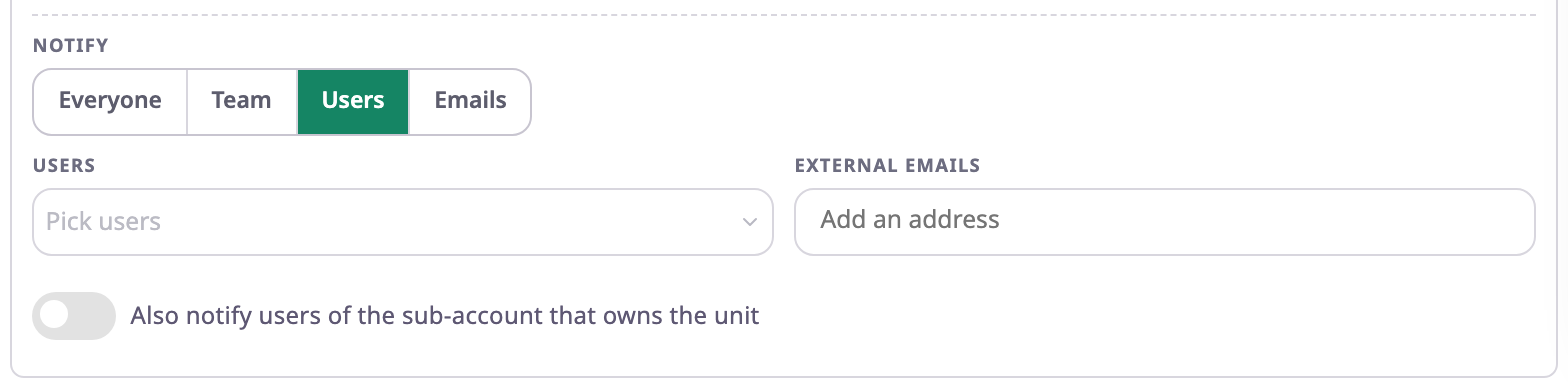
| Field | Required | What it does | Allowed values / example | Notes |
|---|---|---|---|---|
| Notify | Yes | Chooses the people. | Everyone, Team, Users or Emails. Default Everyone. | Everyone means every active user of the rule's account. |
| Role | Conditional | With Team: notifies every user with this role. | A role of your account. Example: Dispatcher | Required for Team. |
| Users | Conditional | With Users: notifies these users. | One or more users of your account. | Required for Users. |
| Email addresses | Conditional | With Emails: sends the alert by email to these addresses. | Valid email addresses, each once. Example: ops@harborfresh.example.com | Required for Emails. Works only with the Email channel on. |
| External emails | No | Shown for Team and Users. | Valid email addresses. | Addresses here receive nothing; use Emails to reach outside addresses. |
| Also notify users of the sub-account that owns the unit | No | When the unit belongs to a sub-account, also notifies that account's users. | On or off. Default off. | Shown only if your role can manage sub-account rules. |
Press Enter, a space, a comma or a semicolon after each email address. "Not a valid email address" and "Already added" flag mistakes.
¶ Webhook
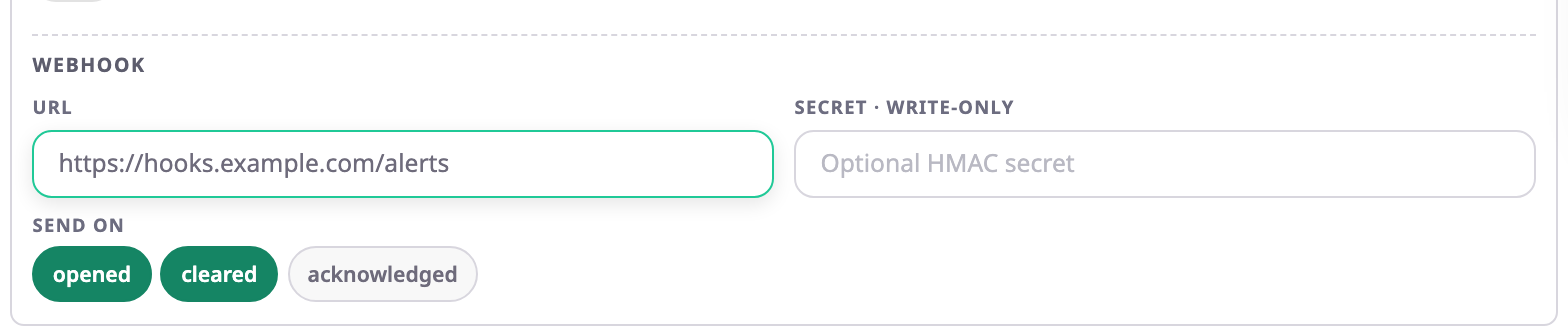
| Field | Required | What it does | Allowed values / example | Notes |
|---|---|---|---|---|
| URL | Yes | The address the app calls with the incident. | Starts with http:// or https://. Example: https://hooks.example.com/alerts | Addresses on private, local or loopback networks fail with "webhook: destination address is not allowed". |
| Secret · write-only | No | Signs each call so your system can check it came from Polygon. | Any text. | HMAC-SHA256. After saving, the field shows "Stored — type to replace"; the app never shows the secret again. A duplicated rule does not copy it. |
| Send on | No | Which incident events call the webhook. | opened, cleared, acknowledged. Default opened and cleared. | — |
A failed call shows in the incident's timeline. When every attempt failed, Retry sends it again.
See Incident details.
¶ Command and group
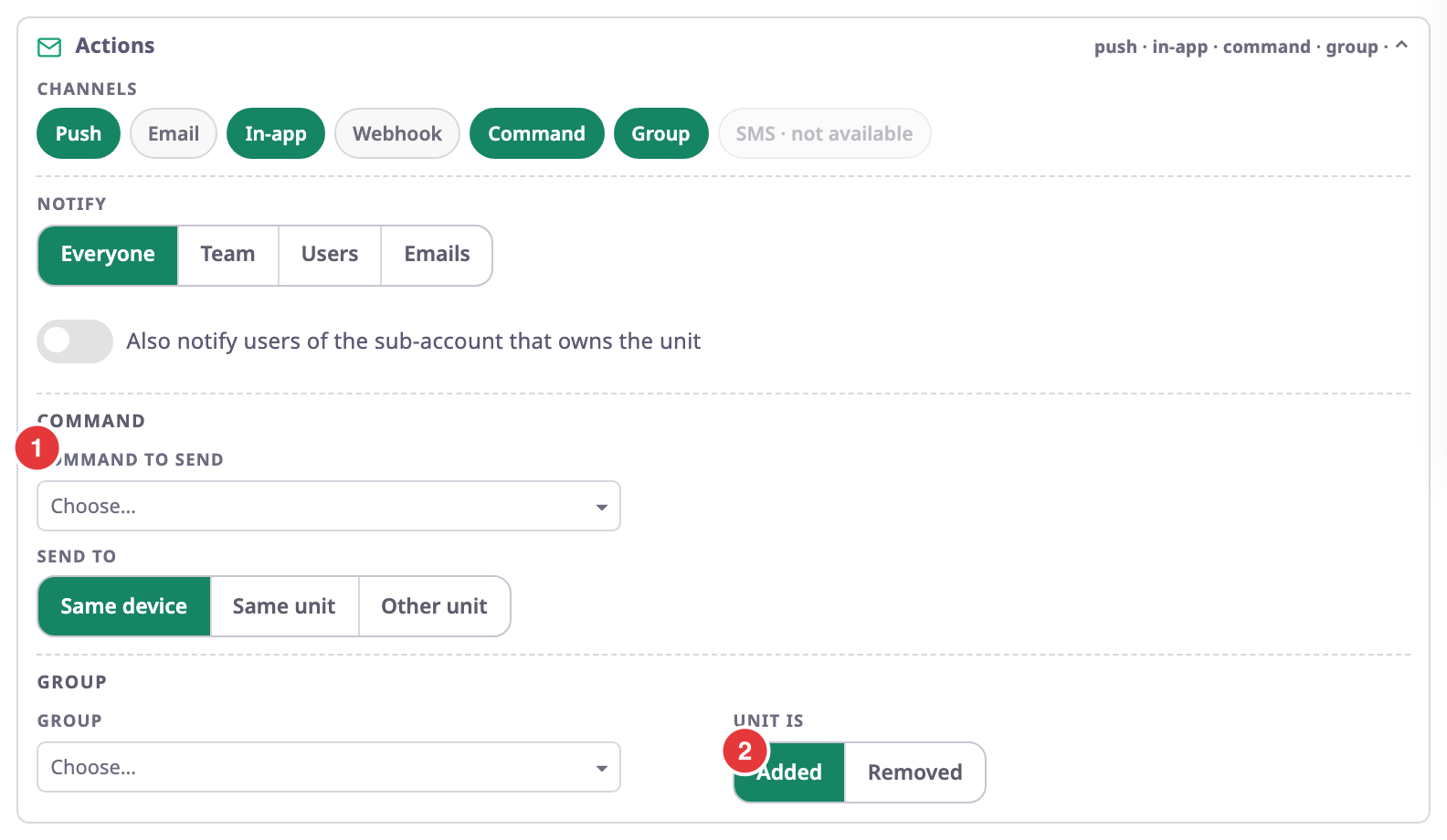
| Field | Required | What it does | Allowed values / example | Notes |
|---|---|---|---|---|
| Command to send | Yes, with Command | The device command to send when the incident opens. | A command set up for your devices. | Saving needs the Execute Command permission on Devices; without it the form says "You need the execute-command permission to save a command action." |
| Command text | Conditional | The text sent to the device, exactly as typed. | Up to 500 characters. Example: setdigout 1 | Shown when the chosen command takes free text. Required then: "Enter the command text to send". |
| Send to | Yes, with Command | Which device gets the command. | Same device, Same unit or Other unit. Default Same device. | Same unit sends to the unit's main device. |
| Unit | Conditional | With Other unit: the unit whose device gets the command. | A unit of your account. | Required for Other unit. |
| Group | Yes, with Group | The group the unit goes into or leaves. | A group of your account. | — |
| Unit is | Yes, with Group | Added puts the incident's unit in the group; Removed takes it out. | Added or Removed. Default Added. | Happens once, when the incident opens. |
¶ Post to a MAX chat
MAX posts a message to a MAX chat when the incident opens, and on the other events you pick.
| Field | Required | What it does | Allowed values / example | Notes |
|---|---|---|---|---|
| Chat ID | Yes, with MAX | The chat the bot posts to. | Digits, up to 20, with an optional leading minus. Example: -71234567890 | Add the bot to the chat first. A wrong ID blocks saving with "Enter the MAX chat ID (digits, may start with -)". |
| Bot token · write-only | No | The token of your own MAX bot. | Any text. | Empty uses the platform's MAX bot. After saving, the field shows "Stored — type to replace"; the app never shows the token again. A duplicated rule does not copy it. |
| Message | No | The text of the post. | Up to 4000 characters. | Empty sends the event, unit, card, time and address. |
| Placeholders | No | Each chip inserts a value at the cursor in Message. | event, unit_name, card, time, address, map_url, severity, imei |
The chip writes the name in double curly braces; the app fills in the value when it posts. |
| Send on | No | Which incident events post a message. | opened, cleared, acknowledged. Default opened. | — |
¶ Escalation
Escalation notifies more people when nobody acts on an incident in time. Each step waits a number of minutes after the incident opened. If the incident is still not acknowledged, or not resolved, the step notifies its people.
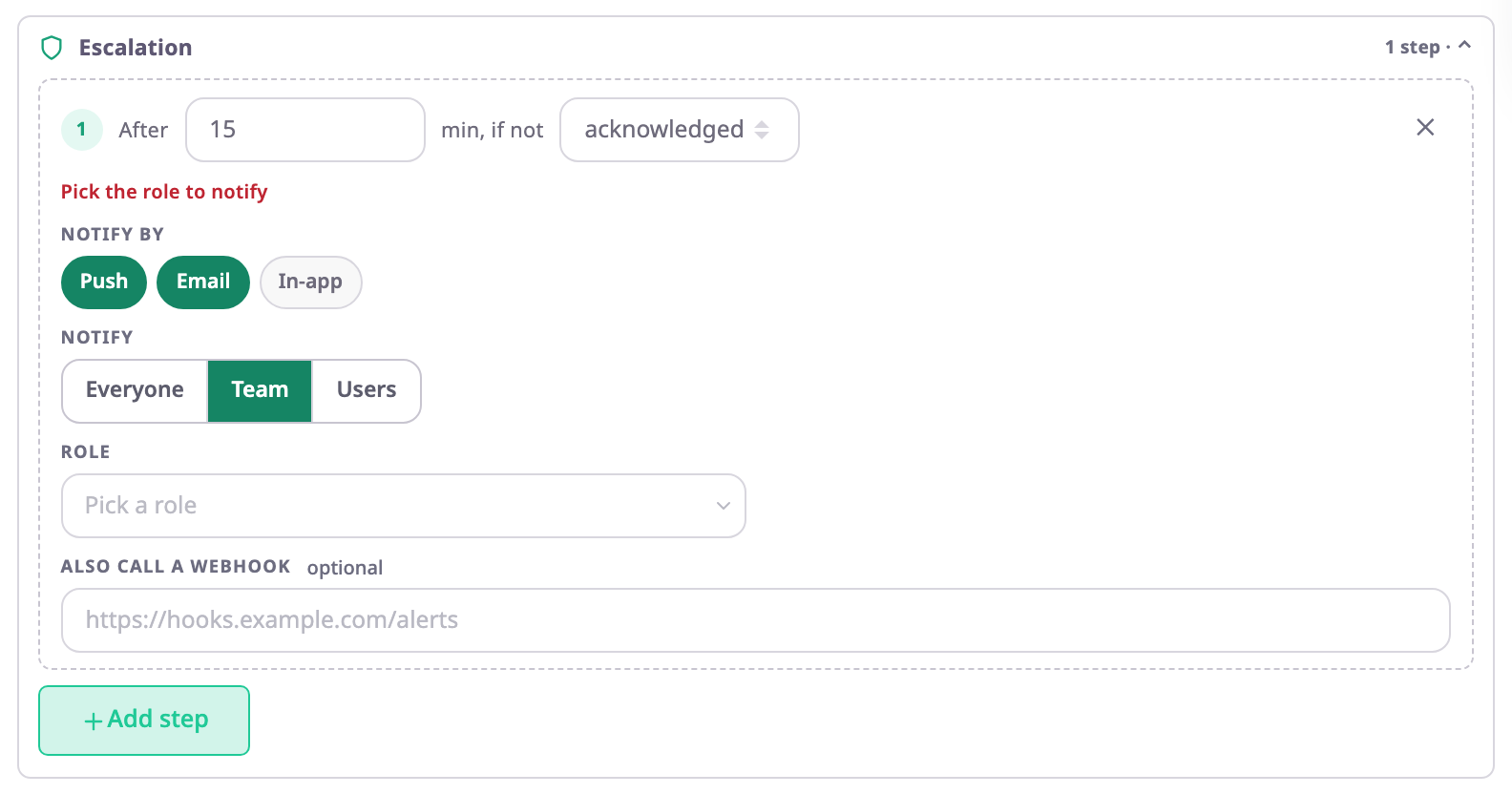
| Field | Required | What it does | Allowed values / example | Notes |
|---|---|---|---|---|
| After … min, if not | Yes | How long after the incident opened the step runs, and what stops it. | Whole minutes, at least 1, each step later than the one before. Then acknowledged or resolved. | A new step starts at 15 min; each further step doubles the one before. |
| Notify by | Conditional | The channels the step uses. | Push, Email, In-app. | A new step starts with Push and Email. |
| Notify | Conditional | Who the step notifies. | Everyone, Team or Users. | Same fields as above, without Emails. A new step starts with Team. |
| Also call a webhook | No | Calls this address when the step runs. | http:// or https:// address. | A step needs a channel or a webhook. |
Add step adds a step; Remove step (✕) removes one. Acknowledging an incident cancels its remaining steps. The incident's Escalation step fact and the Escalated counter show escalation at work.
See Escalate an alert nobody acknowledges.
¶ Permissions
- Saving a rule needs Alert Rules with Add (new) or Edit (changes).
- Command needs Execute Command on Devices.
- Also notify users of the sub-account that owns the unit needs Alert Sub Account on Alert Rules.
The Owner role has all of these.