You can stop alerts reaching you at night, or from one noisy rule, without changing the rule for anyone else. These settings are yours alone, in the account you are working in.
¶ Before you start
- You need Alert Preferences with Edit to save. The Owner role has it.
- Your preferences decide only how Push, Email and In-app reach you. Webhook, Command and Group actions run whatever you choose.
- For incidents to reach you by push, your browser must allow notifications and Notifications must be on in your profile. See Your profile.
¶ Choose channels per severity
-
Select your name at the top right.
-
Select Alert preferences.
The How I get alerted screen opens. -
In Channels by severity, turn a switch on or off, marked 1. For example, turn on Email for warning to get warning alerts by email.
"Unsaved changes" shows at the top.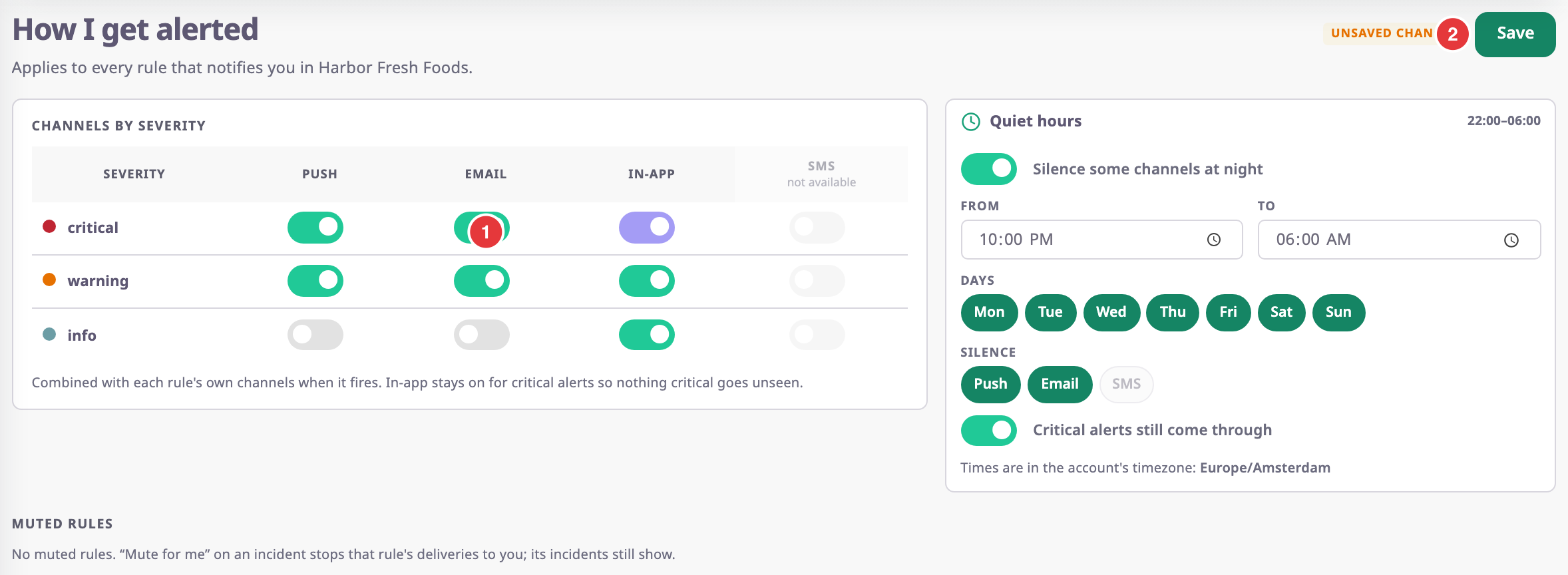
-
Select Save, marked 2.
The message "Preferences saved. They apply to the next alert." confirms it.
A rule must also have the channel on. In-app always stays on for critical alerts.
¶ Set quiet hours
-
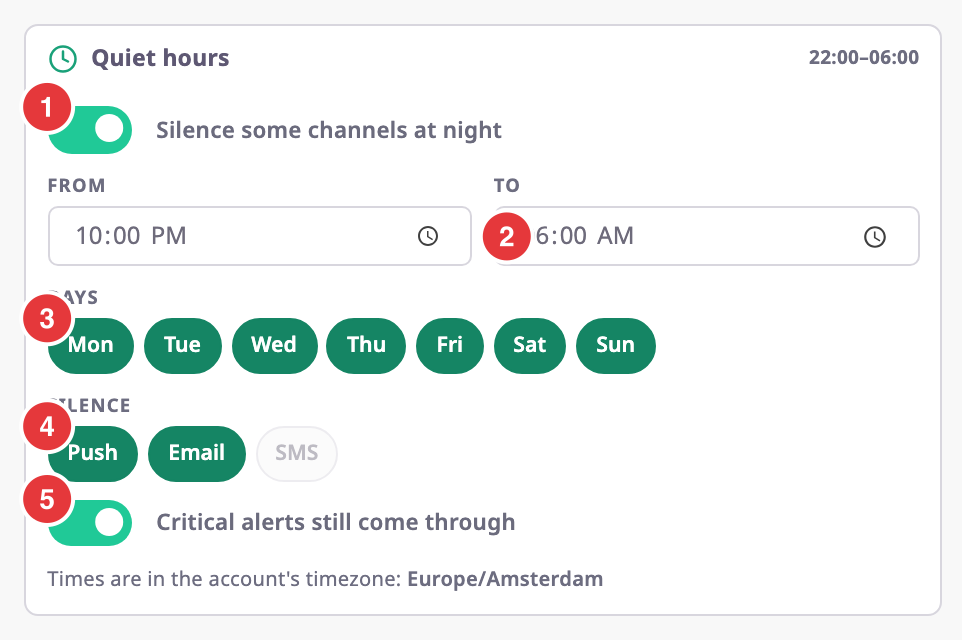
On the How I get alerted screen, turn on Silence some channels at night, marked 1.
-
In From and To, marked 2, enter when quiet hours start and end, for example 22:00 and 06:00.
-
In Days, marked 3, select the days they apply.
-
In Silence, marked 4, select the channels to silence: Push, Email or both.
-
Optional: leave Critical alerts still come through, marked 5, on, so critical alerts still reach you.
-
Select Save.
The card's title shows the hours, for example 22:00–06:00.
Quiet hours use the account's time zone, shown under the card. A To earlier than From runs past midnight. In-app is never silenced, so the bell still lists everything.
¶ Mute a rule for yourself
-
In the side menu, select Alerts > Alert Centre.
-
In a row of the rule you want to mute, select More actions (⋮).
-
Select Mute rule for me, marked 1.
The message "“rule” is muted for you. Incidents still show here; only deliveries to you stop." confirms it.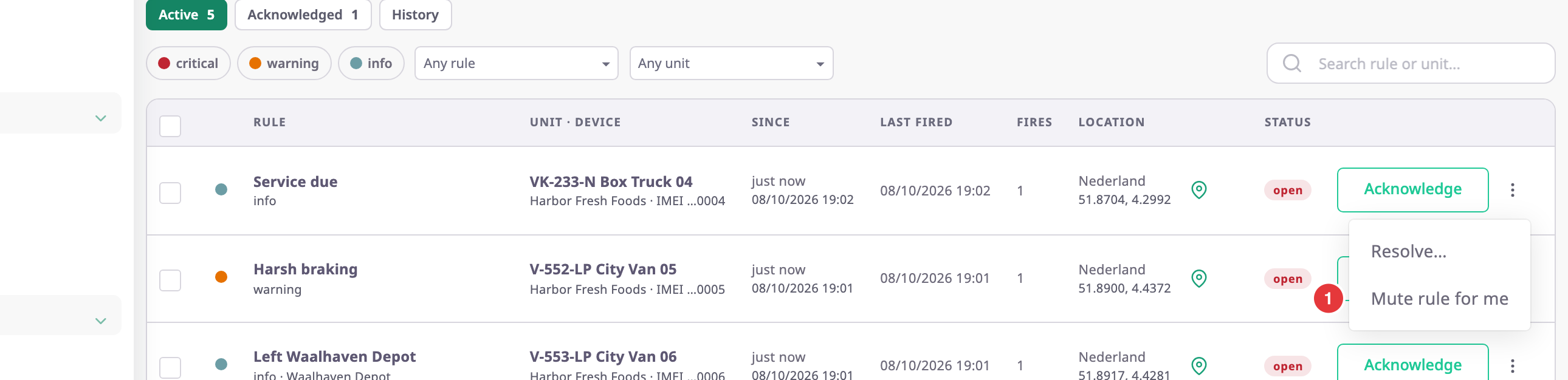
In an open incident, Mute for me at the bottom does the same. Muting applies at once; you do not need to save.
Muting affects only you. To stop a rule for everyone, turn it off. See Turn off, copy or delete an alert rule.
¶ Unmute a rule
- Select your name at the top right.
- Select Alert preferences.
- Under Muted rules, in the rule's row, select Unmute.
- Select Save.
The rule leaves the list and reaches you again.