The rule form is where you build or change an alert rule. It opens when you select Add rule, Edit or Duplicate on the Alert rules screen. The service reminder offer in Maintenance also opens it, with the Service reminder template, the units and the people to notify filled in. Channels, recipients and escalation have their own page: Alert channels, recipients and escalation.
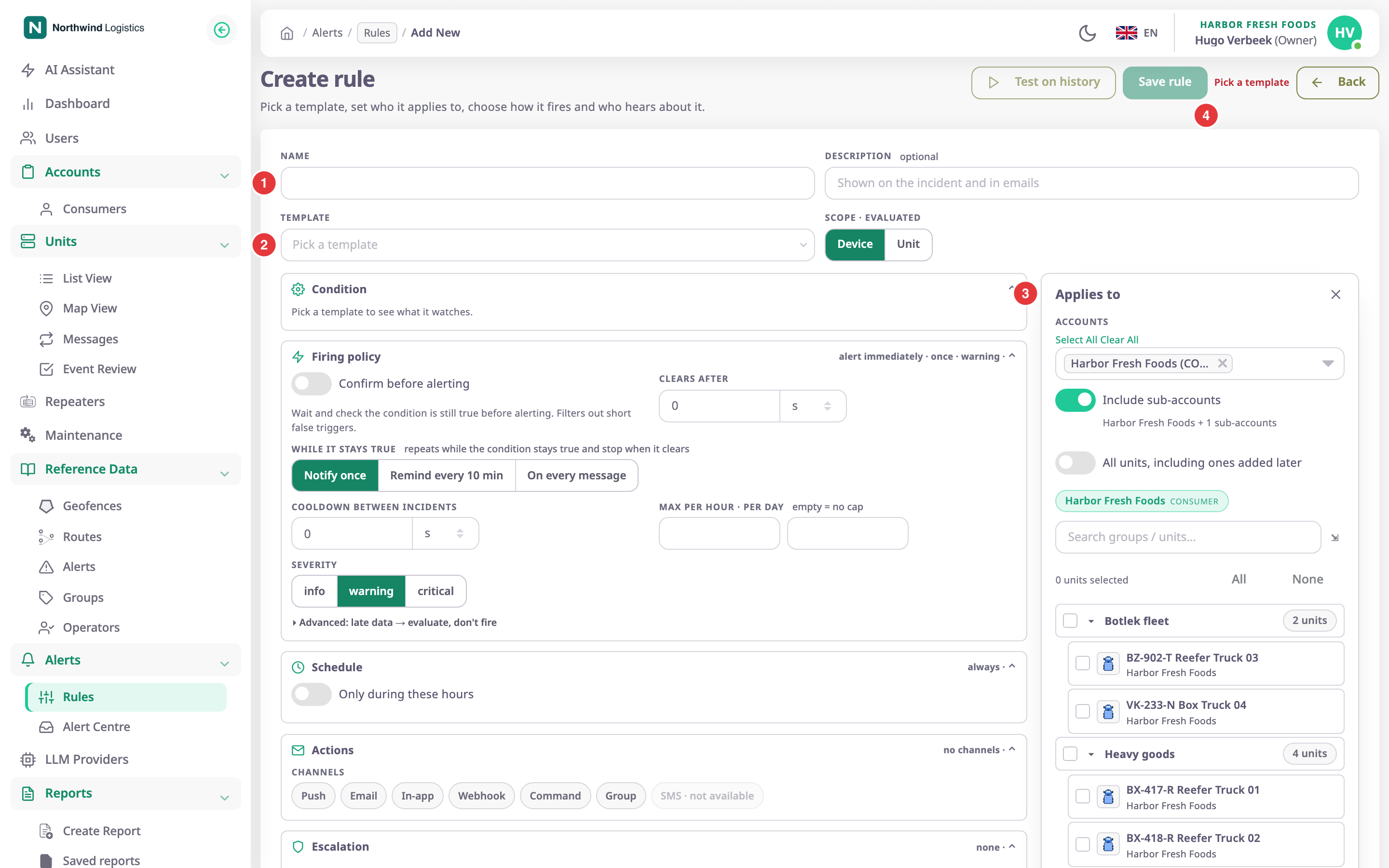
The form has three parts:
- At the top: Name, marked 1, Description, Template, marked 2, and Scope · evaluated.
- In the middle: the sections Condition, Firing policy, Schedule, Actions and Escalation. Select a section's title to fold it. Each title shows a short summary of its settings.
- On the right: the Applies to panel, marked 3. Hide panel (✕) closes it; a button with the same name brings it back.
Save rule, marked 4, saves the rule. While something is missing, the button is unavailable and the reason shows next to it in red.
¶ Name, description and template
| Field | Required | What it does | Allowed values / example | Notes |
|---|---|---|---|---|
| Name | Yes | Names the rule in the rules list, the Alert Centre, incidents and notifications. | 1 to 120 characters. Example: Reefer 01 temperature | — |
| Description | No | Shown on the incident and in emails. | Up to 2000 characters. | — |
| Template | Yes | Decides what the rule watches, its condition fields, its defaults and the channels it can use. | One of the templates, grouped by family. Example: Temperature out of range | Type part of the name to filter the list. Greyed templates show why you cannot choose them. |
| Scope · evaluated | Yes | Device opens one incident per device. Unit opens one incident per unit, whatever its number of devices. | Device or Unit. | The template sets the default. |
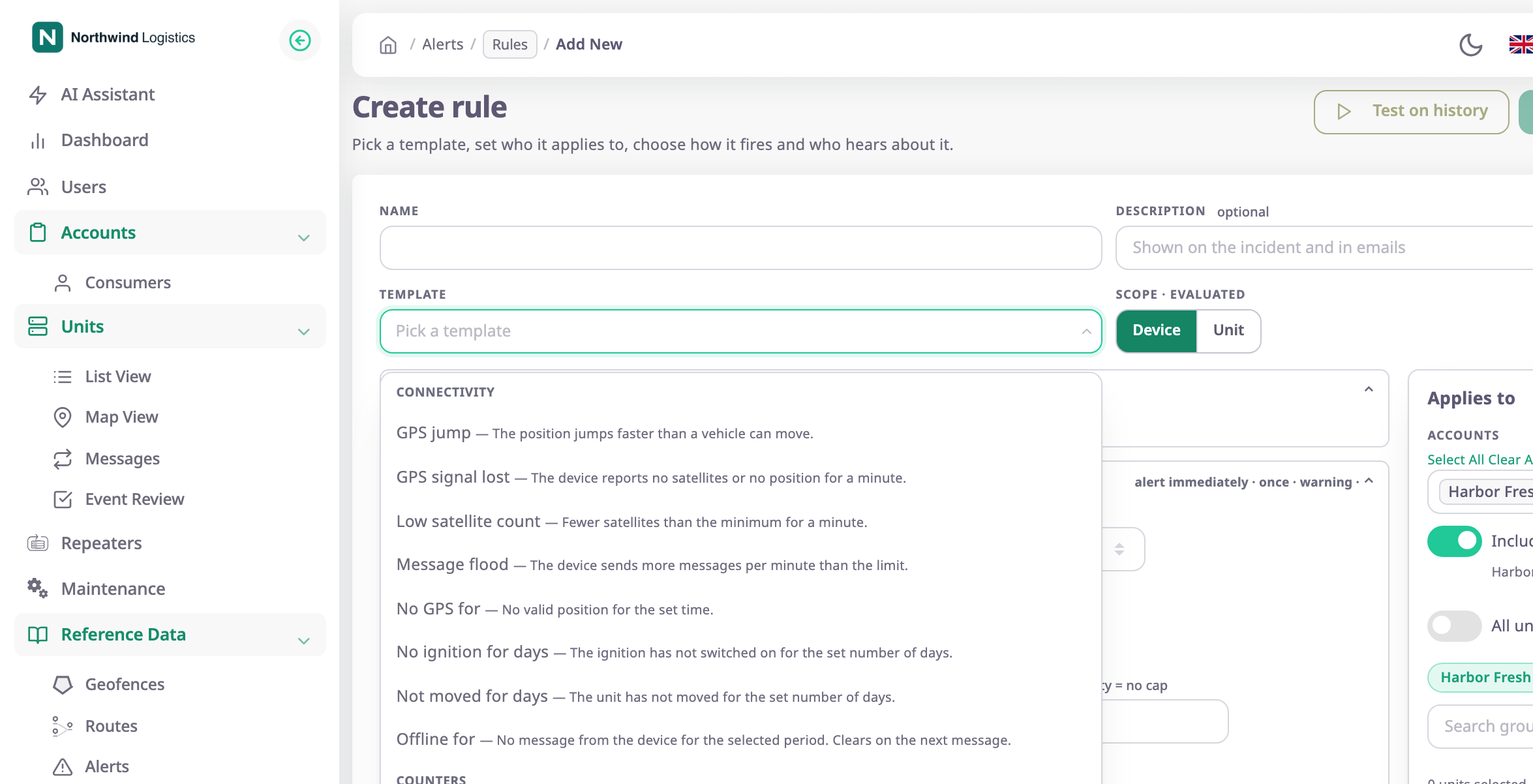
When you choose a template, the form shows its family, how it checks (for example "per message") and its description under the list. Choosing another template resets the condition and the firing policy to that template's defaults; your units and channels stay.
See Alert rule template catalogue.
As you fill in the form, the app checks the rule on the server. A bar under the template shows the result: "This rule is valid", "Valid, with warnings — saving is allowed", or the problems that block saving.
¶ Condition
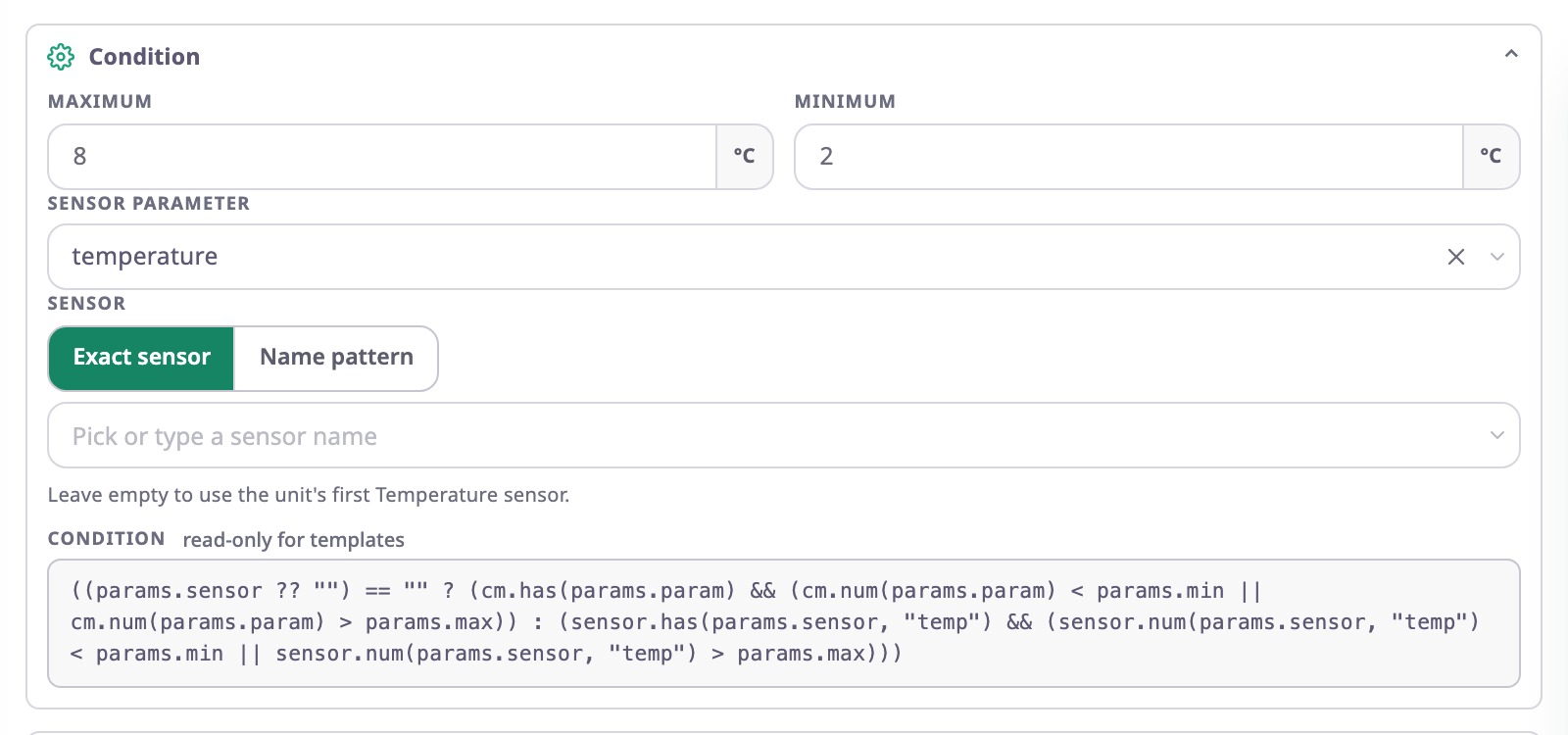
Condition shows the fields of the chosen template, such as a speed limit, a temperature range or the geofences to watch. Each template has its own; the template catalogue lists them with their defaults. A template that fires on an event alone says "This template has nothing to set: it fires on the event itself."
¶ App event fields
The App event template, in the Apps family, watches events that your installed apps report on units.
| Field | Required | What it does | Allowed values / example | Notes |
|---|---|---|---|---|
| App event | Yes | The event the rule watches. | The events your installed apps declare, grouped by app. | If the app is no longer installed, the list still shows the event the rule was written for. |
| Event field | No | Fires only when this field of the event passes a value. | Any occurrence (no field condition) or one of the event's fields, with its type. | Available once you choose an event. Default Any occurrence (no field condition). |
| Comparison | No | How the field is compared. | at least, at most, equal to. Default at least. | — |
| Value | No | The number the field is compared with. | A number. Default 0. | — |
| Field text | No | With equal to: the text the field must match. | Up to 200 characters. | Empty compares Value instead. |
Uninstalling the app switches its rules off. The rules list then shows "Switched off: its app was uninstalled".
Below the fields, the template's condition shows as read-only text, marked "read-only for templates". It is for reference; you do not need to read it.
¶ Sensor and parameter fields
Some templates read a sensor or a device parameter:
- Sensor parameter names the raw value from the device, such as io239. Choose one the selected units have reported, or type a name. A note shows how many units report it.
- Sensor picks a sensor by its name instead. Choose Exact sensor to pick a name, or Name pattern to match several, for example Door*. Leave it empty to use the unit's first sensor of that kind.
Under the field, the app shows how many of the selected units match. A unit without a match cannot fire the rule.
¶ Firing policy
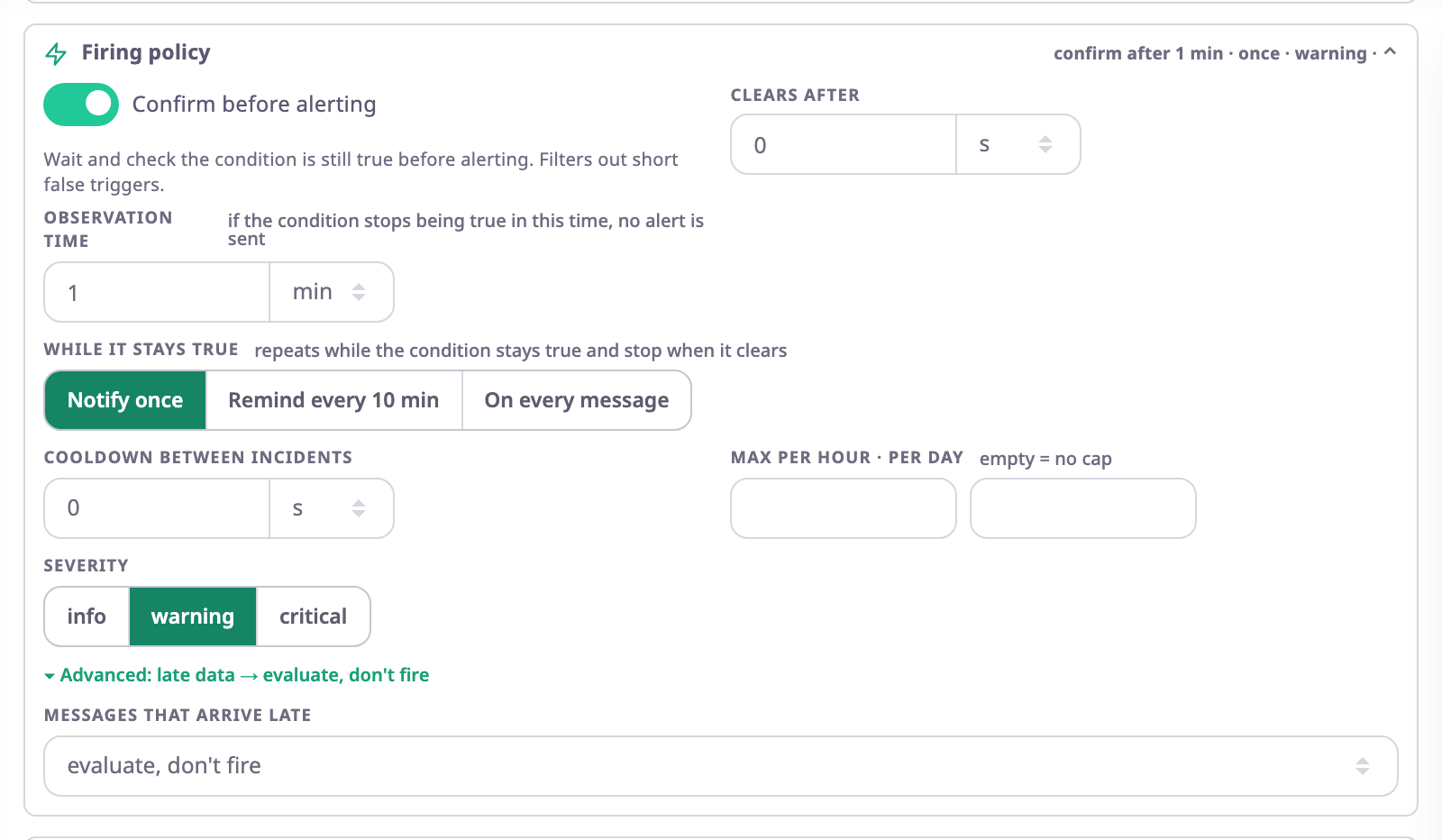
| Field | Required | What it does | Allowed values / example | Notes |
|---|---|---|---|---|
| Confirm before alerting | No | Waits and checks the condition is still true before an incident opens. Filters out short false triggers. | On or off. | On when the template sets a wait. Unavailable for one-off events: "Not available for this alert: it is a one-off event, so there is nothing to keep checking." |
| Observation time | Conditional | How long the condition must stay true before the incident opens. If it stops being true in this time, no alert is sent. | Up to 24 hours, in s, min or h. Default 1 min when you turn the switch on. | Shown while Confirm before alerting is on. Over 24 hours shows "At most 24 hours". |
| Clears after | No | How long the clear condition must stay true before the incident clears. | 0 to 24 hours. | "uses the template's clear condition" shows when the template has one. |
| While it stays true | Yes | What happens while the condition stays true after the incident opened. | Notify once, Remind every n (at least 1 min, in min or h), or On every message. | Default Notify once. Remind every starts at 10 min. For alerts that fire each time something happens, such as ignition off, the section says repeat options don't apply. |
| Cooldown between incidents | No | After an incident closes, a new one for the same device or unit within this time opens without notifying. | 0 or more, in s, min or h. | — |
| Max per hour · per day | No | The most fires per hour and per day that notify. | Whole numbers. Empty means no cap. | Fires over the cap still count. |
| One incident per | No | Opens a separate incident per value, for example per geofence. | Device or unit (default) or an option of the template. | Shown only for templates that offer options. |
| Severity | Yes | Sets the incident's colour and which channels reach each user. | info, warning or critical. | The template sets the default. |
| Messages that arrive late | No | What the rule does with stored messages that arrive late. | evaluate, don't fire (default), fire as usual, ignore. | Under Advanced. |
The section title sums up the policy, for example "confirm after 30 s · once · warning", or "alert immediately" without a wait.
See How alert rules fire and clear.
¶ Schedule
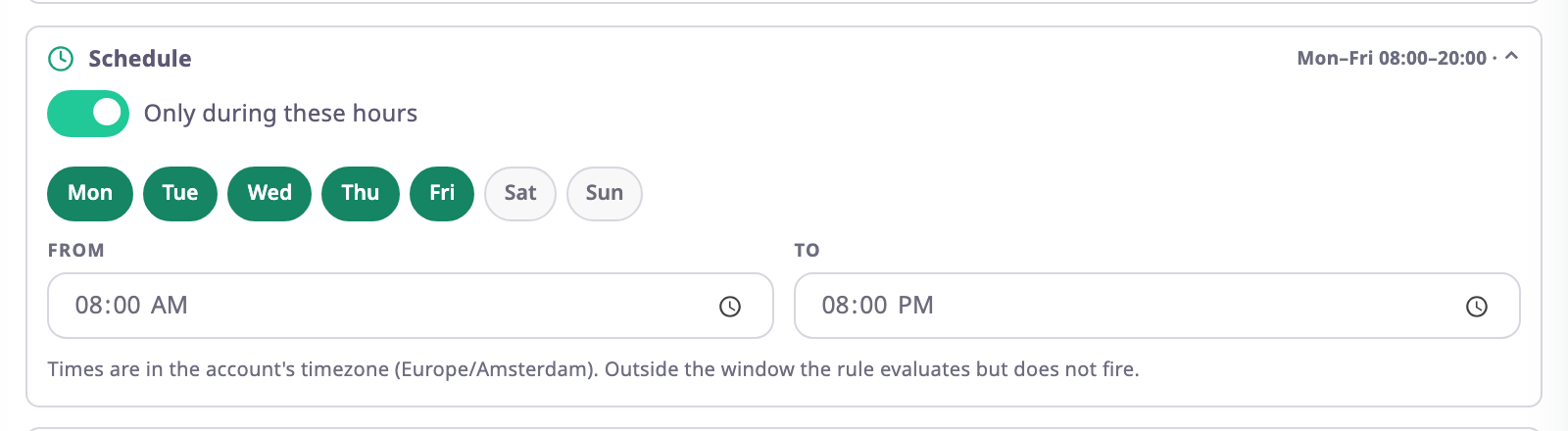
| Field | Required | What it does | Allowed values / example | Notes |
|---|---|---|---|---|
| Only during these hours | No | Limits when the rule notifies. | On or off. Default off, shown as "always". | Outside the window the rule still checks and can open incidents, but sends nothing. |
| Days | Conditional | The days the window applies. | Mon to Sun. Default Mon to Fri. | At least one day while the schedule is on. |
| From | Conditional | When the window starts. | Time. Default 08:00. | — |
| To | Conditional | When the window ends. | Time. Default 20:00. | A To earlier than From runs overnight, into the next day. |
The times are in your account's time zone. The note under the fields names it.
¶ Applies to
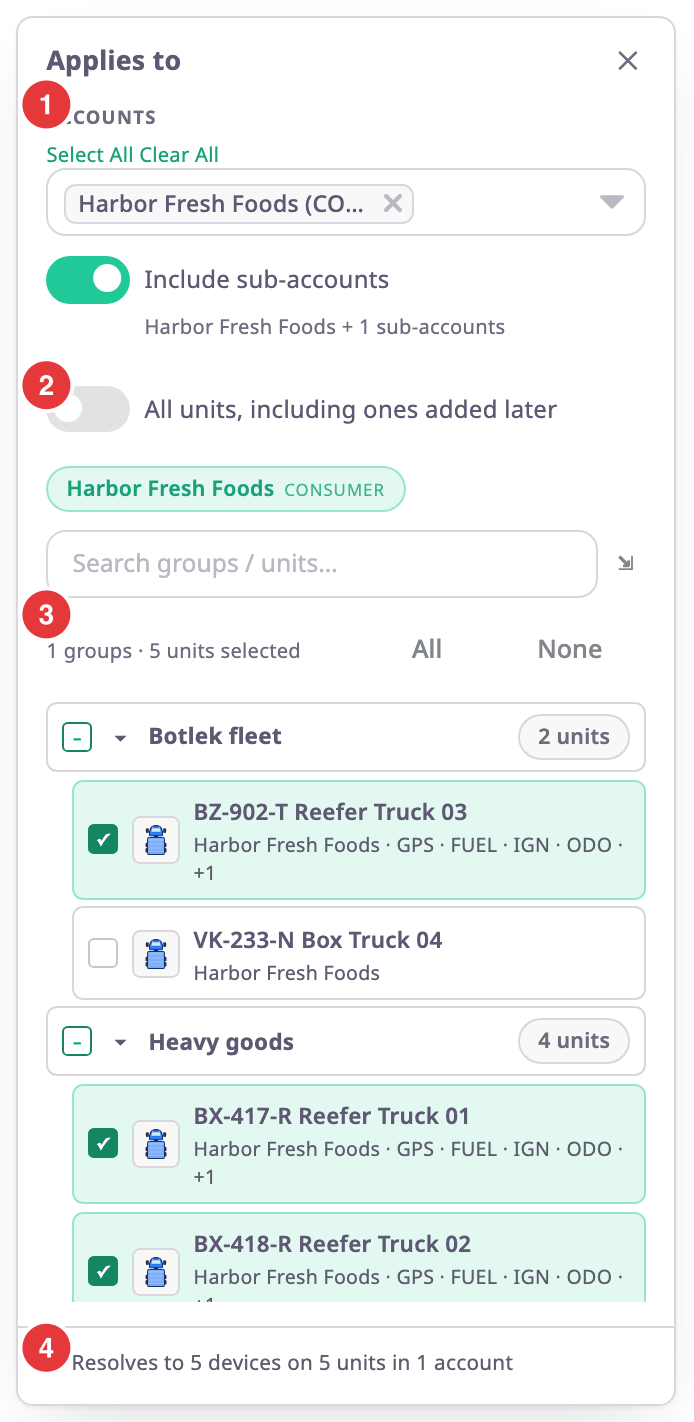
| Field | Required | What it does | Allowed values / example | Notes |
|---|---|---|---|---|
| Accounts, marked 1 | No | The accounts whose units you can pick. | Your account and its sub-accounts. | Shown only if your role can manage sub-account rules and your account has sub-accounts. |
| Include sub-accounts | No | Also offers, and watches, the units of the chosen accounts' sub-accounts. | On or off. | On by default when shown. The note under it counts the sub-accounts. |
| All units, including ones added later, marked 2 | No | Applies the rule to every unit, now and in future. | On or off. Default off. | Hides the unit tree. |
| Units and groups | Conditional | The units the rule watches. Tick a group to take all its units, including units added to the group later. | Units and groups of the listed accounts. | Required unless All units is on. The count, marked 3, shows what you ticked. |
Search the tree with "Search groups / units…". All and None tick or clear everything shown.
The line at the bottom, marked 4, counts what the rule covers, for example "Resolves to 5 devices on 5 units in 1 account". A green dot means every unit can fire the rule.
If some units lack what the template needs, an orange box says, for example, "5 units cannot fire this rule. This template needs temperature." It lists the units. Exclude this unit, or Exclude these n units, unticks the units you ticked one by one; Keep hides the box. Units that came through a group stay until you untick the group.
¶ Buttons
| Action | What happens |
|---|---|
| Test on history | Replays the rule, as it is on screen, over stored data. Unavailable for templates that run on a timer, from intervals, aggregates, the whole fleet, records or the SIM registry. See Test a rule on past data. |
| Save rule | Saves the rule and returns to Alert rules. The message "“name” saved. It is live within a second." confirms it. |
| Back | Returns to Alert rules. With unsaved changes, a dialog asks you to confirm; select Discard changes to leave. |
¶ Why Save rule is unavailable
The reason shows in red next to Save rule. It is one of these, or a problem from the server check:
| Reason | What to do |
|---|---|
| "Pick a template" | Choose a Template. |
| "Give the rule a name" | Enter a Name. |
| "Choose the units or groups it applies to" | Tick units or groups in Applies to, or turn on All units, including ones added later. |
| "Choose at least one channel" | In Actions, select a channel. |
| "Pick the role to notify", "Pick at least one user", "Add at least one email address" | Complete Notify. See Alert channels, recipients and escalation. |
| "Enter a valid webhook URL" | Enter an address that starts with http:// or https://. |
| "Pick the command to send", "Pick the unit to command", "Enter the command text to send" | Complete the Command fields. |
| "Enter the MAX chat ID (digits, may start with -)" | In MAX, enter the chat's numeric ID. |
| "Set an observation time of 24 hours or less" | Shorten Observation time. |
| "You need the execute-command permission" | Remove Command, or ask for the Execute Command permission on Devices. |
| "Pick the group" | Choose the Group. |
| "Pick at least one day for the schedule" | Select a day, or turn off Only during these hours. |
| "Escalation step n notifies nobody" | Give the step a channel or a webhook, or remove it. |
| "Read-only: duplicate it to change it" | The rule belongs to a parent account. Duplicate it. |
| "You do not have permission to save rules" | Ask for Alert Rules with Add (new rules) or Edit (changes). |
¶ Permissions
- To open the form you need Alert Rules with Read. Saving a new rule needs Add; saving a change needs Edit.
- The Accounts field and Include sub-accounts need Alert Sub Account on Alert Rules.
- A Command action needs Execute Command on Devices.
The Owner role has all of these.