Create a rule to hear about something without watching the map. For example: a vehicle over 100 km/h, a reefer above 8 °C, or a van leaving the depot at night.
This page builds a speeding rule for one trailer. The same steps work for every template.
¶ Before you start
- You need Alert Rules with Add. The Owner role has it.
- Know what you want to watch. If you are not sure which template fits, see Alert rule template catalogue.
- Geofence and route templates need the geofences or route schedules to exist first.
¶ Choose a template
-
In the side menu, select Alerts > Rules.
-
Select Add rule, marked 1.
An empty rule form opens.
-
In Name, enter a name your team recognises, for example Trailer 09 over 100 km/h.
-
Optional: in Description, enter what the reader should do. It shows on the incident and in emails.
-
In Template, enter part of the template's name, for example speed.
The list shows the matching templates with a one-line description each.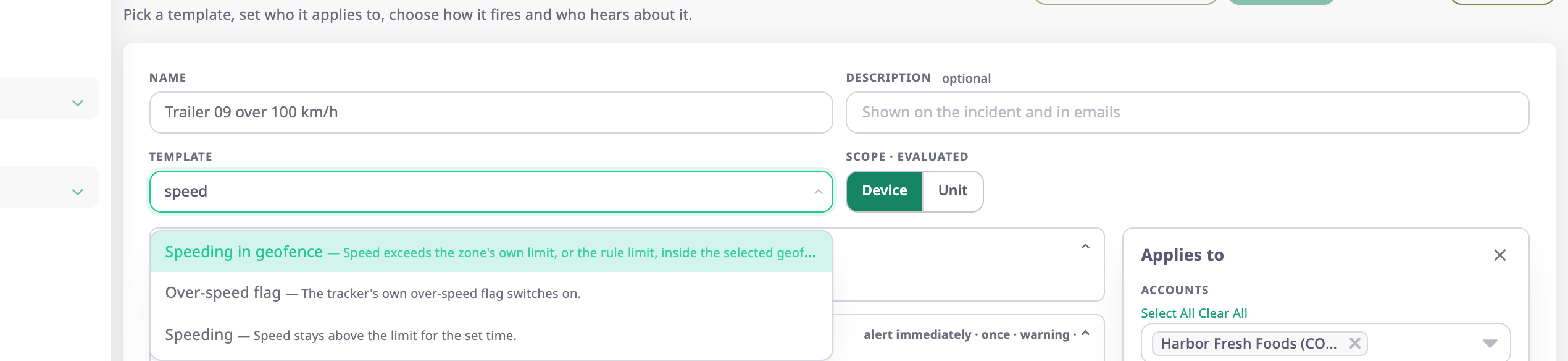
-
Choose the template, here Speeding.
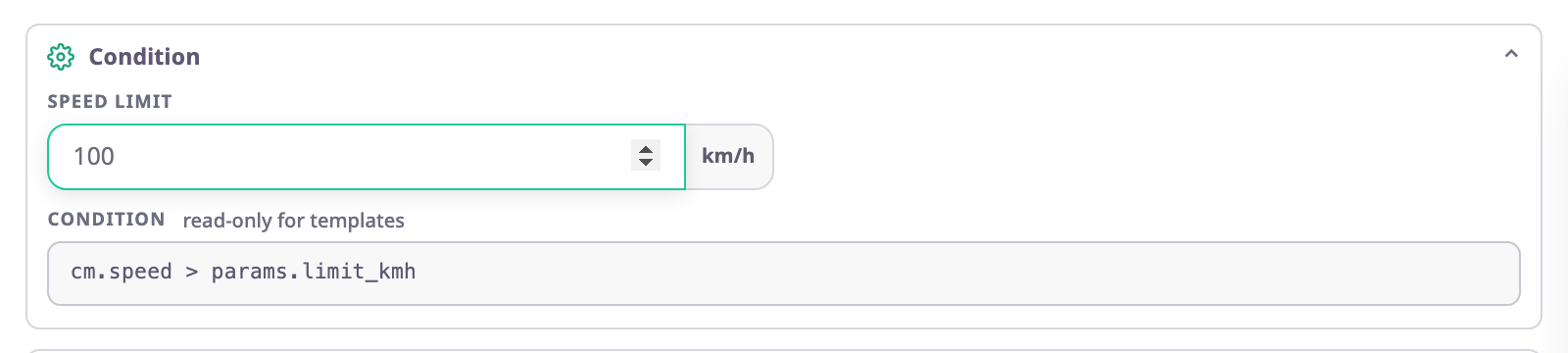
The Condition section shows the template's fields, with their defaults.
¶ Set the condition
-
In the Condition section, set the template's fields. For Speeding, in Speed limit, enter 100.
-
Optional: in Firing policy, change Confirm before alerting, whether the rule repeats, and its Severity.
The template's defaults suit most rules. Speeding confirms the speed for 10 seconds before it opens an incident.
See How alert rules fire and clear.
¶ Choose the units
-
In the Applies to panel, in "Search groups / units…", enter part of the unit's name, marked 1.
-
Select the unit, marked 2, or a whole group.
The line at the bottom confirms what the rule covers, for example "Resolves to 1 device on 1 unit in 1 account".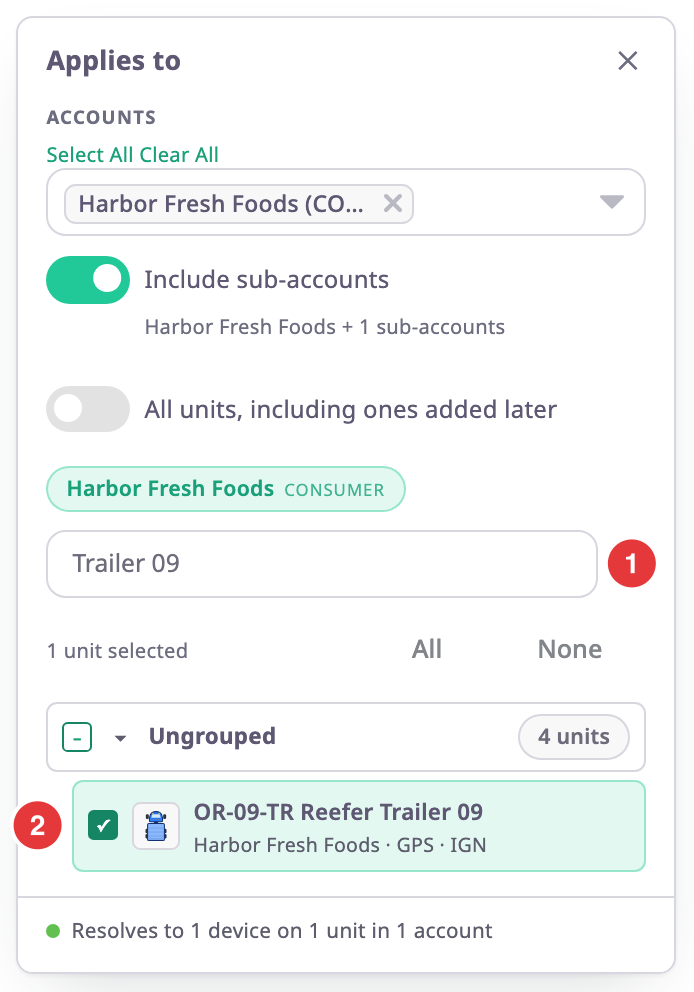
To watch every unit, including units you add later, turn on All units, including ones added later instead. A group you tick also covers units added to it later.
If an orange box says that some units cannot fire the rule, those units lack the data the template needs, such as a temperature sensor. Untick them, or keep them if you will fit the sensor later.
¶ Choose channels and recipients
-
In the Actions section, check the channels.
The template turns on its usual channels, here Push and In-app.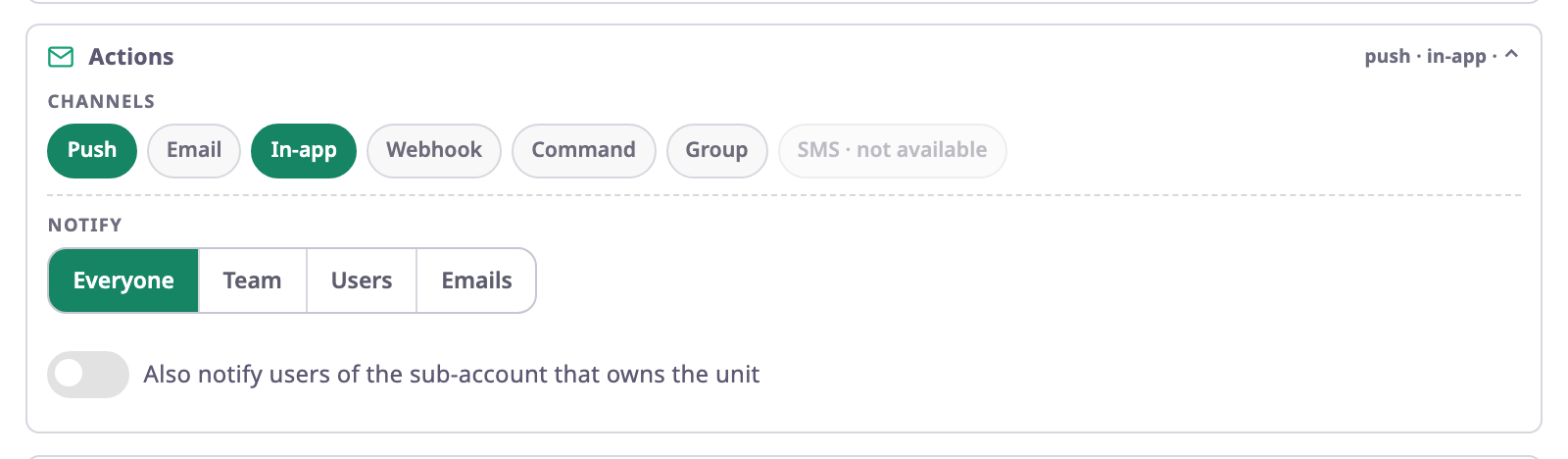
-
Optional: select Email to send emails as well.
-
In Notify, choose who hears about it: Everyone, a Team, chosen Users, or outside Emails.
Each person still gets only the channels their own preferences allow for the rule's severity. By default, a warning rule sends Push and In-app.
See Alert channels, recipients and escalation.
¶ Save and check
-
Optional: select Test on history to see what the rule would have done on past data.
See Test a rule on past data. -
Select Save rule.
The message "“name” saved. It is live within a second." confirms it. The rules list opens with the new rule, switched on.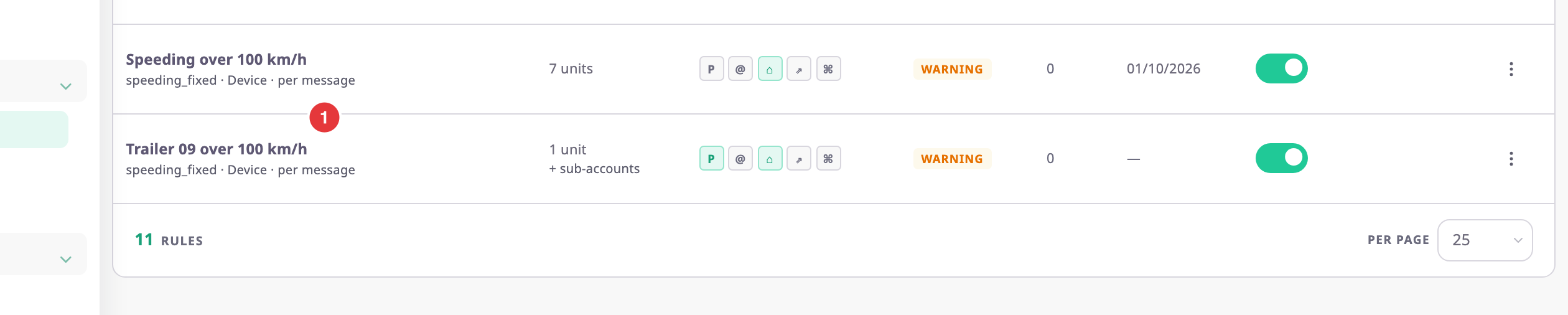
If Save rule stays unavailable, the reason shows next to it in red.
See Why Save rule is unavailable.
¶ What happens next
The rule starts checking new data within a second. When a unit meets the condition, the incident appears in the Alert Centre and the recipients get their notifications. The rule does not look back at data from before you saved it; use Test on history for that.