Keep your dashboards tidy. Rename one, choose which one opens first, or delete one you no longer use.
¶ Before you start
- To rename a dashboard or set the default, you need the Edit action of Dashboard Widgets.
- To delete a dashboard, you need the Del action of Dashboard Widgets. A role with Read, Add and Edit only cannot delete.
- Only a user with the Owner role can change an account dashboard. Other users do not see Rename, Set as default or Delete dashboard on it. See Who can change an account dashboard.
¶ Rename a dashboard
-
In the side menu, select Dashboard.
-
In the dashboard list, choose the dashboard.
-
Select Dashboard actions.
-
Choose Rename.
A name row opens with the current name selected.
-
In the name field, marked 1, enter the new name.
Names run from 1 to 120 characters. Save is unavailable while the field is empty. -
Select Save, marked 2.
The new name shows in the dashboard list. The scope does not change: you cannot turn a personal dashboard into an account dashboard.
Press Enter in the field to save, or Escape to cancel.
¶ Set the default
The default dashboard opens first when you open the screen.
-
Open the dashboard you want as the default.
-
Select Dashboard actions.
-
Choose Set as default, marked 1.
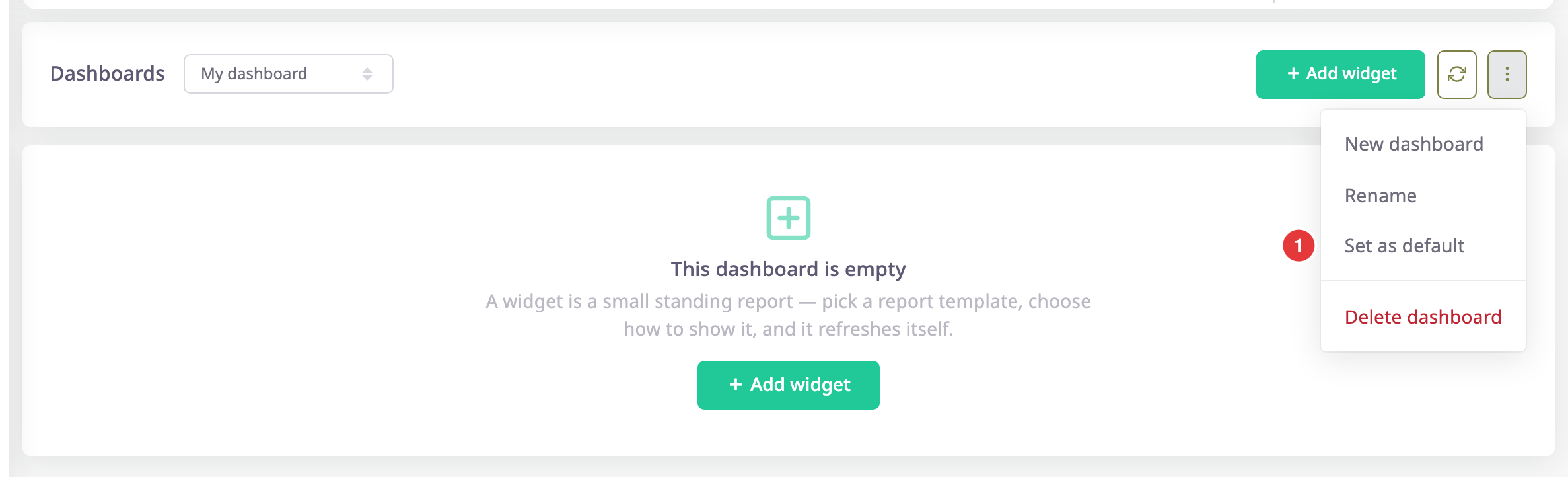
The badge "default" appears beside the dashboard list, marked 1.

A dashboard that is already the default does not show Set as default.
You can have one personal default and one account default. Setting a new one clears the old one of the same kind. A personal default opens before the account's default.
¶ Delete a dashboard
Deleting removes the dashboard and all its widgets. You cannot undo it.
-
Open the dashboard you want to delete.
-
Select Dashboard actions.
-
Choose Delete dashboard.
The dialog Are you sure? asks "Do you really want to delete the dashboard" and names the dashboard.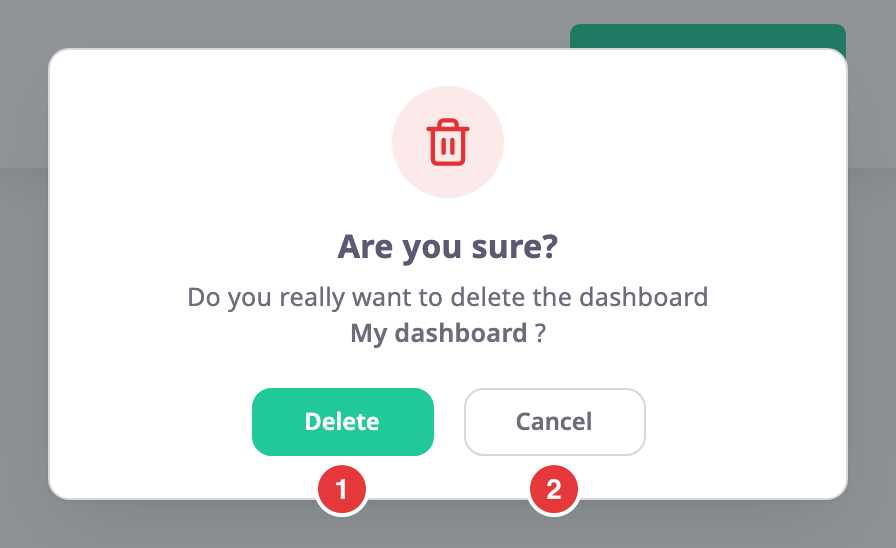
-
Select Delete, marked 1.
The message "Dashboard deleted successfully" appears. The next dashboard opens. If you have none left, the first-run screen shows.
To keep the dashboard, select Cancel, marked 2.
¶ Who can change an account dashboard
Only a user with the Owner role can create, rename, set as default or delete an account dashboard. Everyone else can open it and see its widgets. Their figures follow their own permissions. If someone without the Owner role saves at account scope anyway, the server answers "Only an account administrator can save at account scope".