¶ Symptom
You see one of these:
- A screen with the heading "Un-authorized action". The text says the resource is not accessible to you and asks you to contact your account owner. The side menu and top bar stay.
- A menu item, tab or button that this manual describes is not there.
- An item opens read-only, or the app refuses to save or delete it.
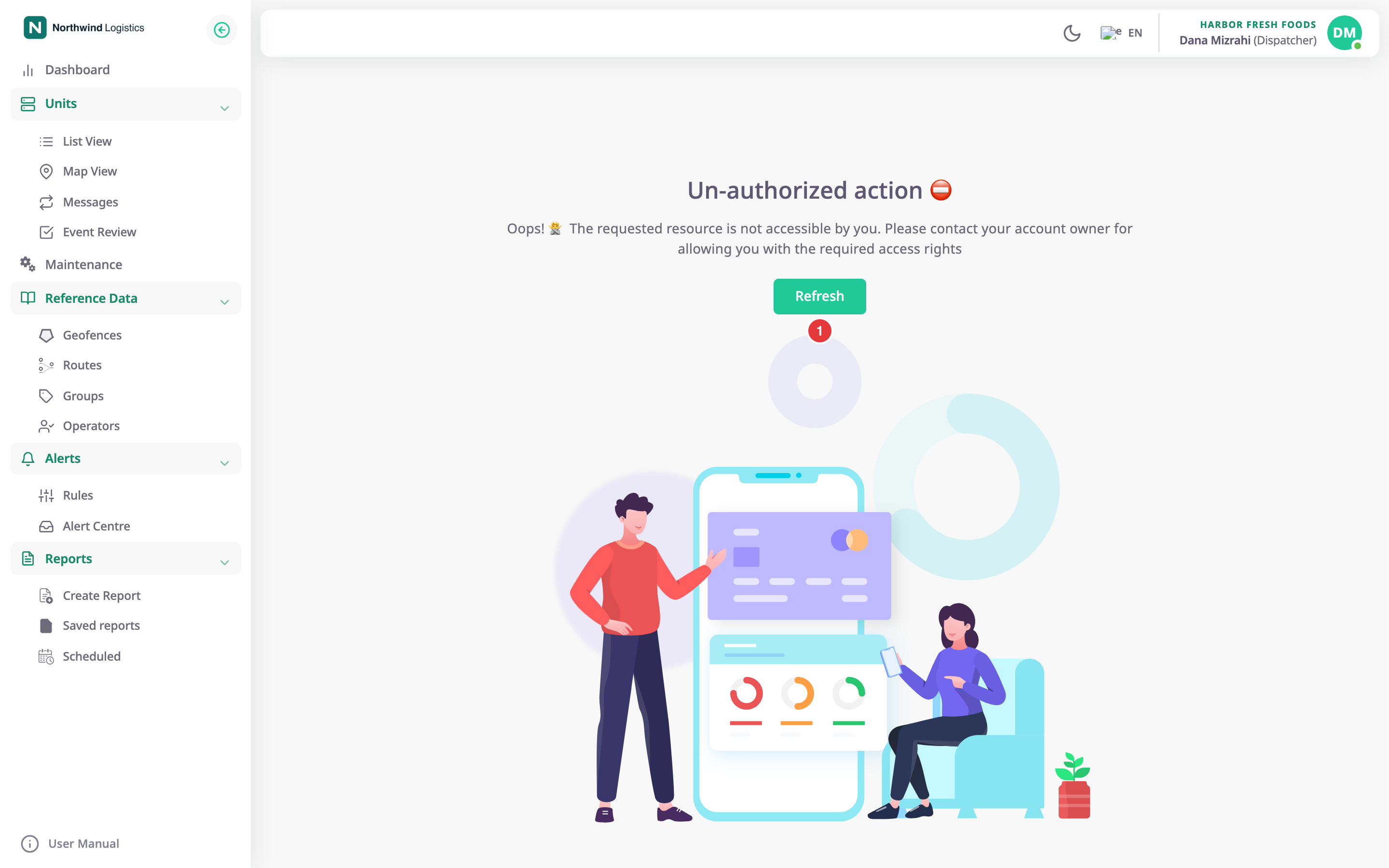
The app shows "Un-authorized action" in three cases:
- Your role cannot open the screen.
- The server refused a request for lack of rights.
- You opened the edit address of a unit you cannot edit.
The Refresh button, marked 1, reloads the page. It helps only after someone changed your role.
¶ Likely causes
- Your role does not include the permission
- You are working in a different account
- The item belongs to another account
- The feature is for dealer accounts only
- A Tracking tab is missing
- Account dashboards are changed only by the owner
- An alert rule cannot be saved
- The item is in use
- The SIM number or MSISDN exists in another account
- Sub-accounts are restricted or the account is not active
- Branding and default language need white labelling
- The feature is switched off for your organisation
¶ Your role does not include the permission
Every screen and button needs a permission in your role. The Menu action puts an entry in the side menu, and Read lets you open the screen behind it. With only one of the two, you either cannot find the screen or you find an entry that opens "Un-authorized action".
The built-in Operator role opens almost nothing, not even its own profile. A user with that role sees "Un-authorized action" on most screens.
Check
- Find the screen or button in the Permissions reference. Note the module and action it needs.
- Ask the Owner of your account which role you have and whether it holds that action.
Fix
The Owner of your account, or anyone who can manage roles above yours, applies the fix:
- Give your role the missing action, or give you a role that has it.
See Edit or delete a role and Change a user's role or remove a user. - Reload the page.
A role can only hold permissions its parent role holds. Nobody can edit the built-in Owner and Operator roles. See How roles and permissions work.
¶ You are working in a different account
Your role is per account. A user who belongs to two accounts can have the Owner role in one and a narrow role in the other.
Check
- Select your name at the top right.
The user menu shows the account you work in now.
Fix
- Select Switch Account.
- Select the account where you have the role you need.
The app reloads in that account.
See Switch accounts.
¶ The item belongs to another account
You can change a unit or a device only if your account owns it, or sits above the owner. This shows up in three ways:
- A unit your dealer created and allocated to you has no Edit action, and opens read-only. Opening its edit address shows "Un-authorized action".
- A device that an account below yours registered opens read-only. The devices list can still show Edit and Delete, but deleting fails with "Device not found".
- An alert rule from a parent account is read-only in yours, and its Enabled switch is unavailable.
A geofence or route that a parent account shares is also read-only for you.
Check
- In the units list, look at the tags on the unit's row. Allocated means another account owns it.
- For a device, compare its owner with your account. See Device ownership and allocation.
Fix
- For a unit or device: ask the owning account, usually your dealer, to make the change.
- For an alert rule: duplicate it and change your copy. See Turn off, copy or delete an alert rule.
- For a geofence or route: clone it and work on the clone. See Edit or clone a geofence.
¶ The feature is for dealer accounts only
Some screens exist only in dealer accounts: the SIM list and every SIM screen, Import/Export and Migrate, and adding or importing devices. A user in a consumer account who opens them sees "Un-authorized action", whatever their role says.
Check
- Select Switch Account in the user menu.
- Look at the account type of the account you work in: Dealer or Consumer.
Fix
Ask your dealer to do it for you. A dealer manages devices and SIM cards for its customers. See SIM cards and Import and export.
¶ A Tracking tab is missing
Each tab in the dock of the Tracking screen needs its own permission on Units. They are Show Events, Show Trips, Show Services with Read on Maintainance, Show Videos and Show Activities. You see only the tabs your role allows. A link to a tab you cannot use opens Live instead.
Check
- Compare the tabs you see with the table in Tracking screen.
Fix
- Ask the Owner of your account to add the missing action to your role.
Some tabs never show on a phone. See Tracking screen.
¶ Account dashboards are changed only by the owner
Only a user with the Owner role can create, rename, set as default or delete an account dashboard, or change its widgets. Everyone else sees it read-only, without Add widget, Edit layout or Widget actions. On a touch screen, Edit layout is not offered to anyone.
Check
- Open the dashboard list.
Account dashboards sit under Account and your own under Personal.
Fix
- Ask a user with the Owner role to change the account dashboard.
- Or create a personal dashboard of your own and build it there. See Create a dashboard.
To delete any dashboard you also need the Del action of Dashboard Widgets. See Rename, set default or delete a dashboard.
¶ An alert rule cannot be saved
Save rule stays unavailable and a reason shows next to it in red.
Check
- Read the red text next to Save rule.
Fix
- Find the reason in Why Save rule is unavailable and do what it says.
The reasons that come from permissions are these:
- "You do not have permission to save rules": you need Alert Rules with Add for a new rule, or Edit for a change.
- "You need the execute-command permission": remove the Command action, or ask for Execute Command on Devices.
- "Read-only: duplicate it to change it": the rule belongs to a parent account. Duplicate it.
¶ The item is in use
The app refuses some changes while an item is part of another one:
- A SIM fitted to a device cannot be deleted or allocated to another account. In a bulk action, the app skips the fitted SIMs, moves or deletes the rest, and says so.
- A device on a unit: allocating it to another account takes it off the unit. The app asks first.
Check
- Open the SIM and look at the device it is fitted to.
Fix
- Take the SIM out of its device. See Fit a SIM to a device.
- Delete or allocate the SIM again.
See Allocate SIMs to a sub-account and Change SIM status or labels, or delete SIMs.
¶ The SIM number or MSISDN exists in another account
Saving a SIM fails with "SIM already exists" when another SIM has the same MSISDN or SIM number. The check covers every account, so a number that another dealer holds also blocks you. Fitting a SIM that another device already uses fails with "SIM number already exist".
Check
- Search the SIM list for the number.
Fix
- If the SIM is in your list, edit that SIM instead of adding a new one.
- If it is not, the number belongs to another account. Contact support@getgps.eu with the MSISDN and SIM number.
See Add a SIM.
¶ Sub-accounts are restricted or the account is not active
Manage Sub Accounts shows only for accounts that are active and not restricted. Restrict Sub Accounts on an account stops it from creating accounts below it. Its users also lose the Dealers and Consumers screens, whatever their role says. Only the parent account can turn it on or off.
Check
- In Dealers or Consumers, look at the account's status.
- Ask the account above yours whether Restrict Sub Accounts is on for your account.
Fix
- If the account is not ACTIVE, the account above it reactivates it. See Edit, deactivate or block an account.
- If it is restricted, the account above it turns off Restrict Sub Accounts on its edit form.
¶ Branding and default language need white labelling
Account Settings shows a Branding section and Default Language only when the account above yours allowed white labelling for your account. Without it, neither appears. The date, time and measurement formats are there for every account.
Check
- Select your name at the top right.
- Select Account Settings.
If there is no Branding section, your account may not white-label.
Fix
- Ask the account above yours to turn on Allow White Labelling on your account's edit form.
See Set up white labelling for an account.
¶ The feature is switched off for your organisation
An organisation can have some features turned off. The AI Assistant is one. When it is off, its menu entry disappears, and its screen says "The AI Assistant is switched off for your organisation."
Fix
- Ask the account above yours to turn it on. See The AI Assistant is unavailable or stops answering.
¶ Still stuck
Contact support@getgps.eu with:
- Your username, the account name and your role in it.
- The screen or button you tried to use, and its address from the browser.
- The exact message, with any Correlation ID.
- A screenshot.