Set up a repeater when another system needs your units' data as it arrives. That system can be a customer's dispatch software or your own data store. Polygon then forwards each new message to that server.
¶ Before you start
- You need the Manage Repeaters permission of the Repeaters module. The built-in Owner role has it.
- You need the server's host name or IP address and its port. Know what the server accepts: JSON over TCP, MQTT, HTTP or HTTPS, or Wialon IPS or EGTS over TCP. For MQTT, you also need the topic. For Wialon IPS or EGTS, have the server's login settings at hand.
- The server must accept connections from Polygon. Ask your service provider which address the data comes from if the server has a firewall.
- By default an account can forward to 10 servers at most.
¶ Add a server
-
In the side menu, select Repeaters.
The Repeaters screen opens with the account's servers. If the account has none, it shows one empty card. -
If the account already has servers, select Add One More Server on the last card.
A new card appears with the tag "Not saved yet".
-
In Data format, choose what the server reads. Keep the raw device data in JSON unless the server expects Wialon IPS 2.0 or EGTS (GOST 33472).
-
In Host, enter the server's host name or IP address, for example 10.20.30.40. Leave out
http://and any path. -
In Port, enter the server's port, for example 5055.
-
For the JSON format, in Protocol, choose how the server receives data. If you chose MQTT, in Topic, enter the topic to publish to.
-
For Wialon IPS 2.0 or EGTS (GOST 33472), fill in the settings under Delivery. See Data formats.
¶ Choose the units
By default the server receives data for All Units of the account. To send only some units:
-
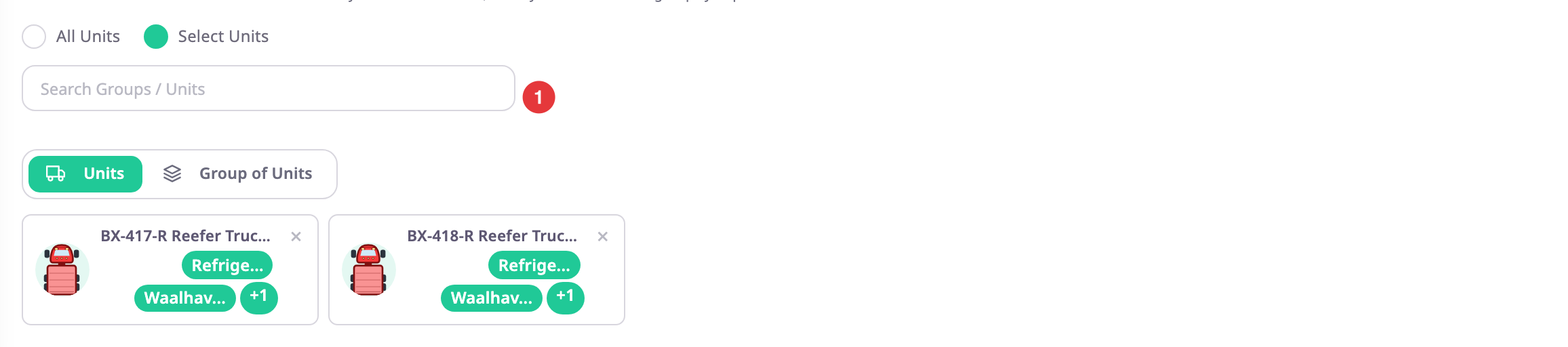
On the card, select Select Units.
A tree of the account's groups and units appears. -
In the tree, tick the groups and units to forward. Use the search box above it to find one.
What you ticked shows as chips above the tree.
- Select Save.
The message "Your request has been processed successfully." appears, the card loses its "Not saved yet" tag, and Test appears on it.
Save saves every card on the page, so finish or undo your edits on the other cards first. If a message such as "Duplicate Repeater Configuration" appears, see Limits and messages.
¶ Test the connection
-
On the saved card, select Test.
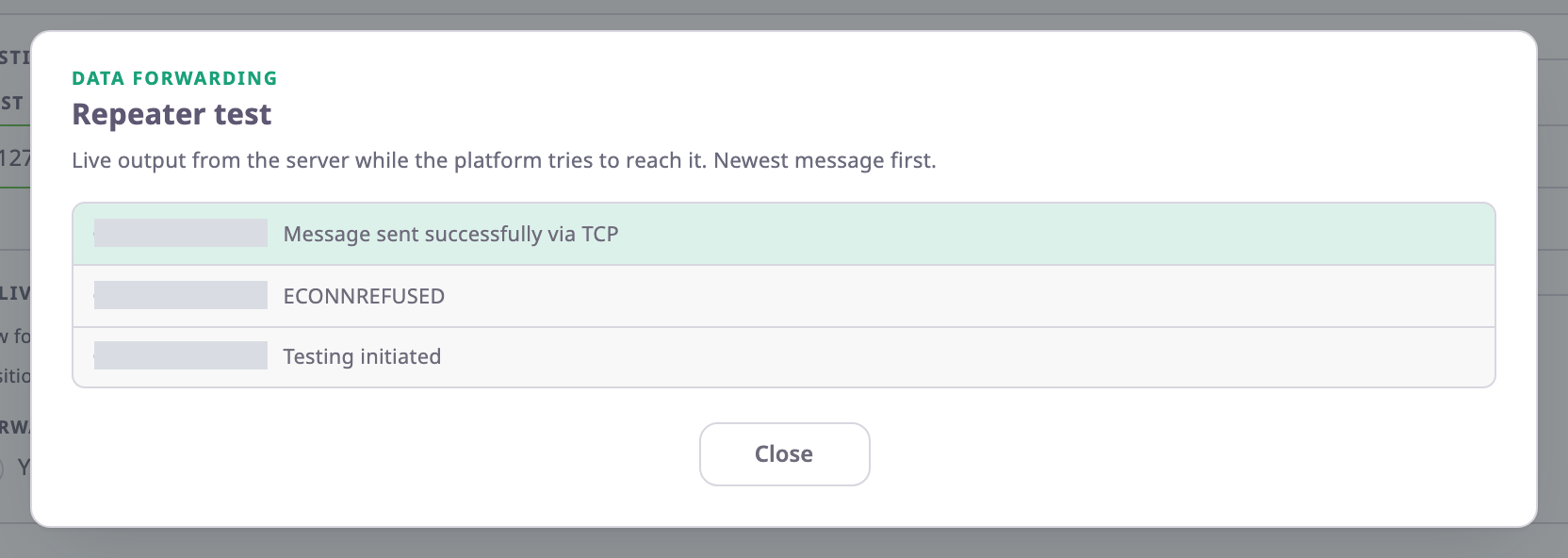
The Repeater test dialog opens and the app sends one test message. -
Read the result line at the top.
"Test passed" means the server took the message. "Test failed at" names the stage that failed, Connection, Login / handshake or Acknowledgement, with the server's message.
- Select Close.
The test message carries the identifier of one of the account's devices, because some servers accept only identifiers they know.
¶ Remove a server
- On the server's card, select Delete.
The dialog "Delete this server?" opens with the server's address. - Select Delete.
The card disappears and the app saves the remaining servers. There is no undo.
¶ What happens next
- From the next message on, every message from the chosen units goes to the server as it arrives. Past messages are not sent.
- A message the server does not accept is not sent again. Keep the server available; the app does not queue messages for it.
- To check later that data still flows, open Test and leave the dialog open. It adds a line for each real message forwarded while it is open.