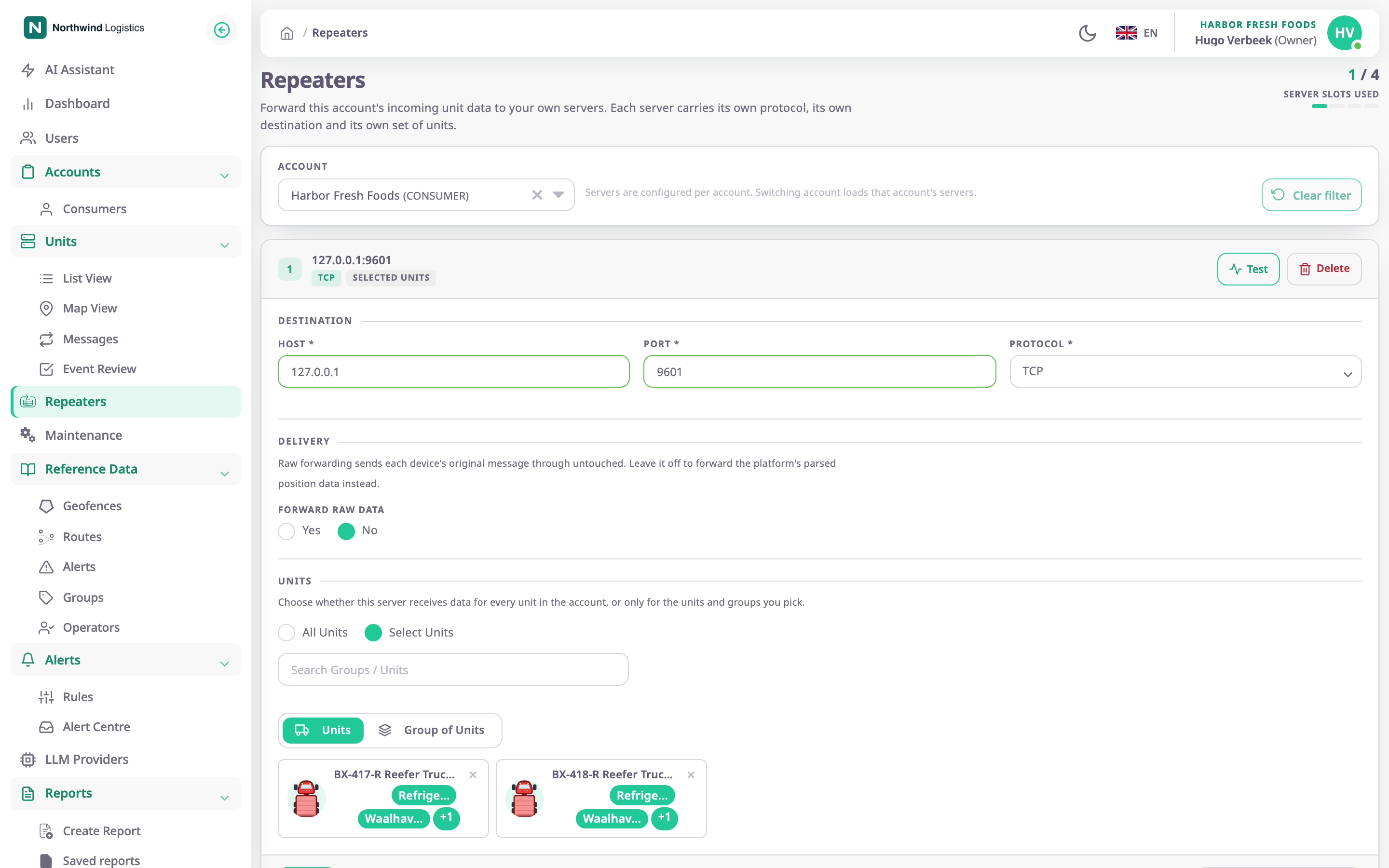
A repeater forwards the data your units send to a server you run, such as your own dispatch system or a customer's platform. Each server gets its own data format, address, protocol and set of units, and receives each new message as Polygon takes it in. To open the screen, in the side menu select Repeaters.
¶ What repeaters do
- The app forwards every message a unit's device sends to each server that covers that unit, as it arrives.
- Forwarding covers new messages only. Past messages are not sent, and a message that fails to arrive is not sent again.
- Servers belong to an account. By default an account can have up to 10; your service provider can set another limit.
¶ The screen
The header shows how many of the account's server slots are in use. Below it is one card per server, numbered. A new card shows "New forwarding server" and the tag "Not saved yet" until you save it.
The top of each card shows the server's address and tags. The tags name its protocol, its data format if it is not JSON, and the MQTT topic. One more tag names its units: All Units or a count such as "3 units · 1 groups". Select the top of the card, or the arrow beside Test, to fold or open the card. When the account has several saved servers, the cards start folded.
If your role may manage repeaters for the accounts below yours, an Account list at the top lets you switch to another account's servers.
¶ Destination
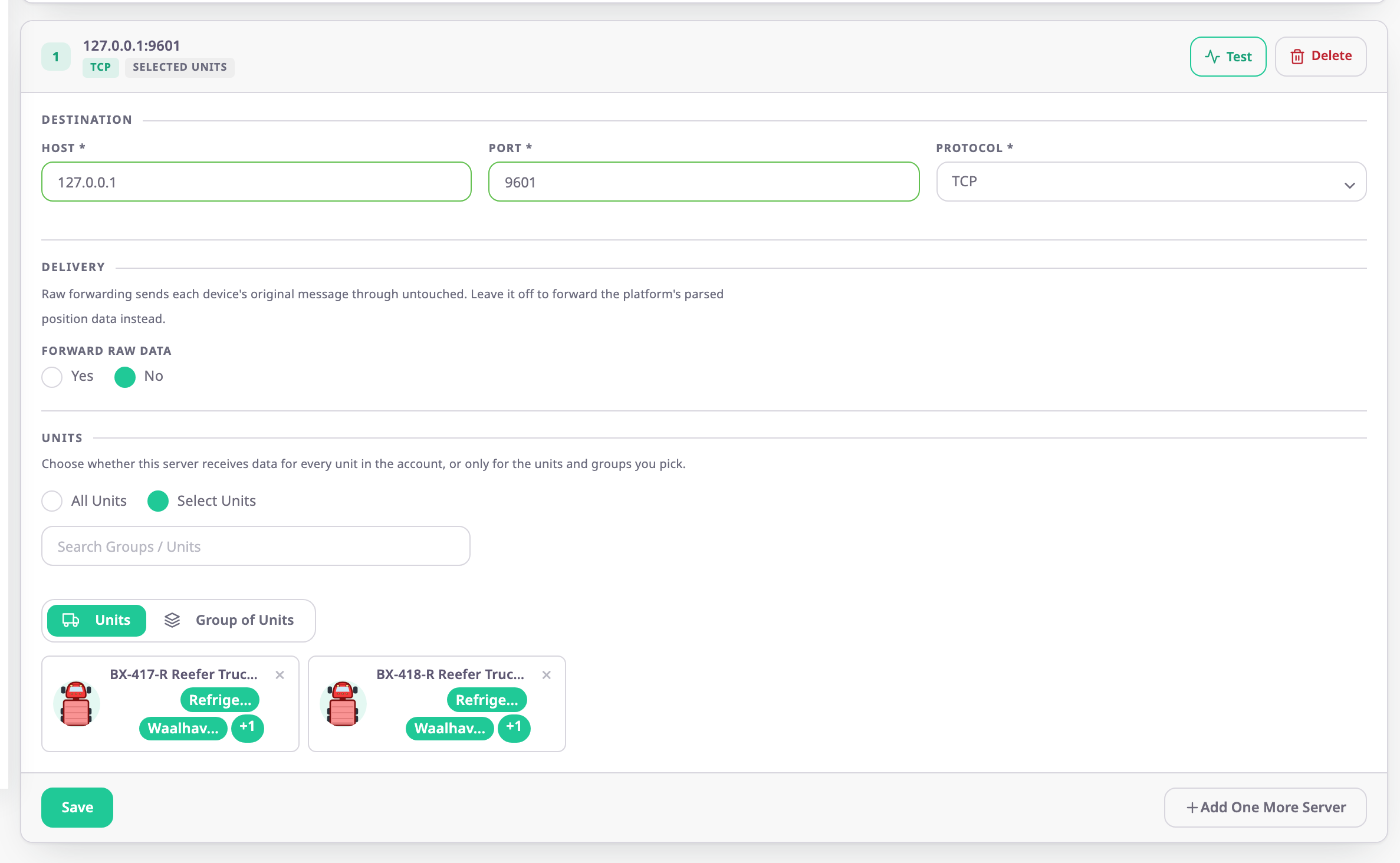
| Field | Required | What it does | Allowed values / example | Notes |
|---|---|---|---|---|
| Data format | Yes | Chooses how each message is encoded for the server. | Raw device data in JSON, Wialon IPS 2.0 or EGTS (GOST 33472) | A new server starts on raw device data in JSON. See Data formats. |
| Host | Yes | The address of the server that receives the data. | A host name or IPv4 address, without http:// or a path. Example: 127.0.0.1 |
The app refuses anything that is not a valid host name. |
| Port | Conditional | The port on that server. | 0 to 65535. Example: 9601 | Required for TCP, HTTP and HTTPS. The form lets you leave it empty for MQTT, but the connection needs it, so enter the broker's port. |
| Protocol | Yes | How the data travels to the server. | TCP, MQTT, HTTP, HTTPS | Default TCP. With Wialon IPS 2.0 or EGTS (GOST 33472), it is fixed to TCP. |
| Topic | Conditional | The MQTT topic the app publishes the data to. | Text. Example: harbor/units | Shown and required only for MQTT. |
How each protocol delivers a JSON message:
| Protocol | Delivery |
|---|---|
| TCP | Writes each message as JSON to a connection the app keeps open. |
| HTTP, HTTPS | Sends each message as a JSON POST to the root of the host and port. |
| MQTT | Publishes each message as JSON to Topic. |
¶ Data formats
| Format | What the server receives |
|---|---|
| Raw device data in JSON | The position, speed, course, altitude, satellites, power voltage and the device's own parameters, without sensor values. It is not the device's original binary message. The card shows the tag Raw. |
| Wialon IPS 2.0 | Messages in the Wialon IPS protocol, over TCP. |
| EGTS (GOST 33472) | Messages in the EGTS protocol, over TCP. |
The JSON option that sent the full processed message, with sensor values, is no longer offered. A server saved with it keeps showing that option until you choose another format.
¶ Delivery
The Delivery section shows only for Wialon IPS 2.0 and EGTS (GOST 33472), with that format's settings.
| Field | Format | What it does | Allowed values | Notes |
|---|---|---|---|---|
| Protocol version | Wialon IPS 2.0 | The Wialon IPS version the server speaks. | 2.0 or 1.1 | Default 2.0. |
| Password | Wialon IPS 2.0 | The password the server expects at login. | Up to 128 characters, without ;, # or line breaks |
Default NA. Once saved, the field shows a mask and the note "A password is saved. Leave this field as it is to keep it." |
| Object ID source | EGTS (GOST 33472) | Which value identifies each unit to the server. | imei or unit_id | Default imei. |
| Authorization | EGTS (GOST 33472) | Whether the app logs in to the server first. | On or off | Default on. |
| Dispatcher ID | EGTS (GOST 33472) | The dispatcher number sent to the server. | 0 to 4294967295 | Default 0. |
Changing the format clears the settings of the old format.
¶ Units
| Option | What the server receives |
|---|---|
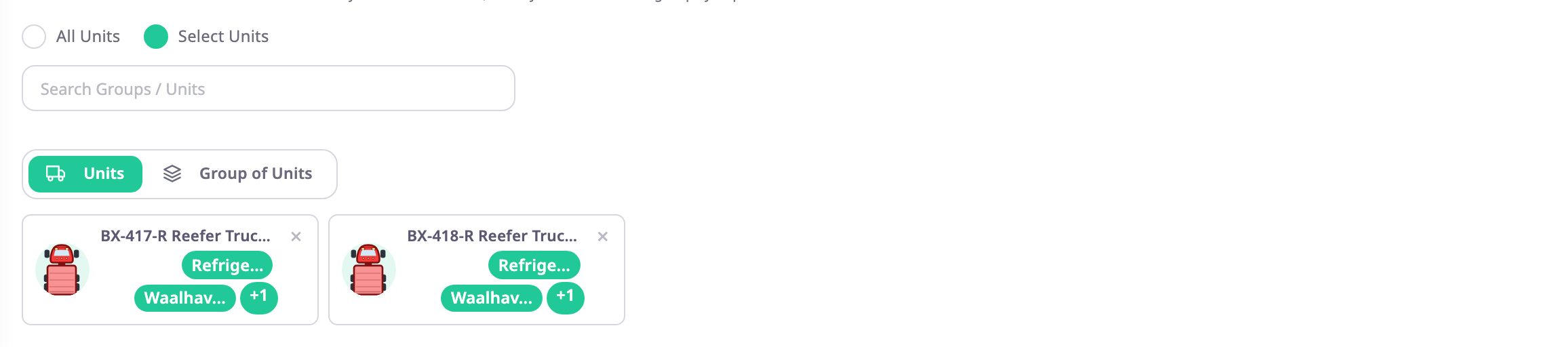
| All Units | Data for every unit of the account. |
| Select Units | Data only for the units and groups you pick. |
With Select Units, a tree of the account's groups and units appears beside the other fields. Tick a group to forward all its units, or tick single units. Use the search box above the tree to find a group or unit. What you ticked shows as chips above the tree; select a chip to remove it.
¶ Test output
Test appears on a saved server. It sends one test message to the server with the server's saved format and settings, and opens the Repeater test dialog. The dialog shows the result, newest line first.
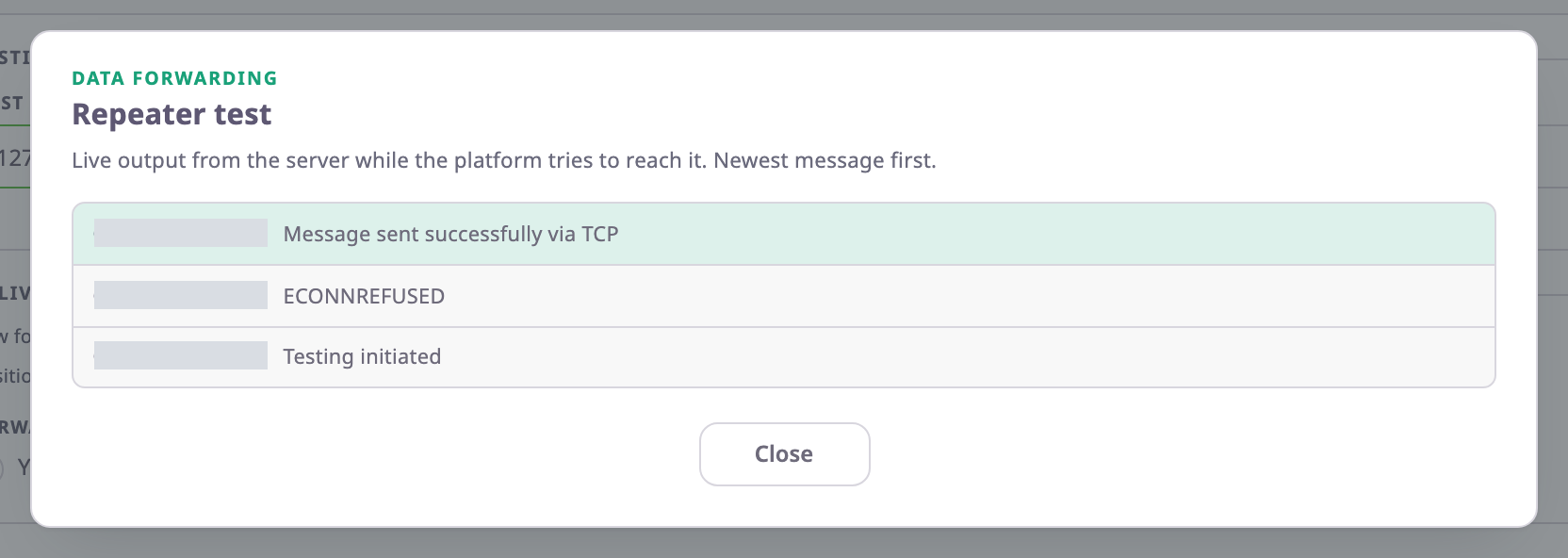
- The first line is "Testing initiated".
- The result line starts with "Test passed" or "Test failed at", then the stage and the server's message. The stages are Connection, Login / handshake and Acknowledgement.
- If the test gets no answer within about 35 seconds, the result reads "Test failed at" Connection with "Repeater test service did not respond".
- While the dialog stays open, it also adds a line for each real unit message forwarded to that server.
The test message carries the identifier of a device the server forwards, or else of another device of the account. Some servers, such as Wialon ones, accept only identifiers they know. Select Close to end the test. The dialog has no other way out.
¶ Buttons and actions
| Action | What happens |
|---|---|
| Save | Saves the whole list of servers on the page for the account. "Your request has been processed successfully." appears. |
| Add One More Server | Adds an empty card. Shown on the last card while the account has free server slots. |
| Test | Sends a test message and opens the Repeater test dialog. Saved servers only. |
| Delete | Asks "Delete this server?" and names the server's address. Select Delete in the dialog to remove it. On a saved server, the app saves the remaining list straight away. Unavailable while the page shows only the blank card of an account with no servers. |
Save on one card also saves what you typed in the other cards, because the app saves the list as a whole.
¶ Limits and messages
| Message | Cause |
|---|---|
| "Repeater Limit Exceeded" | The account already has as many servers as its limit allows. |
| "Duplicate Repeater Configuration" | Another server of the account has the same host, port and protocol. |
| "Invalid IP Address or Host" | Host is not a valid host name or IP address. |
| "Invalid Port Number" | Port is not between 0 and 65535. |
| "MQTT Topic Missing" | Protocol is MQTT and Topic is empty. |
| "Invalid Data Format" | The format is not available, or does not support the chosen protocol. |
| "Invalid Format Options" | A Delivery setting is not valid for the format. |
| "Repeater Not Found" | Someone else removed the server since you opened the screen. Reload the page. |
¶ Permissions
The screen uses the Repeaters module. The built-in Owner role has all of it.
| You want to | You need |
|---|---|
| See Repeaters in the side menu | Menu |
| See the servers | Read |
| Add, change, test or delete servers | Manage Repeaters |
| Switch to an account below yours | Repeaters Sub Account |
Without Manage Repeaters, you can only read the fields, and the buttons do not show. Both dealer and consumer accounts have repeaters. See Permissions reference.