The Fuel Config tab holds the settings that decide when a change in the tank level is a filling or a drain. It also holds how the app counts fuel consumed. To open it, in the side menu select Devices, select Edit on the device's row, then select the Fuel Config tab. For how the settings work together, see How fuel fillings and drains are detected.
Volumes are in the unit the fuel sensor reports, which is litres for a sensor calibrated in litres.
¶ When the tab appears
The tab shows only when the device has a fuel level sensor. Add one on the Sensors tab and the Fuel Config tab appears. See Set up a fuel level sensor.
In the add-device wizard, the same settings are a step of their own. The step saves when you move on to the next step.
¶ Drain detection settings
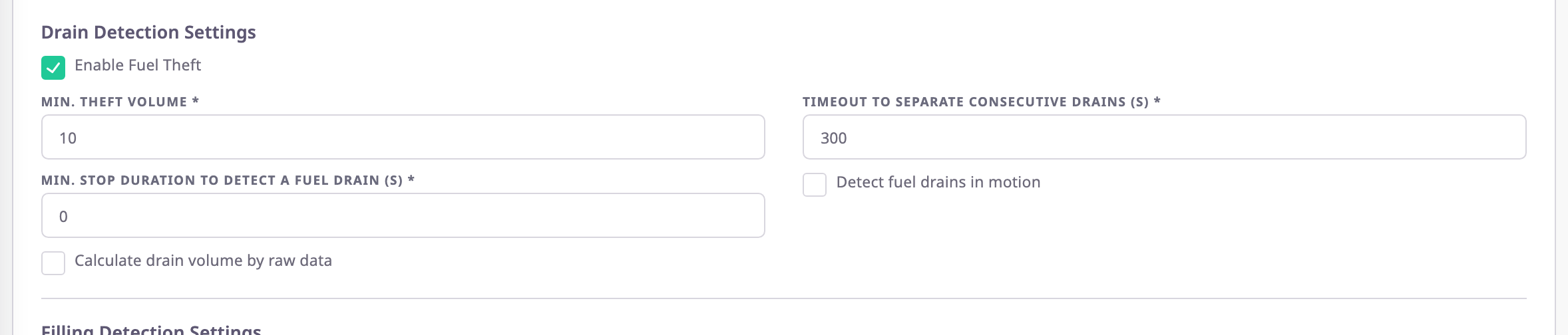
| Field | Required | What it does | Allowed values / example | Notes |
|---|---|---|---|---|
| Enable Fuel Theft | No | Turns drain detection on or off, for reports and alerts. | On or off | Default on. Off greys out the fields below. |
| Min. Theft Volume | Conditional | A drain counts only if its volume, minus the fuel the vehicle would have burned anyway, reaches this. | At least 1, up to three decimals. Example: 10 | Required while Enable Fuel Theft is on. Default 1. |
| Timeout to separate consecutive drains (s) | Conditional | How long the level must stay flat before a drain is over. | At least 30 seconds. Example: 300 | Required while drain detection is on. See Defaults. |
| Min. stop duration to detect a fuel drain (s) | Conditional | How long the unit must have stood still before a drain can start. | 0 or more seconds. Example: 60 | Required while drain detection is on. See Defaults. Not used while Detect fuel drains in motion is on. |
| Detect fuel drains in motion | No | Lets drains start while the unit is moving. | On or off | Default off. A moving tank sloshes, so expect more false drains. |
| Calculate drain volume by raw data | No | Uses the unsmoothed readings for the volume when they show more. | On or off | Default off. |
A drain also needs the level to fall by at least 10 litres between two messages. No setting changes that threshold.
¶ Filling detection settings

| Field | Required | What it does | Allowed values / example | Notes |
|---|---|---|---|---|
| Enable Fuel Refill | — | Shows that filling detection is on. | Always on | Read-only. |
| Min. Refill Volume | Yes | A filling counts only if its volume reaches this. | At least 1, up to three decimals. Example: 5 | Default 5. |
| Timeout to separate consecutive fillings (s) | Yes | How long the level must stay flat before a filling is over. | At least 30 seconds. Example: 300 | See Defaults. |
| Detect fuel fillings only during stops | No | Ignores rises in the level while the unit is moving. | On or off | Default off. On shows Final Filling Timeout. |
| Calculate filling volume by raw data | No | Uses the unsmoothed readings for the volume when they show more. | On or off | Default on. |
| Final Filling Timeout | Conditional | Has no effect yet; see Settings with no effect yet. | 0 or more seconds | Shown and required only while Detect fuel fillings only during stops is on. |
¶ Filtering
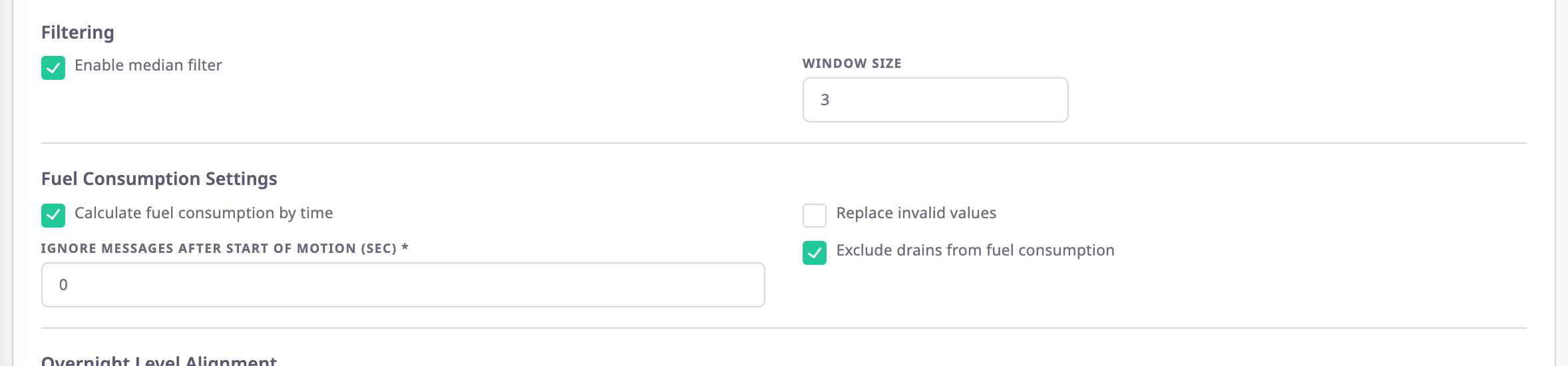
| Field | Required | What it does | Allowed values / example | Notes |
|---|---|---|---|---|
| Enable median filter | No | Smooths the level before the app looks for fillings and drains. | On or off | Default on. Off uses the raw readings. |
| Window Size | No | How strongly the filter smooths. It is a level, not a number of messages. | Whole number from 1. Example: 3, which smooths over 15 messages | Default 3. Odd levels cover five times the level in messages, even levels one fewer. While filtering is on, the line under the field shows the result, for example "Level 3 = median of 15 messages". Fuel alerts use at most 61 messages. |
¶ Fuel consumption settings
| Field | Required | What it does | Allowed values / example | Notes |
|---|---|---|---|---|
| Calculate fuel consumption by time | No | Has no effect yet. | On or off | Default on. |
| Replace invalid values | No | Has no effect yet. | On or off | Default off. |
| Ignore messages after start of motion (sec) | Yes | For fuel alerts, no filling or drain starts within this many seconds after the unit starts moving. | 0 or more seconds. Example: 0 | Default 0, which turns it off. Reports ignore it. |
| Exclude drains from fuel consumption | No | Has no effect; drained fuel never counts as consumed. | On or off | Default on. |
¶ Overnight level alignment and sequential suppression

| Field | Required | What it does | Allowed values / example | Notes |
|---|---|---|---|---|
| Match end-of-day fuel level to the start of the next day | No | Has no effect yet. | On or off | Default off. |
| Exclude consecutive draining/refilling | No | Drops a filling and a drain that cancel each other out within a short time. | On or off | Default off. Reports only. |
| Max. interval between refueling and draining (minutes) | Conditional | The longest time from the start of the first event to the end of the second for the app to drop the pair. | At least 1 minute. Example: 60 | Required while the option above is on. See Defaults. |
| Max. difference in refueling/emptying volumes (%) | Conditional | How close the level after the pair must be to the level before it. | 0 to 100 %. Example: 10 | Required while the option above is on. Default 10. It compares the tank level before and after, not the two volumes. |
With Exclude consecutive draining/refilling on, reports show a filling or drain only once the interval has passed without a matching opposite event.
¶ Settings with no effect yet
The app saves these settings, but neither reports nor fuel alerts use them in this version:
- Final Filling Timeout
- Calculate fuel consumption by time
- Replace invalid values
- Exclude drains from fuel consumption: drained fuel is always left out of consumption.
- Match end-of-day fuel level to the start of the next day
¶ Defaults
Until someone saves this tab, the device's fuel settings are mostly empty. The tab then shows its own starting values, but reports and alerts use built-in values, and these differ:
| Setting | The tab shows | Reports and alerts use until saved |
|---|---|---|
| Timeout to separate consecutive drains (s) | 300 | 150 |
| Min. stop duration to detect a fuel drain (s) | 0 | 60 |
| Timeout to separate consecutive fillings (s) | 300 | 900 |
| Window Size | 3 (15 messages) | 3 messages |
| Max. interval between refueling and draining (minutes) | 60 | 1 |
To make the device use what the tab shows, open the tab and select Save Changes without changing anything.
¶ Saving
Select Save Changes. The message "Fuel configuration saved successfully" appears.
Saving updates only the fuel settings. The device's trip settings, position filter and counters stay as they are.
Saving also tells the reports to work out this device's figures again. The app looks at every unit the device was on in the last 60 days. For the time the device was on each one, it removes the stored fuel events, consumption, trips and mileage and calculates them again. Until that finishes, reports for that period can show missing or old figures. Fuel alerts use the new settings from the next message on.
¶ Buttons and actions
| Action | What happens |
|---|---|
| Save Changes | Saves the fuel settings and recalculates up to 60 days of the device's reports. Shown only when you opened the device with Edit. Disabled while a required field is empty or out of range. |
| Back | Returns to the Devices list without saving. |
¶ Permissions
- To change the settings you need the Edit action of the Devices module, and the device must be one you can edit. Only dealer accounts have it; the built-in Owner role of a dealer account does.
- With View, the tab shows the same settings read-only.