A fuel probe in the tank sends a raw number, not litres. To get fuel level, fillings and drains in the unit card and in reports, you add a FUEL sensor. You convert the raw number with a calibration table, and you tune how the app detects fillings and drains.
¶ Before you start
- You need Devices > Edit. The built-in Owner role of a dealer account has it.
- Know the tank's capacity and the parameter the probe writes to, for example
fuel_lvlon the demo devices. - Have the tank's calibration points: pairs of a raw reading and the litres it stands for. A strapping chart from the tank maker or a fill test gives them.
¶ Add the fuel sensor
-
In the side menu, select Devices.
-
Select Edit on the device's row.
-
Select the Sensors tab.
-
Select Add sensor.
The New Sensor dialog opens. -
In Type, choose FUEL.
-
In Name, enter a name, for example Fuel tank.
-
In the Settings group, fill in the tank:
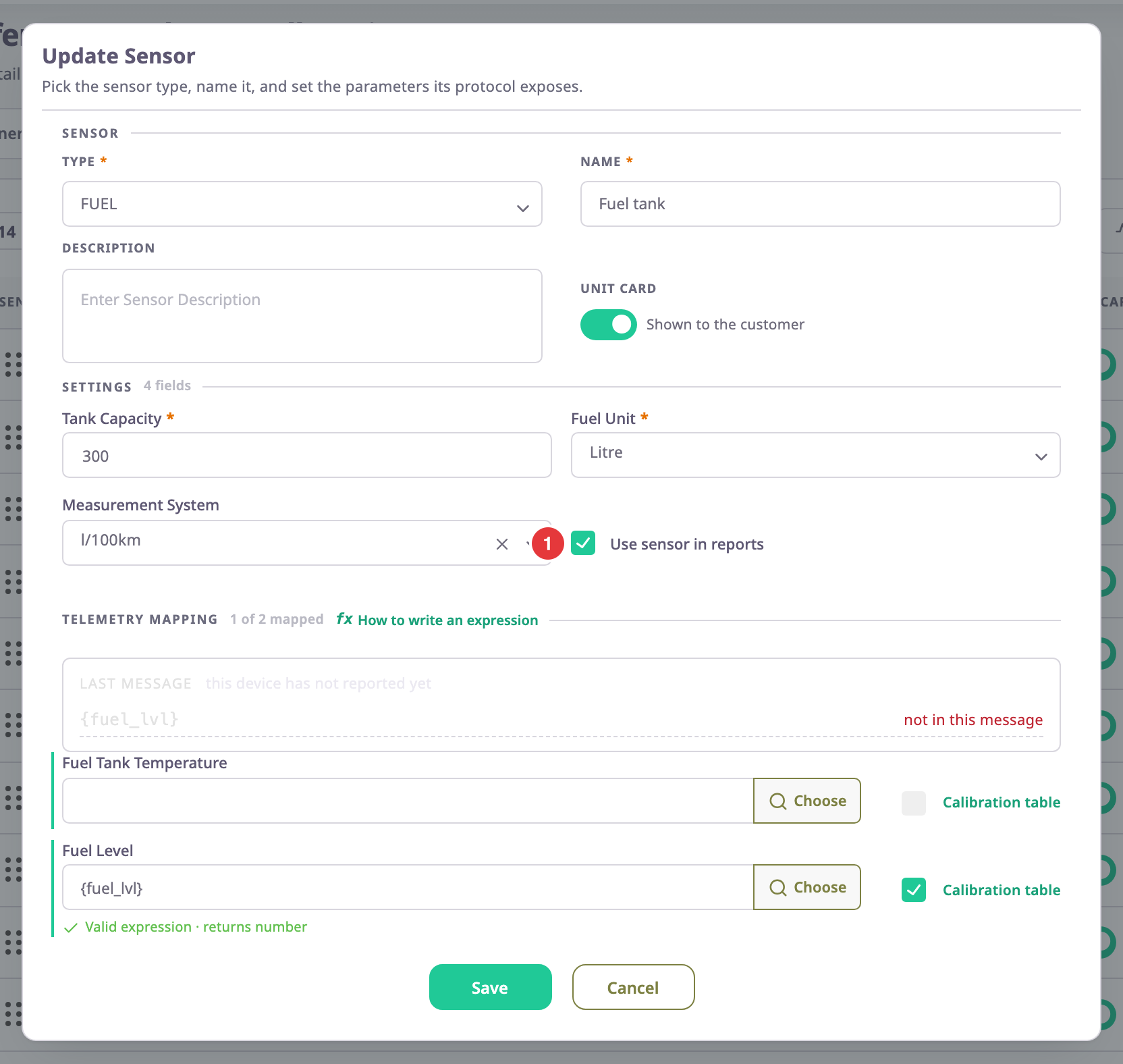
- In Tank Capacity, enter the volume, for example 300.
- In Fuel Unit, choose the unit of that volume, for example Litre.
- Optional: In Measurement System, choose how the app shows consumption, for example l/100km.
-
In the Telemetry mapping group, in Fuel Level, enter the probe's parameter, for example
{fuel_lvl}. Choose lists the device's parameters if you are not sure. -
Optional: In Fuel Tank Temperature, map the probe's temperature parameter, if it sends one.
¶ Calibrate the tank
- Beside Fuel Level, select Calibration table.
- Enter the calibration points, or select Upload Table to load them from a file.
- Select Generate coefficients.
- Select Apply.
The calibration tick beside Fuel Level turns on.
For the calibration dialog, the bounds and the points file, see Create a calibration table.
¶ Choose the sensor for reports
-
In Settings, turn on Use sensor in reports, marked 1 in the image above.
-
Select Save.
The app shows "Sensor added successfully." and a note that you can now configure the fuel settings. The Fuel Config tab appears.
Use sensor in reports tells the app which tank's level is the unit's fuel level. Only one FUEL sensor per device can have it. Turning it on for a second one shows "Cannot use multiple use sensors in reports in one device". If no FUEL sensor has it, the app uses the first FUEL sensor in the list. The Sensors tab names the chosen sensor next to "Fuel aggregate".
¶ Tune fill and drain detection
-
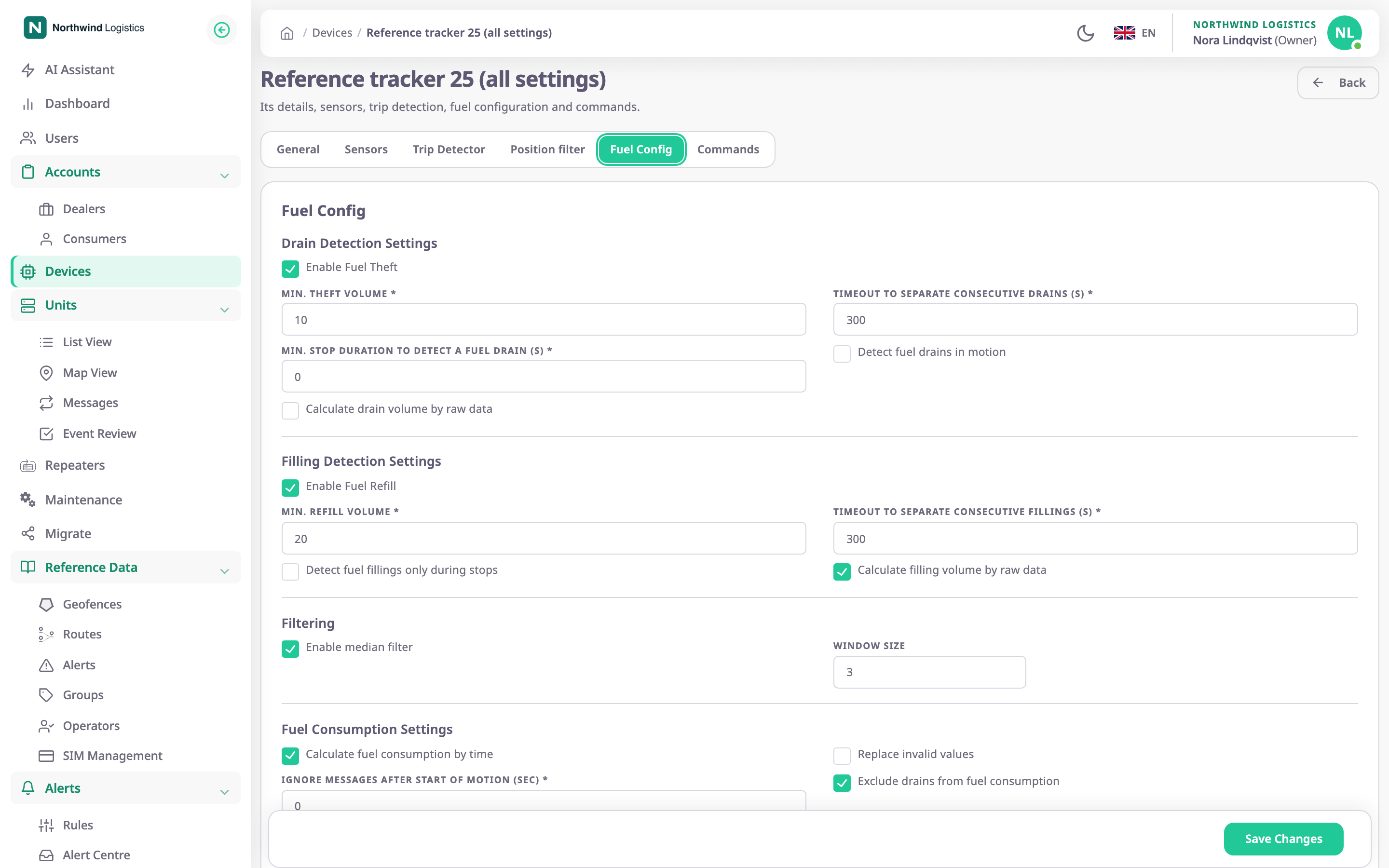
Select the Fuel Config tab.
-
Set the smallest drain and filling worth reporting and the other detection settings. For each setting, see the Fuel Config tab reference.
-
Select Save Changes.
Saving this tab changes only the fuel settings. The device's other settings, such as its position filter and counters, stay as they were.
¶ What happens next
The device's next messages carry the fuel level in litres. The app then detects fillings and drains with your settings and shows them in fuel reports. Saving the sensor or the fuel settings also makes the app recalculate the last two months of report data for the device's units. Past reports change after a while.
For how the app finds fillings and drains, see How fuel fillings and drains are detected.