The Trip Detector tab holds the settings that decide when the unit with this device is moving, parked, or on a trip. To open it, in the side menu select Devices, select Edit on the device's row, then select the Trip Detector tab. For how the settings work together, see How trips are detected.
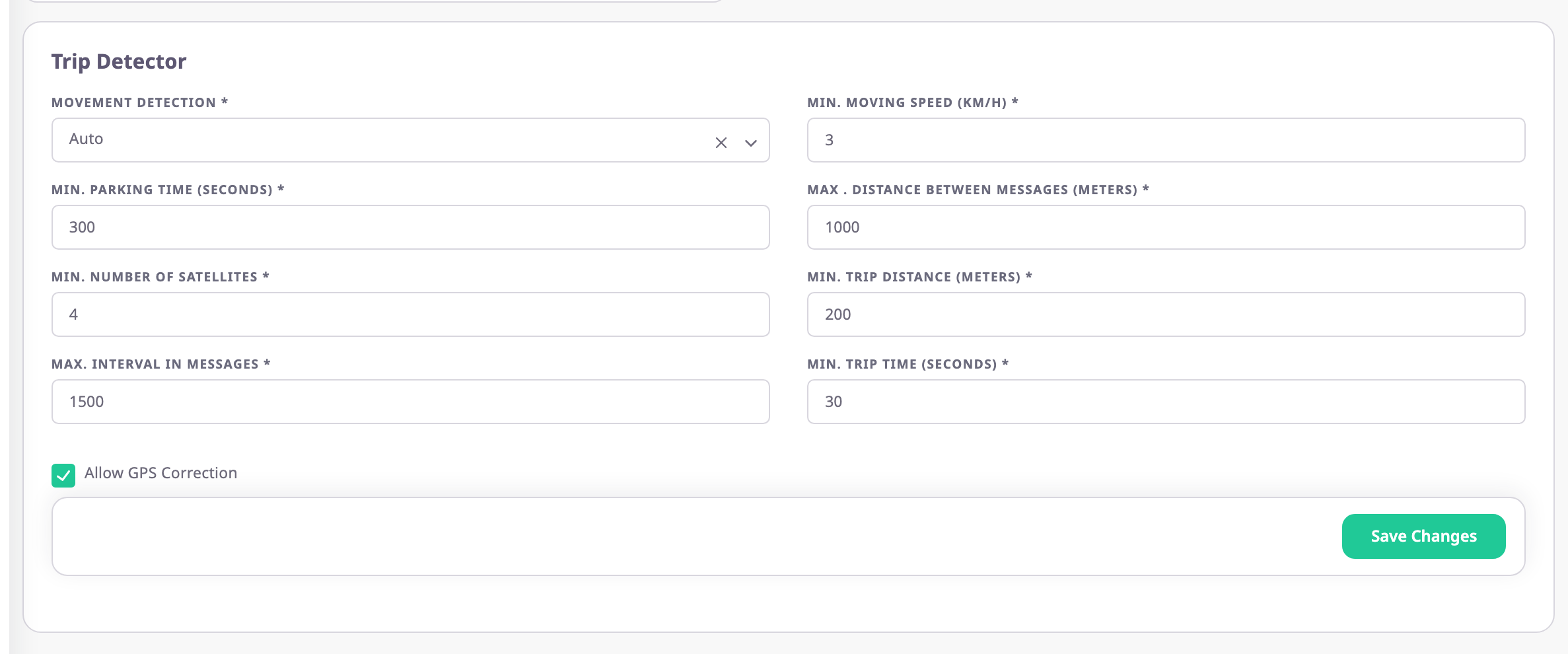
¶ When the tab appears
The tab shows only when the device has a GPS sensor. Add one on the Sensors tab and the Trip Detector tab appears next to it. See Sensors tab.
In the add-device wizard, the same settings are a step of their own. The step saves when you move on to the next step.
¶ Fields
| Field | Required | What it does | Allowed values / example | Notes |
|---|---|---|---|---|
| Movement Detection | Yes | Decides which evidence counts as the unit moving. | Auto, Ignition, GPS Coordinates, Relative Odometer, Odometer, Speed, Off | Default Auto. See Movement detection options. |
| Min. Moving Speed (Km/h) | Yes | Below this speed the unit does not count as moving. | Number, km/h. Example: 3 | Default 3. Trips and reports drop decimals, so 2.7 counts as 2. |
| Min. Parking time (Seconds) | Yes | How long the unit must stand still before a stop becomes a parking and the trip ends. | Number, seconds. Example: 300 | Default 300. |
| Max. Interval In Messages | Yes | A silence longer than this after driving splits the trip. | Number, seconds. Example: 1500 | The label shows no unit; the value is in seconds. See Defaults. |
| Min. Trip Time (Seconds) | Yes | The app drops shorter trips; their time joins the parking around them. | Number, seconds. Example: 30 | Default 30. |
| Allow GPS Correction | No | Turns the four settings below it on or off. | On or off | Default on. The hint under it reads "Applies only to the settings in this section. Trips it filters out are still visible in Messages." |
| Max . Distance Between Messages (Meters) | Conditional | A position that moves further than this between two messages is a jump, not driving. | Number, metres. Example: 1000 | Required while Allow GPS Correction is on; unavailable while it is off. See Defaults. |
| Min. Number Of Satellites | Conditional | A position from fewer satellites does not count as movement and adds no distance. | Whole number. Example: 4 | Default 4. Required while Allow GPS Correction is on; unavailable while it is off. Devices that do not report satellites are not held back. |
| Max. HDOP (0 = off) | No | A position whose HDOP is above this value does not count as a good fix. | 0 to 50, in steps of 0.1. Example: 5 | Default 0, which turns the check off. Unavailable while Allow GPS Correction is off. |
| Min. Trip Distance (Meters) | Conditional | The app drops shorter trips; their time joins the parking around them. | Number, metres. Example: 200 | Required while Allow GPS Correction is on; unavailable while it is off. See Defaults. |
The app checks that you filled in each required number, and that Max. HDOP (0 = off) is between 0 and 50. It does not limit the other values, so check the units before you save.
¶ Movement detection options
| Option | The unit is moving when |
|---|---|
| Auto | The app picks the source from the device's sensors: an odometer, then a relative odometer, then ignition, otherwise GPS positions. |
| Ignition | The ignition is on and the speed reaches Min. Moving Speed (Km/h). Turning the ignition on starts a new trip. |
| GPS Coordinates | The position changes between good fixes, without a jump. |
| Relative Odometer | The relative odometer sensor reports distance and the speed reaches the minimum. |
| Odometer | The odometer reading grows and the speed reaches the minimum. |
| Speed | The speed, from a speed sensor or a good GPS fix, reaches the minimum. |
| Off | Never. The unit has no trips. |
¶ Defaults
A device that nobody has saved this tab for has no trip settings of its own. The tab then shows the values below, but trips and reports use their own built-in values until you select Save Changes:
| Setting | The tab shows | Trips list and reports use until saved |
|---|---|---|
| Max . Distance Between Messages (Meters) | 1000 | 2000 |
| Min. Trip Distance (Meters) | 200 | 50 |
| Max. Interval In Messages | 1500 | 300 |
The other settings match. A device created from a model that comes with a GPS sensor starts with the tab's values saved. To make any other device use what the tab shows, open the tab and select Save Changes without changing anything.
¶ Saving and report recalculation
Select Save Changes. The message "Trip detector updated successfully" appears.
Saving also tells the reports to work out this device's trips again. The app looks at every unit the device was on in the last 60 days. For the time the device was on each one, it removes the stored trips, parkings, fuel and mileage figures and calculates them again. Until that finishes, reports for that period can show missing or old figures. See Where report data comes from.
The live trip start and end events change from the next message on.
¶ Buttons and actions
| Action | What happens |
|---|---|
| Save Changes | Saves the trip settings and recalculates up to 60 days of the device's reports. Shown only when you opened the device with Edit. Disabled while a field is empty. |
| Back | Returns to the Devices list without saving. |
¶ Permissions
- To change the settings you need the Edit action of the Devices module, and the device must be one you can edit. Only dealer accounts have it; the built-in Owner role of a dealer account does.
- With View, or on a device you cannot edit, the tab shows the same fields read-only and no Save Changes.