A schedule tracks rides only for its assigned units. Change the list when you add a vehicle to a round or take one off it.
¶ Before you start
- The wizard needs at least one unit on the schedule.
- Geofences have no units. Units attach to schedules, and to alert rules.
¶ Open the units step
- In the side menu, select Reference Data > Routes.
- Open the route and find the schedule.
- Select the Assigned Units icon on the schedule's row.
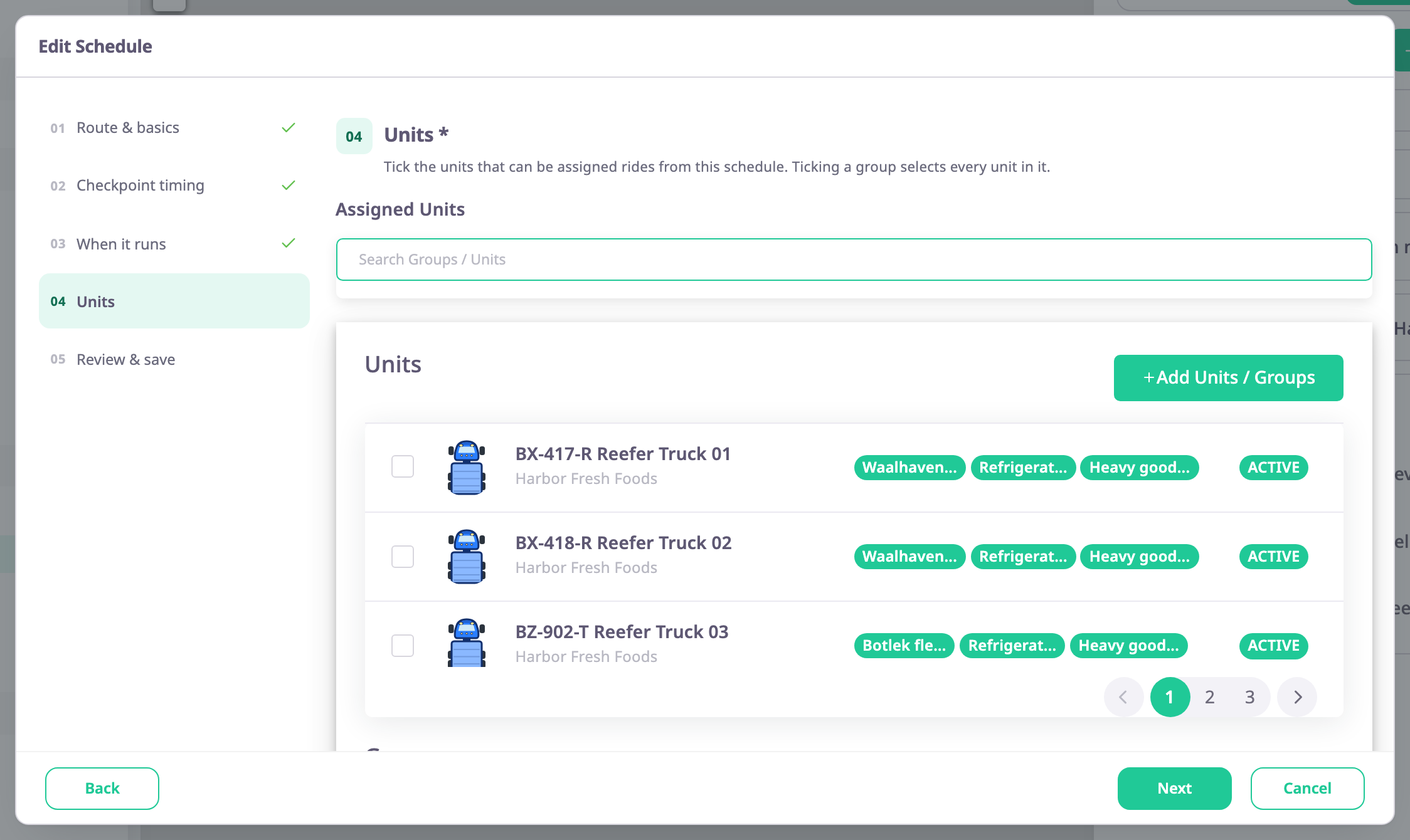
The Edit Schedule dialog opens. - If the dialog shows step 1, select Units in the step list.
Step 4, Units, opens.
¶ Add units or groups
- Select the Search Groups / Units box.
A panel lists your units and groups. - Tick each unit you want. Tick a group to select every unit in it.
- Select Add Units / Groups.
The units appear as cards below the list.
¶ Remove units
Select the trash icon on a unit's card. The card goes. At least one card must stay.
¶ Save
- Select Next.
The Review & save step opens and lists the units. - Select Save.
The dialog closes and the schedule has its new units.
If you close the dialog with Cancel, the unit changes are not saved.
¶ What happens next
The schedule judges rides for the units on its list from now on.