A schedule turns a route into a plan: arrival times for each checkpoint and the units that run it. Polygon then records each ride and judges it on time, late or missed.
¶ Before you start
- You need the Routes > Add permission. The Owner role has it.
- The route must exist with its checkpoints. See Create a route.
- Decide the schedule type. Daily time suits a round that repeats each day. See Route schedules and rides.
¶ Set up the schedule
- In the side menu, select Reference Data > Routes.
- In the route's row, select the Add Schedule icon.
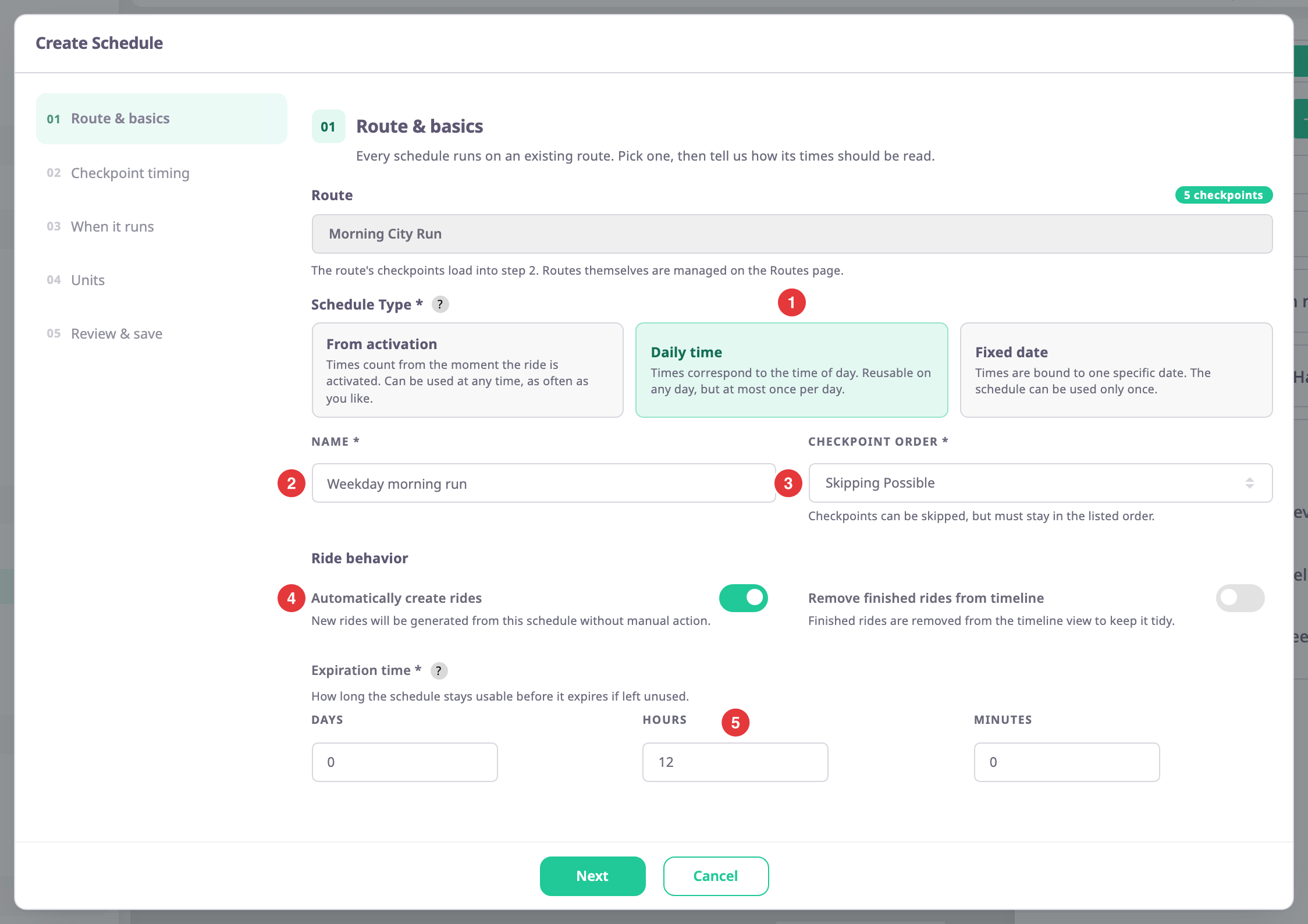
The Create Schedule dialog opens on step 1, Route & basics. - Choose a card under Schedule Type, marked 1. This page uses Daily time.
- In Name, enter Weekday morning run, marked 2.
- Optional: change Checkpoint Order, marked 3. The default Skipping Possible lets a unit skip a stop but not go back.
- Optional: turn on Automatically create rides, marked 4, to record rides live.
- Under Expiration time, enter 12 in Hours, marked 5.
A time above 0 is required. - Select Next.
Step 2, Checkpoint timing, opens.
¶ Set checkpoint times
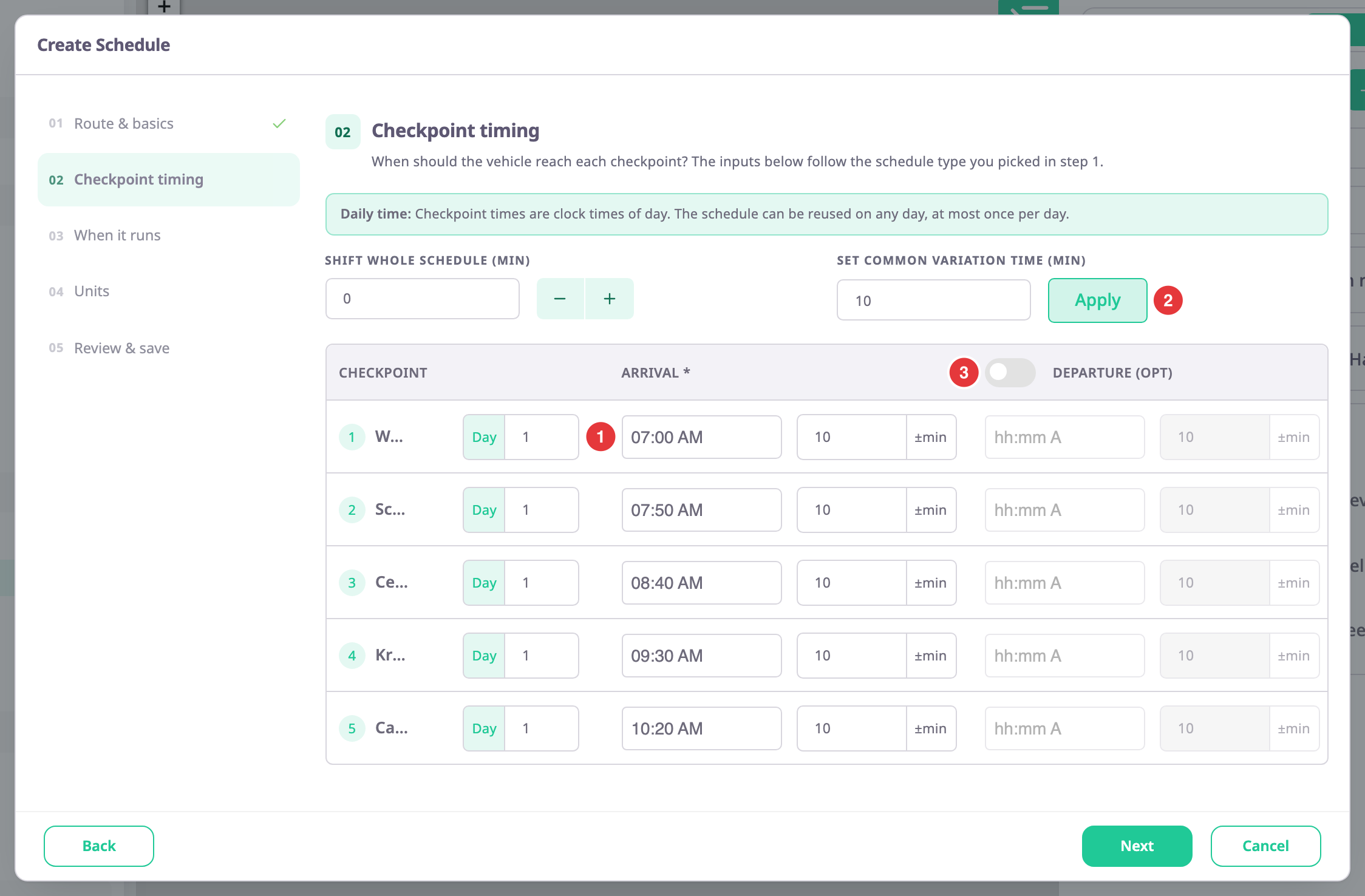
- In each Arrival box, choose the time the unit should reach the checkpoint, marked 1.
Times must rise down the list and no two may match. - In Set common variation time (min), enter 10 and select Apply, marked 2.
Every checkpoint gets a tolerance of 10 minutes. - Optional: turn on the Departure (opt) switch, marked 3, and set a departure time for each checkpoint.
- Select Next.
Step 3, When it runs, opens.
¶ Choose when it runs
Step 3 only filters which rides show later. Leave it empty to include every ride, or choose time ranges, days or months. Select Next.
The message "Schedule saved successfully." appears and step 4, Units, opens. The schedule now exists.
¶ Assign units and save
- Search Groups / Units, tick the units that run the route, and select Add Units / Groups.
- Select Next.
Step 5, Review & save, opens. - Check the cards. Select the pencil icon on a card to change a step.
- Select Save.
The dialog closes and the schedule is under the route.
¶ What happens next
With Automatically create rides on, a ride opens when a unit enters the first checkpoint and closes at the last. Open the schedule's name to see rides in the Rides explorer. Alert rules in the Routes family can notify you of late or missed checkpoints.