The schedule wizard creates, shows and edits a schedule of one route. It opens in a dialog from the Routes tab: select the Add Schedule icon on a route, or View, Edit or Clone in a schedule's row menu. The dialog is titled Create Schedule, Edit Schedule or View Schedule.
¶ The wizard
A list of five steps runs down the left: Route & basics, Checkpoint timing, When it runs, Units and Review & save. In an existing schedule you can jump to any step from the list. In a new schedule the list unlocks after step 3.
The footer has Back, Next and Cancel. Next is unavailable until the step is valid. On the last step Next becomes Save. In view mode Cancel reads Close and there is no Save.
Next on step 3 saves the schedule's details and shows the message "Schedule saved successfully." The units step then works on a saved schedule. If you choose Cancel after that, the schedule stays, without units.
¶ Route and basics
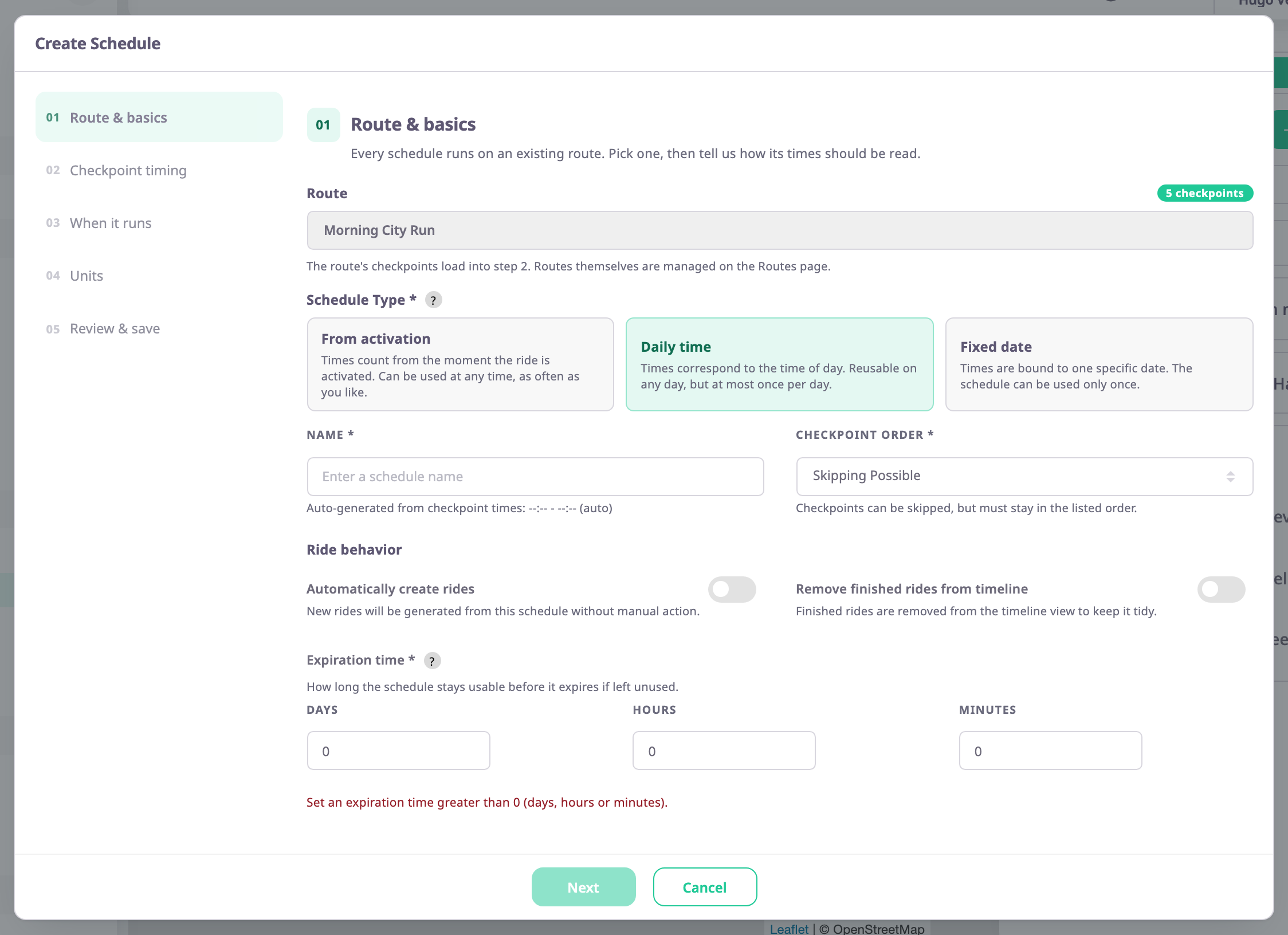
| Field | Required | What it does | Allowed values / example | Notes |
|---|---|---|---|---|
| Route | — | Shows the route the schedule belongs to and its checkpoint count. | The route you started from. | Read-only. |
| Schedule Type | Yes | Decides how the checkpoint times are read. | From activation, Daily time or Fixed date. Default Daily time. | See Route schedules and rides. |
| Active From | Fixed date | The first moment the schedule can run. | A date and time in the account time zone. | Shown only for Fixed date. |
| Active To | Fixed date | The last moment the schedule can run. | A date and time later than Active From. | Shown only for Fixed date. A time of 00:00 is saved as 23:59. |
| Name | Yes | Names the schedule in lists, the rides explorer, alerts and reports. | 1 to 255 characters. Example: Weekday morning run | The tokens %ROUTE%, %FIRSTPOINT%, %LASTPOINT%, %DATE% and %TIME% are replaced when you save. A clone is named with " (Copy)" added. |
| Checkpoint Order | Yes | Sets whether the checkpoints must be visited in order. | Strict, Skipping Possible or Arbitrary. Default Skipping Possible. | A line under the list repeats what the choice means. |
| Automatically create rides | No | Records rides live for the schedule's units. | Switch. Default off. | With it off the live detector records no rides for this schedule. |
| Remove finished rides from timeline | No | Hides finished rides from the timeline. | Switch. Default off. | The review shows Kept on timeline or Hidden from timeline. |
| Expiration time | Yes | Ends a ride that stays open too long, and expires a Fixed date schedule after Active From. | Days 0 or more, Hours 0 to 23, Minutes 0 to 59. The total must be above 0. | Saved as days, hours and minutes. Message: "Set an expiration time greater than 0 (days, hours or minutes)." |
A grey line under Name shows a name built from the first and last arrival times. The step stays unavailable until you enter a name yourself.
¶ Checkpoint timing
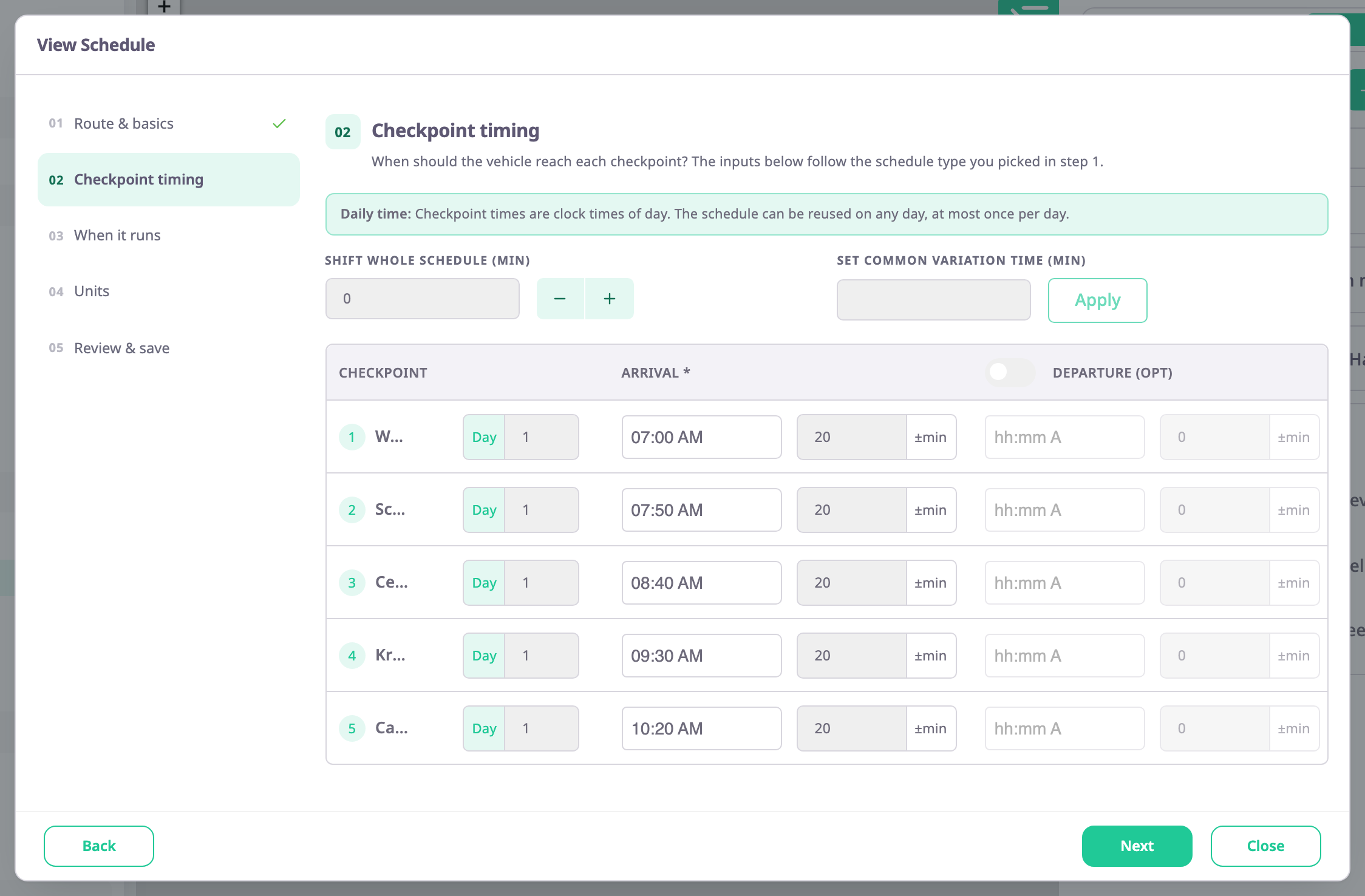
A note at the top repeats how the chosen type reads times. Two boxes sit above the grid, then one row per checkpoint, numbered in route order.
| Field | Required | What it does | Allowed values / example | Notes |
|---|---|---|---|---|
| Shift whole schedule (min) | No | Moves every time in the grid by the same number of minutes. | A whole number, positive or negative. The minus and plus buttons step by 5. | Works on the screen only: the app saves the shifted times. |
| Set common variation time (min) | No | Sets the same tolerance on every checkpoint when you select Apply. | 0 or more, in minutes. | Apply fills the arrival and departure tolerance boxes. Leave it empty to keep each checkpoint's own tolerance. |
| Day | No | Puts a checkpoint on a later day of the ride. | 1 or more. Default 1. | Not shown for Fixed date. |
| Arrival | Yes | When the unit should reach the checkpoint. | Daily time: a time of day, hh:mm AM or PM. From activation: elapsed hh:mm. Fixed date: a date and time. | The box beside it, with the unit ±min, is the tolerance. It must be 0 or more. |
| Departure (opt) | No | When the unit should leave the checkpoint. | Same format, later than the arrival. | A switch in the column header turns departure on for every row. With it on, every row needs a departure time and tolerance. |
Checkpoint names are shortened in the grid; point to a name to read it.
¶ Timing messages
A red box above the grid names the problem, and Next stays unavailable.
- "Two or more checkpoints on the same day share the same time. Give each checkpoint a distinct time."
- "Checkpoint times must not decrease within the same day for this checkpoint order."
- "A checkpoint's departure time must be after its own arrival time."
- "One or more checkpoint dates/times fall outside the schedule's Active From / Active To window. Adjust the checkpoint or the active window."
- "Checkpoints must run in chronological order - each checkpoint's date/time must be after the previous checkpoint's (departure, if set, otherwise arrival)."
The last two apply to Fixed date schedules. If a route has no checkpoints, the grid reads "This route has no checkpoints yet."
¶ When it runs
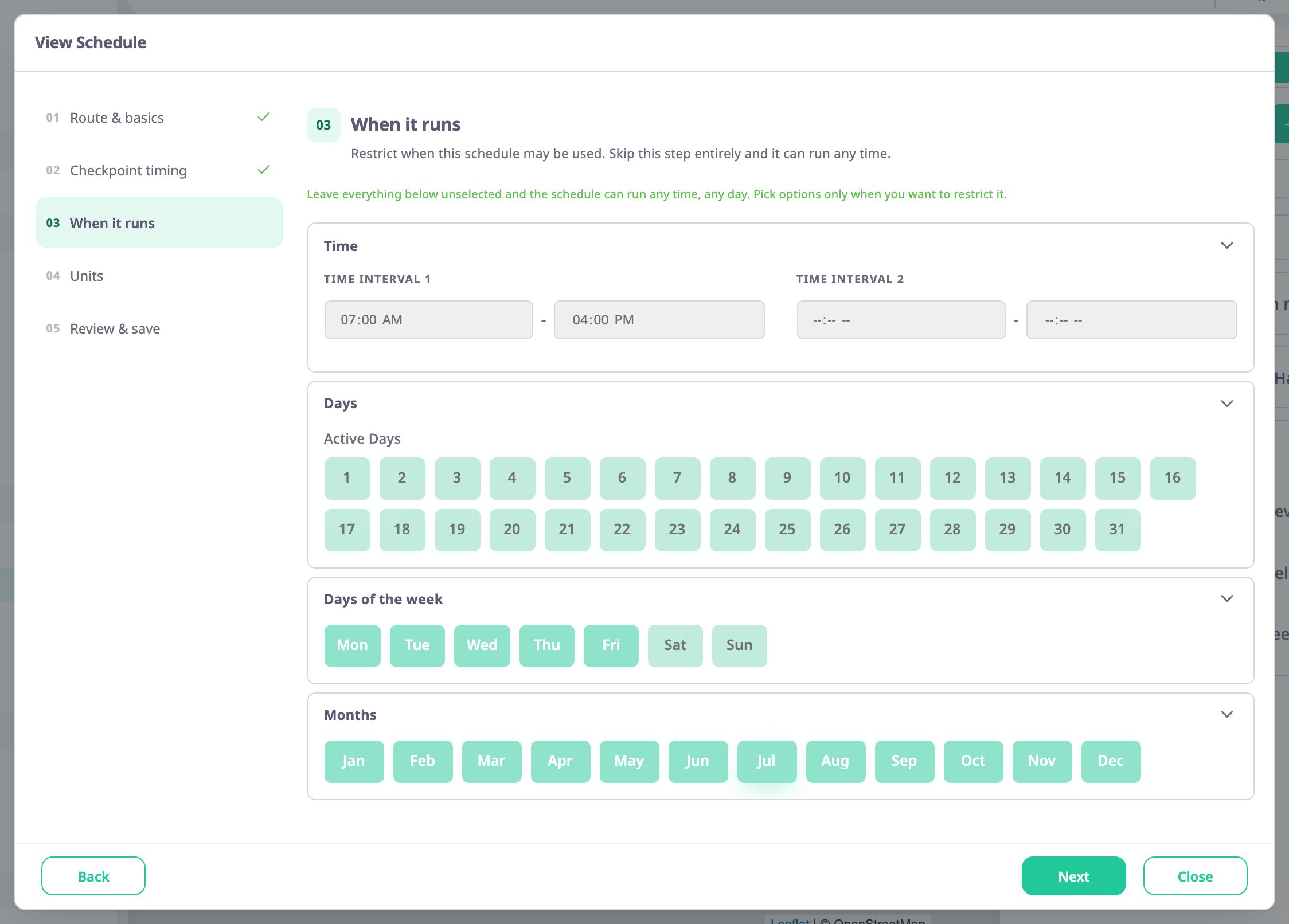
Leave every section empty and the schedule applies to any time and day. These four sections are display filters: the app records a ride whatever they say, and the rides explorer and the reports show only the rides that started inside them. Fixed date schedules skip this step, and its fields are locked.
| Section | What it does | Allowed values |
|---|---|---|
| Time | Shows only rides that started within one or two time ranges. | Time Interval 1 and Time Interval 2, each a start and an end. Give both or neither. |
| Days | Shows only rides that started on chosen days of the month. | Any of 1 to 31. |
| Days of the week | Shows only rides that started on chosen weekdays. | Any of Mon to Sun. A new schedule starts with Mon to Fri. |
| Months | Shows only rides that started in chosen months. | Any of Jan to Dec. |
¶ Units
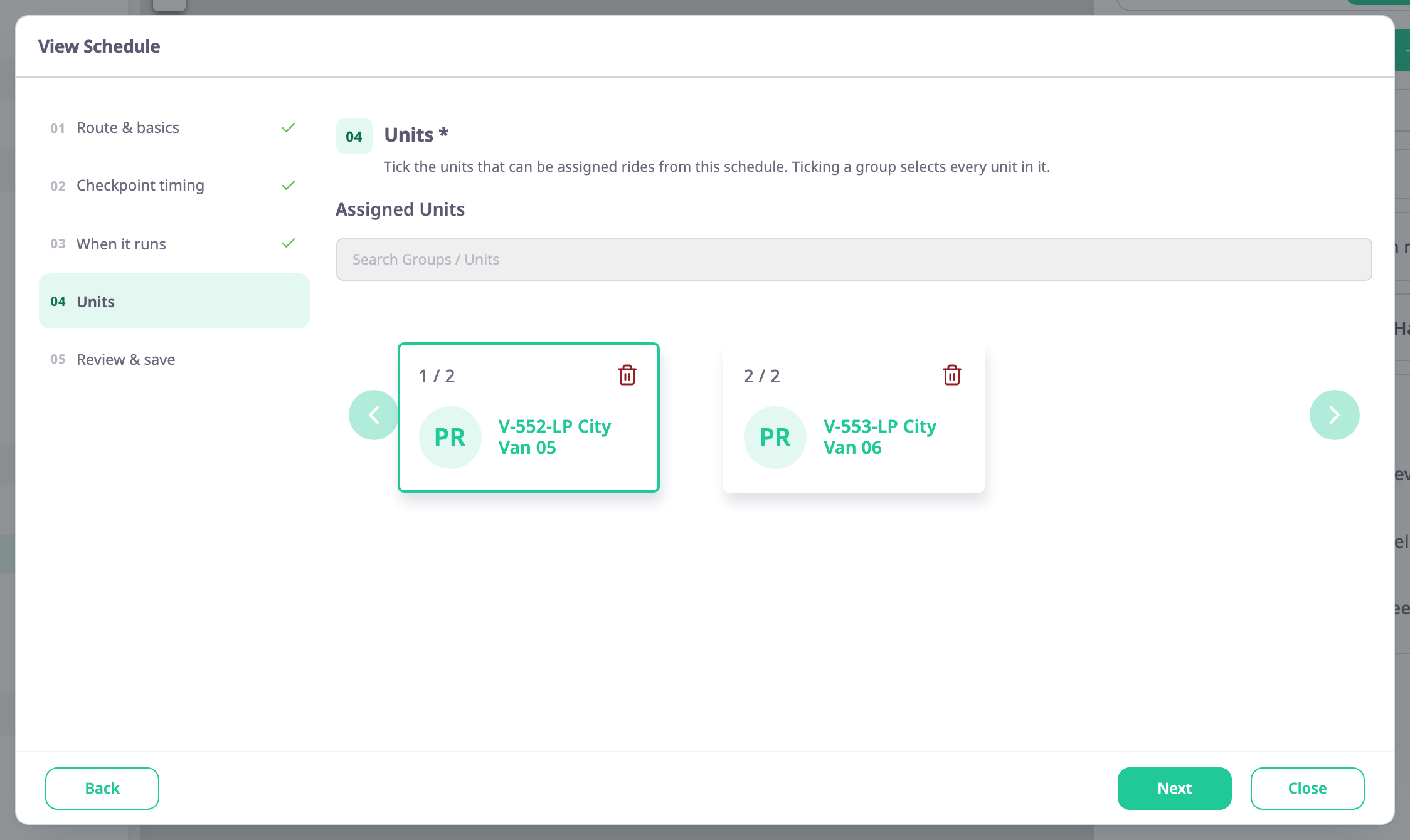
At least one unit is required: "Assign at least one unit to continue." Search Groups / Units, tick units, or tick a group to select every unit in it, then select Add Units / Groups. The units you add show as cards, each with a trash icon to remove it. The app saves the units together with the schedule when you select Save. See Change the units on a schedule.
¶ Review and save
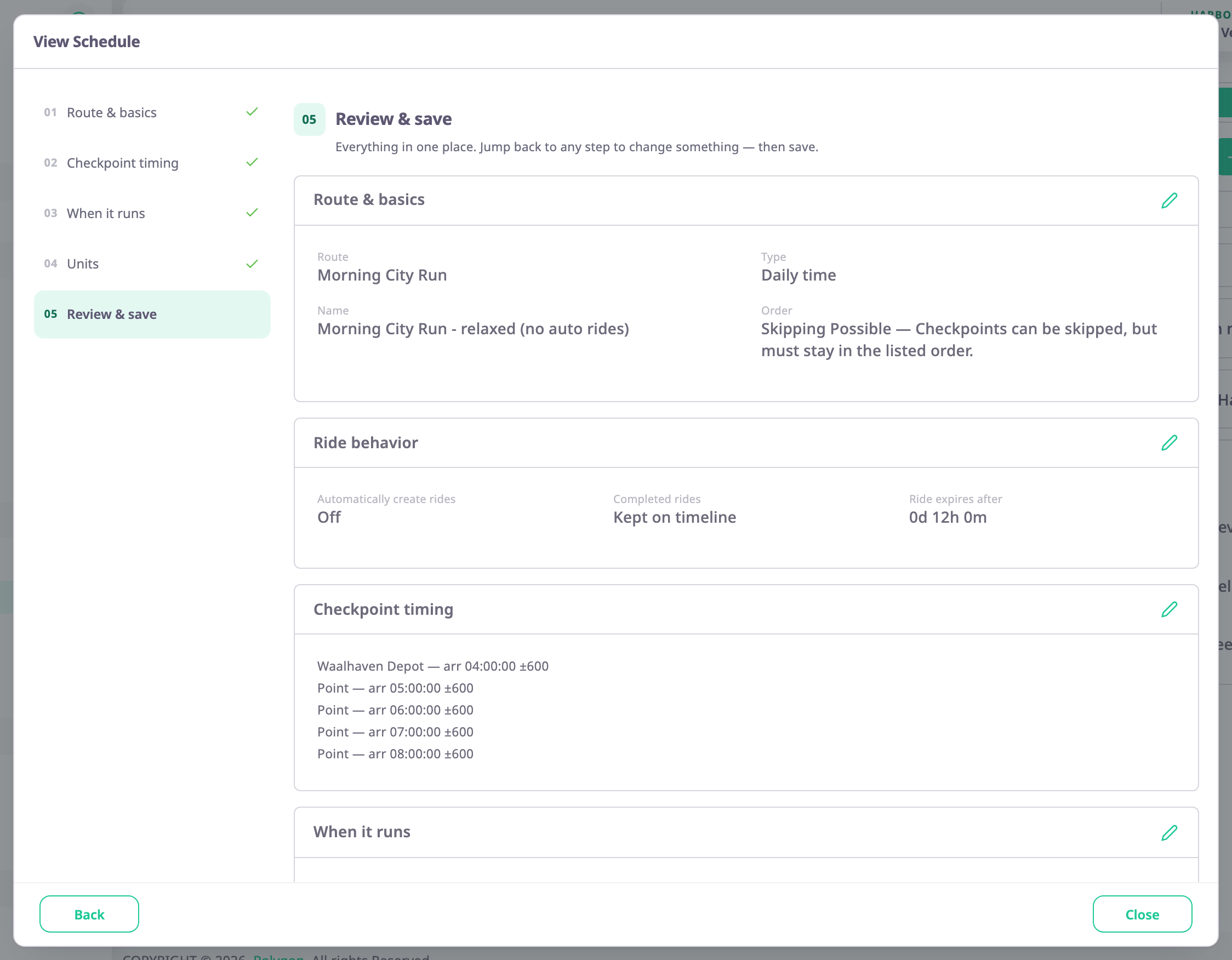
One card per step shows your choices. The pencil icon on a card jumps back to that step. Select Save to save the schedule and its units and close the dialog.
¶ Permissions
- To use the wizard you need Routes > Add to create and Routes > Read to open the schedules. The Owner role has both.
- View, Edit, Clone and Delete in a schedule's row menu do not check permissions in the current build.