A circle is the quickest geofence for a single site: you pick the centre and drag out the radius, or type the radius.
¶ Before you start
- You need the Geofences > Add permission. The Owner role has it.
¶ Draw a circle
- In the side menu, select Reference Data > Geofences.
The Geofences tab opens. - Select New geofence.
The New geofence form opens. - Zoom the map to the site. The search box at the top of the map finds an address.
- Under Shape, select Circle.
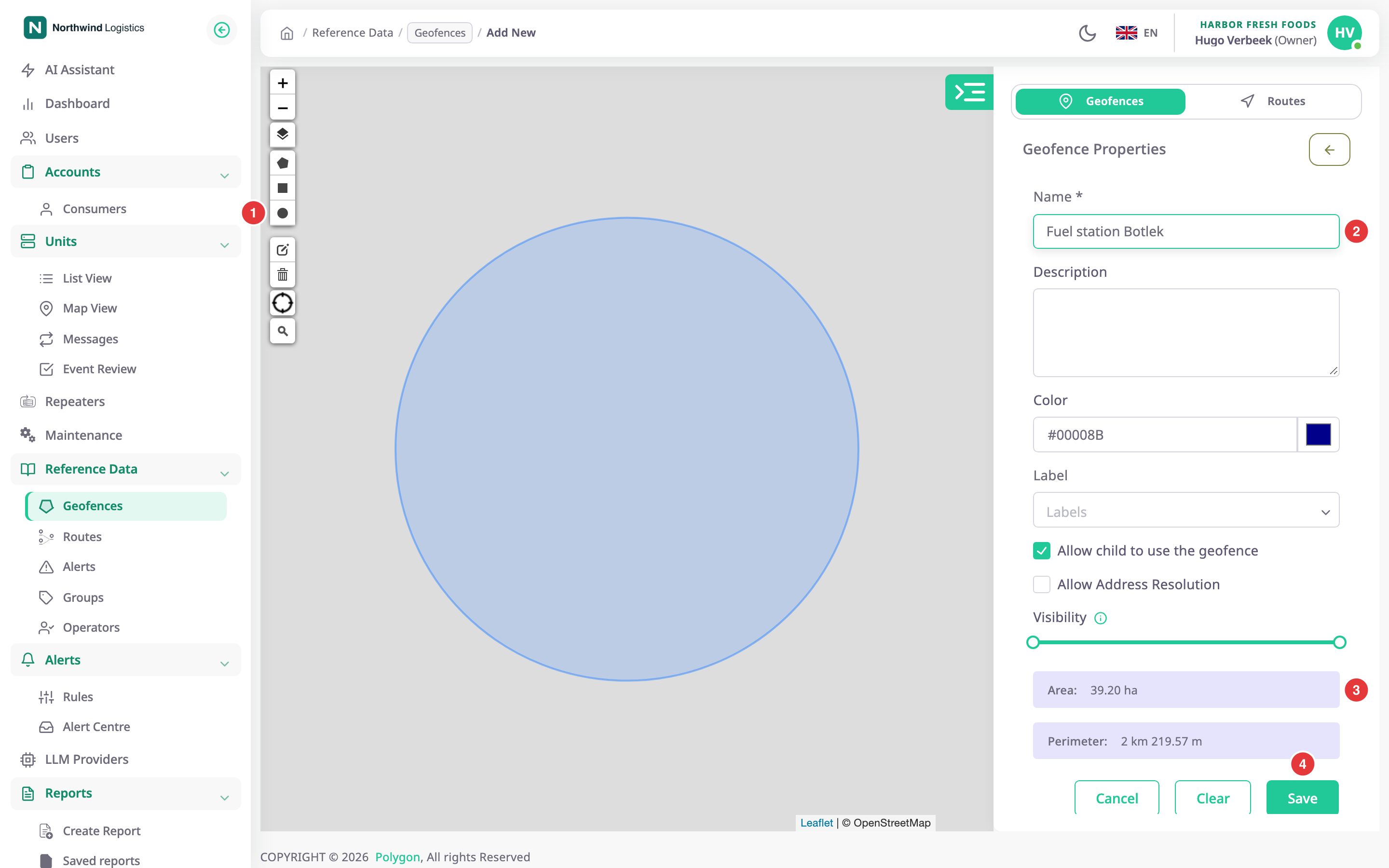
The hint over the map reads "Press at the centre and drag out to the radius". - Press the centre of the site, drag outward until the circle covers it, and release.
The circle appears. The form shows Radius, Area and Perimeter. - Optional: in Radius, enter the exact radius and press Enter.
The circle resizes. - In Name, enter Fuel station Botlek.
- Optional: choose a Color, a Label and the options. See the Geofence form.
- Select Save geofence.
The message "Geofence created successfully" appears and the list shows the new geofence.
The Radius box uses metres, or feet if your account uses miles.
¶ Resize the circle
Before you save, drag the handle on the circle's edge, or enter a new value in Radius. To start over, select Redraw, or Delete shape and draw again.
¶ What happens next
The circle works like any other geofence: alert rules, route checkpoints and reports can use it. It appears in the list in the colour you chose.