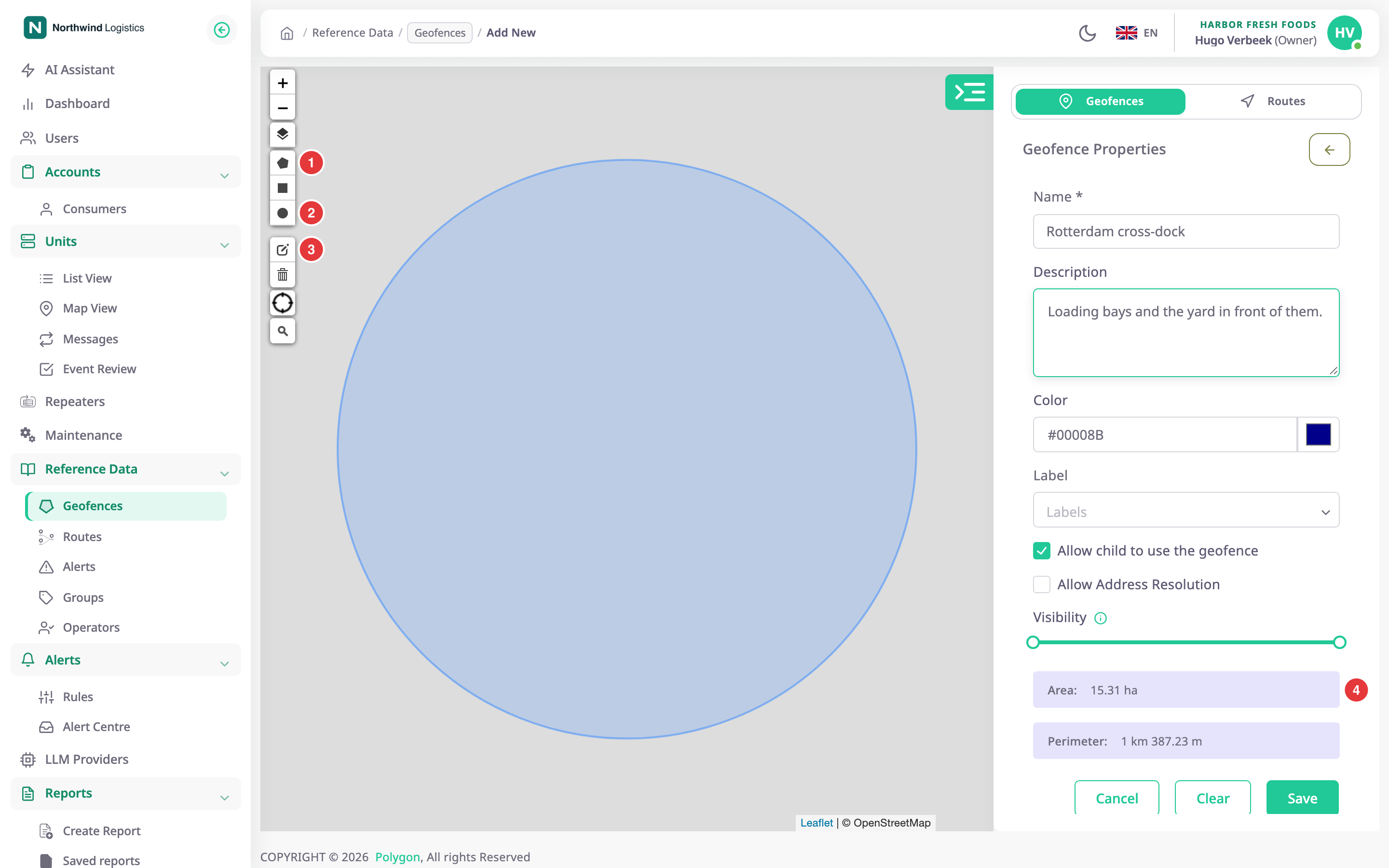
The geofence form creates, shows and edits a geofence. You draw the shape on the map and describe it in the form. To open it, select New geofence on the Geofences tab, or View, Edit or Clone in a row menu.
¶ The screen
The form sits in the panel beside the map. Its title reads New geofence, Edit geofence with the geofence's name, or the name alone in view mode. The back arrow returns to the list.
There is no drawing toolbar on the map. You start and redraw shapes from the Shape section of the form, and a hint bar over the map tells you what to do next. See Draw a polygon or rectangle geofence and Draw a circle geofence.
¶ Shape
| Control | What it does |
|---|---|
| Shape buttons | Area draws a polygon point by point. Rectangle drags out a box. Circle drags out a circle from its centre. Selecting a button starts drawing at once. |
| Draw or Redraw | Starts drawing again with the selected shape. Drawing a new shape replaces the old one. |
| Delete shape | Removes the drawn shape. |
| Edit corners | Appears for a shape with more than 500 corners. Corners of such a shape are locked until you select it. Done editing locks them again. |
| Status | Reads Not drawn yet, Drawing on the map or Shape drawn. A very large shape reads Large shape with its corner count. |
| Radius | For a circle only: type the radius and press Enter to resize it. |
| Area and Perimeter | The size of the shape, recalculated as you draw or edit. |
The new form starts drawing on its own on a wide screen, with the shape you used last. Once a shape is drawn, you edit it in place: drag a corner to reshape, or a midpoint to add a corner. A circle has a handle on its edge. The shape shows a label on the map with the name and size.
¶ Fields
| Field | Required | What it does | Allowed values / example | Notes |
|---|---|---|---|---|
| Name | Yes | Names the geofence in lists, reports, alerts and route checkpoints. | 3 to 30 characters. Example: Rotterdam cross-dock | Unique in your account, ignoring capitals. The app refuses a name that is taken. |
| Color | No | Colours the shape on the map and its icon in the list. | One of eight swatches, or a hex colour, #RRGGBB. Default #00008B. | — |
| Label | No | Puts the geofence in one or more groups. | Existing groups, or a new one typed in the field. | See Groups. |
| Description | No | Adds a note to the geofence. | Up to 400 characters. | Hidden behind Add description until you select it. Follows the name in brackets when the geofence names an address. |
| Visible on the map | No | Sets the zoom levels between which the shape is drawn. | Two handles on a slider from 0 to 19, marked World, Country, City, District and Street. Default 0 to 19. | Hides the shape on the map only. |
| Share with child accounts | No | Lets accounts below yours see and use the geofence. | On or off. Default: on. | Sub-accounts see it read-only. |
| Use the name as the address inside | No | Uses the geofence's name as the address of any position inside it. | On or off. Default: off. | The smallest geofence wins where several overlap. |
Distances and areas follow your account's distance unit: metres, kilometres and hectares, or feet, miles and acres. In feet, the Radius box takes feet.
¶ Reference geofences from the map
If you selected geofences on the Tracking map, a switch with their count appears under the options. With it on, those geofences show dashed on this map, so you can check for overlaps. It is not saved with the geofence. Its label is in English in every language.
¶ Buttons and actions
| Action | What happens |
|---|---|
| Back arrow | Returns to the list. |
| Cancel | Returns to the list. |
| Reset | Undoes every change since the form opened, the shape included. |
| Save geofence | Saves the geofence and returns to the list. The message "Geofence created successfully" or "Geofence updated successfully" appears. |
Save geofence stays unavailable until a shape exists and the name is valid. The footer says what is missing: "Draw the shape on the map to save" or "Enter a name to save". If you leave with unsaved changes, the dialog Discard changes? offers Discard and Keep editing.
¶ View mode and shared geofences
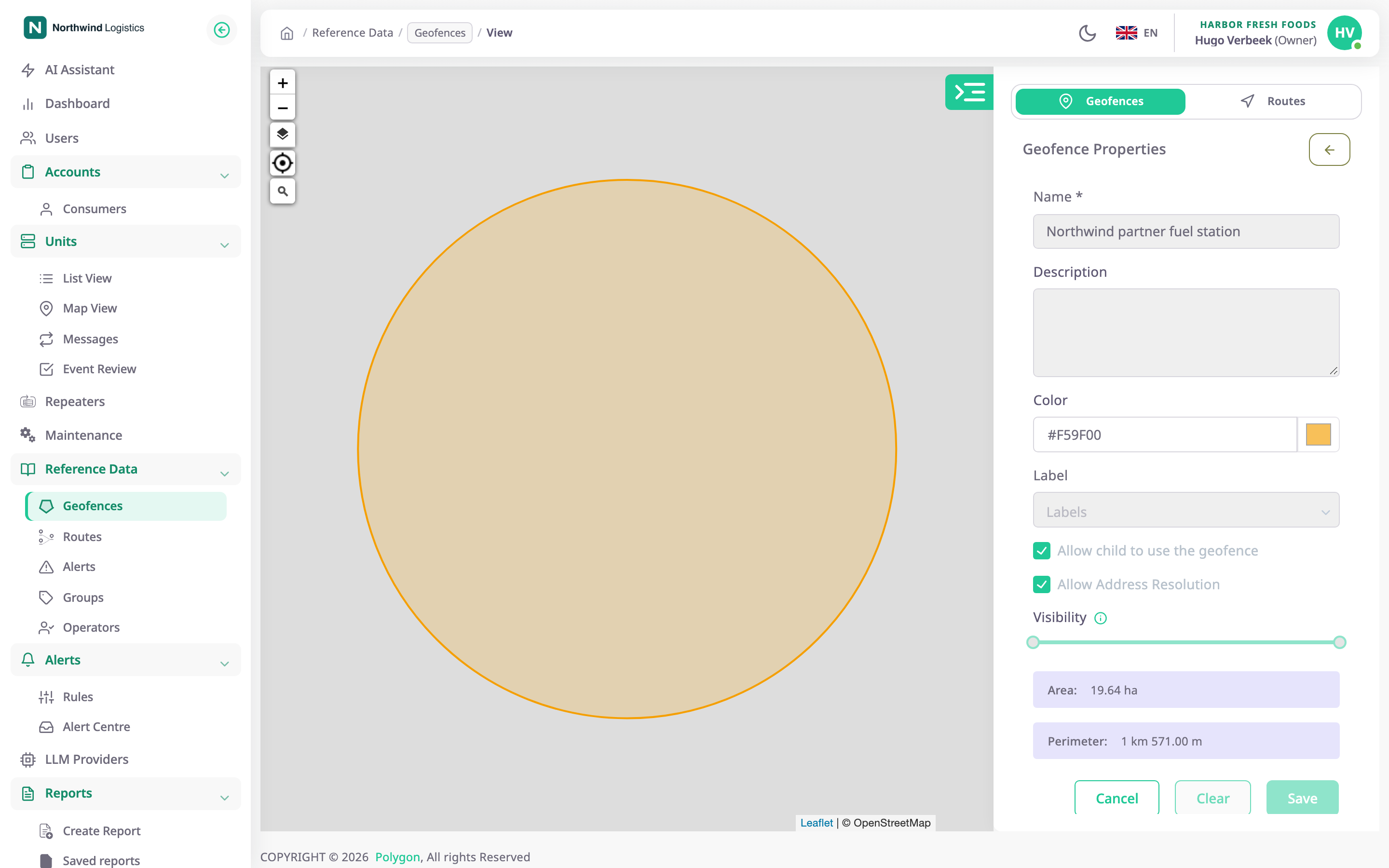
View mode locks every field and hides the shape controls, and Save geofence is unavailable. A geofence shared from an account above yours always opens this way.
A clone opens in the create form with " copy" added to the name. Change the name before you save, because names must be unique.
¶ Permissions
- View needs Geofences > Read. New geofence and Clone need Add. Edit needs Edit and a geofence of your own.
- The Owner role has all of these.