Change your password when you think someone else knows it, or when your organisation asks you to. You need your current password. If you forgot it, reset it instead.
¶ Before you start
- Anyone with a user can change their own password. You do not need a permission.
- Know your current password. If you do not, sign out and use Forgot Password? on the sign-in screen.
- Changing the password signs you out of this browser. Save any work first.
See Reset a forgotten password.
¶ Change your password
-
Select your name at the top right.
-
Select Change Password.
The Change Password screen opens.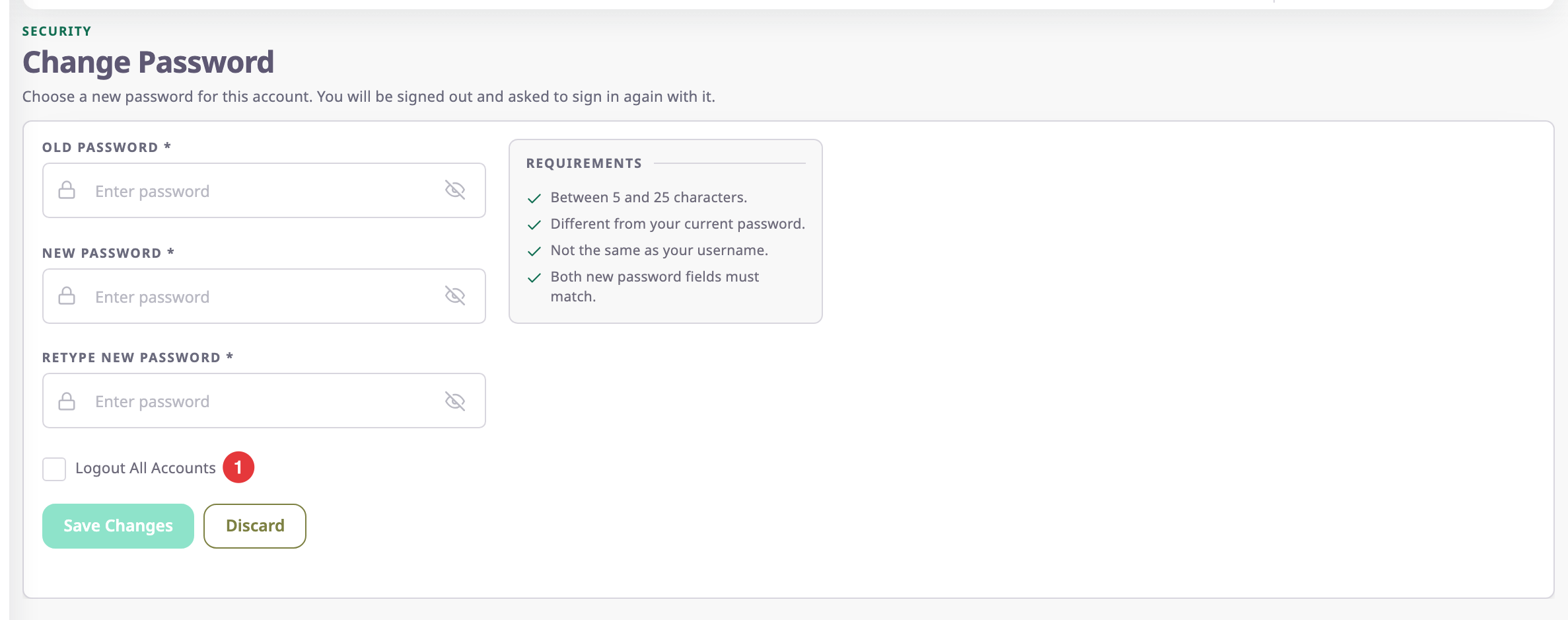
-
In Old Password, enter your current password.
-
In New Password, enter the new password.
-
In Retype New Password, enter the new password again.
-
Optional: select Logout All Accounts, marked 1, to sign out every other browser and device too.
-
Select Save Changes.
A message confirms the change, and the sign-in screen opens. -
Sign in with your new password.
Save Changes stays unavailable until all three fields have a valid value. Select the eye icon in a field to show or hide what you typed. Discard empties the form.
¶ When the app asks you for a new password
Sometimes your user has to replace its password before it can do anything else, for example a user whose first password nobody chose. Right after you sign in, the app then opens Change Password with the message "For your security, choose a new password before you continue. Until you do, the rest of the app stays locked; you can still sign out."
- Change the password with the steps above.
The message disappears, and the sign-in screen opens. - Sign in with your new password.
The app opens as usual.
Until you change the password, every menu item, link and reload brings you back to this screen. Signing out still works. A password reset by email also clears the request.
¶ Password rules
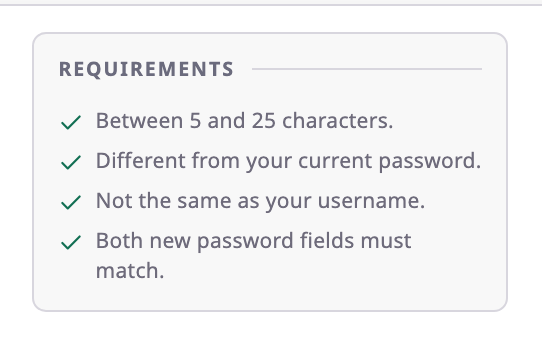
The requirements list on the screen sums up the rules:
| Rule | Message if you break it |
|---|---|
| 5 to 25 characters. Any characters count, including spaces inside the password. | "Passwords should be a minimum of 5 characters and maximum of 25 characters in length." |
| Different from your current password. | "New password should not be the same as old password" |
| Not the same as your username, in any mix of capitals. | The app refuses the password. |
| New Password and Retype New Password match. | "New password and retype new password does not match" |
The app removes spaces at the start and end of each password before it checks them.
If Old Password is wrong, the error "Wrong Password" appears and nothing changes.
¶ Sign out everywhere
| Logout All Accounts | What happens to your sessions |
|---|---|
| Cleared (default) | The app signs out only this browser. Other browsers and devices stay signed in. |
| Selected | The app signs out every browser and device signed in as you, including ones where you chose Remember Me. |
Select it if you changed the password because someone else may know it.
¶ Fields
| Field | Required | What it does | Allowed values / example | Notes |
|---|---|---|---|---|
| Old Password | Yes | Proves it is you. | Your current password. | "Wrong Password" if it does not match. |
| New Password | Yes | Becomes the password you sign in with. | 5 to 25 characters. | Not your old password and not your username. |
| Retype New Password | Yes | Catches typing mistakes. | The same value as New Password. | — |
| Logout All Accounts | No | Signs out every other browser and device as well. | Selected or cleared. Default: cleared. | See the table above. |
¶ What happens next
- Your new password works at once, in every account your user belongs to.
- You sign in again on this browser with the new password.
- Without Logout All Accounts, check Active Sessions later and revoke anything you do not recognise.