Sign in to reach your units, reports and alerts. You need the username or email address and the password your account owner or Polygon gave you.
¶ Before you start
- Anyone with a user can sign in. You do not need a permission.
- Verify your email address first. Open the link in the welcome email you received. Until you do, sign-in reports that the username does not exist.
- If you do not have a user yet, ask the Owner of your account to invite you.
¶ Sign in to the web app
-
In your browser, go to https://polygon.getgps.ru/login.
The sign-in screen opens.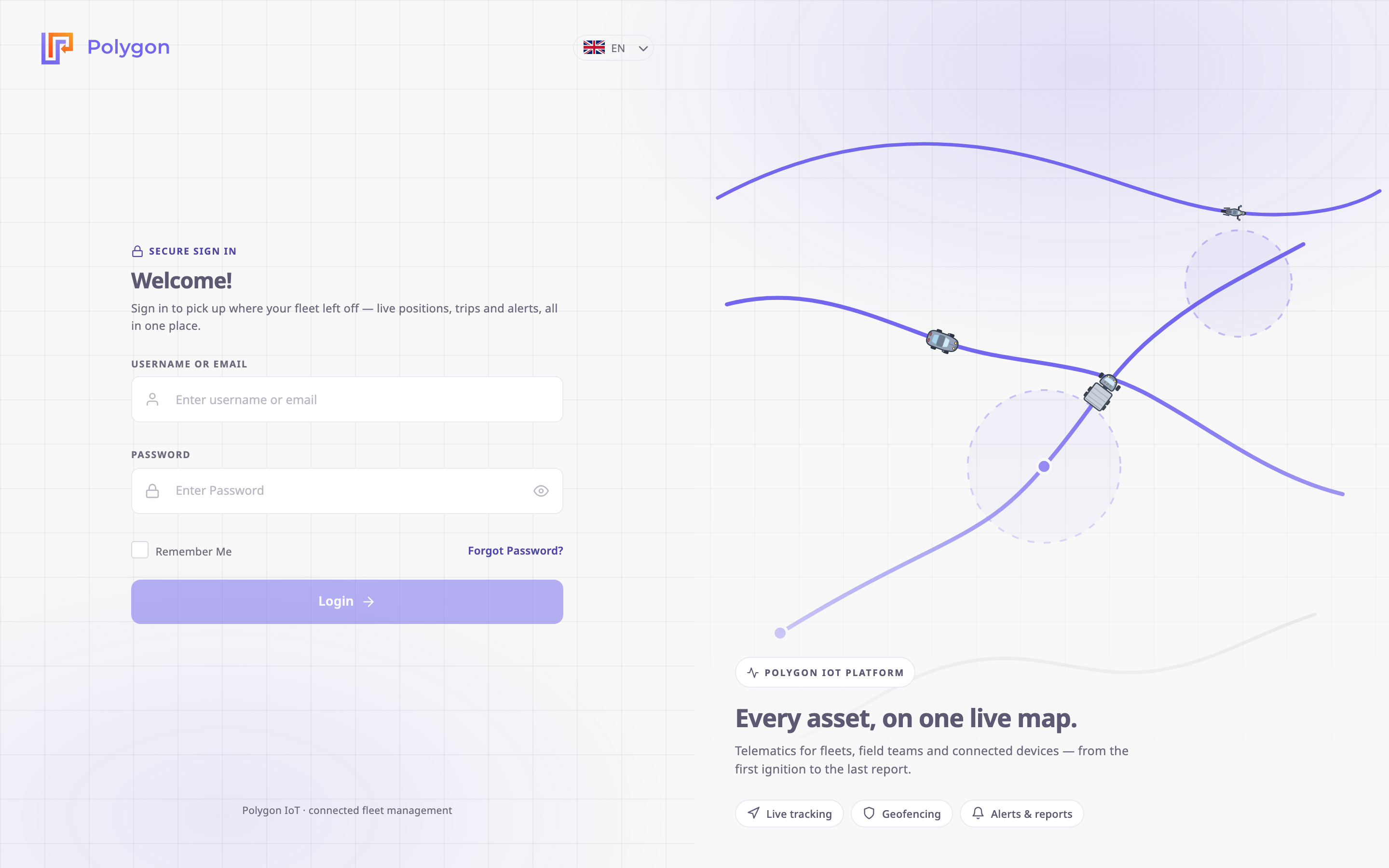
-
Optional: to use the app in another language, choose it from the language list at the top of the form.
The screen switches to that language at once. -
In Username or Email, enter your username or your email address.
-
In Password, enter your password.
-
Optional: select Remember Me to stay signed in on this browser.
-
Select Login.
If your user belongs to one account, the app opens on your start screen.
The Login button stays unavailable until both fields have a value.
¶ Choose an account
If your user belongs to more than one account, the Select Account dialog opens after step 6. Each row shows the account name, its type (Dealer or Consumer), your role in it and the date you joined.
- In Select Account, select the account you want to work in.
The app opens in that account.
You must choose an account to continue; the dialog has no close button. You can move to another account later without signing out. See Switch accounts.
¶ What happens next
If your user must choose a new password, the app opens Change Password first. Until you change it, every other screen stays locked; you can still sign out. See Change your password.
Otherwise, the screen the app opens depends on your account and role:
- In a consumer account, users who can see units start on Tracking.
- In a dealer account, users start on Dashboard.
- Everyone else starts on the first menu item their role can open.
- If your user has no active account yet, the app opens Invitations, where you accept an invitation to join one.
With Remember Me selected, the browser keeps you signed in for up to two months, or until you sign out. Each installation sets this period; two months is the default.
¶ The sign-in screen
| Field | Required | What it does | Allowed values / example | Notes |
|---|---|---|---|---|
| Username or Email | Yes | Identifies your user. | 3 to 320 characters. Example: dana.mizrahi@harborfresh.example.com | Not case-sensitive. The app ignores spaces before and after the value. |
| Password | Yes | Proves it is you. | Your current password. | Select the eye icon to show or hide what you typed. |
| Remember Me | No | Keeps you signed in on this browser after you close it. | Selected or cleared. Default: cleared. | Leave it cleared on shared or public computers. |
| Action | What happens |
|---|---|
| Language list | Changes the language of the sign-in screen and of the app after you sign in. |
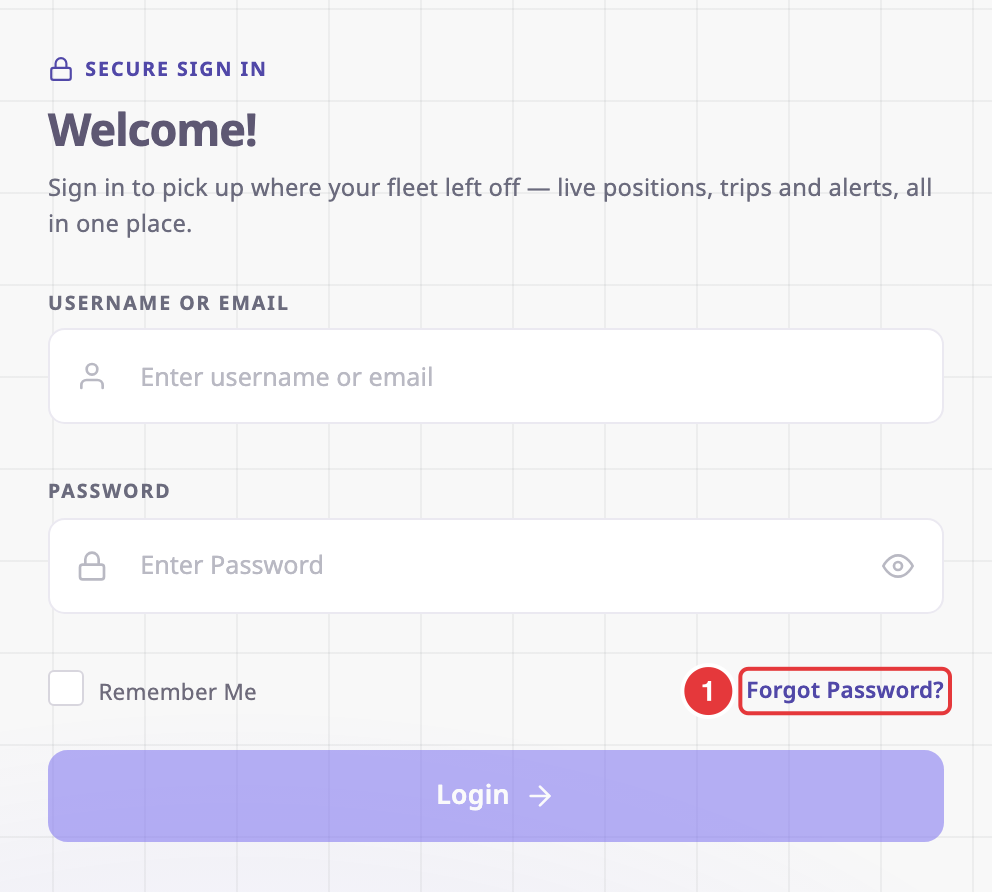
| Forgot Password? | Opens the password recovery screen, where you reset your password by email. |
| Login | Checks your username and password, then opens the app or the Select Account dialog. |
| Footer links | Links such as Support, Terms of use and Privacy policy, when your installation provides them. |
¶ If sign-in fails
A red box under the Login button shows what went wrong. Find its title below.
| Message title | What it means | What to do |
|---|---|---|
| "Wrong login attempt" | The password does not match the username. | Check the keyboard language and Caps Lock, then enter the password again. |
| "Your account is temporarily blocked" | You entered a wrong password three times in a row. | Wait two minutes after your last attempt. During the block, even the right password does not work. |
| "Username does not exist" | No user has this username or email, or its email address is not verified yet. | Check the spelling. Open the verification link in your welcome email. |
| "User Inactive" | Someone deactivated your user. | Ask the Owner of your account to activate it. |
| "Account Inactive" | Your account, or the dealer account above it, is not active. | Contact your dealer or support@getgps.eu. |
| "Allowed limit access" | Your user already has the most active sessions your installation allows. The message shows the limit. | Sign out on a device you no longer use, then sign in again. |
If none of these fixes the problem, contact support@getgps.eu. Include your username and the time you tried.