When an account invites an email address that already has a user, you do not create a new user. You accept the invitation, and the account joins the list of accounts you can switch between.
¶ Before you start
- Anyone with a user can accept or decline invitations sent to their own email address. You do not need a permission.
- You join with the role the inviting account chose for you.
- If you do not have a user yet, create your user from the invitation instead.
¶ Accept from the invitation email
- Select the link in the invitation email.
The sign-in screen opens. - Sign in with your existing user.
The New Invite dialog opens. It names the account and the role it offers you. - Select Accept.
The message "User invite accepted successfully" appears.
Select Decline instead to turn the invitation down.
¶ Accept or decline on the Invitations screen
Every invitation sent to your email address also waits on the Invitations screen.
- Select your name at the top right.
- Select Invitations.
The Invitations screen opens. - Select Pending.
The list shows the invitations that wait for your answer. - In the row of the invitation, select Accept.
A message confirms it, and the row leaves the Pending tab.
Select Reject instead to turn the invitation down.
¶ Answer several invitations at once
Pending invitations have a checkbox at the start of the row.
- Select the checkbox of each invitation you want to answer. To pick every pending invitation on the page, select the checkbox in the header row.
A bar above the list shows how many you selected. If more invitations match than the page shows, the bar offers Select all {n} matching. - In the bar, select Accept or Reject.
The app asks you to confirm, for example "Accept 3 selected invitations?". - Select Yes.
A Result dialog shows how many succeeded and lists any that failed, with the reason. - Select Ok.
Clear selection in the bar unticks everything. In the Result dialog, Select failed ticks only the invitations that failed, so you can try them again.
¶ Invitation statuses
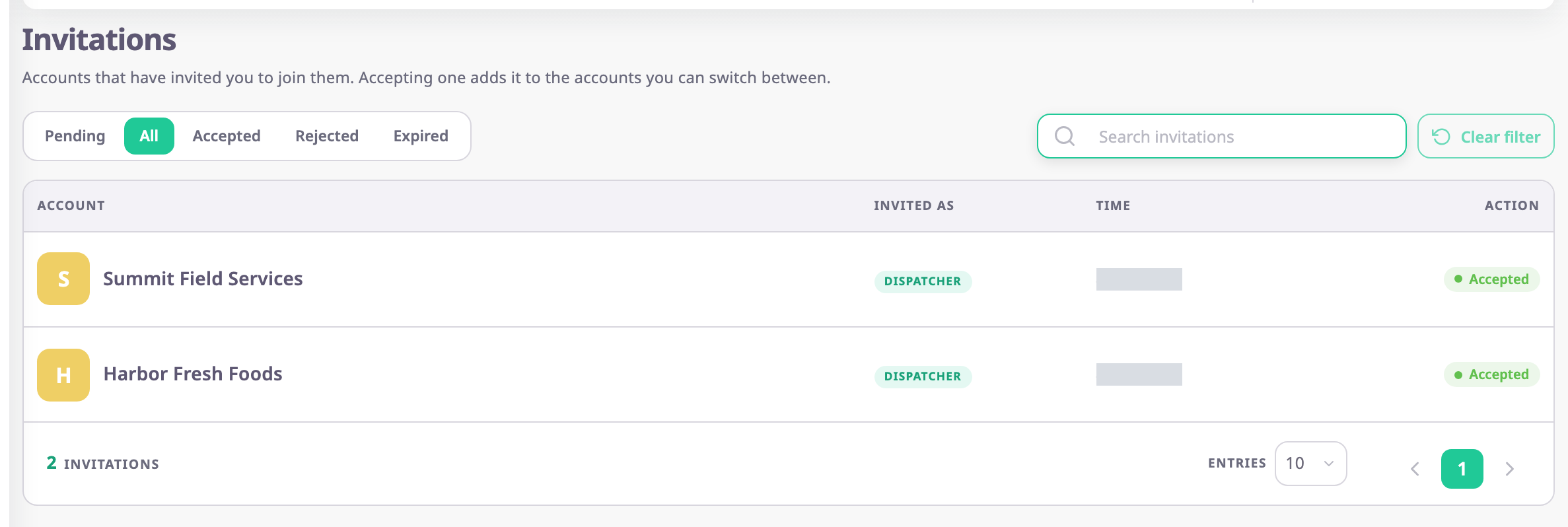
Use the tabs above the list to filter by status. All shows every invitation you received.
| Tab | Shows |
|---|---|
| Pending | Invitations waiting for your answer, with Accept and Reject. |
| All | Every invitation, in every status. |
| Accepted | Invitations you accepted. |
| Rejected | Invitations you declined. |
| Expired | Invitations you did not answer in time. Ask the account to invite you again. |
Each row shows the account, the role the account offers you, and how long ago the invitation last changed. The search box finds invitations by account or role.
¶ After you accept
- The account appears in Switch Account in the user menu. Switch to it to start working there.
- Your role in the new account is separate from your roles in other accounts.
- Your profile and password stay the same in every account.
If your user has no account yet, the app opens Invitations after sign-in. Accept an invitation there to start using the app.