One user can belong to several accounts, for example a dispatcher who works for two companies. Switch accounts to work in another one without signing out.
¶ Before you start
- Switch Account appears in the user menu only if your user belongs to two or more accounts.
- You do not need a permission to switch. What you can do after the switch depends on your role in the other account.
- To join another account, accept an invitation from it first.
See Accept or decline an invitation to another account.
¶ Switch to another account
-
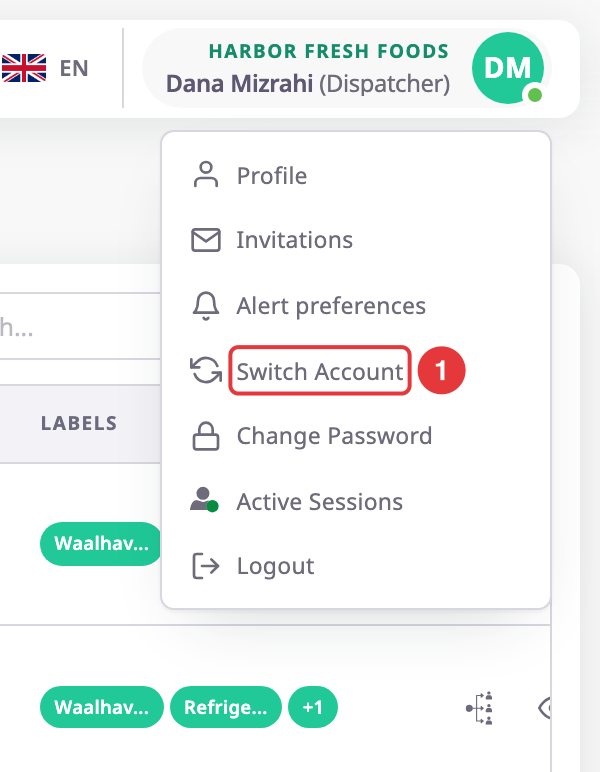
Select your name at the top right.
The user menu opens. The account you work in now shows above your name. -
Select Switch Account, marked 1.
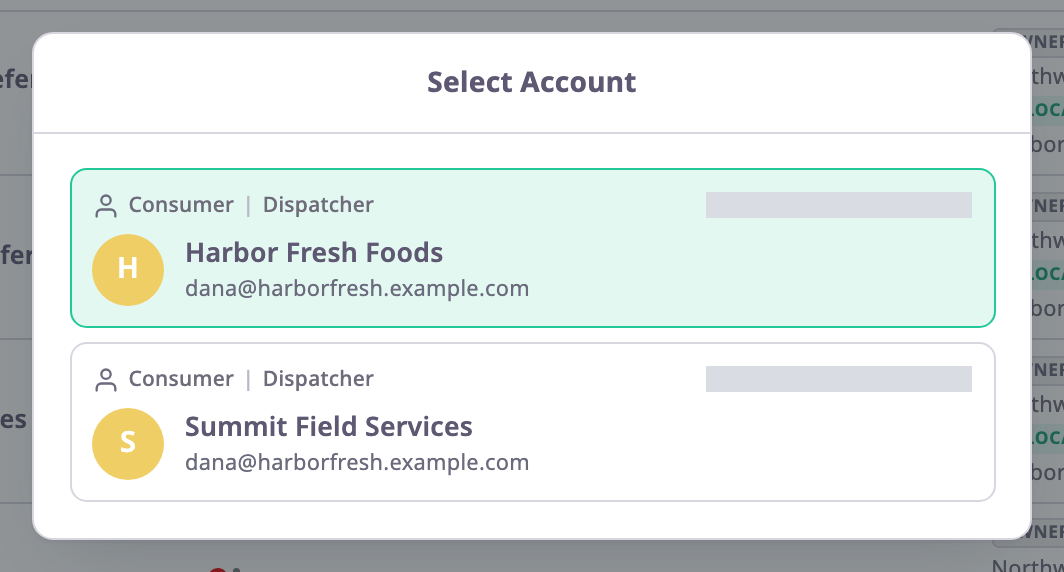
The Select Account dialog opens. The highlighted row is the account you work in now.
-
Select the account you want to work in.
The app reloads in that account and opens its start screen.
The dialog has no close button. To stay in the account you are in, select its row again.
¶ What changes when you switch
| What | After the switch |
|---|---|
| Your role and permissions | Those of your role in the new account. The side menu shows only the screens that role can open. |
| Data | Units, alerts, reports and everything else come from the new account. |
| Start screen | The app opens the start screen for the new account, as after sign-in. |
| Colours | The new account's colour theme, if it has one. |
| Your profile | Unchanged. Your name, photo, password and preferences belong to your user, not to an account. |
| Language and mode | Unchanged. This browser keeps them. |
While you stay signed in, the app keeps working in the account you chose, also after you reload the page.
¶ Your role in each account
Each row in Select Account shows the account type, Dealer or Consumer, and your role in that account. Your roles can differ: you may be the Owner of one account and have a limited role in another.
If you need more access in one account, ask that account's Owner. A change there does not affect your other accounts.