You put an item into a group from the item itself, not from the group's page. Each item has a Labels field that lists its groups. An item can be in several groups at once.
¶ Before you start
- Your role needs Add on Labels to change an item's groups. Without it, you can see the groups but not change them. The Owner role has it.
- You also need permission to see the item, for example Read on Units for a unit.
- The group can exist already, or you can create it as you type. See Create a group.
¶ From a list row
These lists have a Labels column you can change in place: units, devices, operators, maintenance reminders and SIMs. The steps use the units list.
-
In the side menu, select Units > List View.
-
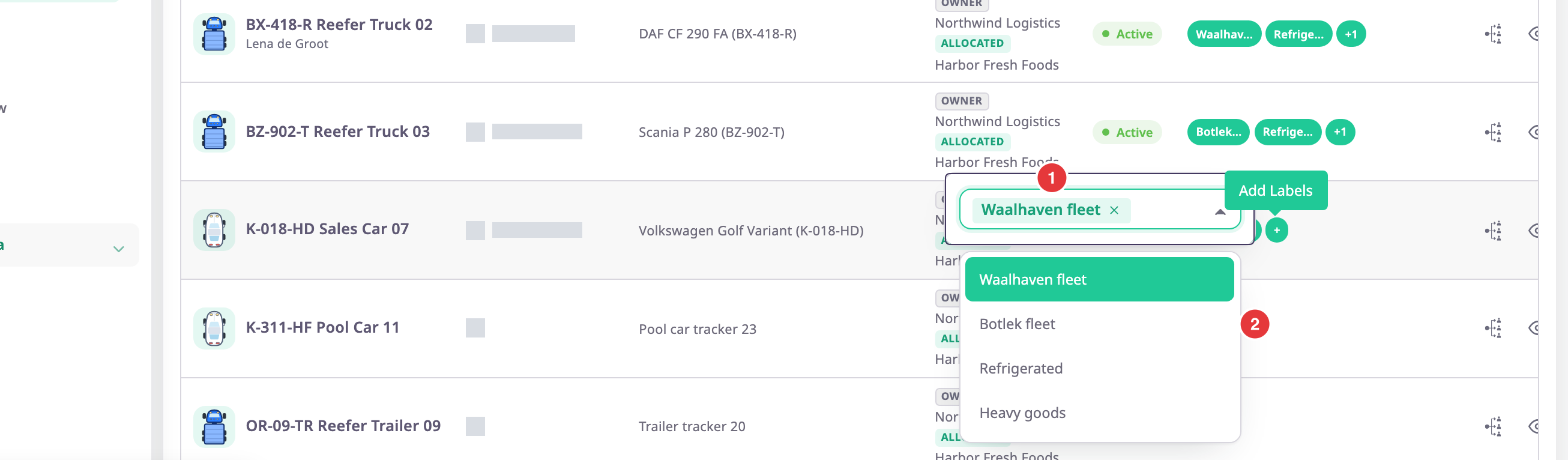
In the unit's row, select the round + pill at the end of its Labels, marked 1.

The labels editor opens with the unit's groups as chips, marked 1, and a list of the account's groups below.
-
Choose a group from the list, for example Botlek fleet.
The app adds the unit to the group at once. The chip appears in the editor. -
Select the close icon at the top right of the editor.
When an item has more groups than the column can show, the pill reads +1, +2 and so on. Select it to see them all.
¶ From an item's form
The add and edit forms of units, devices, operators, maintenance reminders and SIMs have a Labels field. The geofence and route forms call it Label.
- Open the item's form, for example the unit's edit page.
- In Labels, choose one or more groups from the list.
- Save the form.
The app saves the item and its groups together.
The Labels field shows only if your role can read groups.
¶ Create a group while labelling
-
In the labels editor or the Labels field, enter a name the account does not use yet, for example Night shift.
The list shows the name followed by "(New Label)".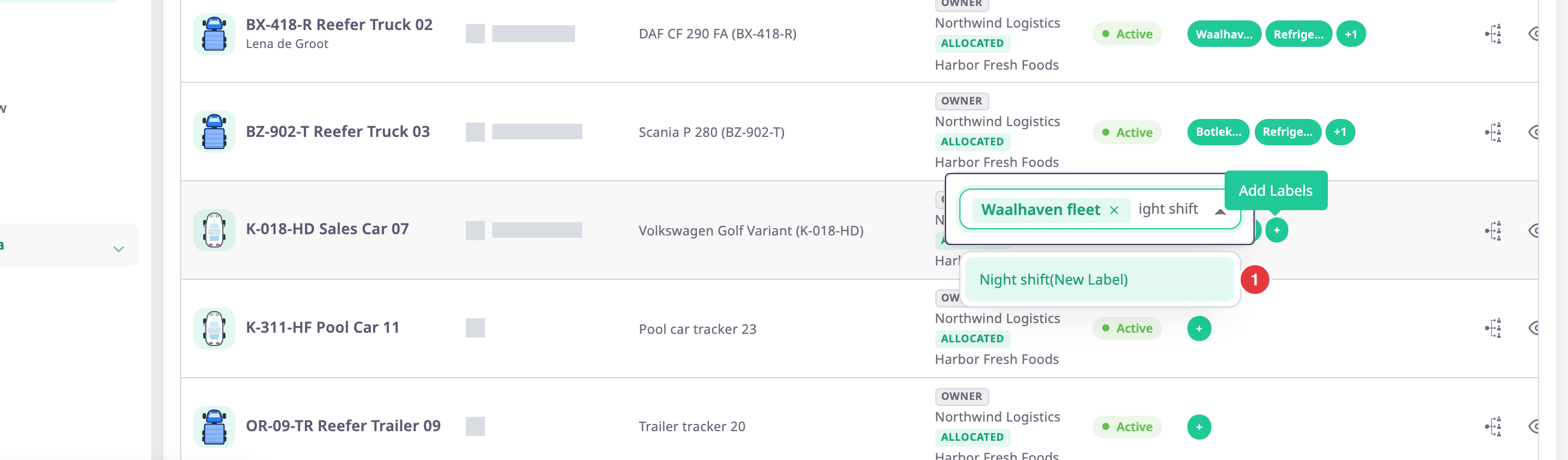
-
Press Enter.
The app creates the group in the account you are working in and adds the item to it.
If you enter the name of an existing group in other upper and lower case, the app uses the existing group.
¶ Remove an item from a group
- Open the labels editor from the row, or the item's form.
- In the group's chip, select the small cross.
In the list row, the app removes the item from the group at once. In a form, it does so when you save.
Removing an item from a group does not delete the group, even if it becomes empty.
¶ What happens next
The group's page counts the item under its type. Lists and pickers that work by group, such as the unit list on the map, now include it.
To follow a group on the map, see Track units on the map.