Devices or units? This page is about units, the vehicles and assets on the map. To set up the tracking hardware inside one, see Devices. For the difference, see Devices and units.
The units list shows every unit your account can see: the device reporting for it, the accounts it belongs to, its status and its groups. You can also act on many units at once. To open it, in the side menu, select Units > List View.
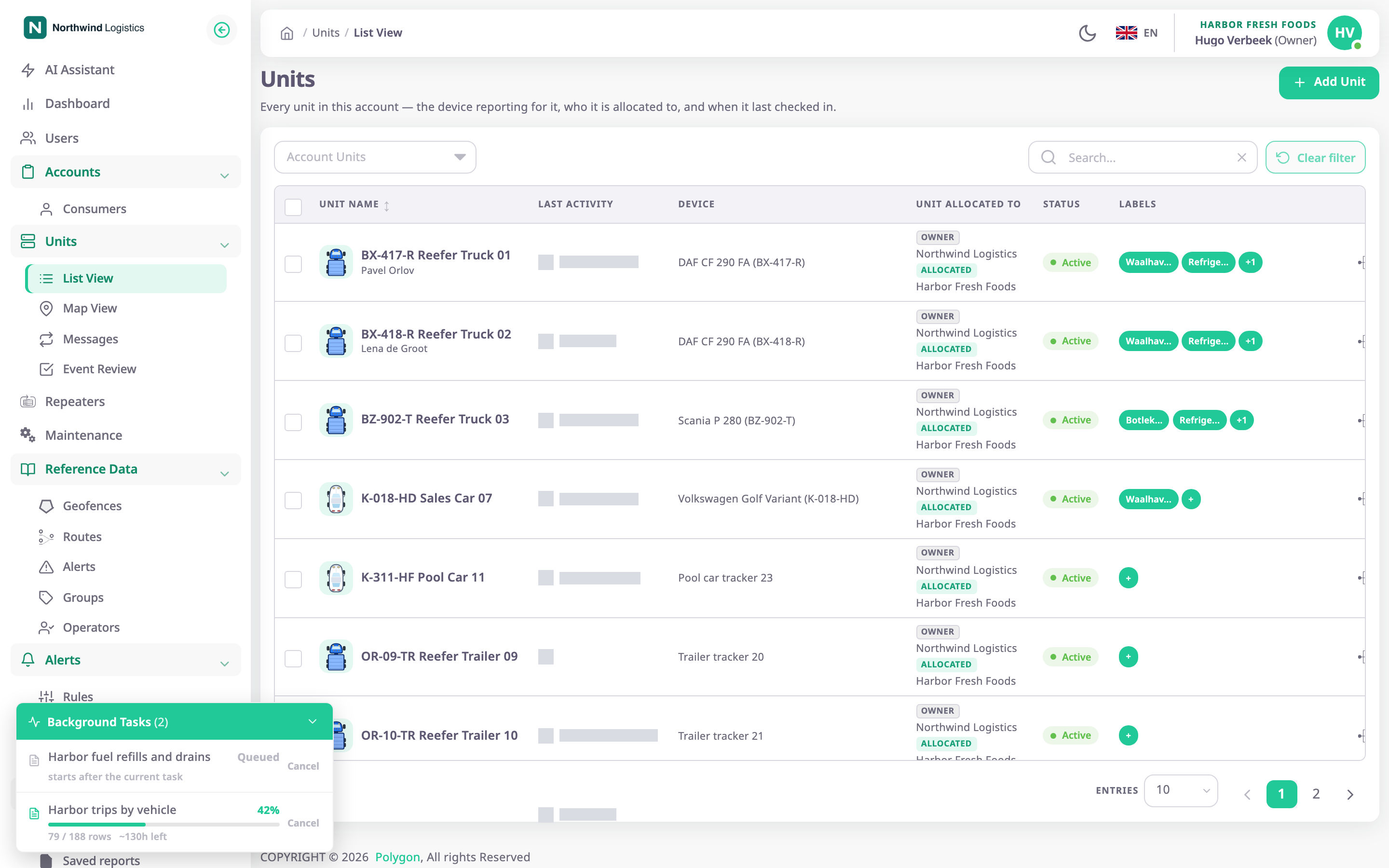
¶ Search and account filter

Add Unit, marked 1, opens the unit wizard. It appears only if your role can add units. See Add a unit.

| Control | What it does |
|---|---|
| Search... box, marked 1 | Finds units whose name contains what you type. The list updates a second after you stop typing. |
| Account Units, marked 2 | Shows only the units of one account below yours. Clear it to see every account again. It appears only if your role can read dealer or consumer accounts. |
| Clear filter, marked 3 | Empties the search and the account filter and returns to page 1. Entries keeps its value. Unavailable until you set a filter. |
The units list has no status filter.
The address bar keeps your search, account, page and page size. Copy the address to share the same view, or reload the page without losing it. When you come back to List View from the side menu, the list opens as you left it.
¶ Columns
| Column | What it shows |
|---|---|
| Checkbox | Selects the unit for an action on many units. See Act on many units at once. |
| Unit Name | The unit's icon, its name and, below it, the operator assigned to it. An archive icon means your account's allocation of the unit has ended; its tooltip reads "Unit is allocated to another account." |
| Last activity | A signal icon and when the unit last sent a message. The icon's tooltip says Connected if a message arrived in the last 5 minutes, otherwise No signal. |
| device | The names of the devices that report for the unit. |
| unit allocated to | The owner account, tagged Owner, and the account the unit is allocated to, tagged Allocated. If one account is both, it shows once with both tags. |
| Status | The record status: Active, Inactive, Damaged or Blocked. |
| labels | The unit's groups. See Labels on a row. |
| Actions | The row actions your role allows. See Row actions. |
Select the Unit Name header to sort the rows on the current page by name. Sorting does not reach other pages.
¶ Export the list
Export, left of Add Unit, saves the units you selected as a file. It offers two formats:
- Excel (.xlsx): a spreadsheet with one row per unit.
- PDF: opens the browser's print dialog. Choose to save as PDF there.
The export takes only ticked rows. Until you tick at least one unit, both formats are unavailable and the menu reads "Select rows to export". A line at the foot of the menu says what goes in the file, for example "The 3 selected records". After Select all {n} matching, the file holds every matching unit except the ones you unticked.
The file has these columns: Unit Name, Driver, Connection (Connected or No signal), Last activity, device, Owner, Allocated, Status and labels.
The checkbox column shows only to roles that can run at least one action on many units. Without it, you cannot tick rows, so Export stays unavailable.
| Message | Cause |
|---|---|
| "Too many records to export" | The export holds more than 10,000 rows for Excel, or more than 2,000 for PDF. Narrow the selection or the search. |
| "Exporting part of the list" | The server sent fewer rows than match. The file holds what arrived; the message gives both numbers. |
| "Nothing to export" | No unit matched. |
¶ Row actions

Which actions a row shows depends on your role and on who owns the unit.
| Action | Who sees it | What it does |
|---|---|---|
| Allocation | Roles that can edit units, unless your account is limited to its own records | Opens the Unit Allocation dialog. See Unit Allocation dialog. |
| Edit | Roles that can edit units, on units your account owns or that an account below yours owns | Opens the unit in edit mode. See Edit a unit. |
| View | Everyone who can read units | Opens the unit read-only. See Unit details screen. |
| Delete | Roles that can delete units, on the same units as Edit | Asks "Are you sure?", then deletes the unit. See Delete a unit. |

A customer account usually sees only Allocation and View, because its dealer owns the units. The dealer sees all four actions on the same units.
¶ Labels on a row
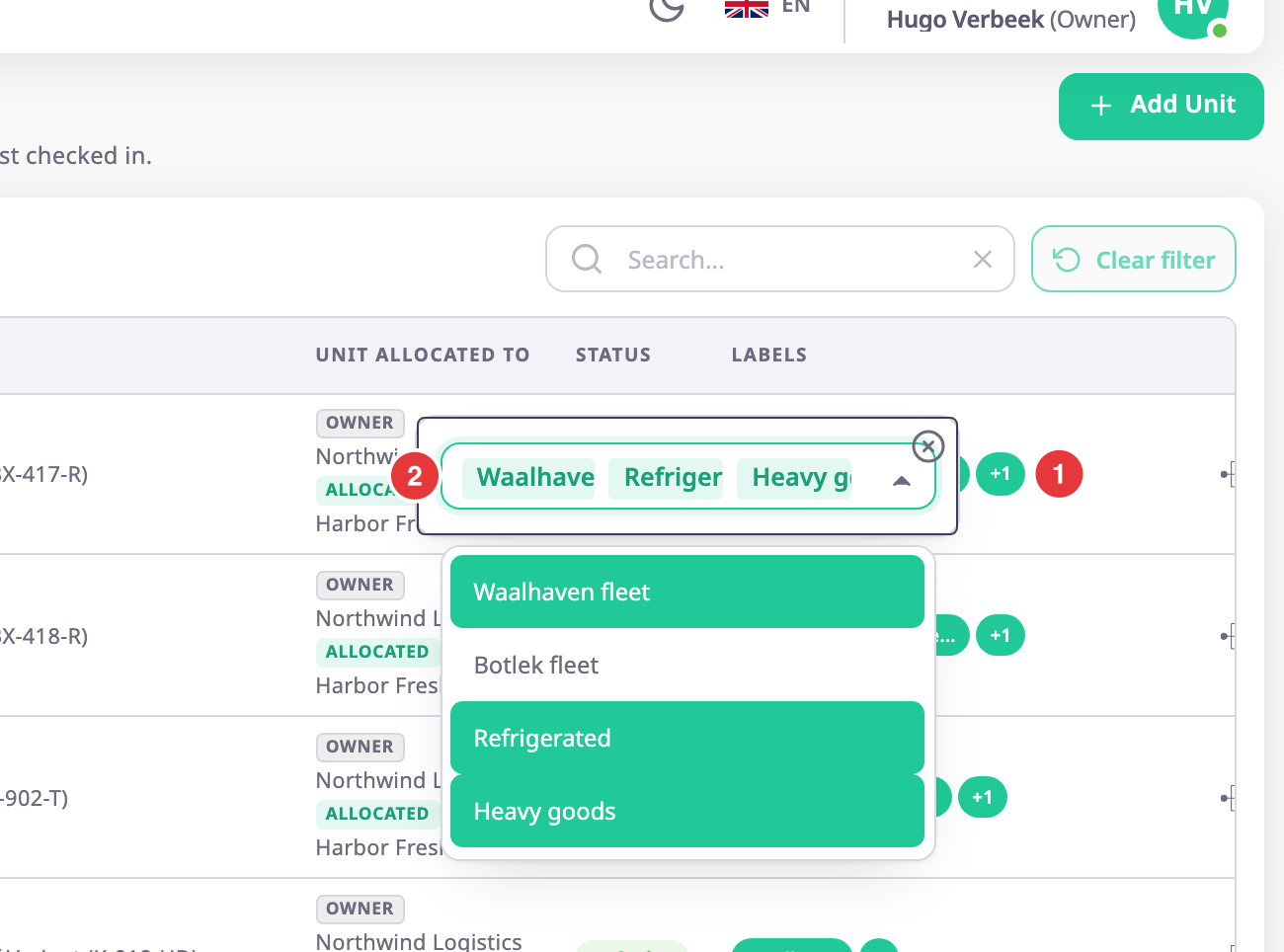
The labels column shows as many group pills as fit, each cut to seven characters. The last pill, marked 1, shows how many more there are, or a plus sign. Select it to open the label editor:
- Select the pencil to change the unit's groups. Pick a group from the list, marked 2, or type a new name and press Enter.
- Each change saves at once.
- The pencil appears only if your role can add or edit groups. Without it, the editor only lists the groups.
See Add units, geofences and more to a group.
¶ Act on many units at once
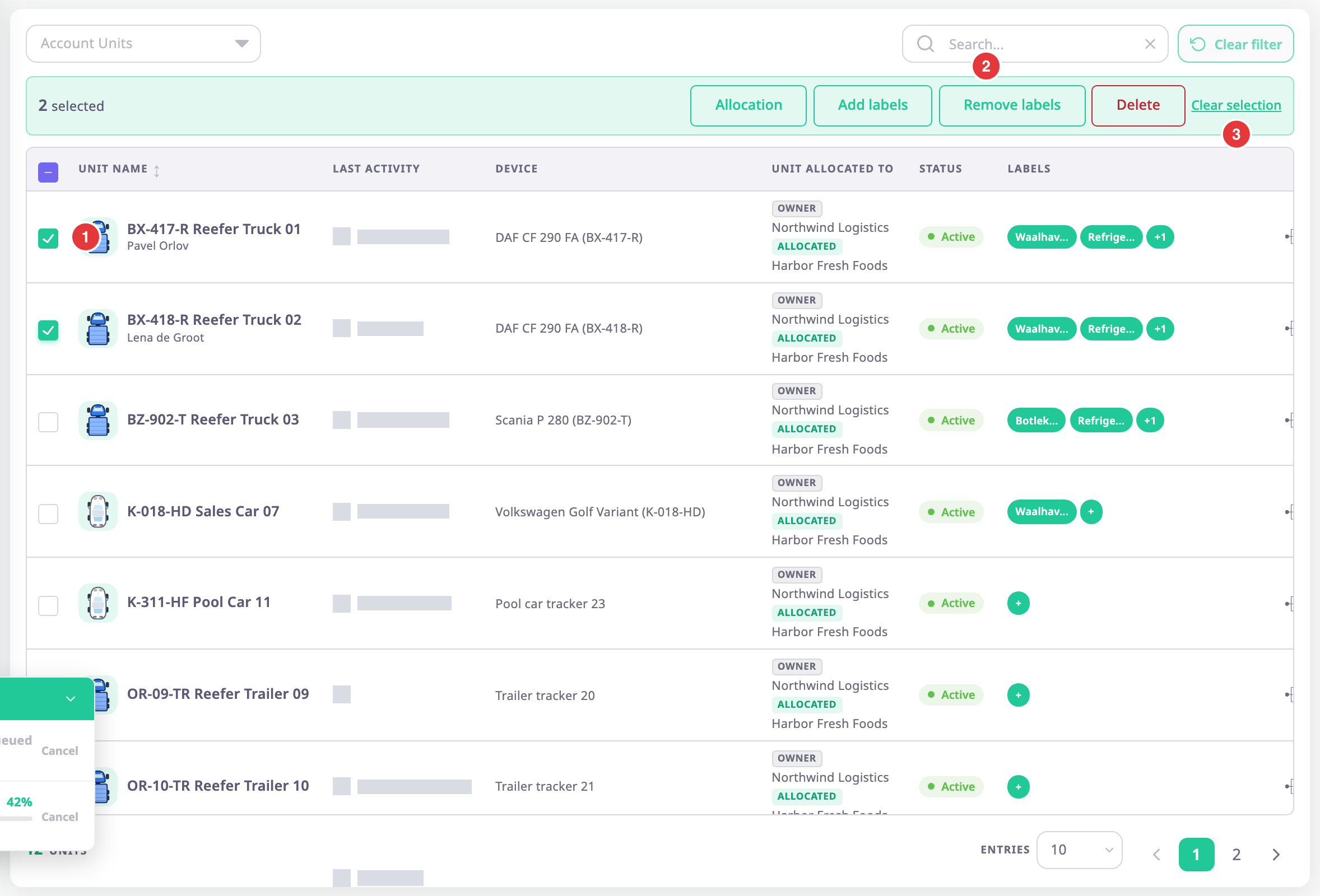
Select units with the checkboxes in the first column, then pick an action in the bar that appears above the table. The column shows only if your role can run at least one of these actions.
-
Tick the checkbox of each unit, marked 1.
The bar shows how many units you selected, and the actions, marked 2. -
Optional: to select every unit on the page, tick the checkbox in the header.
If more units match than the page shows, the bar offers Select all {n} matching, with the number of matching units. -
Select the action.
Delete opens a confirmation that states how many units it acts on. The other actions first open a dialog for their settings; select Save there to reach the confirmation.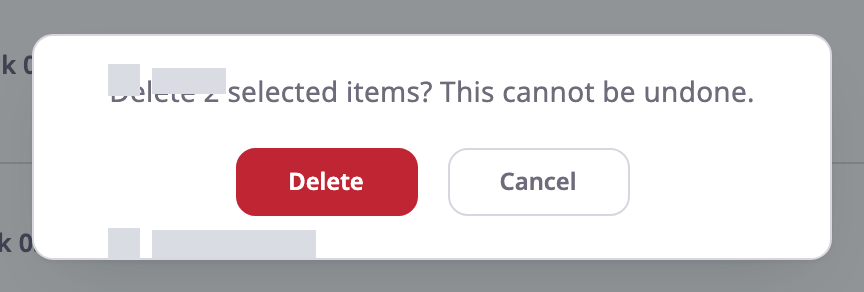
-
Select Delete or Yes to run it, or Cancel to stop.
The Result dialog lists how many units succeeded and failed.
| Action | What it does | Who sees it |
|---|---|---|
| Allocation | Opens the Unit Allocation dialog once for all selected units. See Unit Allocation dialog. | Roles with Units > Edit, unless your account has restricted sub-accounts |
| Add labels | Opens a list of groups. The app adds the groups you pick to every selected unit and keeps their other groups. Type a new name to create a group. | Roles with Units > Edit and Labels > Add |
| Remove labels | Opens the same list. The app removes the groups you pick and keeps the other groups. | Roles with Units > Edit and Labels > Del |
| Delete | Deletes the selected units. You cannot undo it. See Delete a unit. | Roles with Units > Del |
| Clear selection, marked 3 | Clears every checkbox. | Everyone who sees the checkboxes |
Things to know:
- Your selection stays when you move to another page of the list, so you can pick units from several pages.
- Changing the search or the account filter clears the selection, so an action never runs on units you no longer see.
- One action handles at most 100 units. Above that, the actions are unavailable and the bar reads "Select up to 100 items. Narrow the filter."
- The app runs the action unit by unit. A unit that fails does not stop the others, and the app does not undo the units that succeeded. The Result dialog names each unit that failed, with the reason.
- In the Result dialog, Select failed keeps only the failed units selected, so you can try again. Ok closes the dialog, reloads the list and clears the selection.
- The Result dialog can also count items as NA: the action changed nothing on them, for example removing a group a unit never had.
- If the server does not answer in time, a message says the batch may still be running. Reload the list before you try again.
¶ Paging and empty list
The footer shows the number of units and Entries, the number of rows per page: 10, 20 or 30. If no unit matches your search or filter, the list reads "No units match these filters".
¶ Permissions
- To open the list you need Units with Read. In the side menu, List View appears with Units > Menu.
- Add Unit needs Units > Add; Allocation and Edit need Units > Edit; Delete needs Units > Del.
- Actions on many units need the same permissions as the row actions. Add labels and Remove labels also need Labels > Add or Labels > Del. On the server, allocating many units also needs Devices > Read.
- The labels column needs Labels > Read.
- The Owner role has all of these.