Export and Import share one layout: a numbered list of steps on the left and one step at a time on the right. The two screens move device settings between units: sensors, commands, the trip detector, raw-data filters and fuel settings. They do not move units, devices, geofences or reports. To open them, in the side menu, select Import/Export, then Export or Import.
¶ Export step
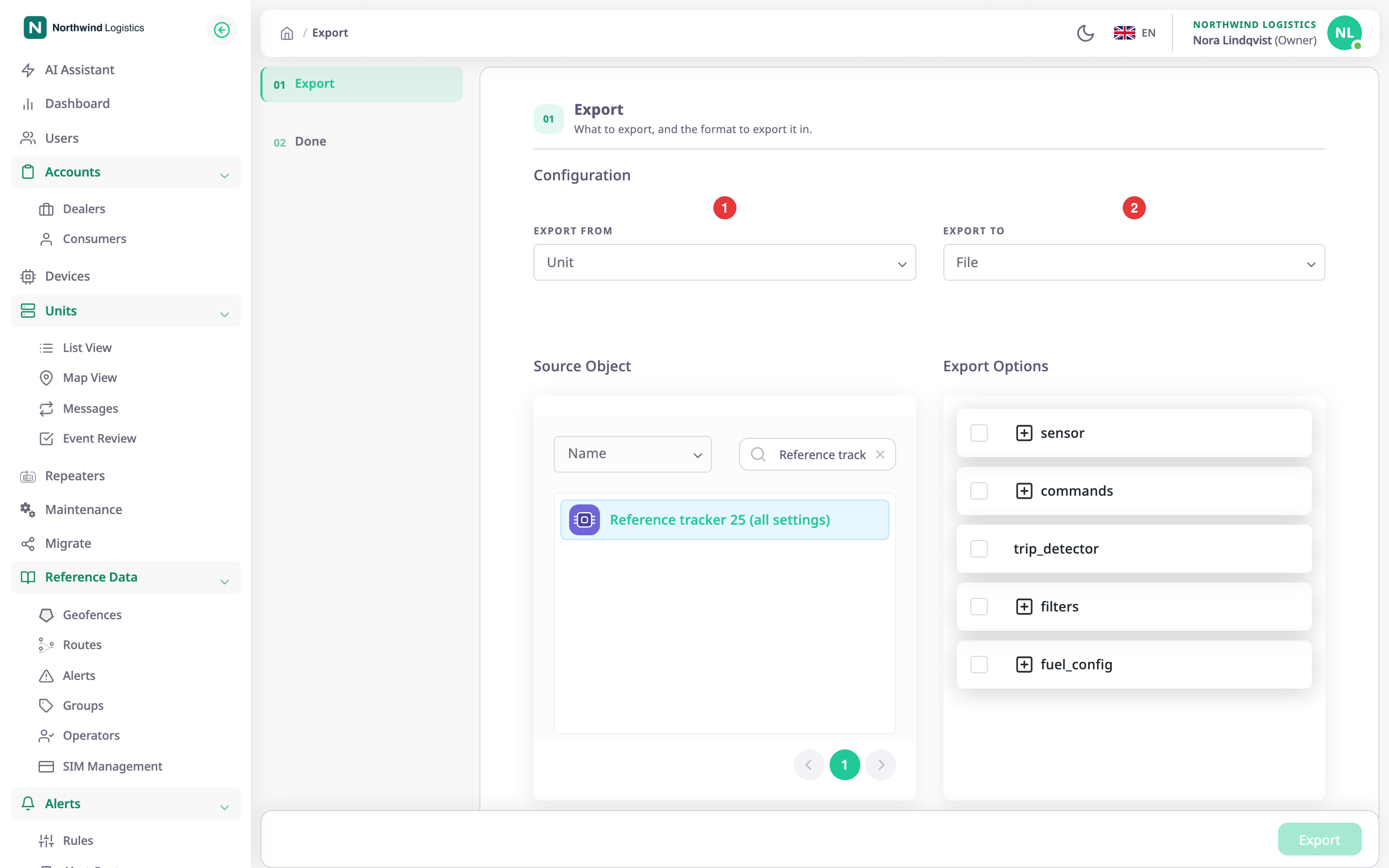
The step has the fields marked 1 and 2 above, then the source list and the settings tree.
| Field | Required | What it does | Allowed values / example | Notes |
|---|---|---|---|---|
| Export From, marked 1 | Yes | What you export from. | Unit | The only choice. |
| Export To, marked 2 | Yes | Where the settings go. | Two tiles: File or Object | File by default. File downloads a JSON file. Object adds an Import step that writes the settings to other units. |
| Source Object | Yes | The one unit whose settings you export. | One row of the list. Example: Reference tracker 25 (all settings) | Each row reads unit name / device name, with the manufacturer under it. A device without a unit shows its own name only. Choosing a row loads its groups. |
| Export Options | Yes | The groups of settings to export. | At least one box ticked | See Settings tree. |
¶ Search in the source list
Above the list, a field and a search box narrow it. Choose what to search by in the field: Name, Account, Identifier, Model Name or Manufacturer Name. Type in the search box; the list updates after you stop typing. With Account, two account lists replace the search box: Owner Account and Allocated Account. The list shows ten rows per page. Under it, the number of units and the page numbers.
¶ Import step
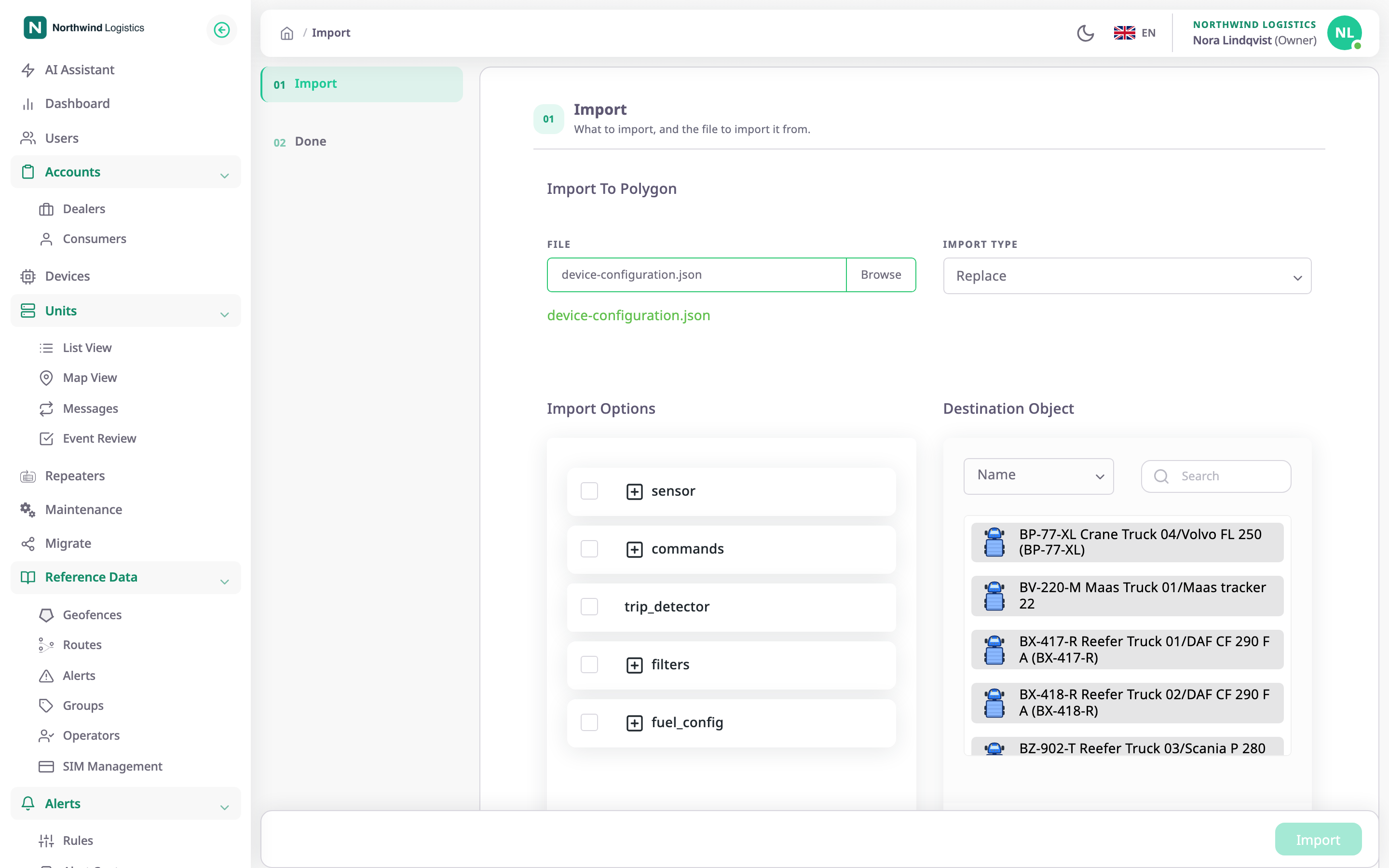
The heading above the fields names the product. The step is the first step of the Import screen. After an export to Object, it is the second step of the Export screen, with the file chosen for you.
| Field | Required | What it does | Allowed values / example | Notes |
|---|---|---|---|---|
| File | Yes | The configuration file to import. | A .json file from an export. Select Browse, or drag the file onto the field. |
Shows "Choose File.." until you pick one, and "Drop the file here" while you drag. Once loaded, a line counts the selected sections. After an export to Object, it shows a generated name such as export_1791430008350.json and you cannot change it. |
| Import Type | Yes | How the file's settings meet the settings the unit has. | Three tiles: Replace, Merge, Append | Replace by default. Each tile has a one-line description. See Configuration file format and import modes. |
| Import Options | Yes | The groups in the file to import. | At least one box ticked | Empty until a file loads. Every group starts unticked. |
| Destination Object | Yes | The units that receive the settings. | One or more rows | Search works as in Source Object. Rows whose manufacturer differs from the file's are greyed out and cannot be chosen. Their tooltip reads "A different device type from the one in the file". |
The list under Destination Object says "Device list not found." until a file is loaded.
¶ Settings tree
Export Options and Import Options show the settings as a tree of tick boxes.
- The top-level groups are Sensors, Command, Trip detector, Position filter and Fuel config. A group shows only if the source unit has it.
- Select the arrow at the end of a group to open it. A group holds one row per sensor, command or fuel setting. A count beside the arrow shows how many of its rows you ticked, for example 2/5.
- The panel heading shows how many groups you ticked, for example 3 / 5.
- Tick a group to tick everything inside it. Tick single rows to take part of a group. A group with only some rows ticked shows a partly filled box.
- Trip detector and Position filter have no rows to open: each is one setting.
¶ Buttons and actions
| Action | What happens |
|---|---|
| Export | On an export to File. Downloads a file named export_ and a number, ending in .json, and moves to Done. Unavailable until a source and at least one group are chosen. |
| Next | On an export to Object. Moves to the Import step. |
| Previous | On the Import step of an export to Object. Goes back to the Export step. |
| Import | Writes the ticked groups to every ticked destination and moves to Done. Unavailable until a file or source, a group and a destination are chosen. |
| Close | On Done. Returns to the Import/Export hub. |
¶ Messages
| Message | When |
|---|---|
| "Please choose a file." | You moved on without choosing a file. |
| "Please select a valid JSON file" | The file is not a JSON file. |
| "File Parse Error" with "The uploaded file is not a valid JSON file." | The file is a JSON file the app cannot read. |
| "No Configurations Found" with "The uploaded file does not contain any configurations." | The file has an empty configurations list. |
| "Configurations Imported Successfully" with "Imported N configurations from the file." | The file loaded. N counts the top-level groups. |
| "This field is required and cannot be empty" | You left Export Options, Import Options, Source Object or Destination Object empty. |
| "Validation Error" with "Please fill in all required fields and make selections." | You moved on with a required field empty. |
| Import Summary: "N devices imported successfully, M failed." | After an import. If any unit failed, the app shows it in a dialog that lists each failed unit and its reason; if none failed, it shows a message. |
| "Export Successful" or "Imported Successfullly" | The Done step. The second wording carries the catalogue's spelling. |
¶ Permissions
- Import needs Import/Export > Import and Devices > Read. Export needs Import/Export > Export and Devices > Read. Without them, the hub hides the card and the screen opens with "Un-authorized action".
- The server also needs Import/Export > Read to list units.
- Only dealer accounts have the Import/Export module. The built-in Owner role of a dealer account has all of it.