Devices or units? You choose units in this wizard, but the settings go to the tracking hardware behind each one.
Import a configuration file when you have settings from an earlier export and want them on one or more units. This changes the destination units at once.
Import Type starts on Replace. Replace overwrites the destination's sensors and commands with the ones in the file, for every kind of setting you tick. Change it to Merge or Append if the units already have settings you want to keep.
¶ Before you start
- You need Import/Export > Import and Devices > Read. The built-in Owner role of a dealer account has both.
- Have the file from an export. See Export a unit's configuration to a file.
- The destination units must have a device of the same manufacturer as the source of the file. Others are greyed out.
¶ Upload the file
- In the side menu, select Import/Export > Import.
The Import wizard opens. The heading above the fields names the product. - Under File, select Browse and choose your .json file. You can also drag the file onto the field.
The file name shows, with how many sections of the file are selected. The app reads it, shows "Configurations Imported Successfully" and fills Import Options with its setting groups.
If the app shows "File Parse Error", the file is not valid JSON. If it shows "No Configurations Found", the file holds no settings.
¶ Choose the import type
- Under Import Type, select the tile for how the file meets the settings on the destination.
- Replace: the file's settings take the place of the unit's own settings of the same kind.
- Merge: settings with the same name or code are overwritten, and the unit's other settings stay.
- Append: settings the unit lacks are added, and existing ones stay as they are.
The exact rules are in Configuration file format and import modes.
¶ Choose which settings to import
- In Import Options, tick the groups to import: Sensors, Command, Trip detector, Position filter or Fuel config.
- Optional: select the arrow at the end of a group to open it, and tick single rows to take part of it.
¶ Choose the destination units
-
In Destination Object, search for a unit and select it.
A tick marks the row. Repeat for every unit to change.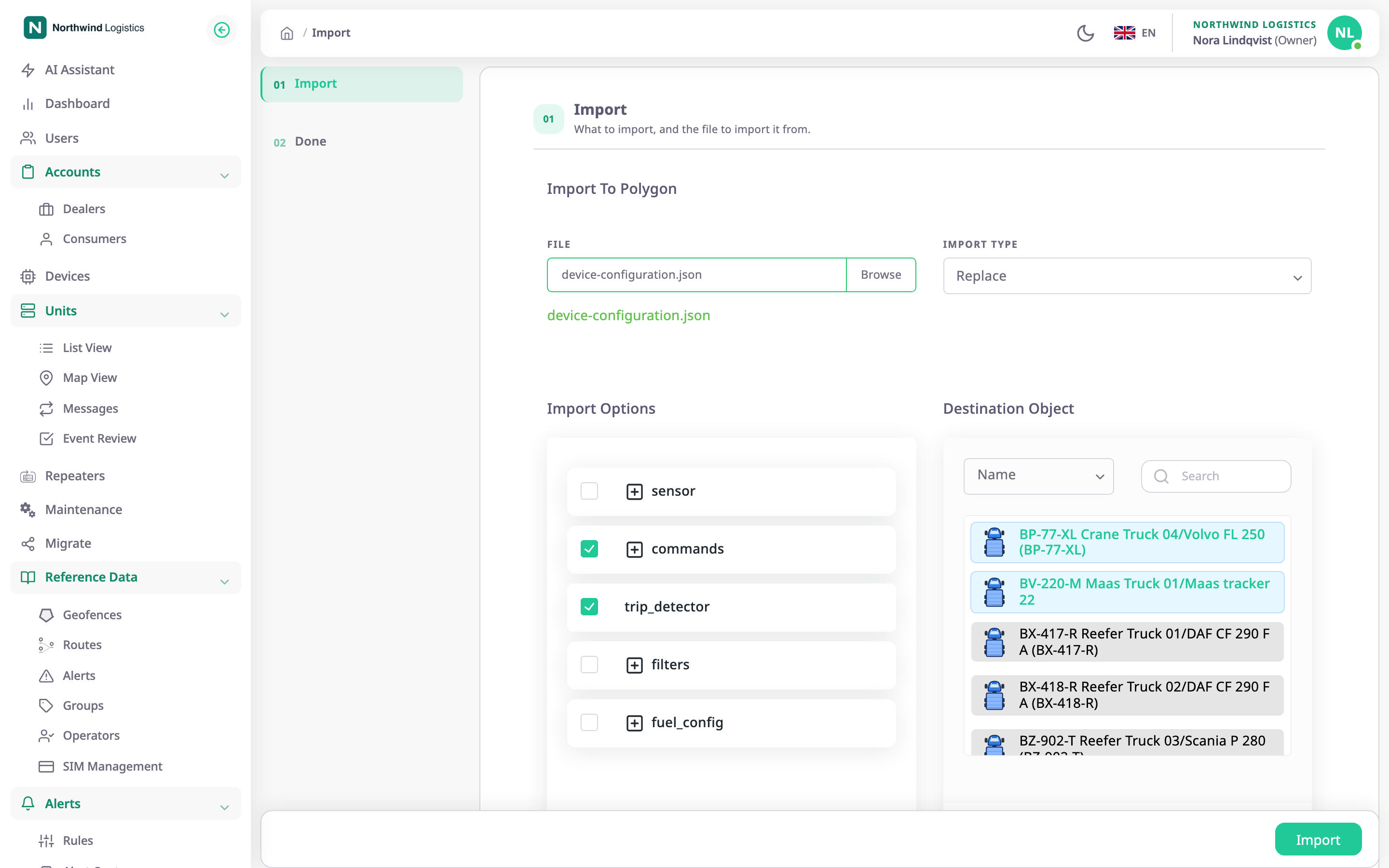
-
Select Import.
The app writes the settings to each unit and moves to Done.
¶ Read the import summary
- If every unit succeeded, the app shows "N devices imported successfully, 0 failed."
- If any failed, the Import Summary dialog opens with "N devices imported successfully, M failed." and one line per failed unit with its reason. Select Close, fix the cause and import again for those units.
On Done, select Close. The Import/Export hub opens.
¶ What happens next
- Each destination device has the imported settings. Parts that need a sensor the device lacks are skipped for that device without a message: trip detector and filters need a GPS sensor, fuel settings need a fuel sensor, video commands need a video sensor.
- An import to several units writes one unit after another. A failure on one does not stop the others.
- The wizard has no undo.